
This guide shows how to record the export and shipping details (ports, sales terms, bank account and shipping document numbers) on an invoice that goes overseas. The example is an export to Sydney shipped from Port Klang on FOB terms.
Before you start
- The Shipping Information tab appears only when the export option is switched on (see the tips).
- Have the ports, vessel number and shipping document numbers ready.
Steps
1. Open the Shipping Information tab
Open the sales invoice and go to the Shipping Information tab.
2. Choose the ports
Choose each port, the terms and the bank account from their lists, and type the shipping numbers. The lists come from Port, Terms of Sale and Bank Accounts in the Export masterfiles; add an entry there first if it is missing.
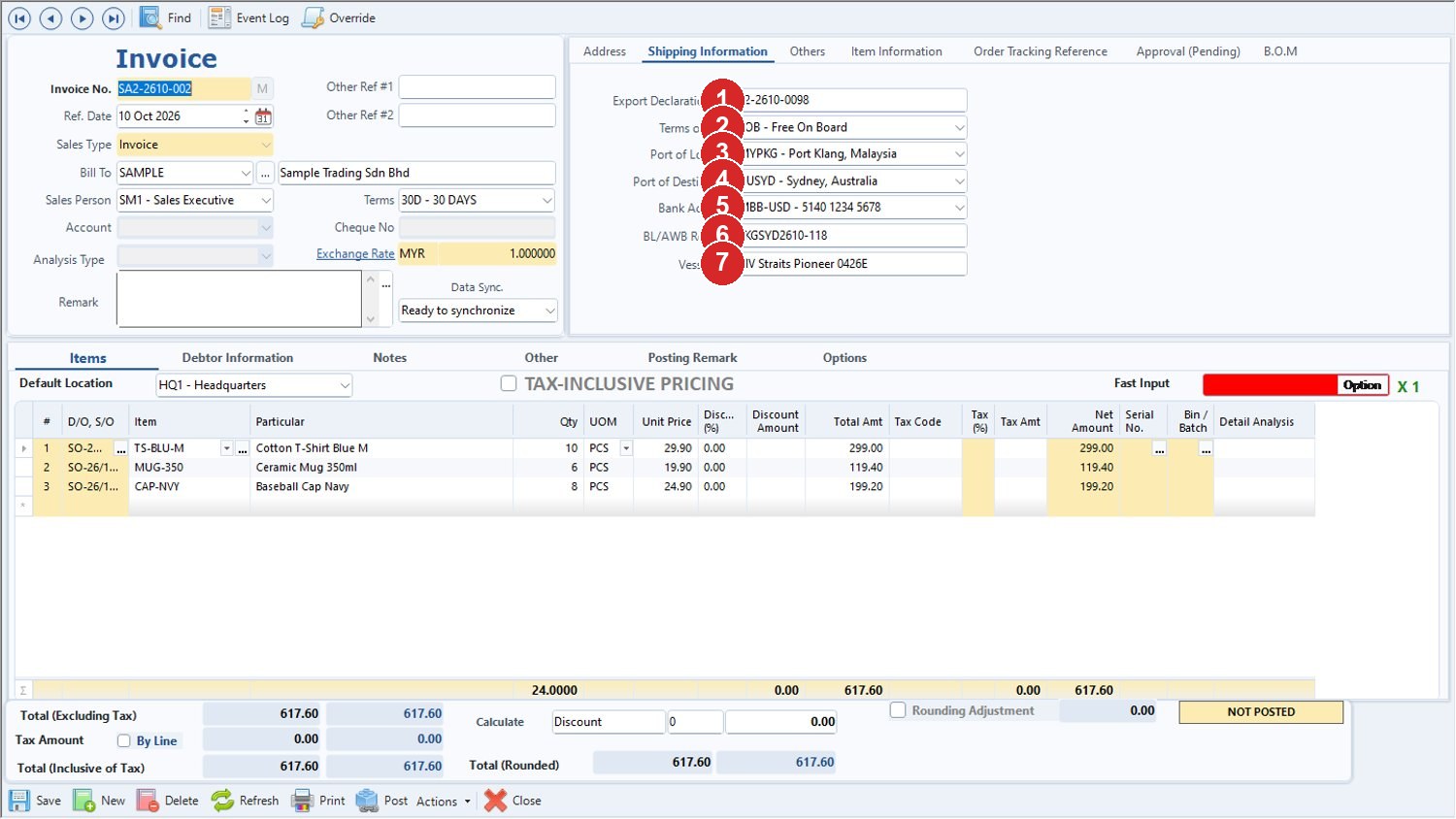
| Step | What to do |
|---|---|
| 1 | Export Declaration No. (here K2-2610-0098). |
| 2 | Terms of Sales (here FOB). |
| 3 | Port of Loading (here Port Klang). |
| 4 | Port of Destination (here Sydney). |
| 5 | Bank Account the customer pays into. |
| 6 | BL/AWB Ref. No. |
| 7 | Vessel No. |
3. Save the invoice
Click Save.
Tips
- To show this tab, tick Show fields for EXPORT industry. in System Settings > Show / Hide Columns. See the guide Show or Hide Columns and Choose the Address Style.
- The tab is also on the Debit Note and Cash Bill screens.
Common problems
I cannot see the Shipping Information tab
The tab appears only when Show fields for EXPORT industry. is ticked in the settings. Tick it, save the settings and open the invoice again.