
This guide shows how to let a customer pay one cash invoice through more than one account. The example cash bill of 617.60 is paid 400.00 by bank transfer, 117.60 at the payment terminal and 100.00 in cash.
Before you start
- The Split Payment tab appears only for cash sales (Sales Type = Cash).
- Know which accounts receive each part of the payment and the amounts.
Steps
1. Start a cash invoice
Open or start a sales invoice and set Sales Type to Cash. The Account field becomes available.
2. Enter the split accounts
Under Enter Additional Split Accounts & Amount, add up to two accounts. The two split amounts together must not be more than the invoice total.
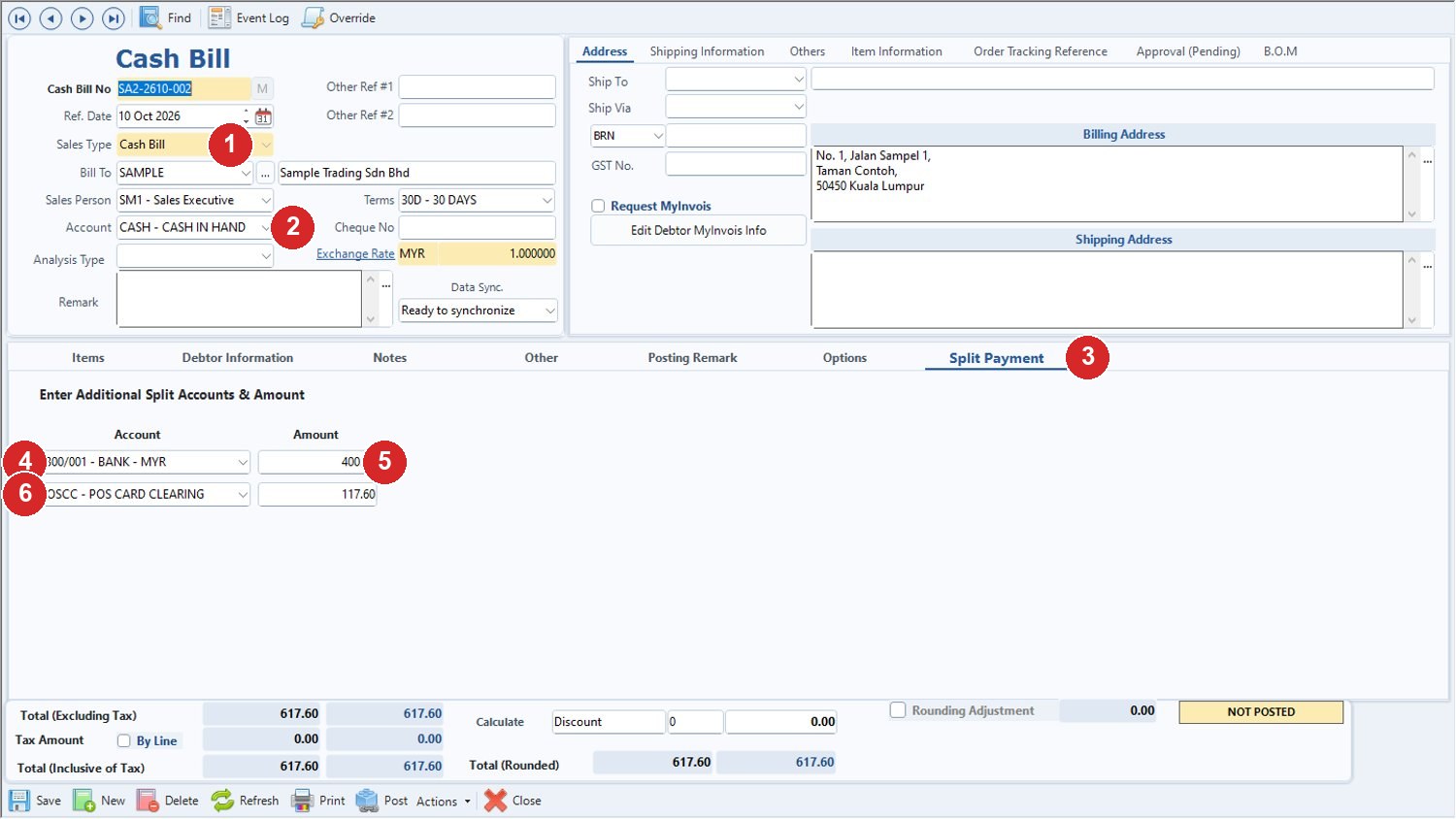
| Step | What to do |
|---|---|
| 1 | Sales Type: Cash Bill. |
| 2 | Account: where the rest of the money goes (here CASH – CASH IN HAND). |
| 3 | Open the Split Payment tab in the lower part of the invoice. |
| 4 | First extra Account (here 3300/001 – BANK – MYR for a bank transfer). |
| 5 | Its Amount (here 400.00). |
| 6 | A second extra account if needed (here POSCC for 117.60 paid at the payment terminal); the rest (100.00) goes to the cash Account. |
3. Save the invoice
Click Save. The two split amounts together must not be more than the invoice total.
Tips
- Besides the main payment (the Account on the invoice), you can use up to two extra accounts here.
- Split Payment is also on the Debit Note and Cash Bill screens.
Common problems
Split Amount cannot exceed Total Bill Amount.
Re-check each split amount. Together they must not be more than the invoice total.
I cannot see the Split Payment tab
It is shown only when Sales Type is Cash.