
Use this when each salesperson should see only their own debtors and their own quotations, orders, delivery orders and invoices, while the boss still sees everything. In Stock & Sales a “Salesperson” is the same as an Agent: it is stored on every document and on every debtor. The steps below set it up once; after that the lists are filtered for each salesperson automatically.
Before you start
- You need a login that can open System Settings, the Salesperson masterfile, the Debtor masterfile and Application Security.
- Each salesperson needs their own user login. If they do not have one yet, create it first under Main > Application Security > User.
- Decide which login is the boss or admin. That login must NOT be linked to a salesperson, because it must see everything.
Steps
1. Switch on the filter in System Settings
This tells the program to filter debtors by salesperson. If your licence includes the optional FilterDebtorByAgent module, that does the same job and you can skip this step.
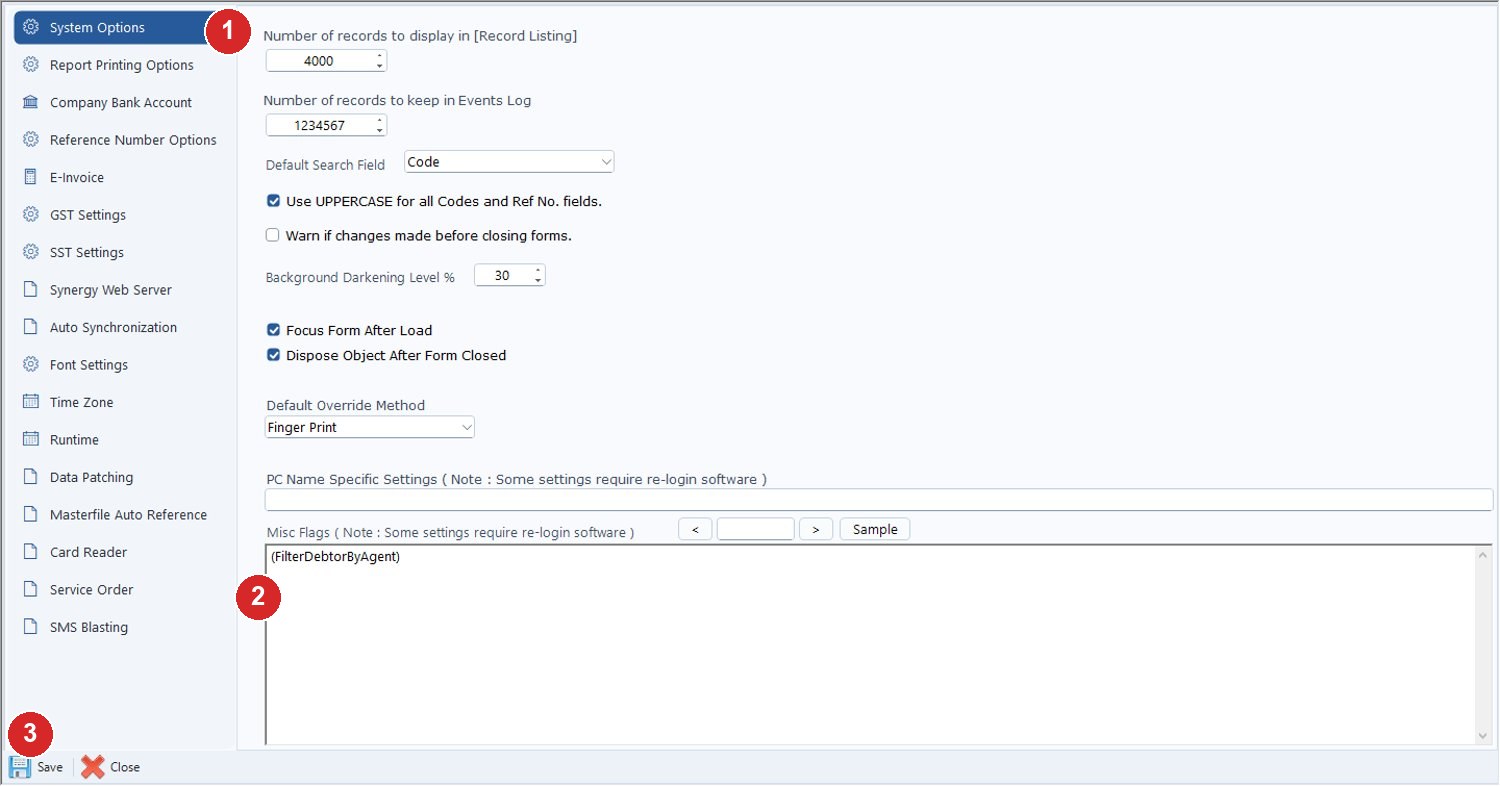
| Step | What to do |
|---|---|
| 1 | Open Main > System > System Settings (Main) and stay on System Options. |
| 2 | In the Misc Flags box, add a new line: (FilterDebtorByAgent). Keep the flags that are already there. |
| 3 | Click Save. |
2. Create a Salesperson for each person
Open Debtor Ledger > Masterfile > Sub-Masterfile > Sales Person and click Add New Record. Create one salesperson for each person who sells, and click Save after each one.

| Step | What to do |
|---|---|
| 1 | Type a short Code for the salesperson, for example SM1. |
| 2 | Type the name in Description. |
3. Set the Salesperson on each debtor
Open Debtor Ledger > Masterfile > Debtors and open a debtor. Do this for every debtor, because the salesperson only sees debtors that carry their own name.
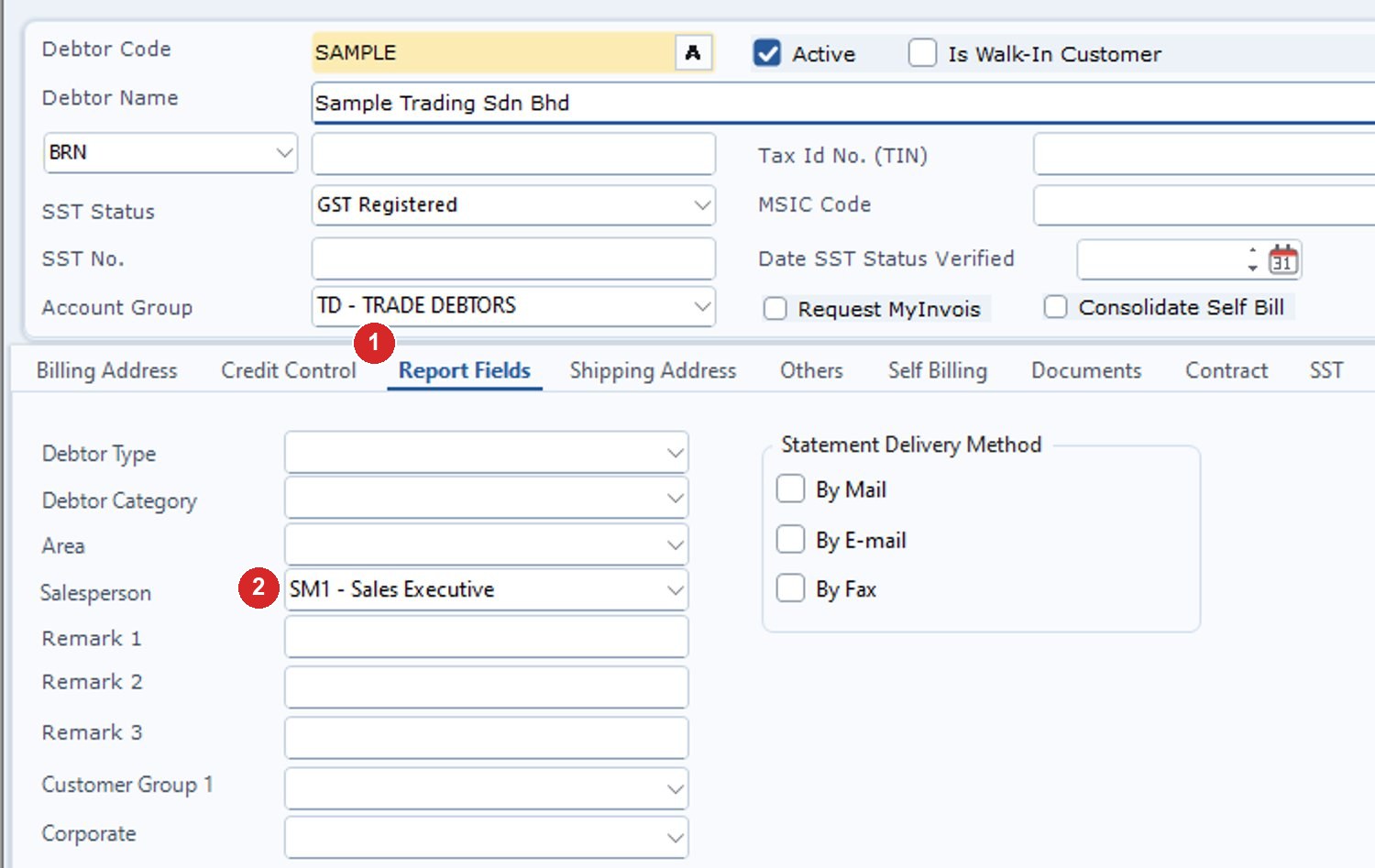
| Step | What to do |
|---|---|
| 1 | Click the Report Fields tab. |
| 2 | In Salesperson, pick the person who looks after this debtor, then click Save. |
4. Link each user to a Salesperson
Open Main > Application Security > User Default Settings and click Add New Record (or Edit Record to change an existing one). Click Save when done. Do this for every salesperson user. Do not do it for the boss or admin user: leave that user without a salesperson so the boss sees everything.
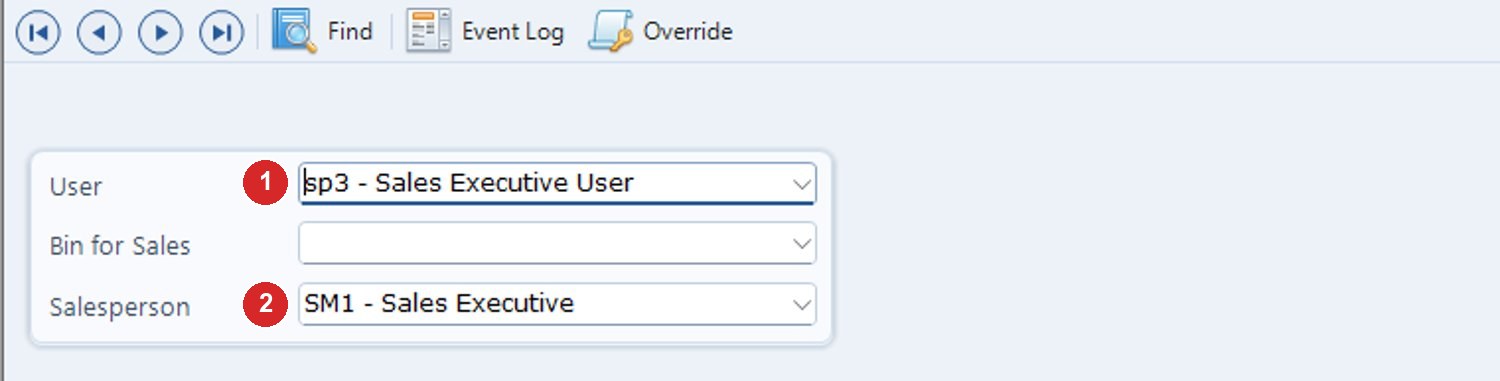
| Step | What to do |
|---|---|
| 1 | In User, pick the user’s login. |
| 2 | In Salesperson, pick that person’s salesperson. |
5. Optional: make Quotation and Delivery Order start with the salesperson
Open Main > Application Security > User and open the salesperson’s user. On the Miscellaneous tab, type the flag below in User Flag, using the SAME salesperson code as in the previous step (here SM1), then click Save. New Quotations and Delivery Orders then start with that salesperson. Do NOT put this flag on the boss: it would replace each debtor’s salesperson with the boss’s.
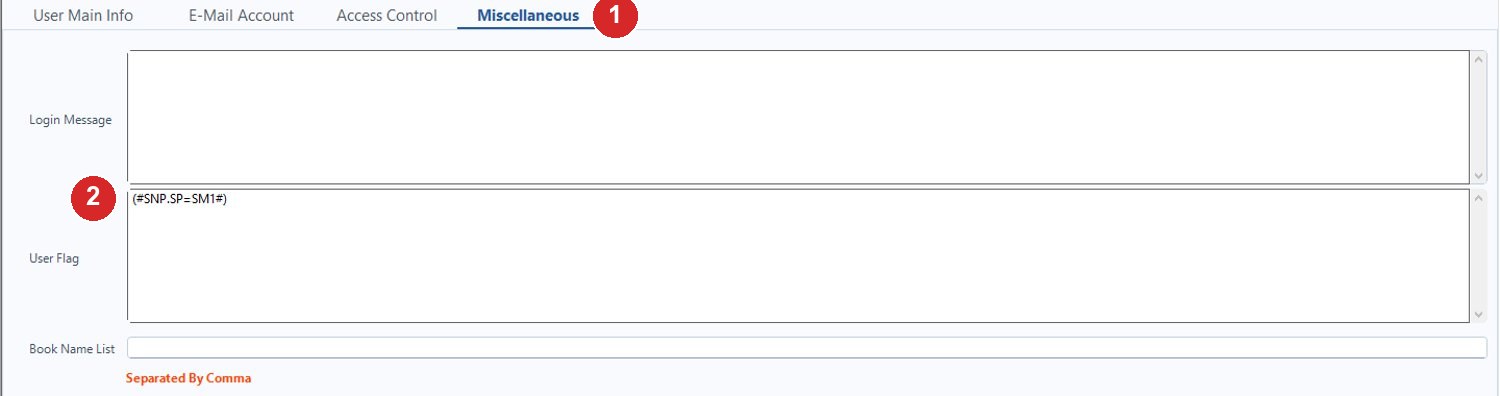
| Step | What to do |
|---|---|
| 1 | Click the Miscellaneous tab. |
| 2 | In User Flag, type (#SNP.SP=SM1#), with the code of that user’s salesperson in place of SM1. |
6. Log in again and check
The setting is read when a user logs in, so every salesperson must log out and log in again after any change. Then check as a salesperson. The Debtor list shows only their debtors, and a new debtor gets their salesperson, which they cannot change. The lists of Quotation, Sales Order, Delivery Order, Invoice (cash and credit), Debit Note, Return Inward and adjustments show only documents carrying their salesperson, including documents the boss entered for their debtors. In Sales Order and Invoice the debtor drop-down and browse show only their debtors, and the salesperson is filled in and locked. The AR Statement and Aging report options can also filter by salesperson.
Tips
- On Quotation and Delivery Order the debtor list is NOT filtered and the salesperson is NOT locked. Only the lists of those documents are filtered.
- These are NOT filtered by salesperson: the debtor ledger screens (AR invoice, credit note, debit note and receipts), Cash Book and stock queries.
- If a document’s salesperson is changed to someone else, it disappears from the original salesperson’s list.
- A manager does not see the documents of other salespersons in the lists. Only a login without a salesperson sees everything.
- On older versions, do not combine this with the (FilterTrxByUserLocation) flag: together they made the document lists fail with an SQL error.
Common problems
A salesperson sees no debtors.
Check that the debtor has a Salesperson (Debtor masterfile, Report Fields tab), that the user is linked to the right salesperson in User Default Settings, and that the user has logged out and in again.
The salesperson still sees every debtor.
Check that (FilterDebtorByAgent) is in the Misc Flags box of System Settings (or that your licence has the FilterDebtorByAgent module), and log in again.
The boss sees only one salesperson’s debtors.
The boss login has been linked to a salesperson in User Default Settings. Remove the salesperson from the boss’s line there so the boss sees everything. (The (#SNP.SP=…#) User Flag does not filter anything; it only fills in the salesperson on new documents.)
Documents the boss enters get the boss’s salesperson instead of the debtor’s.
The boss user carries the (#SNP.SP=…#) User Flag. Remove it from the boss’s User Flag.
A document the salesperson made is no longer in their list.
Its salesperson was changed to someone else. Open the document as the boss and check the Salesperson field.
The document lists show an SQL error.
On an older version this happens when (FilterTrxByUserLocation) is used together with this filter. Remove (FilterTrxByUserLocation) until the program is updated.