
This guide shows how to send documents and messages from Synergy Acc2026 by e-mail, WhatsApp or SMS. It covers debtor statements and validated e-invoices, and what to check if e-mails do not send.
Before you start
- An e-mail account set up for sending (a sender mailbox). E-mail from the system needs e-mail settings on the main PC.
- The owner of the sender mailbox, available in case Synergy support needs to set it up.
- For debtor statements: an e-mail address entered for each debtor.
- For e-invoices: the e-invoice status must be Valid.
- For SMS: SMS credit bought from the vendor.
Steps
1. Set up e-mail sending
E-mail from the system needs e-mail settings on the main PC with a sender mailbox. If this is not set up yet, contact Synergy support. Have the sender mailbox ready and its owner present.
2. Tick By E-mail on each debtor
Go to Debtor Ledger > Masterfile > Debtors and open the debtor. Make sure the debtor has an e-mail address. Only one e-mail address per debtor is sent.
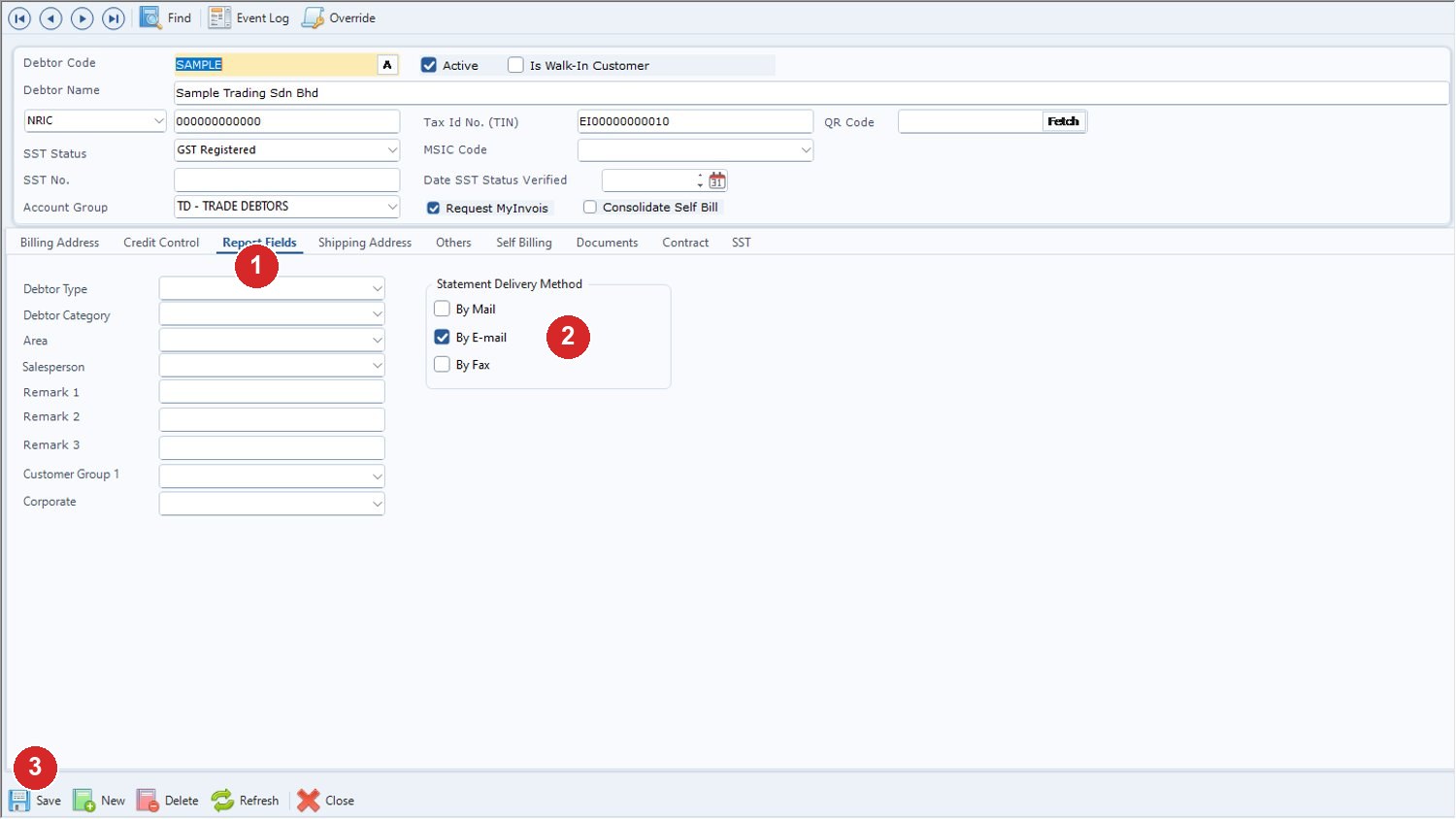
| Step | What to do |
|---|---|
| 1 | Open the Report Fields tab. |
| 2 | Statement Delivery Method: tick By E-mail. |
| 3 | Click Save. Do this for each debtor who should get statements by e-mail. |
3. Generate the statement e-mails
Go to Debtor Ledger > Reports > Documents > Statement of Account [Offset]. The line under the button shows which mailbox the e-mails are sent from.
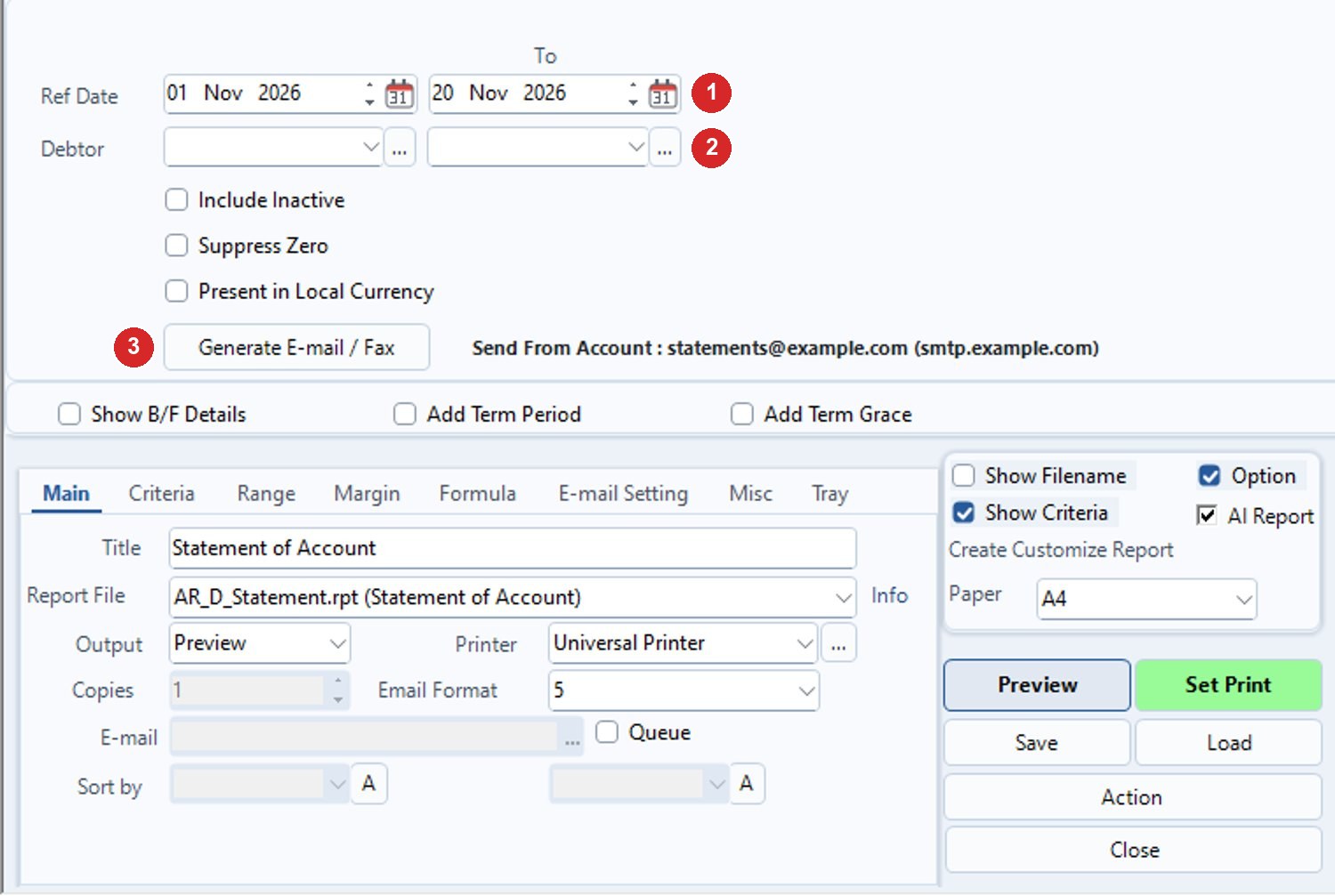
| Step | What to do |
|---|---|
| 1 | Ref Date: the statement period. |
| 2 | Debtor: leave both empty for all debtors, or choose a range. |
| 3 | Click Generate E-mail / Fax. |
4. Choose who receives the e-mail
Select Debtor for sending Email lists the debtors with By E-mail ticked and their e-mail address. Click Cancel to stop without sending.
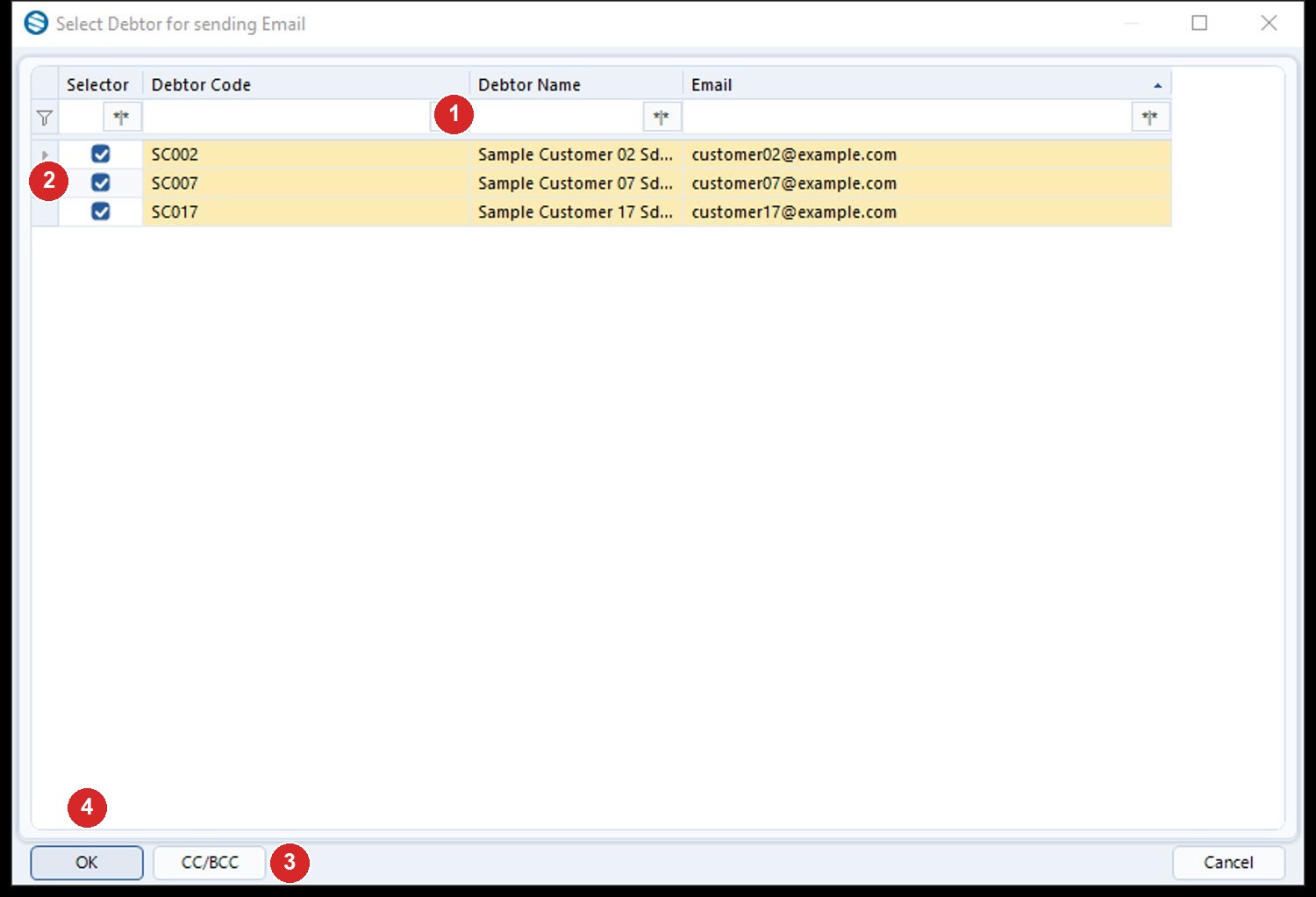
| Step | What to do |
|---|---|
| 1 | Type in the filter row to narrow the list. |
| 2 | Selector: every debtor comes ticked; untick the ones who should not get it now. |
| 3 | CC/BCC shows the CC E-mail and BCC E-mail boxes. |
| 4 | Click OK. The statements are e-mailed (or queued, see View Pending Email below). |
5. Check e-invoices are Valid
To e-mail e-invoices to customers, first make sure the e-invoice status is Valid.
6. Generate the e-invoices for e-mail
Click Action > Send email > Generate E-Invoice for E-mail, then OK. You must press Generate first.
7. Set the date range
Set the E-Invoice Ref Date range, for example one month. Leave E-Invoice Ref empty for all. Large ranges are slow, so limit by date.
8. Choose Email
Choose Email (not Export). Tick ‘include sent’ only if you want to resend invoices that were already sent.
9. Check queued e-mails
Go to Main > System > View Pending Email to see queued e-mails. Queued means waiting to send. Check that the Gmail account is set up.
10. Leave out one customer
To exclude one customer, search the name and untick all their rows.
11. Send an invoice by WhatsApp
A Google link can show the invoice as a PDF for sharing in chat. It needs a Google account and WhatsApp Web. Contact Synergy support to set this up.
12. Send an SMS or e-mail blast
For an SMS blast, buy SMS credit from the vendor, then use the SMS Blasting Tool. Synergy support can send you the guide. For an e-mail blast, set up e-mail settings first, then follow the Email Blasting guide.
Tips
- Credit notes sent to customers must also be submitted and validated.
- By Mail means a printed letter and by Fax is obsolete. Ticking both together is fine.
- Only one e-mail address per debtor is sent.
- For e-invoices, large date ranges are slow, so keep the range short.
- For a memo or subject, write it, then Preview = Save. Only one subject can be stored.
- The CC E-mail and BCC E-mail boxes are hidden until you click CC/BCC.
- The selection list is for ticking only; you cannot edit the details in it.
Common problems
E-mails stay in Queue or the nightly report stopped arriving
Check the e-mail sender setting. If Google blocked the login, ask Synergy support to reset the Gmail settings, then resend. Have the dates missed ready.
A document will not e-mail
Make sure the output is set to E-Mail and the debtor has an e-mail address.
The software freezes while sending
Restart the software.
Daily reports were missed
Redo the closing for the dates that were missed.
E-mail still fails
Restart the router or modem (in one case this took about 1 hour), or try a phone hotspot. In one case e-mail only worked through a phone hotspot.
Debtor statement does not send
Open the debtor and tick the by-Email setting, then go to Statement of Account and choose Generate Email.
Customer did not receive the e-invoice e-mail
Check the status is Valid, the Generate step was done, the date range is not too wide, and the e-mail account is set up. If no e-mail account is set, contact Synergy support.
No Email column in the selection list
The column is hidden when no e-mail addresses are supplied. Check that the debtors have e-mail addresses.
CC E-mail and BCC E-mail boxes are not visible
Click CC/BCC to show them.