
For items tracked by serial number, you enter the serial numbers on the document line where stock comes in, goes out or is transferred, and on the point-of-sale screen when you sell. Afterwards you can trace any serial number with the Serial Number Tracking Query. This guide shows each step.
Before you start
- The item must be one that is tracked by serial number.
- The serial number screens have no menu entry of their own. They open from the document line or from the point-of-sale sale line.
- Serial numbers are entered with the quantity of the line in mind: the count of serial numbers should match the quantity.
Steps
1. Review or correct an item’s serial numbers
In the Item Masterfile, click the serial number (SN) button on the item’s line in the item lines grid. The grid lists the item’s serial numbers. Tick Include Issued and click Refresh to also see serial numbers already issued out. To add serial numbers, type them in new grid rows. Edit the Serial Number cell to correct a number, then click Save.
2. Enter serial numbers when stock comes in
On a line of Stock Adjustment, Goods Received, Invoice Received or Credit Note / Return Inwards, open the serial number screen and enter the numbers in the grid. To create several at once, type the first number in Serial Number Range From, set how many in the box beside Add Range, and click Add Range. Click OK to return to the document, or Cancel to close without keeping the entries.
3. Enter serial numbers when stock goes out
On a line of Stock Adjustment or Delivery Order (and also Return Outwards / Supplier’s Credit Note and Sales Invoice), type the serial numbers into the grid under Selected Serial Number, or use Serial Number Range From with Add Range. Click OK to confirm. Numbers shown in red are not in the list of available serial numbers.
4. Enter serial numbers on a stock transfer
On a Stock Transfer line, type the serial numbers in the grid under Serial Number Input, or type the first one in Serial Number Range From and click Add Range. Click OK.
5. Enter serial numbers on the point-of-sale screen
When you sell an item tracked by serial number, the serial number screen opens for the sale line. Type each serial number in the Selected Serial Number list, one per row, until the count matches the quantity sold. Click OK to confirm.
6. Handle the quantity message
If you see Quantity does not match the serial number count, the message shows Quantity Required and S/N Entered. Add or delete rows, or choose to update the quantity to follow the serial number count, ignore the difference, or cancel.
7. Track a serial number
Go to Inventory Management > Query > Stock Query > Serial Number Tracking Query. Enter a Serial Number, or choose an Item, Debtor or Location to narrow the list. Tick Hide Issued Serial No. to show only serial numbers that have not been issued out. Click List.
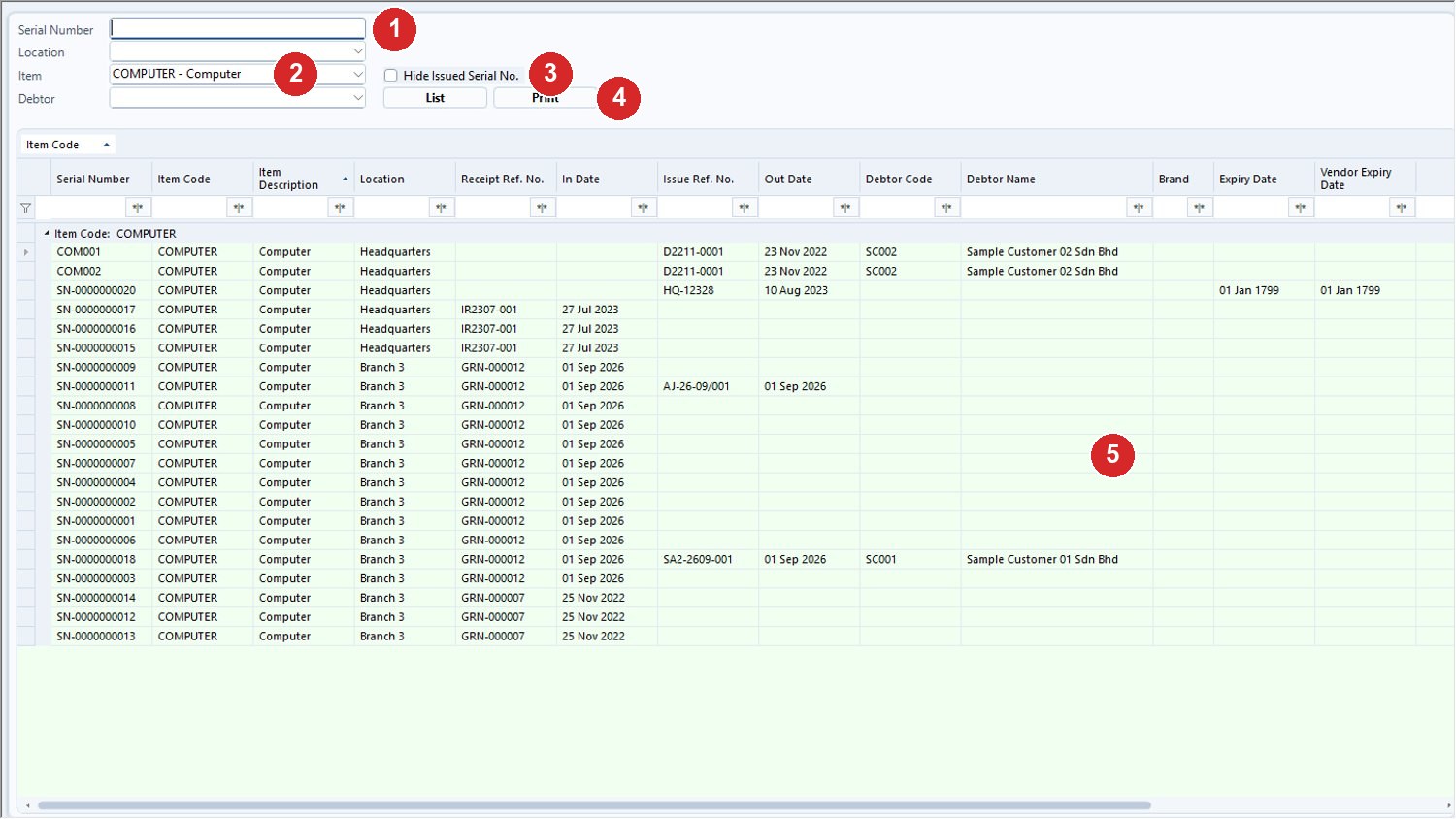
| Step | What to do |
|---|---|
| 1 | Serial Number. |
| 2 | Item (here COMPUTER); Location and Debtor narrow it further. |
| 3 | Hide Issued Serial No. |
| 4 | List (Print prints the result). |
| 5 | Each serial number with its receipt and issue documents. |
8. Open the related document
Click the receipt or issue document reference in a row to open the related document. Click Print to print the result.
Tips
- Each serial number can appear only once in a list. A repeated number is refused or listed in a duplicate warning, depending on your inventory settings.
- Whether duplicate serial numbers are allowed, and where the cursor starts when the screen opens (on the grid or on the range box), are inventory settings. The Action button lets you choose the cursor position.
- On a stock-in screen, a message such as Serial Number already attached to a document number means the number is already on another stock-in document.
- Duplicate warnings ask Do you still want to proceed? Answer Yes to keep the entries anyway, or No to go back and correct them. Depending on the setting, a supervisor’s permission may be asked instead.
- On the stock transfer screen, numbers that are probably not in stock at the source location are reported as invalid.
- On the point-of-sale screen, Cancel (or ESC) runs the same checks as OK and keeps the serial numbers listed, so it does not discard what you entered.
- In shops that use serial-number locking, selected serial numbers are held for a set time so another terminal cannot sell them at the same time. In that mode the Add Range boxes are not shown, and on a new document the line must be saved before serial numbers can be added.
- In the Serial Number Tracking Query, the cost columns are hidden if your user is not allowed to view cost, and the price column is hidden if your user has no permission to view price.
Common problems
Serial No. must be entered for every row.
An empty row exists. Fill it or delete it.
A serial number is missing from an item’s list.
Tick Include Issued and click Refresh.
I cannot edit or delete a row in the item’s serial number list.
The row is shaded and locked, so it cannot be changed.
The message [Serial Number] already exist appears.
The number is already on the list. Use a different number.
Failed to lock Serial Number.
Close the screen and choose the serial numbers again. This only happens in shops that use serial-number locking.
Invalid Serial Number on the point-of-sale screen.
The number is not in the stock list. Depending on your shop’s setting, it is refused, or accepted after a question or a supervisor’s permission. In shops that lock serial numbers, it may be locked by another terminal.
Issued serial numbers are missing in the Serial Number Tracking Query.
Untick Hide Issued Serial No.
I cannot see cost or price in the Serial Number Tracking Query.
Ask your administrator to give your user the right.
The message DocType not handled appears.
The document linked to that row cannot be opened from the query.