
This guide shows how to prepare and record the monthly SST (sales and service tax) submission, how to handle SST on invoices outstanding over 12 months, and how to work out the transition debit note for invoices raised before March 2024.
Before you start
- SST submission: Main > SST/GST > SST Tax Return > SST Tax Return.
- The transition debit note has no menu entry of its own. While you create a new debit note (debtor debit note or stock debit note), click the Issue DN for Transition SST 8% button.
- Submit to the online SST portal before you post here.
Steps
1. Set the period and list the transactions
Go to Main > SST/GST > SST Tax Return. On the SST Submission tab, set From and To. The list always covers whole months, from the first day of the From month to the last day of the To month. Click List. Outstanding Task shows documents in the period that still need attention, such as ones not posted yet; click Source to open one. Problems go on the Error tab.
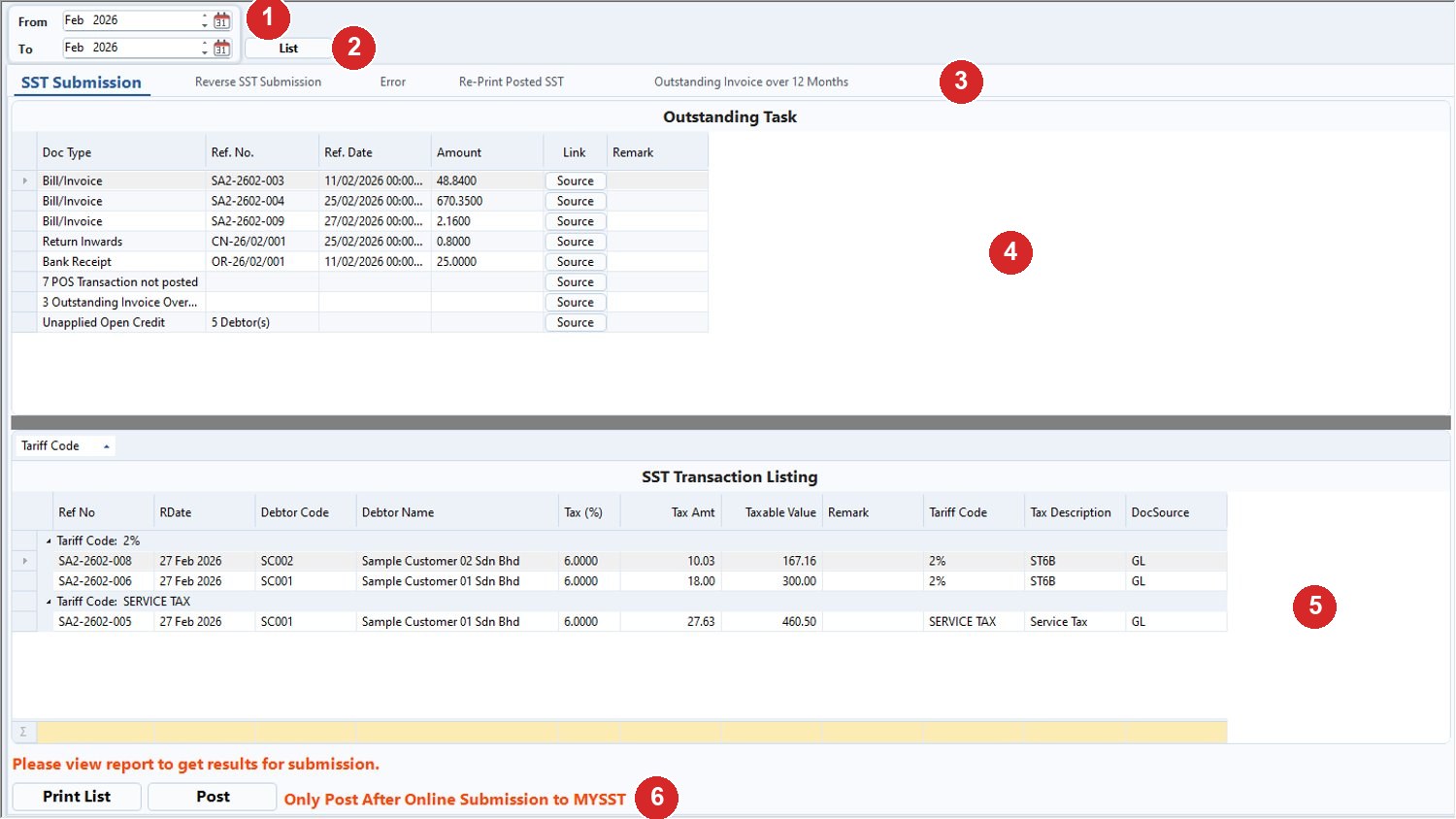
| Step | What to do |
|---|---|
| 1 | From and To (whole months; here February 2026). |
| 2 | List. |
| 3 | Tabs: Reverse SST Submission, Error, Re-Print Posted SST, Outstanding Invoice over 12 Months. |
| 4 | Outstanding Task: documents still to deal with for the period (Source opens one). |
| 5 | SST Transaction Listing by tariff code. |
| 6 | Print List, then Post only after the online submission. |
2. Print the list for the online submission
Click Print List. The screen says Please view report to get results for submission. Use this report to enter the figures on the online SST portal.
3. Submit online first, then post
The screen warns Only Post After Online Submission to MYSST. After you have submitted online, click Post to record the submission in the program. The message SST Submission posted successfully. confirms it.
4. Reverse or re-print a posted submission
On the Reverse SST Submission tab, click Select, choose the posted period and confirm by typing the 4-digit code shown. To print a posted submission again, use the Re-Print Posted SST tab and click Select Posted SST for Re-Print.
5. Handle invoices outstanding over 12 months
On the Outstanding Invoice over 12 Months tab, use the Post and Reverse tabs, each with List. Tick the invoices first. Unpaid invoices with SST that are over 12 months can be posted so the tax is accounted for, or reversed again. Type the 4-digit code shown to confirm.
6. Start a transition debit note
While creating a new debit note, click Issue DN for Transition SST 8%. Set Invoice Date (it starts at 1 February 2024 to 29 February 2024, with the date boxes unticked). Tick Include Invoice with posted Debit Note if you also want to see invoices that already have a debit note. Click List.
7. Check the amount and adjust the service value
If needed, edit the service value on a row. It cannot be higher than the invoice total. The debit note amount and remark update right away. Click the remark to read how the figure was worked out.
8. Load the invoice into the debit note
Click the debit note button on the row. The screen closes and the debit note gets the debtor, the remark and the link to the invoice. The amount is not filled in: a message shows the amount, and you must key it in yourself. On the debtor debit note screen the message also says to set the Item Account Code to SST Payable 8% and to make sure no Tax Code is selected in the row.
Tips
- Post stays disabled until you have clicked List, and Print List does nothing until List has returned transactions.
- After you click List, the remark SST already submitted previously. can appear for a period that was posted before.
- The transition debit note works out: Total amount chargeable at 8% = invoice amount minus the higher of Total received before Mar 2024 and Service provided before Mar 2024. Debit Note Amount = 8% of that amount minus 6% of that amount.
- Only one invoice can be loaded into one debit note.
- Changes to the service value are saved at once for that invoice.
Common problems
Post and Print List are disabled and the message There are Duplicate Account Code assigned to SST Tax Code appears.
Two tax codes share an account. Do not proceed until this is fixed. Contact Synergy if you are not sure how to correct the tax code accounts.
The message There are un-matched Tax Amount between Debtor Ledger/Creditor Ledger/General Ledger appears when I click Print List.
The list of errors opens. Fix the un-matched tax amounts before submission.
The message Please confirm that you have checked your transactions. appears when I click Post.
Tick the box and click OK to continue.
The message No transactions to post. or No transactions to reverse. appears.
There is nothing to process for the period you listed. Check the From and To months.
An invoice I expect is missing from the transition debit note list.
Check the date range and the tick box for invoices with a posted debit note.
I cannot edit a row in the transition debit note list, or I see Date must be before 1 Mar 2024.
A row that already has a debit note is locked. The invoice dates you chose must be before 1 March 2024.
The message Invoice already loaded appears.
Only one invoice can be loaded into one debit note.