
This guide shows how to get SST working in Synergy Acc2026, how to put SST on items, how to show tax on purchase documents, and how to create a tax code. Some parts of SST setup are done by Synergy support.
Before you start
- Check that your business is SST registered.
- Have your SST registration number (SST No.) and the SST start date ready.
- Have your SST approval letter or number ready.
- Know which item and which document you are working on: sales invoice, Purchase Order or Invoice Received.
Steps
1. Ask Synergy support to set up SST
Contact Synergy support and ask them to set up and enable SST. Support will ask when SST charging starts, and will connect remotely to your main PC. SST details are kept in System Setting (SST Settings) and the SST No. is kept in Company Info.
2. Give SST to an item
On each item that should carry SST, set S. Tax Group to SR. For items without SST, remove the tax group.
3. Add labour cost on an invoice
Create a separate item in Inventory for the labour cost. Then pick that item on the invoice.
4. Show tax on a Purchase Order
The Purchase Order has no tax field, so just key in the amount. Enter the tax later when you key the Invoice Received.
5. Record SST charged by a supplier
Create an item named SST and add it to the purchase document. If extra zeros show, adjust the Unit Cost decimals.
6. Create a tax code: Code and Description
Open Main > SST/GST > Masterfile > Tax Code. Enter the Code and the Description.
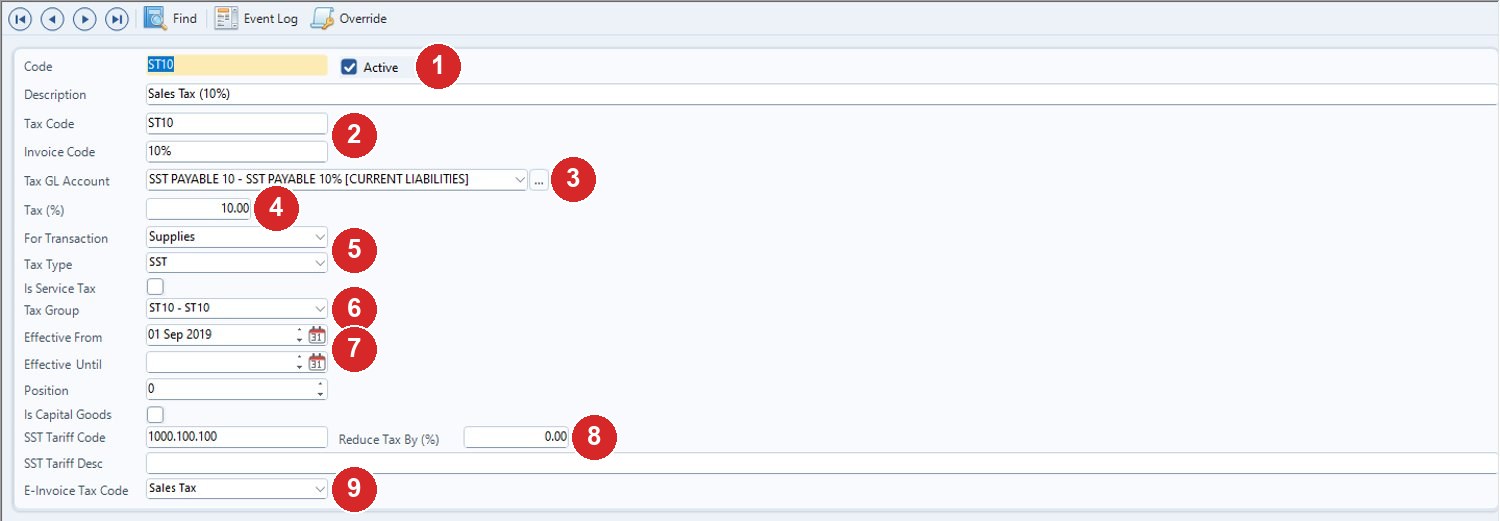
| Step | What to do |
|---|---|
| 1 | Code (here ST10) and Description; Active. |
| 2 | Tax Code and Invoice Code. |
| 3 | Tax GL Account. |
| 4 | Tax (%). |
| 5 | For Transaction (Supplies or Purchases) and Tax Type. |
| 6 | Tax Group. |
| 7 | Effective From and Effective Until. |
| 8 | SST Tariff Code and SST Tariff Desc. |
| 9 | E-Invoice Tax Code. |
7. Set Tax (%) and Tax Type
Enter Tax (%) and choose the Tax Type.
8. Choose For Transaction and Tax Code
Choose For Transaction (supplies or purchases) and fill in the Tax Code.
9. Set the dates
Fill in Effective From. If the tax ends, fill in Effective Until.
10. Pick the GL account and tax group
Pick the Tax GL Account and the Tax Group.
11. Save
Click Save. If you see ‘Tax Code updated. Please Log Out and Re-Login’, sign out and sign in again.
12. If you are not SST registered
Set the SST start date to 2099 in the main setting so SST stays inactive.
Tips
- Two stars (**) beside an amount on a printed invoice mean the item is subject to SST.
- New tax groups, for example 6% rental or 8% repair, must be requested from Synergy support.
- Effective Until must be at least 60 days after Effective From.
- If your branch syncs with head office, do not use the ‘Update New Tax Codes’ button.
- A new tax code is active by default and set for supplies.
Common problems
SST does not appear on an item or invoice.
Check that SST has been set up and enabled, and that the item has S. Tax Group set to SR.
I cannot key tax on a Purchase Order.
This is normal. Key the amount on the Purchase Order and enter the tax on the Invoice Received.
I cannot save a tax code.
Fill in all required fields: Code, Description, For Transaction, Effective From and Tax Type. Make sure Effective Until is at least 60 days after Effective From.
I do not know what ** on my invoice means.
It means the item is subject to SST. If you are unsure, send a picture of the full invoice to Synergy support.
SST still does not work, or I need help with SST on an item.
Contact Synergy support. Have ready your SST approval letter or number, your SST start date, a screenshot of the item and the SST setting, and remote access to your main PC.