
This guide shows you where to find the Statement of Account, how to set it up so the dates and balances look right, and how to e-mail statements to your debtors.
Before you start
- Know whether the person is a debtor (credit account) or only a POS member. A POS member is not a debtor.
- Know the month you want and make sure the invoices and receipts for it are Posted.
- To send by e-mail, a sender e-mail account must already be set up.
Steps
1. Open the Statement of Account
Go to Debtor Ledger > Reports > Documents > Statement of Account [Offset]. For supplier statements, use Creditor Ledger > Reports > Documents.
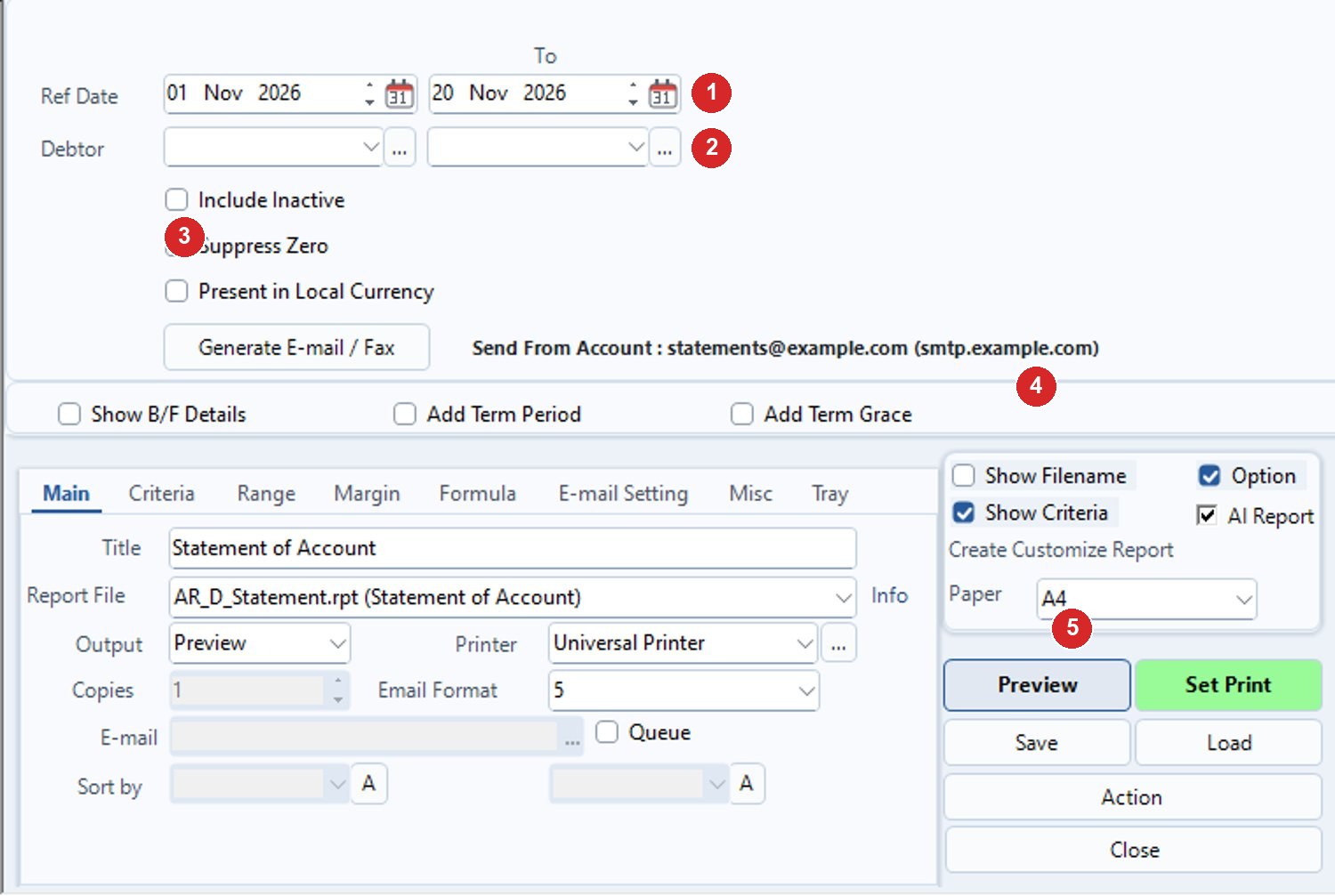
| Step | What to do |
|---|---|
| 1 | Ref Date From and To: end on the last day of the month you need. If the statement is empty or the balance looks wrong, start from year 2000. |
| 2 | Debtor: the first and last debtor of the range (… to search). |
| 3 | Include Inactive, Suppress Zero and Present in Local Currency. |
| 4 | Show B/F Details includes brought-forward amounts; untick Add Term Period if you do not need it. |
| 5 | Click Preview. |
2. Check your documents are posted
Make sure all invoices and receipts are Posted. An unposted invoice can give an empty statement, and unposted or on-hold payments change the balance.
3. Apply any open credit
Run Apply Open Credit for any unapplied credit or receipt. Then preview the statement again.
4. Preview the statement
Click Preview. If you changed something, close the statement and open it again before checking the balance.
5. Send statements by e-mail (optional)
First open each debtor and tick the by-Email setting. Then go to Statement of Account and click Generate E-mail / Fax. Select the debtors in the list that appears, add Cc or Bcc addresses if you like, and confirm the list.
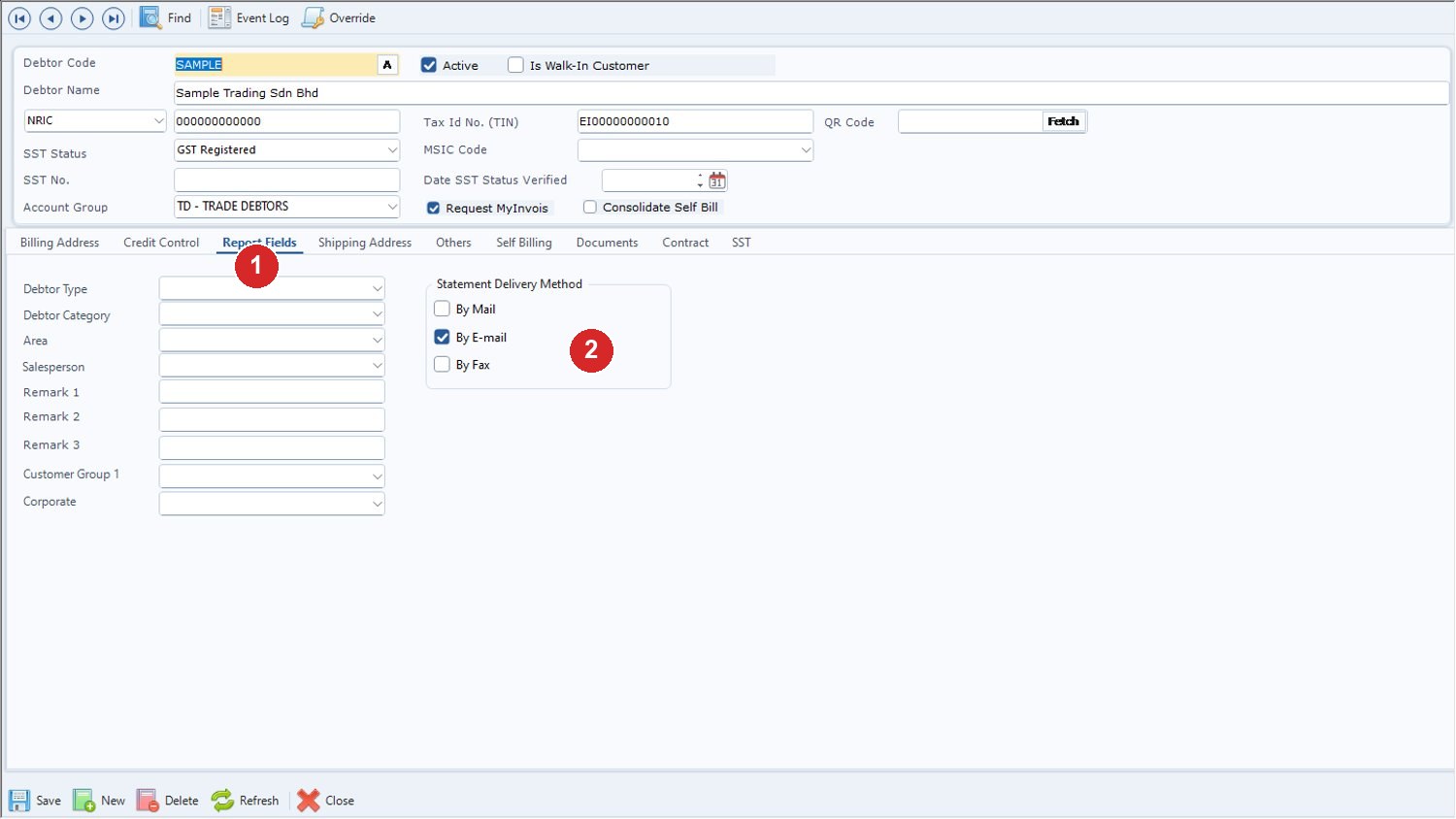
| Step | What to do |
|---|---|
| 1 | Report Fields tab on each debtor. |
| 2 | By E-mail under Statement Delivery Method; save. |
6. Wait for the queue message
Progress shows at the bottom of the screen. When you see ‘Emails have been sent to the queue.’, the statements are queued. They may not be delivered yet.
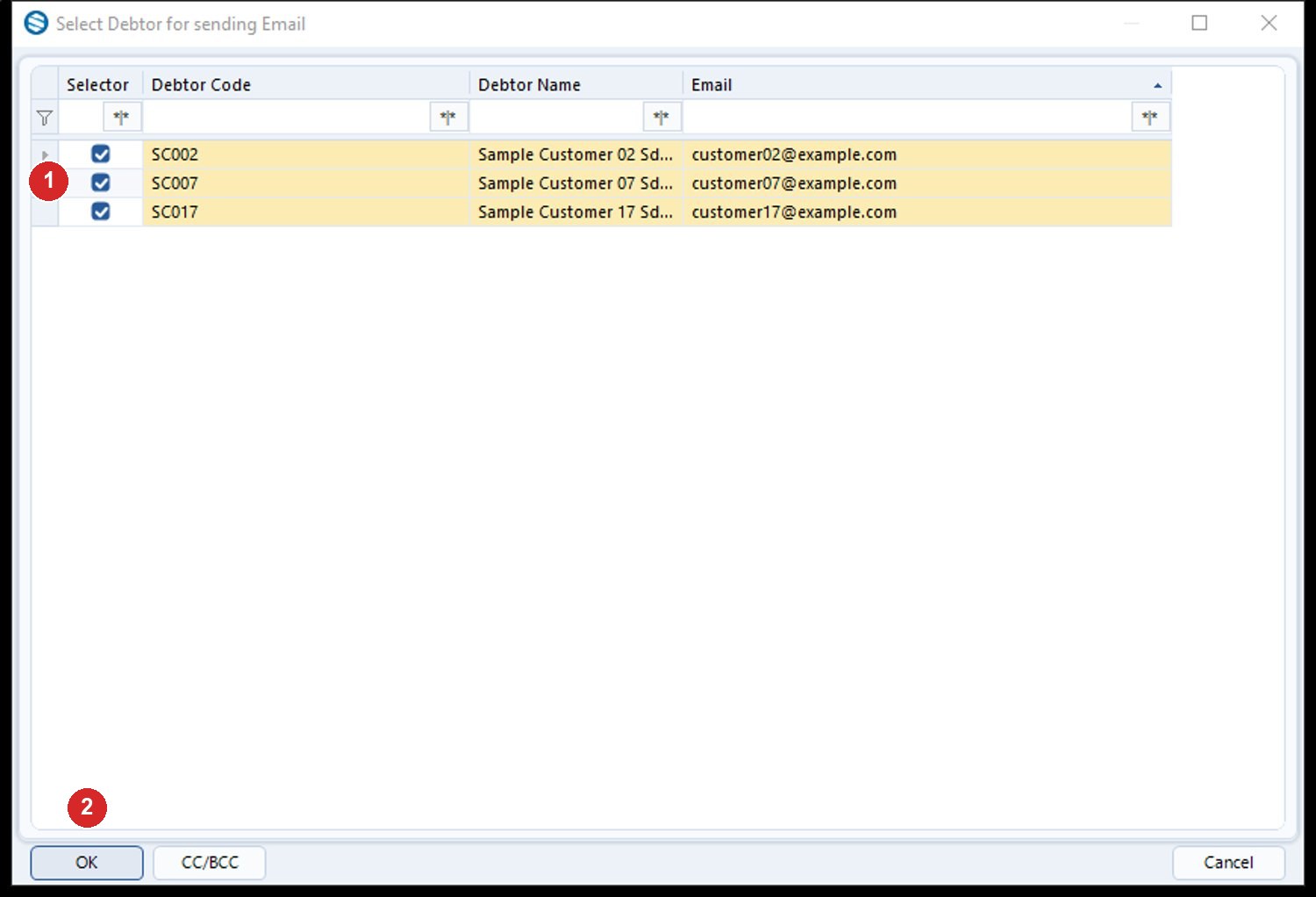
| Step | What to do |
|---|---|
| 1 | After Generate E-mail / Fax: the debtors with By E-mail come ticked; untick any you do not want. |
| 2 | Click OK. When you see Emails have been sent to the queue., the statements are queued. |
7. Export to Excel (optional)
Print the Statement of Account with a long date range and save it as Excel. Wait for the export message to finish.
Tips
- Only one e-mail address per debtor is sent.
- Ticking by Mail and by Email together is fine. By Mail means a printed letter and by Fax is obsolete.
- The screen remembers your last dates, Suppress Zero, Include Inactive and debtor range.
- Statement of Account always shows the balance. You can preview the other Statement of Account formats to compare.
- To see what a POS member bought, use the Sales By Outlet report or the Query screen, not the debtor statement.
- For audit, use Debtor Ledger > Reports > Debtor Reports > Debtor Aging (12 month). Set the compare date to the last date of the accounting year, then click Preview.
- For a contact list, use Debtor Ledger > Reports > Debtor Listing or Debtor Listing (Custom Data).
- If a posted bank receipt must be changed, put it on hold in Posted Bank Receipt first.
Common problems
The February statement shows March items.
Set the date range to end on the last day of February. Do not use ‘up to date’ for an old month.
A posted invoice is missing from the statement.
Check that the invoice is posted and its date is inside the date range. The range must not end before the invoice date.
The statement is empty.
Check that your invoices are Posted and use a wide date range starting from year 2000. Also check whether the person is a POS member rather than a debtor.
The statement still shows an amount in brackets or an unapplied amount after a receipt or payment.
Check that the receipt or bank payment was really applied to the invoice. Without Apply (knock-off), the statement still shows the amount. Then close and reopen the statement and check the date range.
The statement shows paid bills and you want only outstanding ones.
Untick the option that shows paid bills in the preview options.
Two statements for the same debtor show different balances.
Use the same date range and ticks for both. Also check for unposted, on-hold or unapplied documents.
Late charge (LPI) appears twice.
The LPI calculation was run twice. Delete the duplicate LPI invoice. If it is already paid, delete or reverse its receipt first.
There is open credit from an unknown year.
Find the original invoice and unpost it.
Documents from the old POS do not show in Sales & Purchase.
This is expected. They do not appear there.
No e-mails were queued.
You may have closed the debtor list without confirming. Click Generate E-mail / Fax again and confirm the list.
The Status line says [Sender E-mail Account] not configured, or sending fails.
No sender e-mail account is set up. Set one up before sending.
A debtor is missing from the list.
Check Include Inactive, Suppress Zero, the debtor range and any agent filter.
The statement cannot be sent to a debtor by e-mail.
Open the debtor and tick the by-Email setting, then use Generate E-mail on the Statement of Account again.
You want only one type of invoice on the statement, or the problem is still not solved.
Contact Synergy support. Have ready the debtor code, the month, a screenshot of the preview options, the balances you are comparing, and for e-mail problems a screenshot of the debtor’s contact settings and the error.