
This guide shows how to enter a stock adjustment document: the document details at the top and the items being adjusted below.
Before you start
- Every item row needs an item, and a unit of measure should be filled in on each row.
- Adjustments posted from a stock take carry the label POSTED FROM STOCKTAKE.
Steps
1. Open Stock Adjustment
Go to Inventory Management > Transactions > Stocks and choose Stock Adjustment, Stock Adjustment (Received) or Stock Adjustment (Issued).
2. Fill in the adjustment
Enter the As At Date and a Remark (the reason). Here 2 mugs and 1 cap were found damaged at the count on 20 Nov.
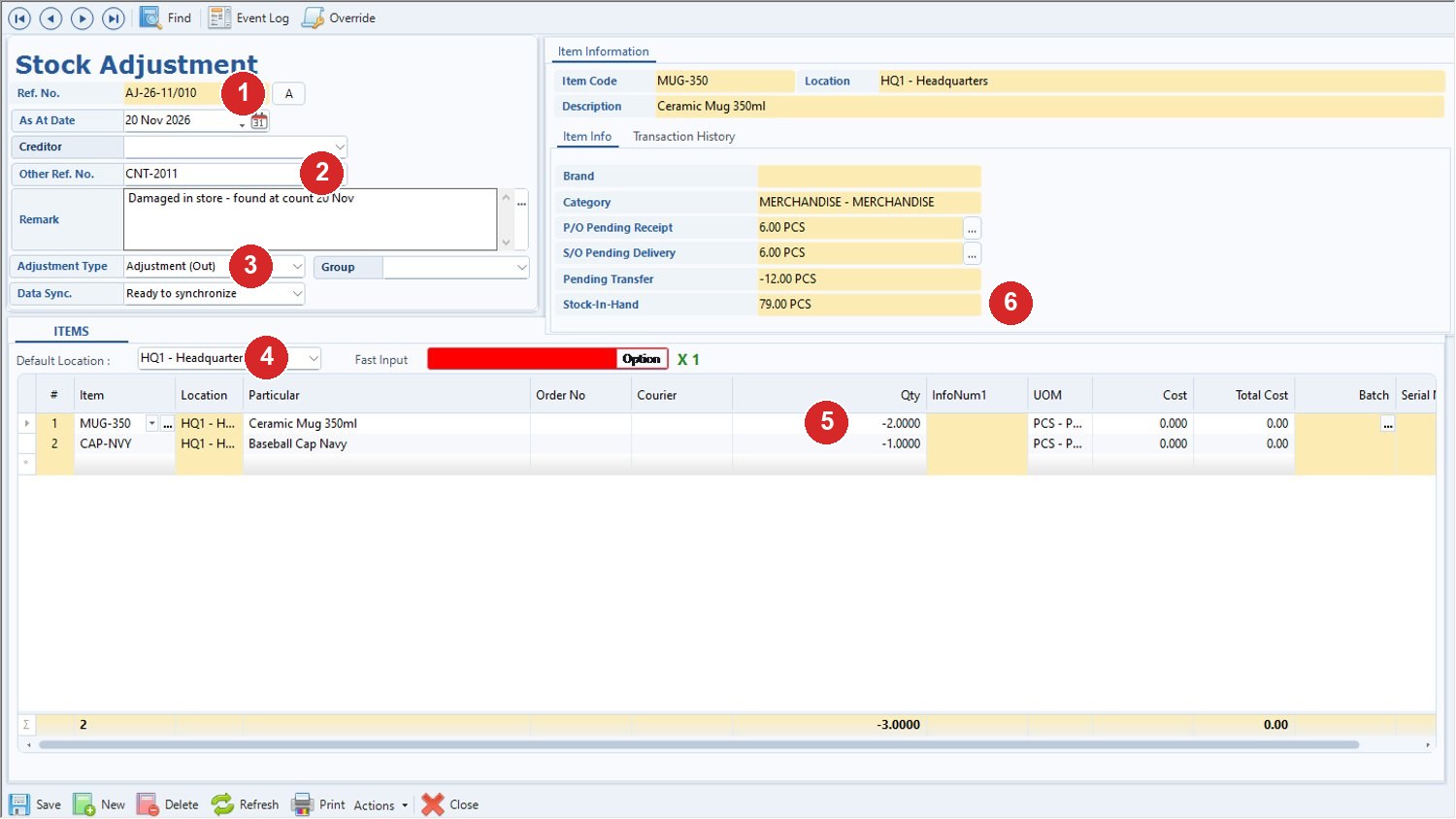
| Step | What to do |
|---|---|
| 1 | Ref. No.: type a number, or leave the number the system gives (A = automatic numbering). |
| 2 | Other Ref. No. (for example the count sheet number). |
| 3 | Adjustment Type: Adjustment (In), Adjustment (Out) or Adjustment (Goods Received). |
| 4 | Default Location: new item rows use this location. |
| 5 | Each row: the item and the quantity. A minus quantity takes stock out (here -2 and -1); a plus quantity adds stock. Fill in the UOM on each row. |
| 6 | Click a row to see the item’s Brand, Category, P/O Pending Receipt, S/O Pending Delivery, Pending Transfer and Stock-In-Hand (Transaction History is on the next tab). |
3. Insert or delete rows
Right-click the item list and choose Insert Row to add a blank row, or Delete Row to remove the current row. Item numbers are renumbered. Copy Text copies the text of the selected cell.
4. Save the document
Save the document. The program checks that there are item rows and that every row has an item.
Tips
- The default location and the grid layout are remembered the next time you open the screen.
- The Item Information tab only shows facts. It is blank when the selected row has no item yet.
- The Delete button is turned off for an adjustment that was posted from a stock take.
Common problems
No details entered.
You tried to save with no item rows. Add at least one row.
No Item Code specified for one or more rows.
Pick an item on every row, or delete the empty rows.
I cannot clear an item from a row.
Emptying the item cell is refused. Press Esc to restore the old value, or delete the row.
I cannot type in Ref. No.
On a new document with automatic numbering, the field is locked on purpose.
I cannot delete a stock take adjustment.
The Delete button is turned off for these documents.