
There is no separate stock conversion function. To break a bulk item (such as a large gallon) into small packs (such as small bottles), you use Stock Adjustment. This guide shows you how.
Before you start
- The item code of the bulk item and the quantity you are opening
- The item code of the small-pack item and the quantity you gain
- The cost of the bulk item, so you can work out the cost of the small packs
- Serial numbers, batch or bin details, if either item uses them
- A date that is after your locked period
Steps
1. Open Stock Adjustment
Go to Inventory Management > Transactions > Stocks > Stock Adjustment.
2. Check the Ref. No., date and type
Enter or accept the Ref. No. and the As At Date, then choose the Adjustment Type. Use a date that is after your locked period. If the date is on or before the GL lock date, the system will refuse to save (only an admin can override).
3. Add optional details
If you wish, fill in Other Ref. No., Remark, Creditor and Group.
4. Set the location and add rows
On the ITEMS tab, set the Default Location. Then add rows using Fast Input or the grid.
5. Enter the bulk item and the small packs
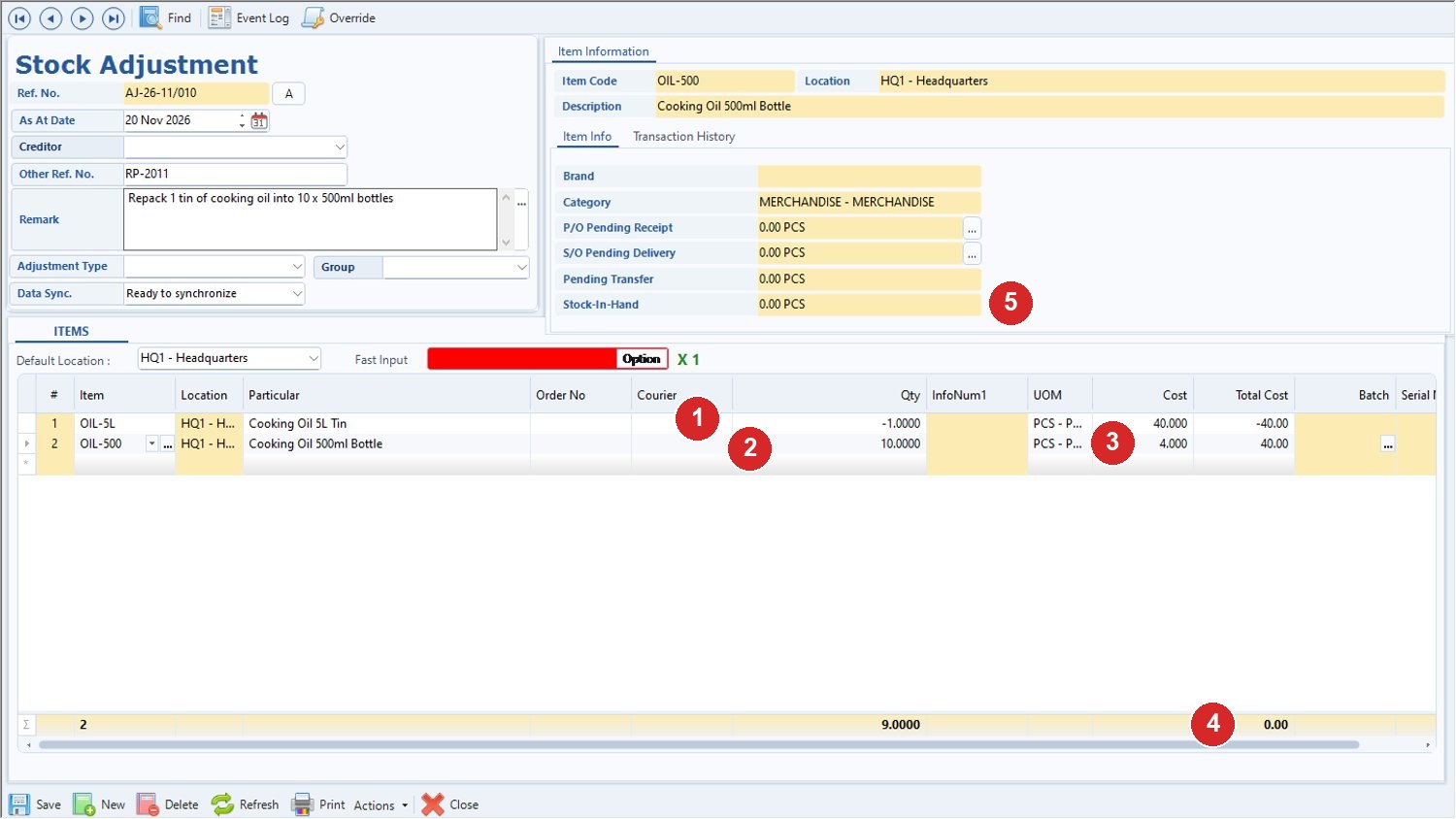
Here one 5L tin of cooking oil (cost 40.00) is repacked into ten 500ml bottles, Remark “Repack 1 tin of cooking oil into 10 x 500ml bottles”.
| Step | What to do |
|---|---|
| 1 | The bulk item with the quantity opened as a minus quantity (OIL-5L, -1). |
| 2 | The small-pack item with the quantity gained (OIL-500, 10). |
| 3 | Cost of the small pack: the bottles together must cost what the bulk cost (10 x 4.00 = 40.00). If you leave it empty the system keeps its own cost, and stock value and profit will be wrong. |
| 4 | Total Cost should come to 0.00 when the costs balance. |
| 5 | Check the bulk item’s Stock-In-Hand before saving: the system does not stop the adjustment if stock would go below zero. |
6. Add serial, batch or bin details if needed
If either item uses serial numbers, batch or bin, enter them on the adjustment lines too. Use a negative quantity for the bulk item and a positive quantity for the bottles.
7. Check Data Sync. if shown
If you see the Data Sync. box, choose whether the document is ready to synchronise with branches or should not be synchronised.
8. Save
Click Save.
Tips
- The system will not warn you if the bulk item goes below zero, so check its stock first.
- Always enter a cost for the small bottles, or your stock value and profit will be wrong.
- The Data Sync. box only appears if the Point of Sale module is licensed.
- If you choose do not synchronise at a head office that synchronises with branches, you will be asked to tick a box to confirm. Branch stock quantities will not tally with head office.
- You can also load rows from an Excel file that has a Code/Barcode column and a Qty column.
Common problems
The system refuses to save the adjustment.
Check the As At Date. It must be after your GL lock date. Only an admin can override this.
Stock value or profit looks wrong after the conversion.
The small bottles probably had no cost entered. The total cost of the bottles should equal the cost of the bulk you opened.
Excel load fails.
Check that the file has columns named Code/Barcode and Qty.
You see ‘Bin Quantity does not match the Item Quantity.’
Check the bin details on the adjustment lines so they match the item quantity.
You cannot save changes to a document that was already synchronised.
Set Data Sync. to Ready to synchronize, then save.
It still does not work.
Contact Synergy support and have a screenshot of your Stock Adjustment screen ready.