
A matrix item is one parent item with many variants, such as every size and colour. This guide shows how to set up the dimensions and template, generate the variants, enter quantities on documents, and show variants on reports.
Before you start
- The parent item must already exist, with its matrix types defined.
- Dimensions must be set up before you can pick them in a template.
Steps
1. Set up a dimension
Go to Inventory Management > Masterfile > Sub-Masterfile > Matrix Item Type. Type the Code and Description for the dimension (for example size or colour). In the grid, add a line for each code. The description of a line copies the code, and you can change it. Save.

| Step | What to do |
|---|---|
| 1 | Code (here SHIRT.T); Active. |
| 2 | Description. |
| 3 | One line per code (here SMA, MED, LAR). |
2. Change the order of the codes
Right-click in the grid and choose Move Up or Move Down. These options are in the right-click menu, not in a toolbar.
3. Set up a matrix template
Go to Inventory Management > Masterfile > Sub-Masterfile > Matrix Template. Type the Code and Description, then choose Dimension 1 and, if needed, Dimension 2 and Dimension 3. Check the Separator (the default is -), which is placed between the values in the item code. Save.

| Step | What to do |
|---|---|
| 1 | Code and Description (here SHIRT). |
| 2 | Dimension 1 (required), 2 and 3. |
| 3 | Separator (default -). |
4. Open Generate Matrix Item
On the Item screen, click the Generate Matrix Item button on the toolbar. If the item was already used in a transaction, type the 4-digit confirmation code shown and click OK.
5. Define the matrix (Step 1)
On the Step 1 – Define Matrix tab, choose the Parent Item and up to three Matrix Item Type boxes. Tick at least one value under each type you chose. Under Item Code Naming Method choose By Matrix Item Type Code or By Auto Number; for auto numbering, enter the Starting Number.
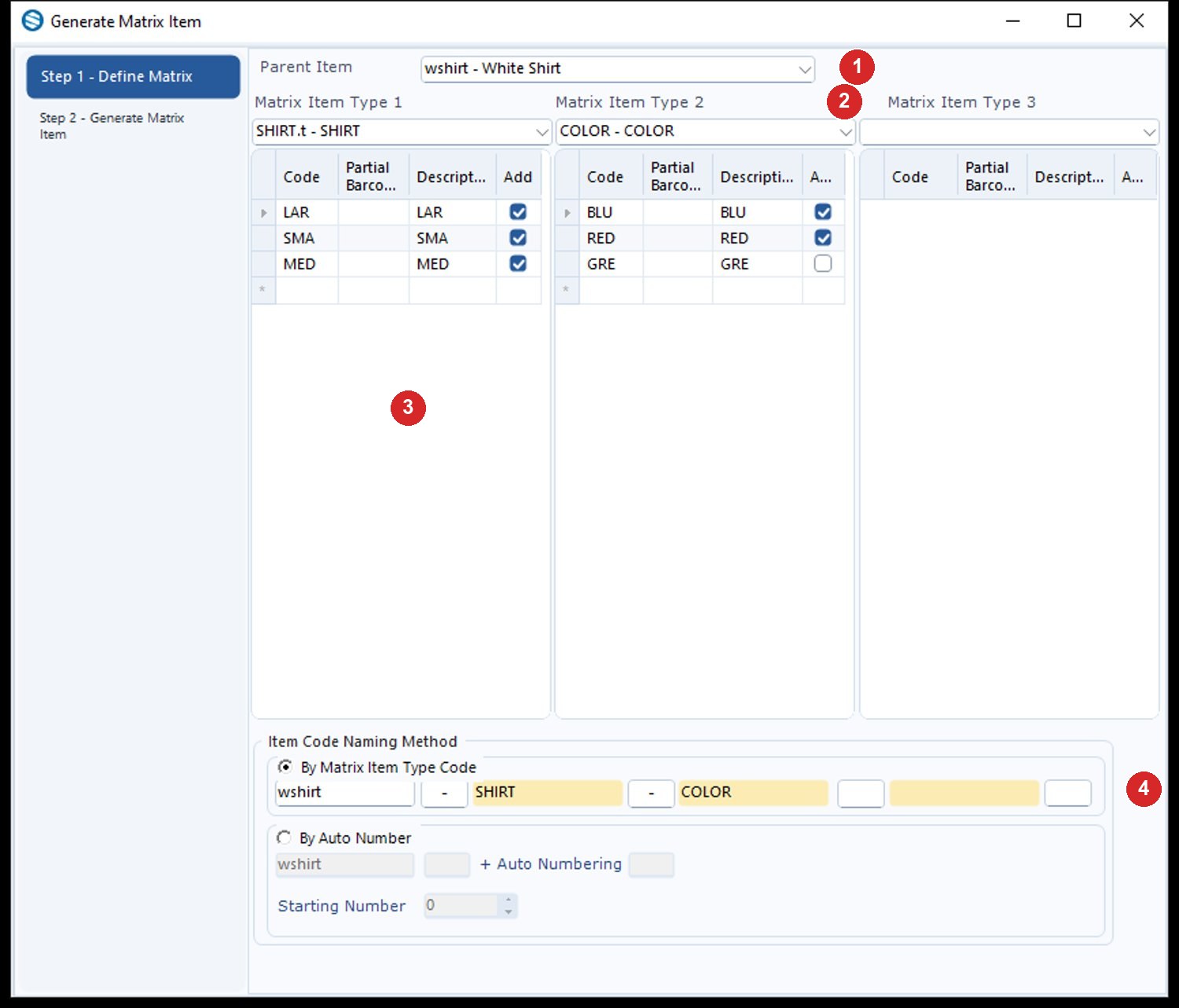
| Step | What to do |
|---|---|
| 1 | Parent Item (here wshirt – White Shirt). |
| 2 | Matrix Item Type 1 to 3 (here SHIRT.t and COLOR). |
| 3 | Tick the values to use in the Add column. |
| 4 | Item Code Naming Method. |
6. Generate the items (Step 2)
Go to the Step 2 – Generate Matrix Item tab and review Matrix Item to be generated. Status shows OK for items that will be created and Duplicate Code where the code exists. Variants the parent item already has are left out of the list. Tick the locations under For Location (up to 20 at a time), then click Generate Item.
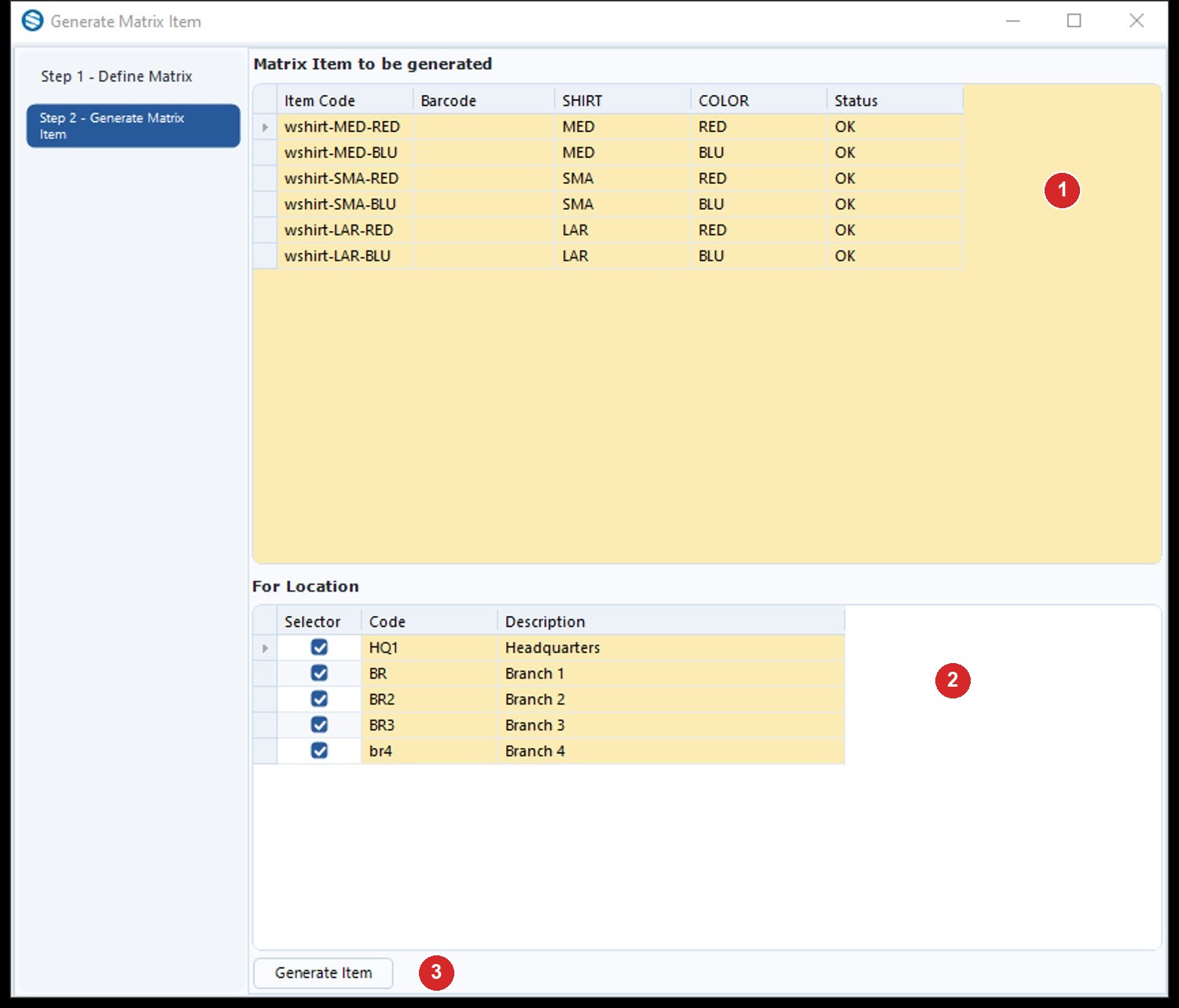
| Step | What to do |
|---|---|
| 1 | Matrix Item to be generated, with Status (here six new codes, all OK). |
| 2 | For Location. |
| 3 | Generate Item. |
7. Enter quantities for every variant
On a Stock Adjustment, Stock Take, Stock Transfer, Delivery Order, Sales Order or similar screen, open the matrix pop-up from the item row. Type the Qty for each variation, check Stock-In-Hand, P/O Pending Receipt and S/O Pending Delivery, then click OK. Cancel closes without keeping the quantities.
8. Show variants on reports
On an inventory report that handles matrix items, tick Matrix Item Breakdown to list the variants, or untick it to show only the parent items. Some reports use Show Matrix Sub-Item and Show Matrix Main Item instead.
Tips
- Only combinations that do not exist yet are listed in Matrix Item to be generated.
- With By Auto Number, numbers already in use are skipped.
- On a stock transfer, tick Show All Locations in the matrix pop-up to see every location instead of only the from and to locations.
- On a stock take, a line is saved for every variation, including those you leave blank. On a stock adjustment, blank or zero rows are not added.
- Show Matrix Sub-Item starts ticked and Show Matrix Main Item starts unticked each time the report options open.
Common problems
Please select Item to duplicate from
Choose a Parent Item first.
Duplicate Matrix Item Type specified
The same type was chosen twice. Choose different types.
No item selected for a matrix type
Tick at least one value under each Matrix Item Type on Step 1.
Only 20 Location can be generated at one time
Reduce the ticked locations and generate in batches of 20.
No items were generated
Only rows with Status OK are created. Check the Status column for Duplicate Code.
The dimension you want is missing in the template
Create it with the link beside the field.
The matrix pop-up grid is empty
The item may have no variations at the chosen location.
A report shows only parent items
Tick Matrix Item Breakdown, or Show Matrix Sub-Item, in the report options.