
Several queries show where your stock has moved. The Item Sales & Purchases Query lists sales, purchase and stock documents for an item together. The Stock Movement queries show the movement by batch, by bin, or by size and colour for matrix items. This guide shows how to use them.
Before you start
- Decide the item, location and date range you want to look at.
- To open a source document by double-clicking a row, your user needs permission for that document type.
Steps
1. See every document for an item
Go to Sales and Purchases > Query > Item Sales & Purchases Query. Here TS-BLU-M from 1 Jan 2026 shows its adjustments, transfers, quotations, orders, invoices and POS sales.
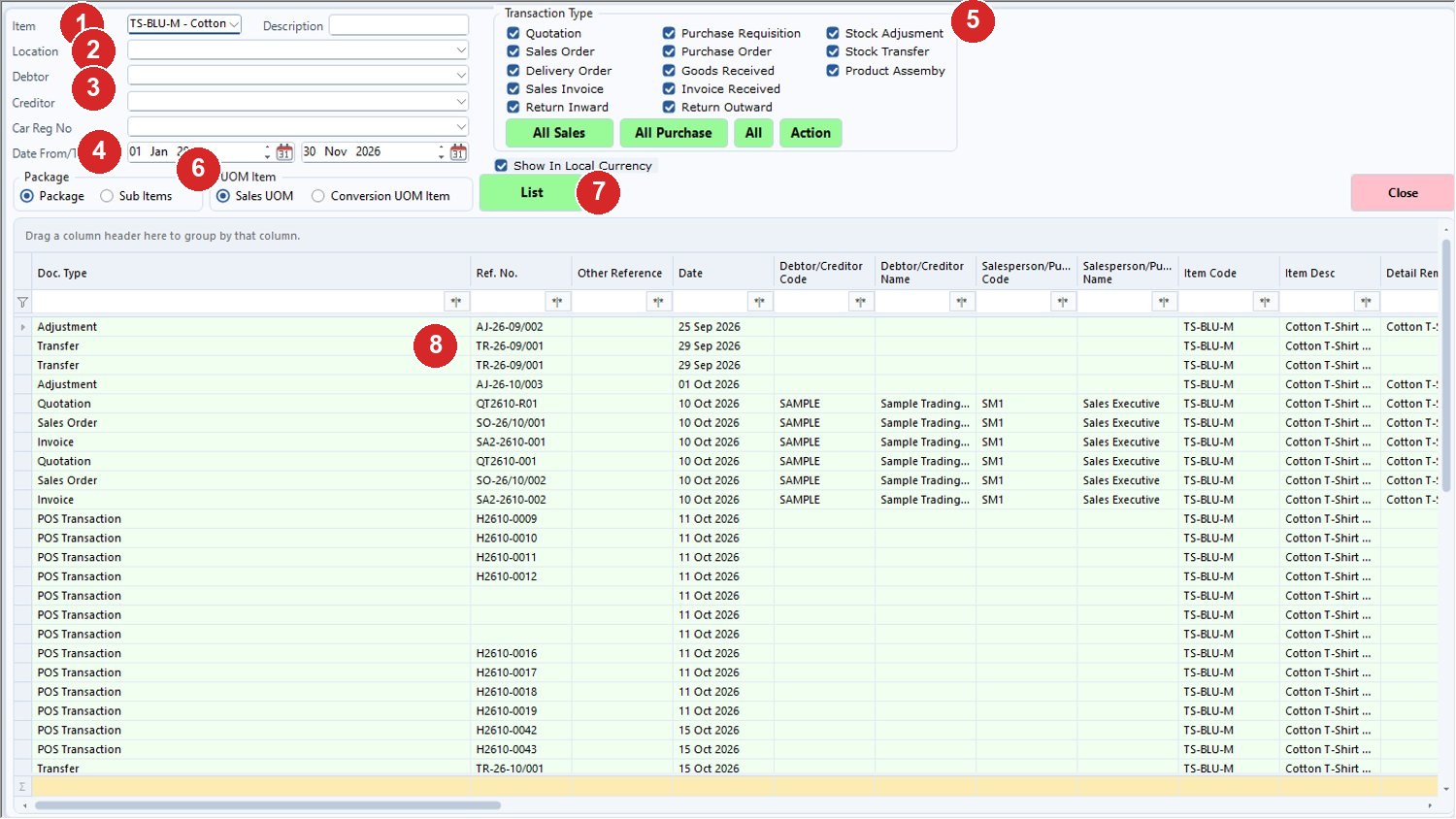
| Step | What to do |
|---|---|
| 1 | Item (and Description if needed). |
| 2 | Location (empty for all). |
| 3 | Debtor or Creditor, Car Reg No if needed. |
| 4 | Date From/To. |
| 5 | Transaction Type: tick the documents to show. All Sales, All Purchase and All tick groups; Action also offers Remember current excluded Document Types, All Inventory, Select All and Deselect All. |
| 6 | Package: Package or Sub Items. UOM Item: Sales UOM or Conversion UOM Item. Tick Show In Local Currency if needed. |
| 7 | Click List. |
| 8 | Double-click a row to open that document. |
2. Stock movement by batch
Go to Inventory Management > Query > Stock Query > Stock Movement By Batch Query, set Trx Date From/To and click List. The first line is the balance brought forward. Here MED-PARA shows each batch (b1, b001, DS3 …) in and out.
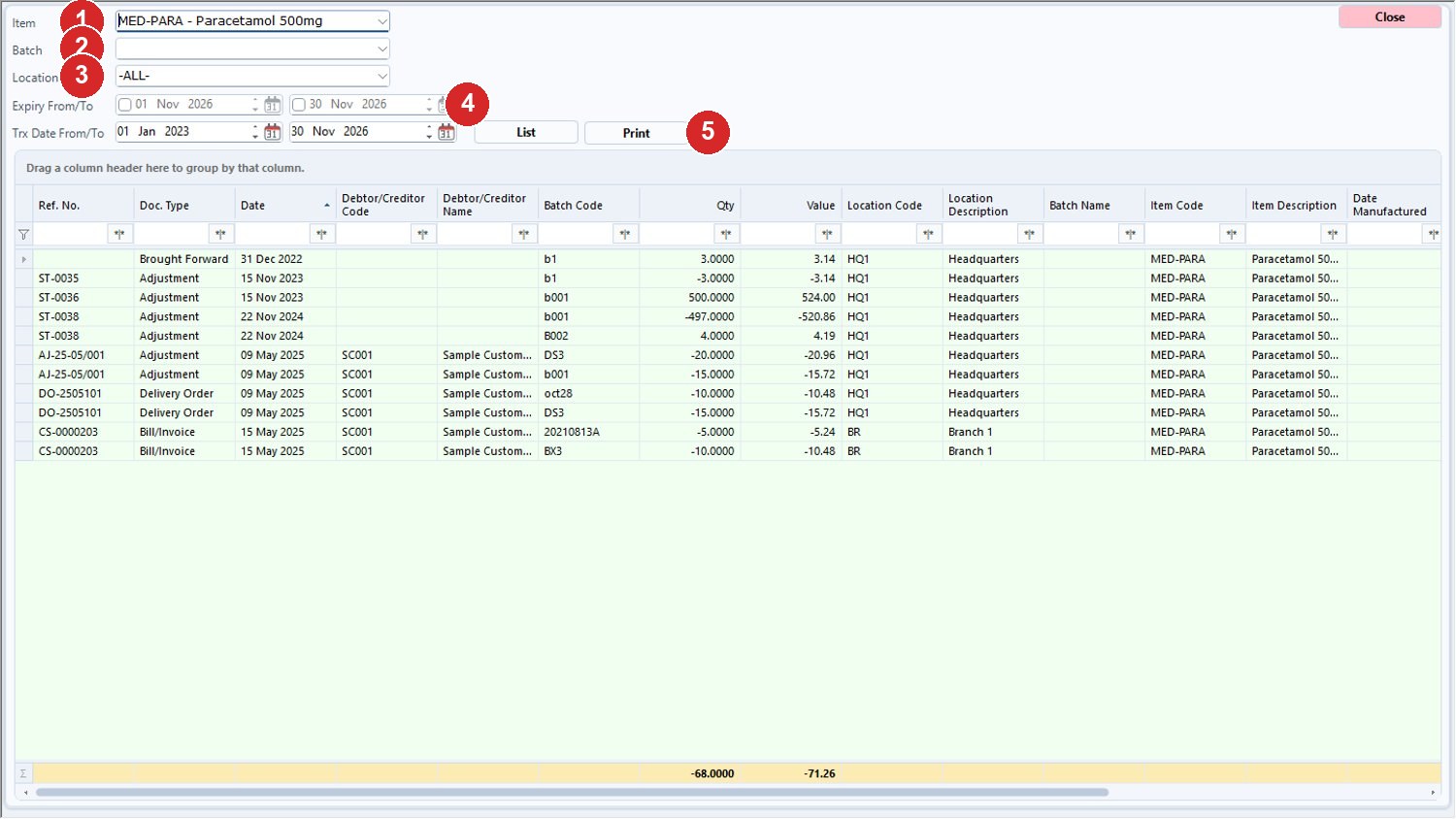
| Step | What to do |
|---|---|
| 1 | Item (leave empty for all). |
| 2 | Batch (leave empty for all). |
| 3 | Location (-ALL- for all). |
| 4 | Expiry From/To: tick them only to filter by expiry date. |
| 5 | Print asks which report: Stock By Batch Query Listing, or Stock By Batch Balance Summary On the To date. |
3. Print the batch result
Click Print. You are asked which report you want: Stock By Batch Query Listing, or Stock By Batch Balance Summary On the To date.
4. Stock movement by bin
Go to Inventory Management > Query > Stock Query > Stock Movement By Bin Query and set Date From/To. The list is grouped by bin, starting with the balance brought forward (here bins B1 and B2 at HQ1, with bin transfer BT-26/11/001).
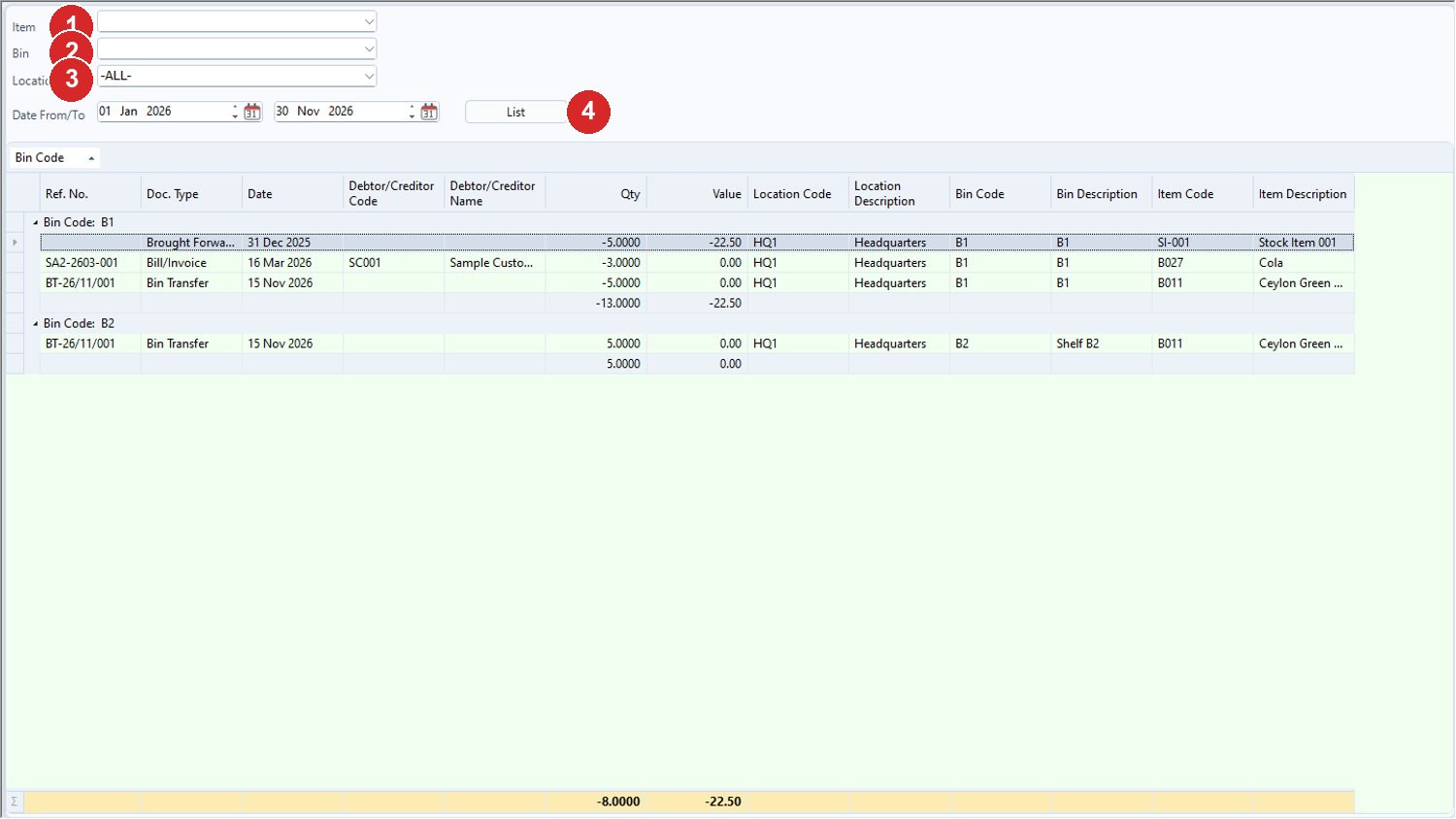
| Step | What to do |
|---|---|
| 1 | Item (leave empty for all). |
| 2 | Bin (leave empty for all). |
| 3 | Location (-ALL- for all). |
| 4 | Click List. |
5. Stock movement of a matrix item
Go to Inventory Management > Query > Stock Query > Stock Movement Query (Matrix) and set Date From/To. Each line shows the sub item (here 2SHIRT-S and 2SHIRT-L) with its dimensions; the first line is the balance brought forward.
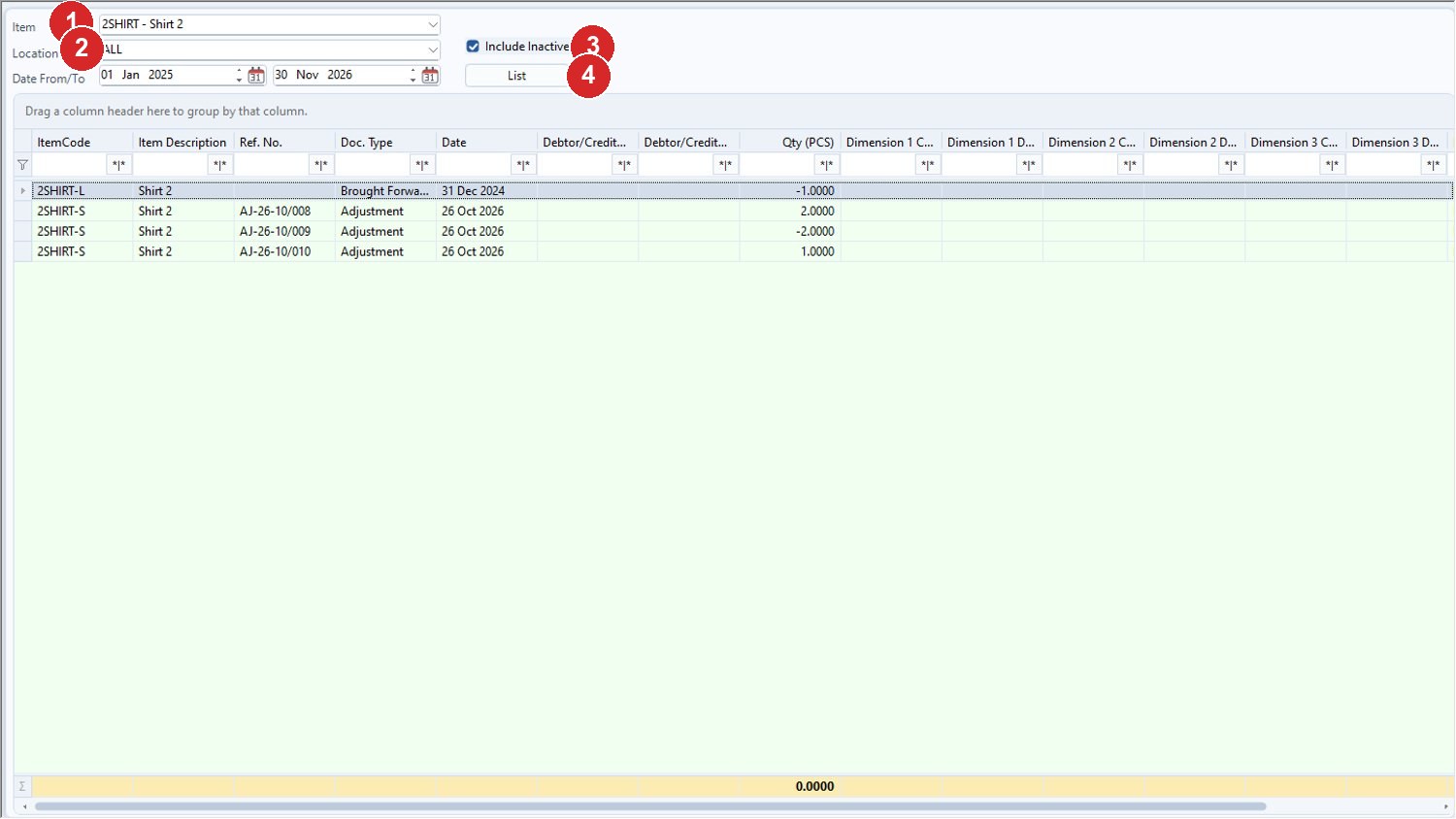
| Step | What to do |
|---|---|
| 1 | Item (required). |
| 2 | Location, or ALL. |
| 3 | Include Inactive if needed. |
| 4 | Click List. |
6. Open the source document
In any of these queries, double-click a row to open the document that caused the movement.
Tips
- In the batch, bin and matrix queries the date range starts from the first day of the year to the end of the current month.
- Expiry From/To in the batch query is not used until you tick the boxes.
- If a query is opened from an item record, the item is filled in and the list runs straight away.
- In the item transaction query, when Sales Invoice is ticked, point-of-sales sales are added automatically.
- The item transaction query only offers the sales and purchase documents your user is allowed to view. Matrix Item Breakdown is on that screen but has no effect on the result.
- While the matrix query is listing, the button is disabled and the cursor shows busy, so wait for it to finish.
- The grids have a filter row so you can narrow the result further.
Common problems
The item transaction query shows fewer documents than expected.
Check the date range. A message says some document types are excluded because you don’t have permission, so ask your administrator if you need to see them.
The message No [Document Type] selected appears.
Tick at least one document type.
The batch query shows no rows.
Leave Batch empty or widen the dates.
The expiry filter is ignored.
Make sure the Expiry From/To boxes are ticked.
The bin query is empty.
Check the item, the bin and the date range.
Nothing happens when I click List in the matrix query, or I see Invalid [Date Ranged].
Choose an item first. For the date message, the To date must not be earlier than the From date.
Some sub items are missing in the matrix query.
Tick Include Inactive.
A row will not open and says Drill-down not supported for this Document Type.
That document type cannot be opened from the query.