
A packing list records the packages you prepare for shipment, with their weight and size. A picking list checks the items picked against a document. This guide covers both.
Before you start
- For a packing list, you need the invoice whose items you are packing.
- For a picking list, you need the document you are picking for.
Steps
1. Fill in the packing list
Go to Sales and Purchases > Transactions > Sales Process > Packing List. Right-click the grid for Insert Row or Delete Row. None of the weight and size values may be zero.
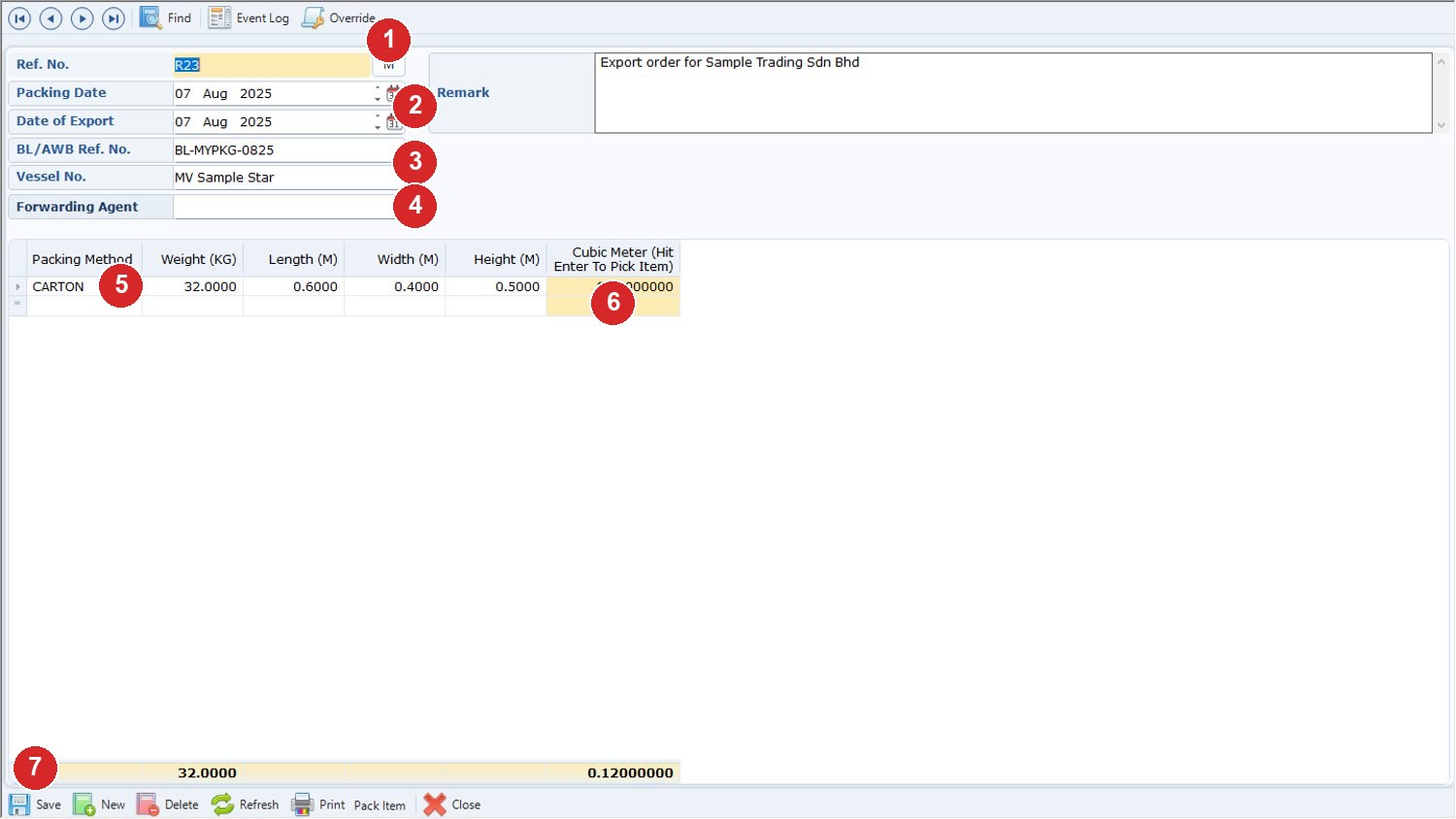
| Step | What to do |
|---|---|
| 1 | Ref. No. (a new number may be given automatically). |
| 2 | Packing Date and Date of Export. |
| 3 | BL/AWB Ref. No., Vessel No. and Remark where needed. |
| 4 | Forwarding Agent (the label opens the creditor list). |
| 5 | One row per package: Packing Method, Weight (KG), Length (M), Width (M), Height (M) (here one carton, 32 kg, 0.12 cubic metre). |
| 6 | On Cubic Meter press Enter (or use Pack Item) to open Apply Invoice to Package: Select Invoice, set each item’s quantity, then click the arrow (or double-click the item) to put it in the package. |
| 7 | Save. If some items have not been selected for packing, choose Yes to view them and assign them to a package. |
2. Check what was picked
Go to Inventory Management > Transactions > Stocks > Packing Check List > Packing Check List. Here PC-0005 checks transfer TR-26-10/004: all three items match (Difference 0).
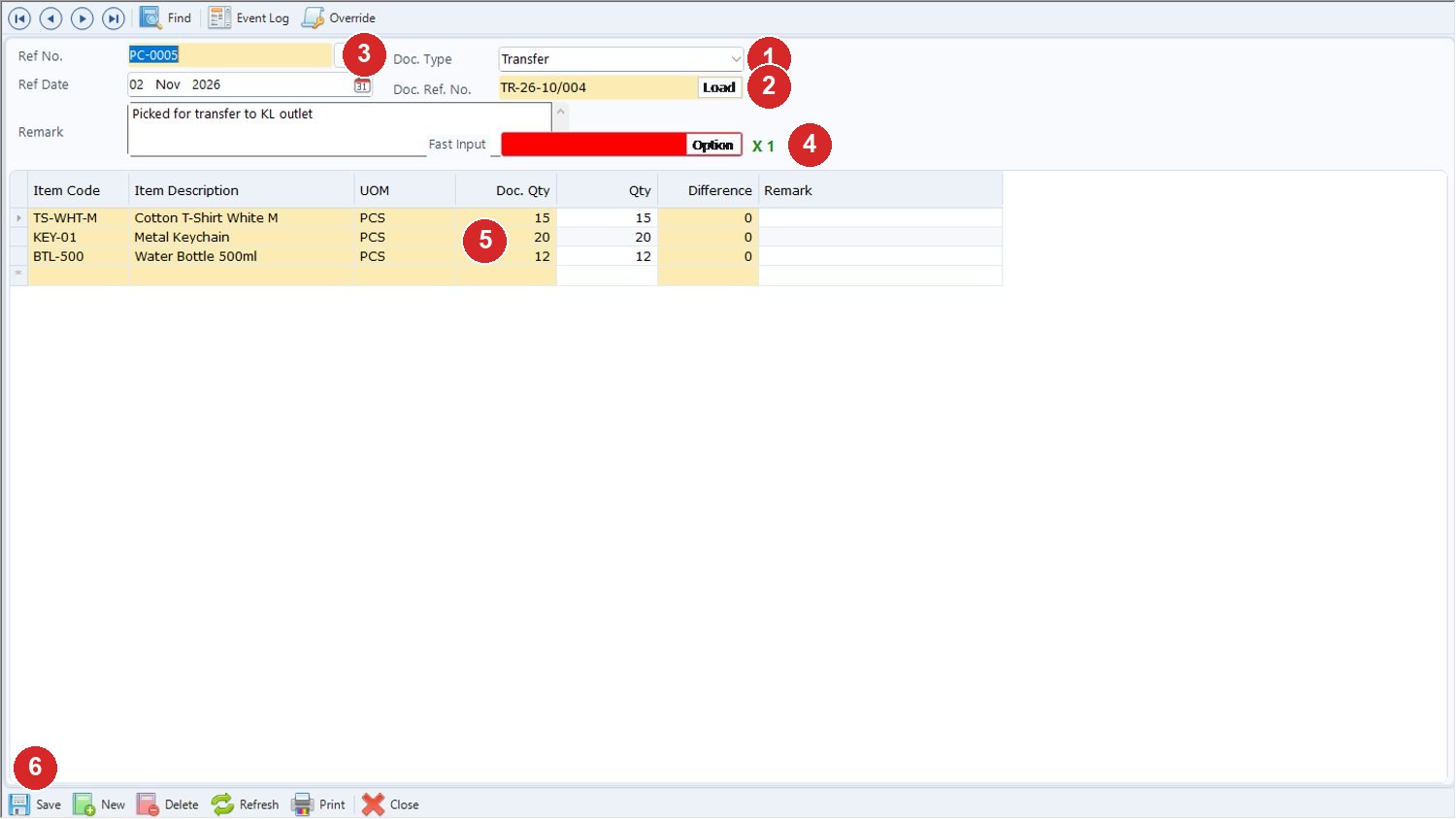
| Step | What to do |
|---|---|
| 1 | Doc. Type (here Transfer). |
| 2 | Click Load beside Doc. Ref. No. and pick the document. Its items are loaded. |
| 3 | Ref No. and Ref Date. |
| 4 | Fast Input: scan a barcode or type an item code and press Enter. A scan adds to that item’s row. X 1 is the quantity per scan (Up or Down arrow to change). |
| 5 | Qty: what was picked; Doc. Qty and Difference show what is missing or extra. |
| 6 | Save. If any quantity differs, the screen lists the items with Doc Qty and Packed Qty: tick the confirm box and click OK to save anyway. |
Tips
- Weight, width, length and height show four decimals.
- Items already packed in another package of the same packing list are reduced from the balance. Fully packed items are hidden from the list.
- Once a picking list is saved, its document cannot be changed. Delete the transaction to load a different document.
- To print packing lists, use the Ref. No. From and To range and the Ref. Date From and To boxes in the report options. A date box that is not ticked is not used.
Common problems
Ref. No. is required or No details entered
Enter the reference number and add at least one package row.
Packing Method is required, or a weight, width, length or height message
Every package needs a packing method, and weight and size may not be zero.
Balance quantity exceeded
The quantity is more than what is left on the invoice item. Check the balance.
An invoice item is missing from the pop-up
It may already be fully packed in another package.
Please select Document Type
Choose the Doc. Type before you click Load.
Code not found when scanning
The code is unknown, or its item is not on the loaded document. Nothing is added to the grid. Check the code and scan again.
A packing list report is empty or ignores my dates
The number or date range may be too narrow, or the date boxes are not ticked.