
This guide shows how to look up the prices, cost and stock limits of items, and how to list the sales, purchase and stock documents of an item together.
Before you start
- Both screens only read data. They never change an item price or a document.
- Your user needs permission to open item records, or to view sales and purchase documents, for the double-click and the document types to work.
Steps
1. Look up prices
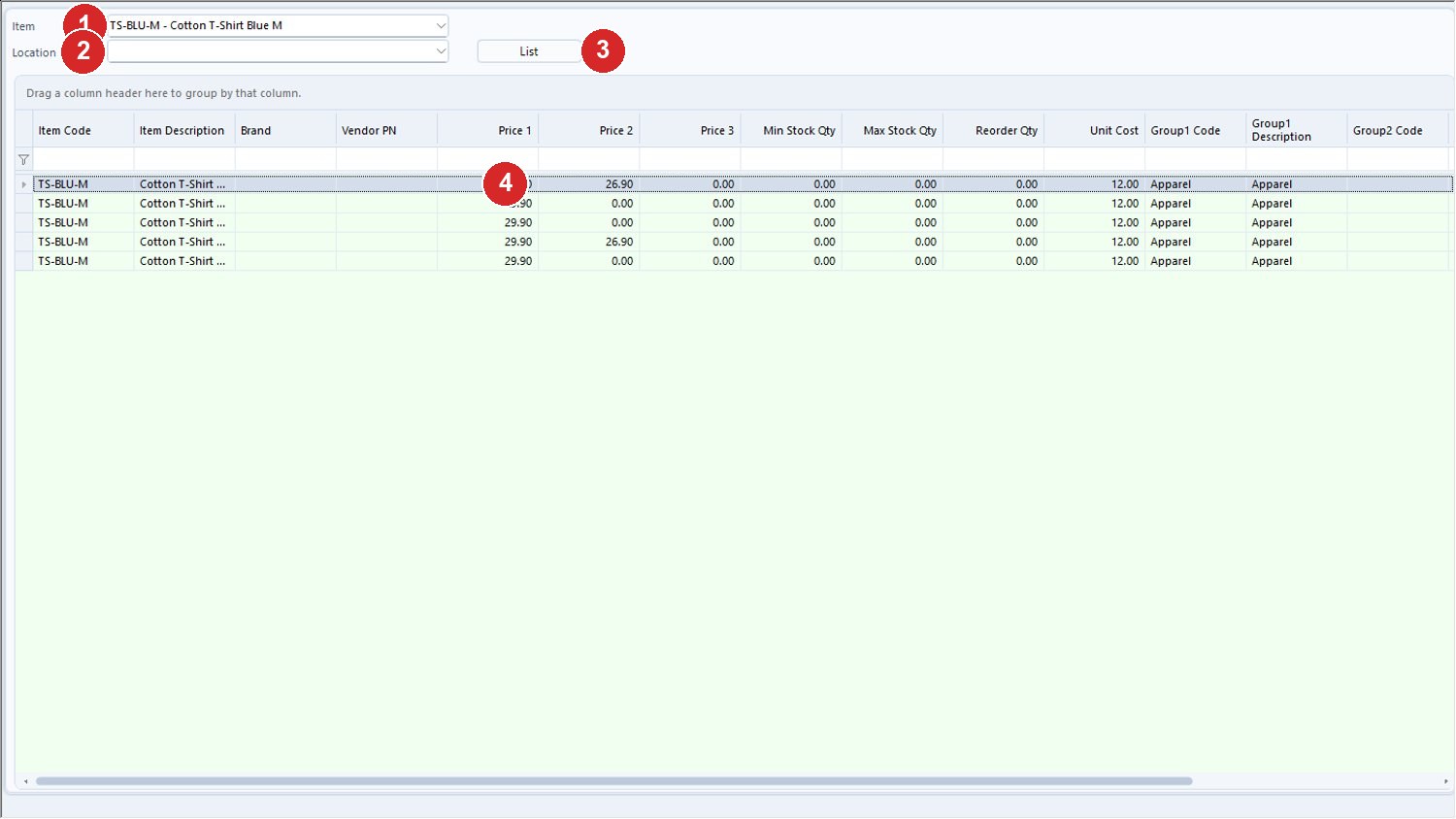
Go to Inventory Management > Query > Item Pricing Query. Double-click a row to open that item’s record.
| Step | What to do |
|---|---|
| 1 | Item (leave empty to list more). |
| 2 | Location (leave empty for all; one row per location). |
| 3 | Click List. |
| 4 | The result shows Price 1 to Price 3 and more to the right, Min and Max Stock Qty, Reorder Qty and Unit Cost (here TS-BLU-M 29.90 / 26.90, cost 12.00). |
2. See every sale and purchase of an item
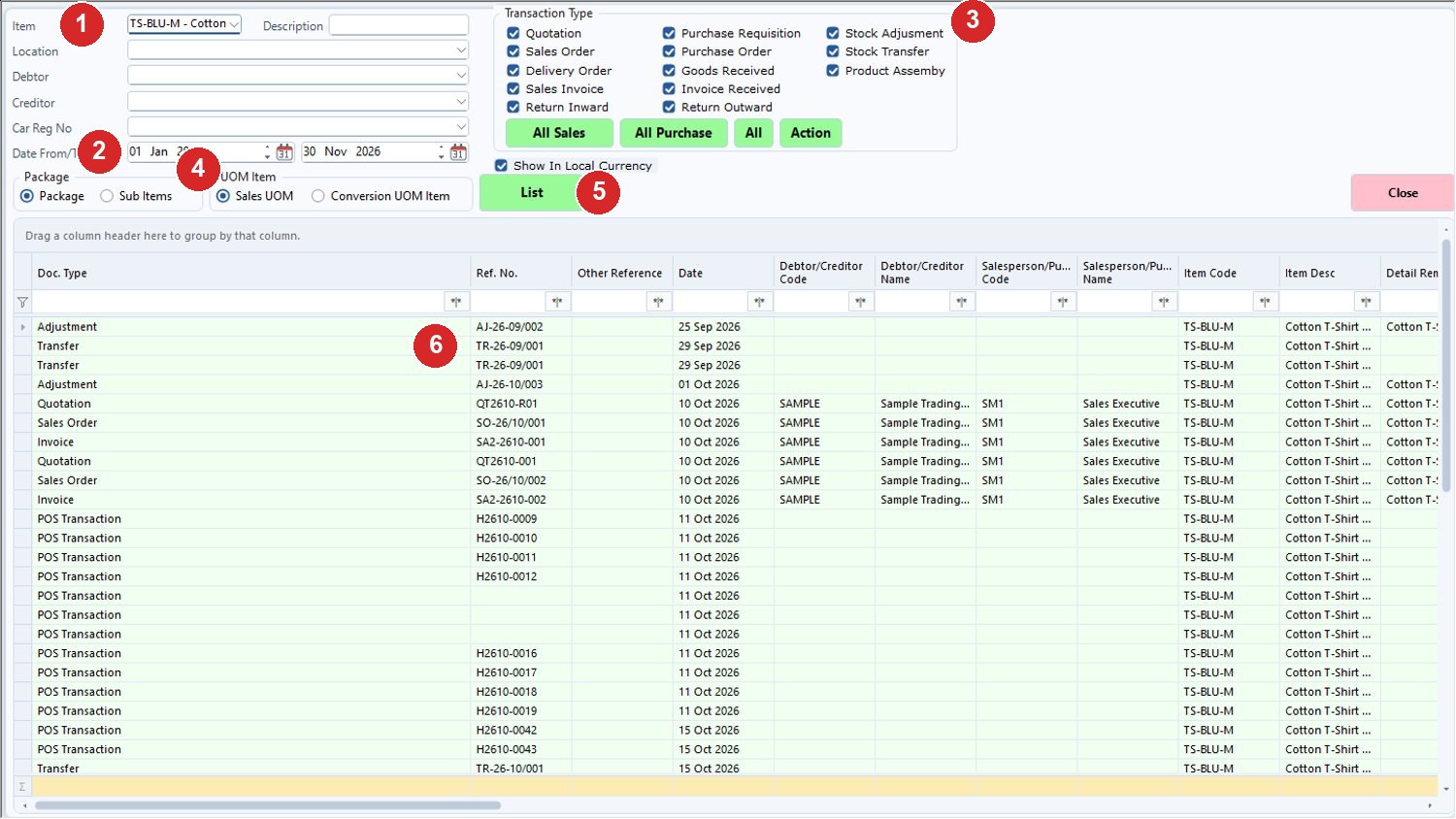
Go to Sales and Purchases > Query > Item Sales & Purchases Query. Choose Location and a Debtor or Creditor if needed. Click Close to leave.
| Step | What to do |
|---|---|
| 1 | Item (and Description to filter by item description). |
| 2 | Date From/To. |
| 3 | Transaction Type: tick the documents. All Sales, All Purchase and All tick groups; Action offers Remember current excluded Document Types, All Inventory, Select All and Deselect All. |
| 4 | Package: Package or Sub Items. UOM Item: Sales UOM or Conversion UOM Item. Tick Show In Local Currency if needed. |
| 5 | Click List. |
| 6 | Double-click a row to open the document. |
Tips
- Choose an item or a location first on the Item Price Query. Listing every item at every location can take a long time.
- Prices follow the company’s unit price decimal places, so a price may look rounded.
- The column order and which columns are shown can be adjusted in the result grid, and your layout is kept for next time.
- The Transaction Type choices are Sales Order, Quotation, Delivery Order, Sales Invoice, Return Inward, Purchase Requisition, Purchase Order, Goods Received, Invoice Received, Return Outward, Product Assemby, Stock Transfer and Stock Adjusment.
- When Sales Invoice is ticked, point-of-sales sales are added automatically.
- Remember current excluded Document Types saves the document types you left unticked as a setting.
Common problems
Double-click does nothing on the Item Price Query.
Check your permission to open item records.
No [Document Type] selected.
Tick at least one document type.
The following Document Types are excluded because you don’t have permission.
Your user cannot view sales or purchase documents, so those ticks are ignored. Ask your system administrator for access.
Drill-down not supported for this Document Type.
That row cannot be opened from this screen.
Fewer documents than expected.
Check the permission message and the date range.