
Three queries let you look at your stock without changing anything: the Stock Balance Query shows quantity and value as at a date, Stock Info finds an item and shows its stock and prices, and the Item Pricing Query lists selling prices, cost and stock limits. This guide shows how to use each one.
Before you start
- These queries only read figures. They do not change any stock, cost or price.
- Decide the location and the date you want to check.
Steps
1. Check stock balances
Go to Inventory Management > Query > Stock Query > Stock Balance Query. Here the T-shirts at HQ1 on 20 Nov 2026: 152 + 155 + 76 = 383 pieces worth 4,596.00. Scroll right for Sales Order Qty, Purchase Order Qty, prices and costs.
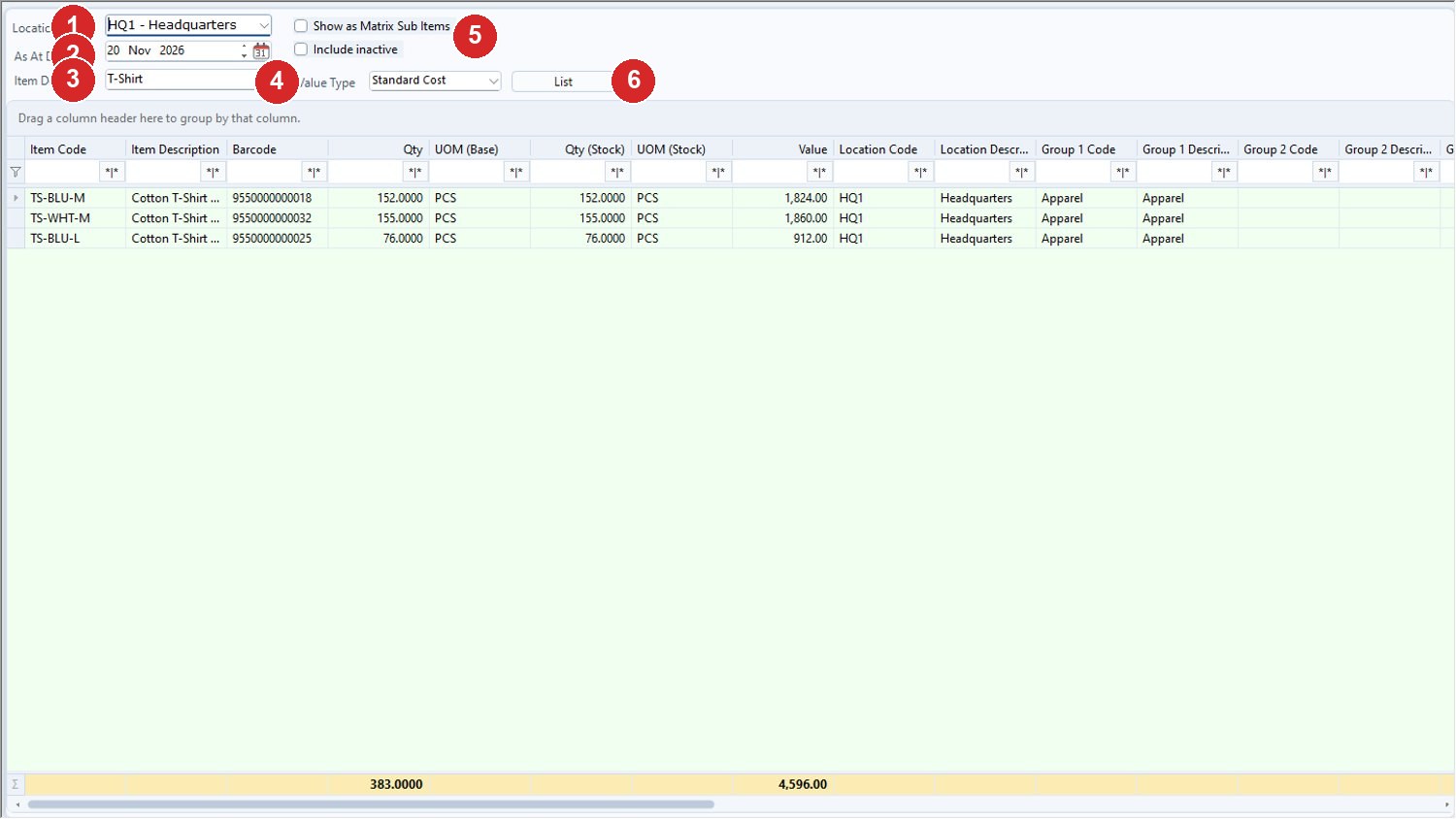
| Step | What to do |
|---|---|
| 1 | Location. |
| 2 | As At Date (starts as today). |
| 3 | Item Desc.: part of the description to narrow the list (optional). |
| 4 | Value Type: Standard Cost or Last Cost. It decides which cost values the stock, so the two give different values. |
| 5 | Show as Matrix Sub Items breaks matrix items into sub items; Include inactive shows inactive items. |
| 6 | Click List (pressing Enter also lists). |
2. Look up an item with Item Info
Go to Inventory Management > Query > Item Info. Double-click an item to open its record.
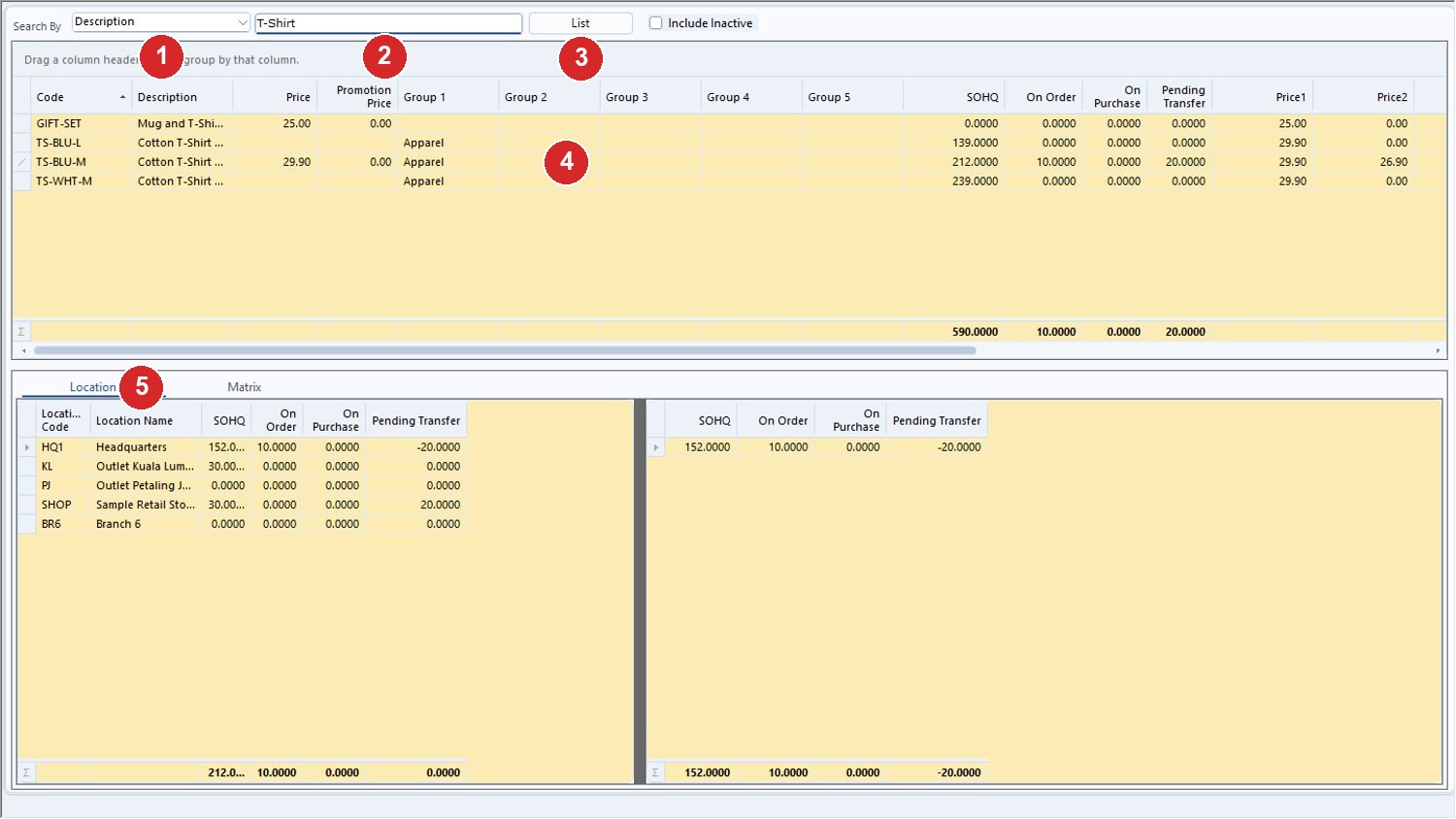
| Step | What to do |
|---|---|
| 1 | Search By: what you search on, such as the description, item code, brand or an item group. |
| 2 | Type your text (here T-Shirt). |
| 3 | Click List (or press Enter in the search box). Tick Include Inactive if needed. |
| 4 | Click an item (here TS-BLU-M): its price and promotion price fill in and the lower tabs update. |
| 5 | Location tab: SOHQ, On Order, On Purchase and Pending Transfer per location (here 152 at HQ1, 30 at KL and SHOP). The Matrix tab shows each size or colour of a matrix item. |
3. Look up prices
Go to Inventory Management > Query > Item Pricing Query. There is one row per location; scroll right to see the location. Double-click a row to open that item’s record.
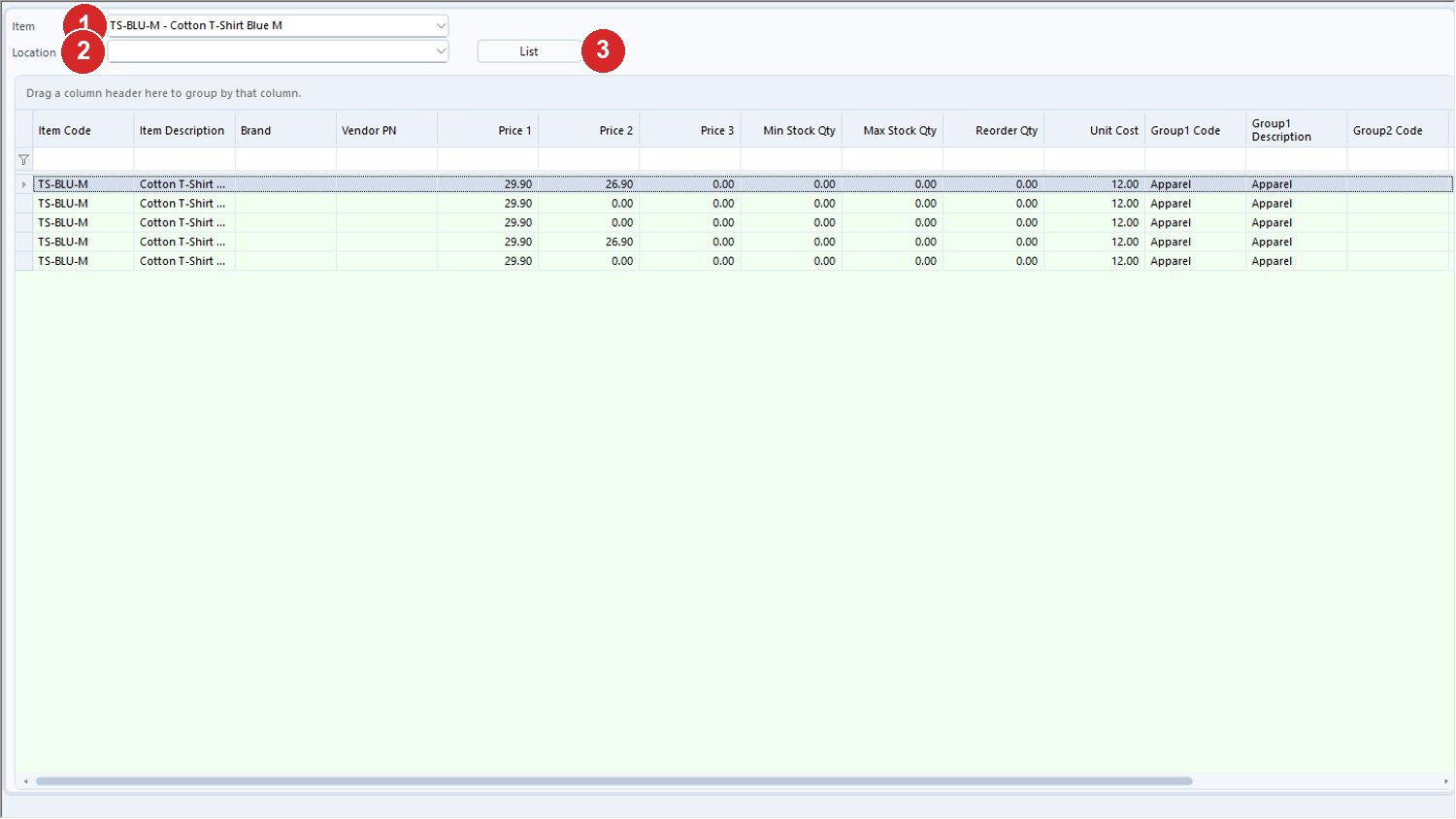
| Step | What to do |
|---|---|
| 1 | Item (here TS-BLU-M: Price 1 29.90, Price 2 26.90 where set). |
| 2 | Location, or leave it empty for all. |
| 3 | Click List. |
Tips
- If a value looks different from another report, check the Value Type first. If the balance is not what you expect, check the As At Date, then the Location, then the Value Type.
- The Stock Balance Query remembers your last Include inactive and Value Type choices. The first time, inactive items are included and Standard Cost is used.
- The grids have a filter row, so you can narrow the result further.
- Quantity, cost and price decimals follow your company settings.
- In Stock Info you can also change the search field by clicking a column heading in the list. Your last used search field is remembered.
- In Stock Info, double-clicking a pending quantity can open the related pending transfer or pending purchase order.
- Listing every item at every location in the Item Pricing Query can be large, so choose an item or a location first.
- The Item Pricing Query also shows cost, minimum and maximum stock quantity and reorder quantity. To change a price, open the item record itself.
Common problems
An item is missing from the Stock Balance Query.
Tick Include inactive.
Stock Info finds nothing.
Try a different Search By field, or type only part of the text.
The Matrix tab in Stock Info is empty.
The selected item is not a matrix item.
Double-clicking a row in the Item Pricing Query does nothing.
Your user needs permission to open item records. Ask your administrator to check it.
A price looks rounded.
The price follows the company price decimal setting.