
Many inventory reports share the same option blocks on their option page: Location, matrix item choices, package and UOM choices, packing list ranges and price tag options. This guide explains what each block does so you get the lines you expect on your report.
Before you start
- These blocks are not separate windows. They appear inside the option page of each report that uses them, so open the report first.
- Which blocks you see depends on the report.
Steps
1. Limit the report to a location
Then run the report.
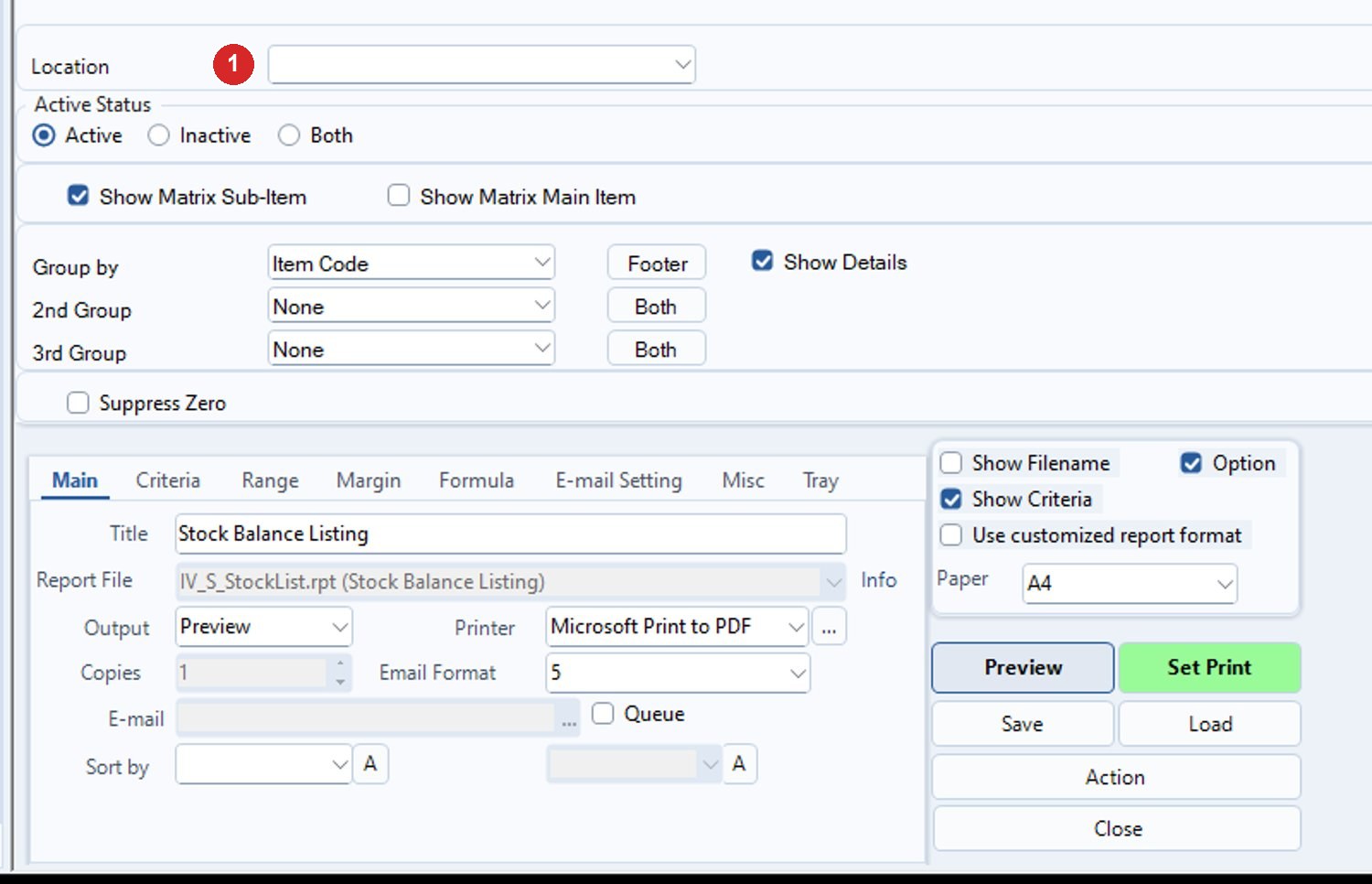
| Step | What to do |
|---|---|
| 1 | In Location, choose a location from the list, or leave it on -ALL- to include every location. |
2. Show matrix variants with Matrix Item Breakdown
Tick Matrix Item Breakdown to list the variants (such as sizes or colours) under each parent item. Leave it unticked to show only the parent items. Then run the report.
3. Choose matrix sub items or main item
On reports with these two boxes, tick Show Matrix Sub-Item to list the sub items, and tick Show Matrix Main Item to list the main item. Items that are not matrix items are not affected.
4. Choose how packages and units are shown
In the Package group choose Sub Items (show the sub item lines and leave out the package line) or Package (show the package line and leave out the sub item lines). In the UOM Item group choose Conversion UOM Item (show the converted unit lines) or Sales UOM (show the sales unit line).
5. Save your choices as the starting choices
Click Set Default to remember the current Package and UOM Item choices as the standard. A short Set as default message appears on screen for about a second.
6. Choose which packing lists to print
In the Packing List report options, enter the first reference number under From and the last under To in Ref. No. In Ref. Date, tick the From and/or To date box and set the dates you want. A date that is not ticked is not used. Then run the report.
7. Print price tags
Go to Inventory Management > Reports > Masterfile Listing > Price Tag. Fill in the options, including the location and the number of price tags, and confirm. The tag data is prepared for that quantity and location. When it finishes, continue with your price tag printing as usual.
Tips
- The Package and UOM defaults are saved as company-wide settings, so another user’s Set Default changes it for everyone who uses that report option.
- A report can be built to filter lines in its own way, in which case the Package and UOM choices have no effect on it.
- On the stock movement detail and summary reports, Location is filled in with your own location when your user has one. If your company has locked users to their own location, it is shown but cannot be changed.
- Matrix Item Breakdown usually starts unticked. Some reports leave out the parent item itself when breakdown is ticked.
- Show Matrix Sub-Item starts ticked and is remembered. Show Matrix Main Item starts unticked each time and is not remembered.
- For packing lists, the dates start as the first and last day of the current month but are unticked, so they do not limit the report until you tick them. Your last numbers and dates are remembered.
- For price tags, if no quantity is passed from the report option, 1 is used.
Common problems
I cannot change the Location on a stock movement report.
Your login is tied to a location and your company has locked users to their own location.
I only see parent items.
Tick Matrix Item Breakdown, or Show Matrix Sub-Item on reports that have that box.
I see only the sub items and not the main item.
Tick Show Matrix Main Item. Some reports are also set to hide the parent line when breakdown is on.
The report still shows both package and sub item lines.
The report may filter in its own way, so these options have no effect on it.
My Package and UOM choices go back to the old ones next time.
Click Set Default after choosing. Remember that someone else may also have changed the shared default.
The packing list report is empty.
The number or date range may be too narrow.
My dates are ignored in the packing list options.
Tick the box next to each date.
Price tags print the wrong number.
The quantity comes from the report option, so check the number entered there.
The message No process defined appears.
Nothing was run. Use the standard Price Tag report option, and if it keeps happening contact your Synergy support contact with the name of the menu entry you used.