
This guide shows where to see your stock quantity, stock value and the movement of one item, and how to get costs that are correct.
Before you start
- Make sure every item has a unit cost set. An item without a unit cost gives a wrong stock value.
- Decide which date the report is for.
- If you will run the Sales Cost Analysis report, make a manual backup first and select an A4 printer.
Steps
1. See the current quantity of each item
Go to Inventory > Stock Balance Listing and click Preview. Do not use the serial number stock report for this, as it is a different report.
2. See the total quantity and value now
Go to Inventory Management > Query > Stock Query > Stock Balance Query. It shows the total quantity and the total value.
3. See the movement and value of one item
Go to Inventory Management > Query > Stock Query > Stock Movement Query. Here TS-BLU-M at HQ1 from 1 Jan 2026: every adjustment, transfer, invoice, return and POS sale, ending at 152 pieces worth 1,824.00. Item Desc. filters by part of the description; Include Inactive shows inactive items.
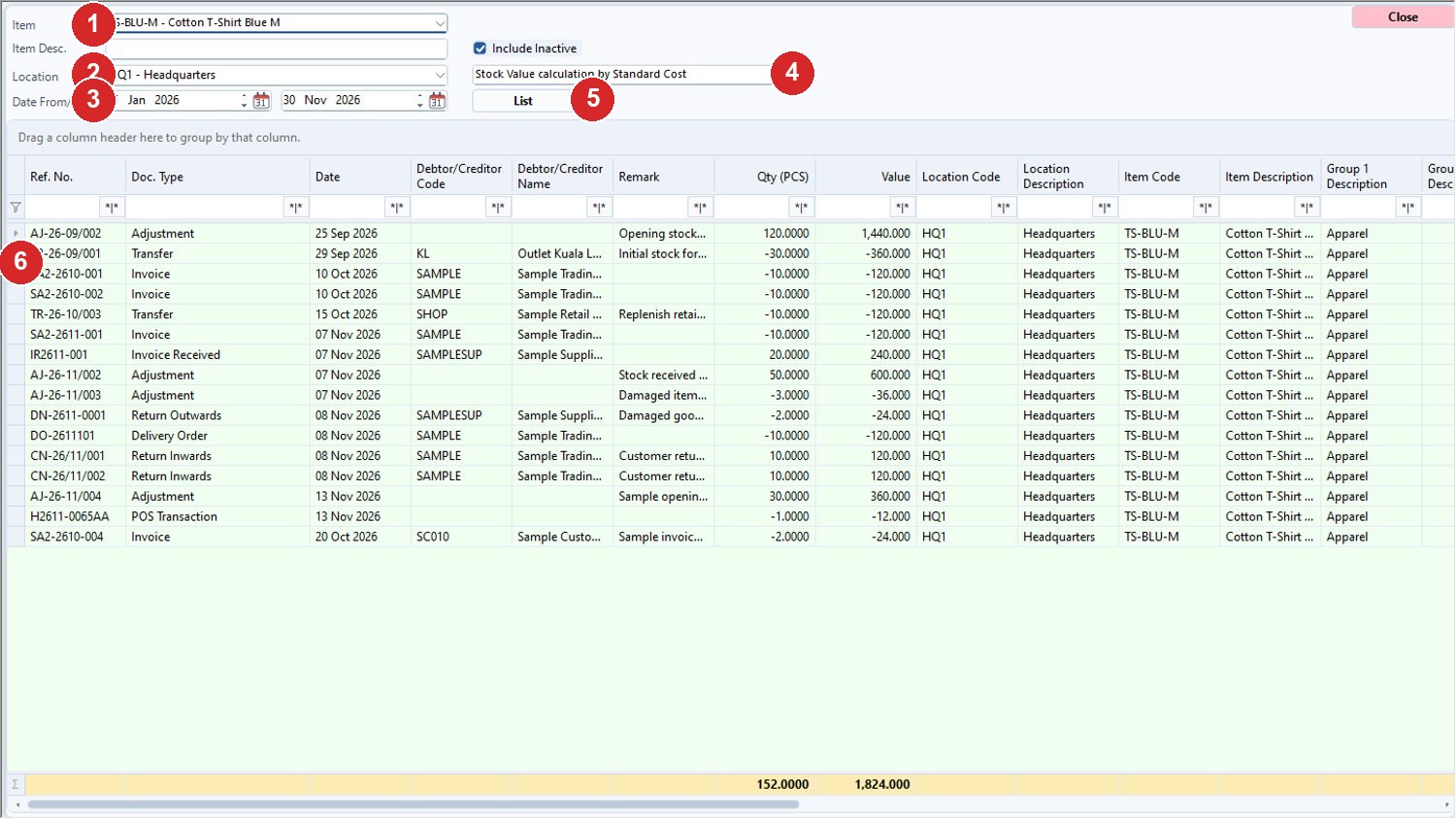
| Step | What to do |
|---|---|
| 1 | Item (only stock items are offered). |
| 2 | Location, or ALL. If your user has a location, it is filled in. |
| 3 | Date From/To (default: 1 January to the end of this month). |
| 4 | Stock Value calculation by Standard Cost, or by Last Cost. |
| 5 | Click List. |
| 6 | Double-click a row to open the source document. Click Close when you are done. |
4. Post costs before checking stock value
Run Inventory Cost Posting: click List, then Post selected transaction.
5. Open the stock value report
Go to Inventory Management > Reports > Stocks > Stock Value Listing. You can also use Stock Movement Summary. Items not yet cost-posted use the standard cost.
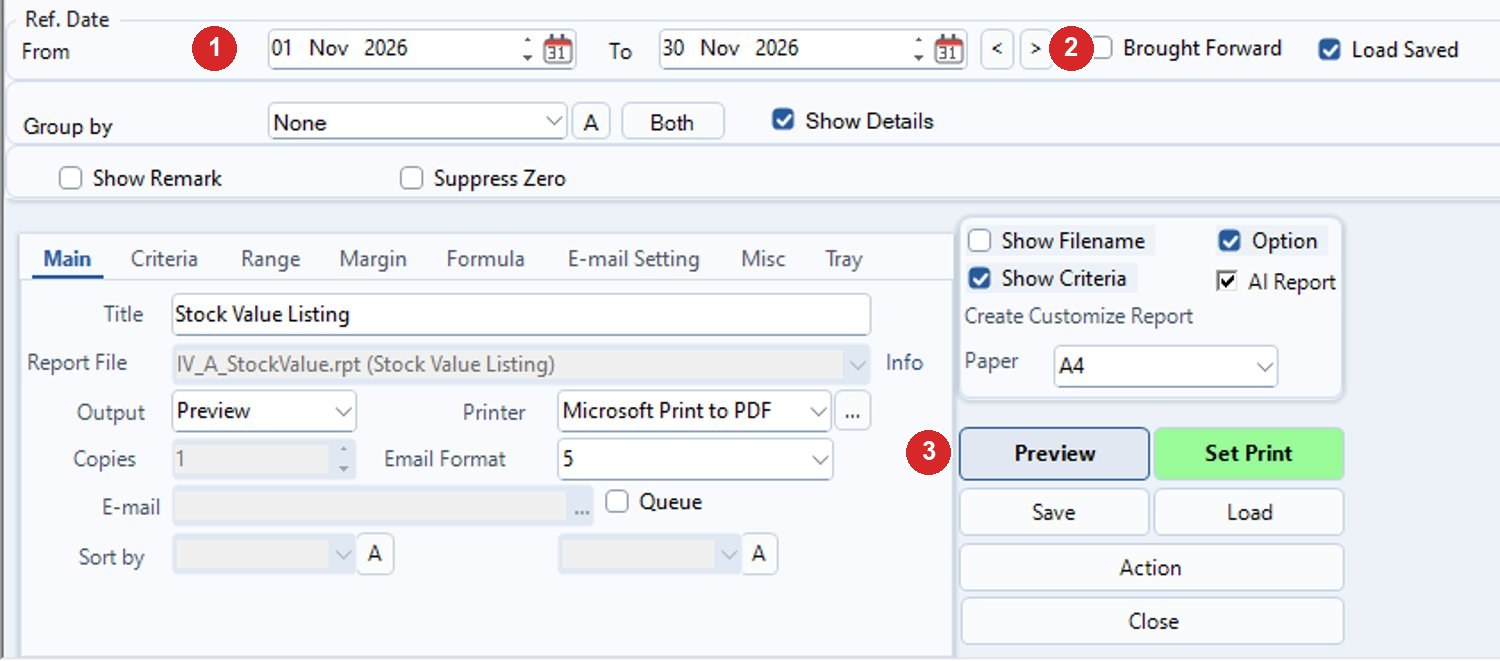
| Step | What to do |
|---|---|
| 1 | Ref. Date From and To (< and > move a month). |
| 2 | Brought Forward includes the opening balance. Group by and Show Details change the layout; Suppress Zero hides empty lines. |
| 3 | Click Preview. |
6. Get a correct sales margin
Key the right cost at every stock-in, run Inventory Cost Posting, then view the Sales Margin report.
Tips
- Item Masterfile Unit Cost is the standard cost. After Invoice Received, run Inventory Cost Posting so reports use the actual cost.
- Costs that are not yet posted show in red and use the standard cost.
- On Invoice Received, tick Update Cost only if the item standard cost should be updated from that invoice. It does not change past sales reports.
- Costing is FIFO, so quantities must be correct. Fix wrong quantities with a stock take.
- Run Inventory Cost Posting before generating the closing stock list.
- For Sales Cost Analysis: make a manual backup, run Inventory Cost Posting, then Preview with an A4 printer selected.
- There is no stock balance report by supplier if an item has more than one supplier, because FIFO costing does not track the balance per supplier.
- A negative balance means more stock was sold or issued than was recorded as received.
Common problems
Cost or margin looks wrong, or costs are red
Run Inventory Cost Posting, then open the report again. Also check that all items have a unit cost and that there are no negative quantities.
Stock Movement Query shows an empty result
Check the location and the dates.
Invalid [Date Ranged] message
The To date is before the From date. Correct the dates.
Cannot change the location
The location is locked to your user.
Preview is blank
Check that the printer is set to A4.
Quantity looks wrong
Make sure you used the normal Stock Balance Listing and not the serial number report. Then check the item in Stock Movement Query. If it still looks wrong, contact Synergy support with a screenshot of the report and the item code.
Sales Cost Analysis shows an old, zero or wrong cost
Run Inventory Cost Posting for the period and open the report again. Red cost comes from the item unit cost, with no cost posting. If the cost is still wrong, contact Synergy support with the item code, period and expected cost.
Stock Value Listing date or search box does not work
Update the software and report it to Synergy support. Have the report name, date and a screenshot ready.