
Use a stock request to ask for the items and quantities a location needs. Use a bin transfer to record stock moving from one bin to another inside your warehouse.
Before you start
- Locations and bins must already be set up.
- For a stock request, choose the Location before you add items by scanning or by Select Items.
Steps
1. Open Stock Request
Go to Inventory Management > Transactions > Stocks > Stock Request > Stock Request Transaction.
2. Fill in the request
Here SHOP asks for 20 T-shirts, 12 mugs and 10 caps by 23 Nov for a weekend promotion (SR-2611-001). Choose the Location before you add items by scanning or by Select Items (under Actions); Load Stock Request loads the items of an earlier request.
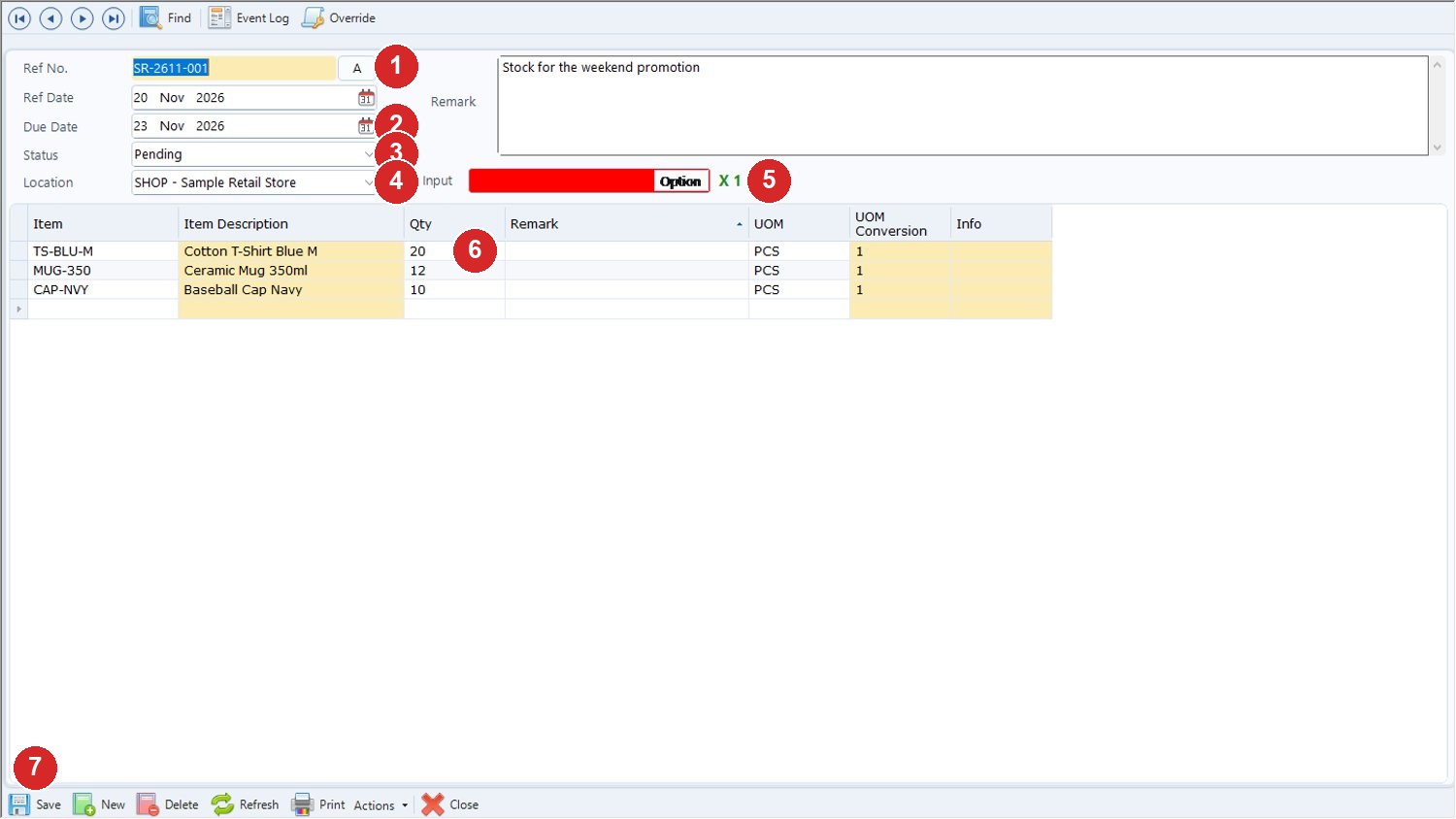
| Step | What to do |
|---|---|
| 1 | Ref No. (A = automatic numbering) and Ref Date. |
| 2 | Due Date: when the stock is needed. |
| 3 | Status (a new request is Pending). |
| 4 | Location that needs the stock. |
| 5 | Fast Input: type or scan a code and press Enter. X 1 is the quantity per scan; press the Up or Down arrow key in the box to change it. |
| 6 | Each item and its Qty. Add a Remark at the top if needed. |
| 7 | Click Save. At least one item is needed, otherwise the screen says No details entered. |
3. Move stock between bins
Go to Inventory Management > Transactions > Stocks > Bin Transfer. Here BT-26/11/001 moves 5 units of tea from bin B1 to B2 at HQ1 (Remark: Move tea to the front shelf). Right-click a line to insert or delete a row. Every line needs an item, a unit of measure and two different bins; then save.
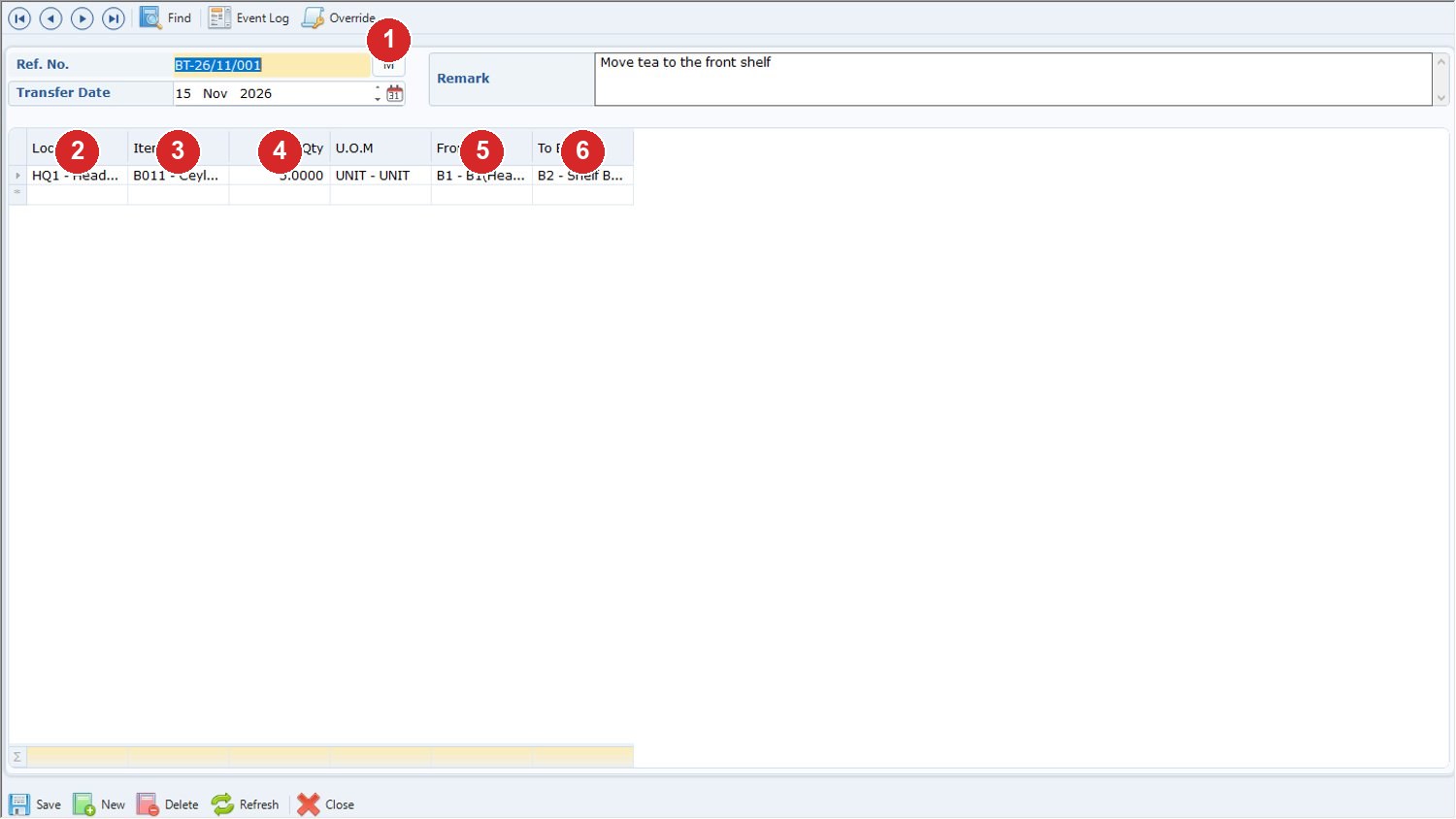
| Step | What to do |
|---|---|
| 1 | Ref. No. (M = type your own number) and Transfer Date; Remark if needed. |
| 2 | Location (choose it first). |
| 3 | Item. |
| 4 | Qty and U.O.M. |
| 5 | From Bin. |
| 6 | To Bin. |
Tips
- Changing the location on a bin transfer line clears the item, unit of measure, quantity and both bins.
- On a bin transfer, only active stock items available at the line’s location can be chosen. Pick the item from the list.
- Matrix items cannot be added to a stock request by scanning.
Common problems
Please select Location first
Choose the Location before using Select Items. When scanning, the message is Location is required.
Item Code not found or Barcode not found
The scanned code is unknown. Check the code and scan again. A list shows the items that had problems.
No details entered
Add at least one item (or one line on a bin transfer).
From Bin cannot be same as To Bin
Choose two different bins.
U.O.M Conversion rate is undefined
The unit of measure chosen has no conversion rate for that item. Choose another unit.
Invalid code entered on a bin transfer
The item code typed is not in the list. Pick it from the item list.