
Use the Service Transaction screen to record a job taken in from a customer, for example a device left for repair. It stores the customer, what was handed in, and the brand, model and issue of each item.
Before you start
- Brands, models and issues must already be set up, because each line must use a value from their lists.
Steps
1. Open Service Transaction
Go to Main > Service Order > Service Order Transaction.
2. Fill in the service order
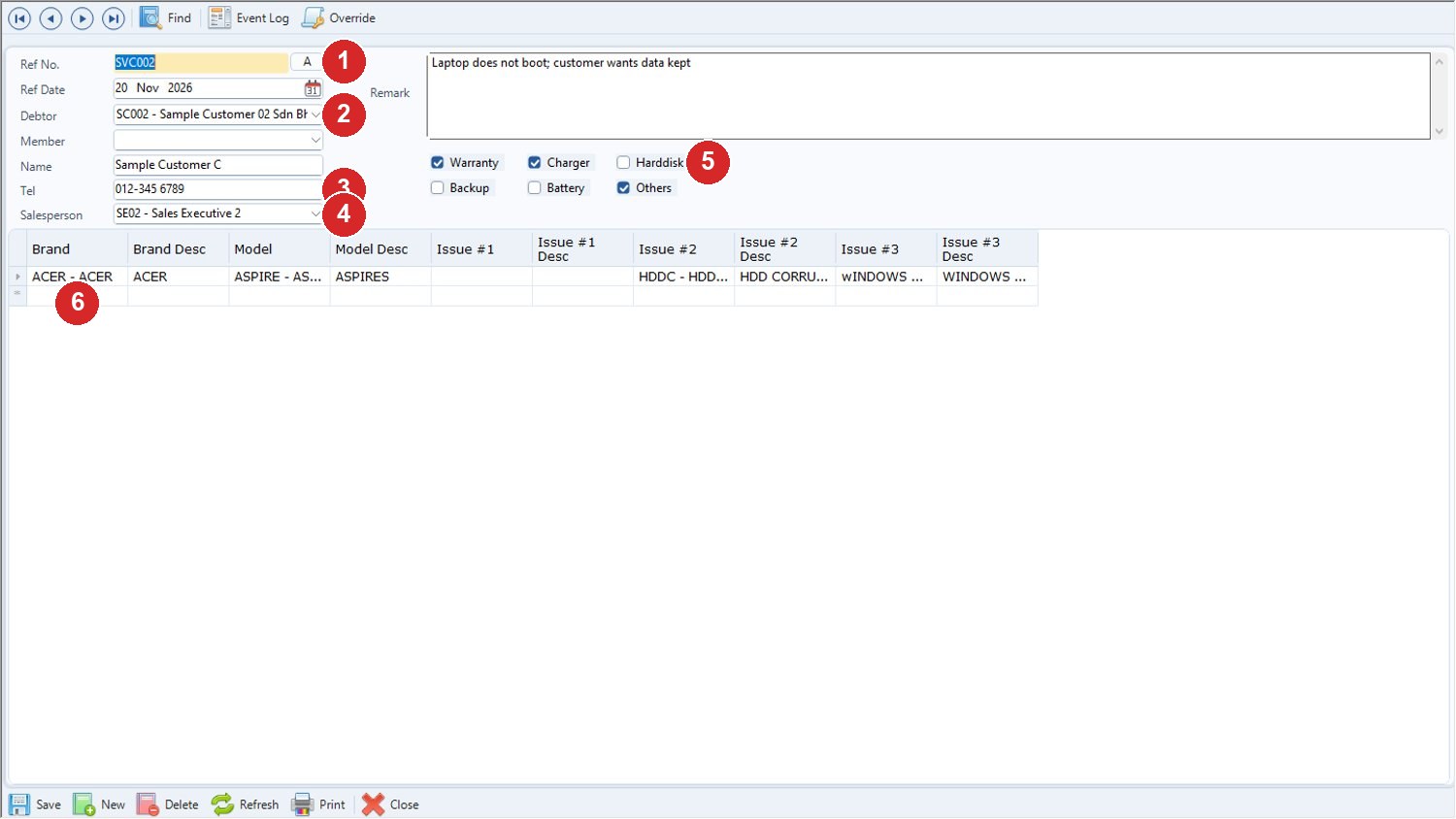
Here a laptop handed in on 20 Nov 2026 under warranty, with its charger. Lines you delete are removed when you save.
| Step | What to do |
|---|---|
| 1 | Ref No. (A gives the next number) and Ref Date. |
| 2 | Debtor and/or Member. Choosing a Debtor fills in the agent if the debtor has one. |
| 3 | Name and Tel of the person who brought it. |
| 4 | Salesperson: with a Member it shows the member’s salesperson, without one the agent. |
| 5 | Tick Warranty, and Charger, Battery, Harddisk, Backup or Others as handed in. Type any Remark. |
| 6 | One line per item: Brand first, then Model (only models of that brand are offered), then up to three issues. Press F1 on these columns for a list. |
3. Save
Save the record. Lines you deleted are removed when you save.
Tips
- Choosing a model also fills in its brand.
- Automatic numbering follows the reference setup for this document type.
Common problems
Ref. No. is required
Fill in the reference number, or use the button beside it to generate one.
No details entered
Add at least one grid line.
Invalid Brand, Invalid Model or Brand is required
Choose the brand and model from the lists. Pick the brand first, then the model.
Issue is required
Choose an issue on the line.
Trx Type is required
The model on a line was emptied. Choose a model for the line.
Model not in the list
Pick the brand first, then the model.