
Use this guide when stock quantities changed after a stock take, an error appears after inventory cost posting, Sales Cost Analysis shows an old, zero or wrong cost, or an item’s unit of measure (UOM) disappears or changes by itself. Work down the checks in order. For other stock quantity problems, see the guide “Synergy Acc2026 – What To Do When a Stock Quantity Looks Wrong”.
Before you start
- Which branch or location, and which item.
- The item code and the period.
- Whether ‘Treat Items which are not entered as ZERO quantity’ was ticked in the stock take.
- Whether an Excel import was done recently.
- Whether the cost in Sales Cost Analysis is red or black.
- A backup from before the change, if you have one.
Steps
1. Compare before you post a stock take
Before posting a stock take, compare it with the Comparison by Stock report.
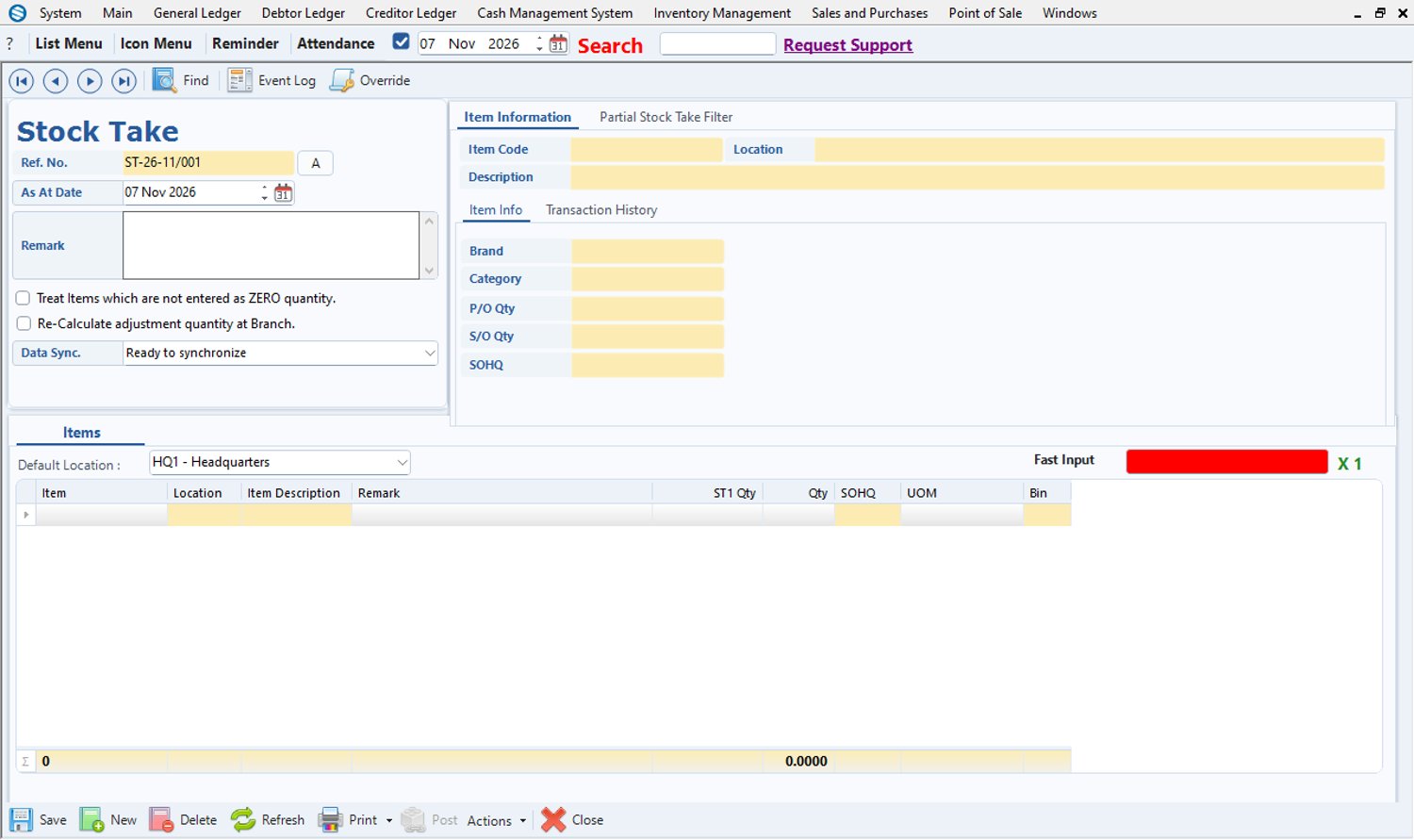
2. Do not tick Treat Items which are not entered as ZERO quantity
In the Stock Take screen, leave this box unticked unless you really want every item you did not enter to be set to 0.
3. Undo a stock take that went wrong
If the stock take was wrong, unpost it and redo it, or restore a backup. See the guide “Synergy Acc2026 – Restoring a Backup”.
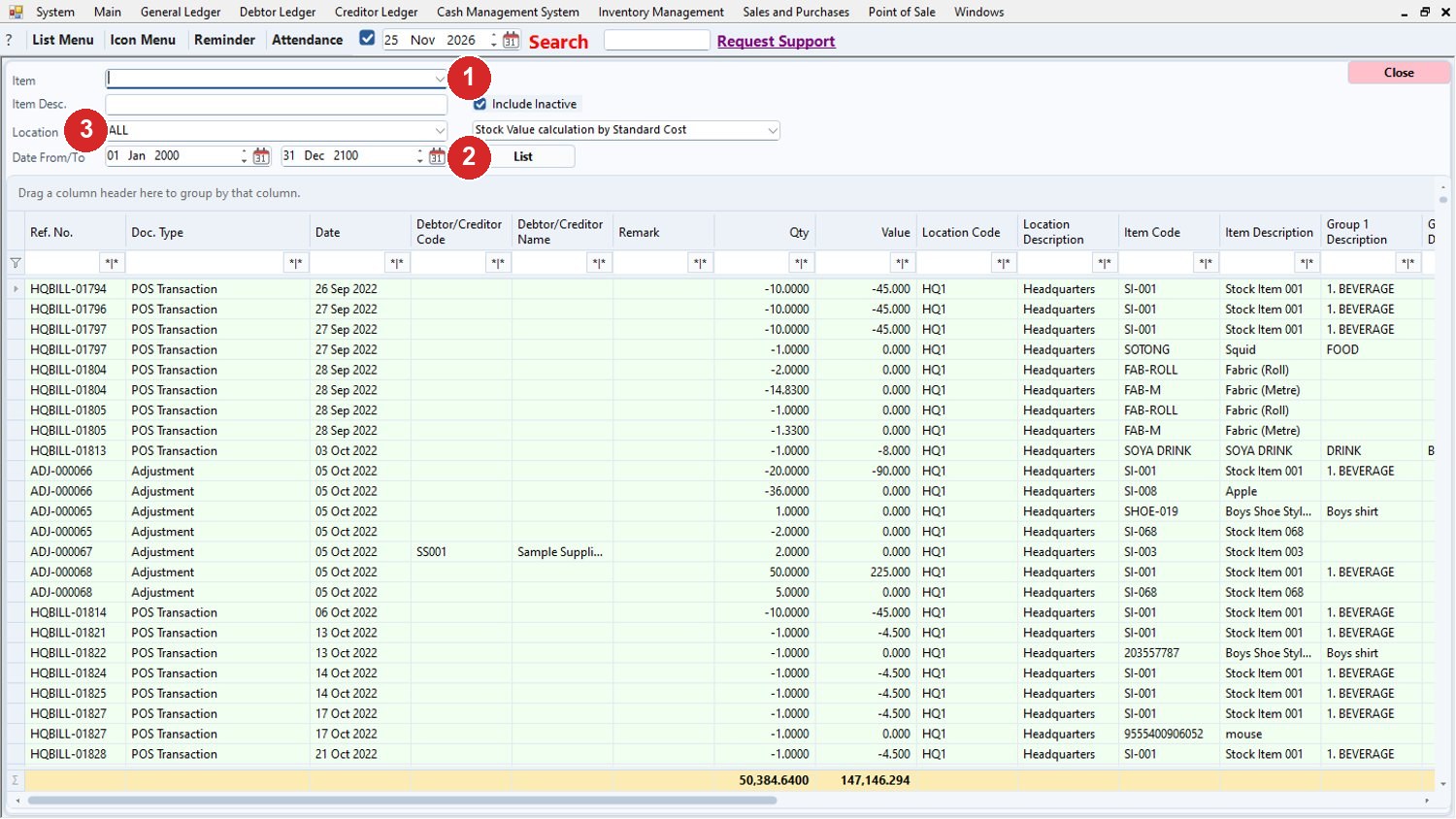
4. Look at the item movements after a cost posting error
Then look for future-dated or back-dated entries.
| Step | What to do |
|---|---|
| 1 | Open Stock Movement Query and choose the item. |
| 2 | Set Date From/To from 2000 to 2100. |
| 3 | Filter by location. |
5. Reverse the cost posting and post again
Synergy support advised trying to reverse the cost posting for the item and post it again. This error happens when stock out is more than stock in.
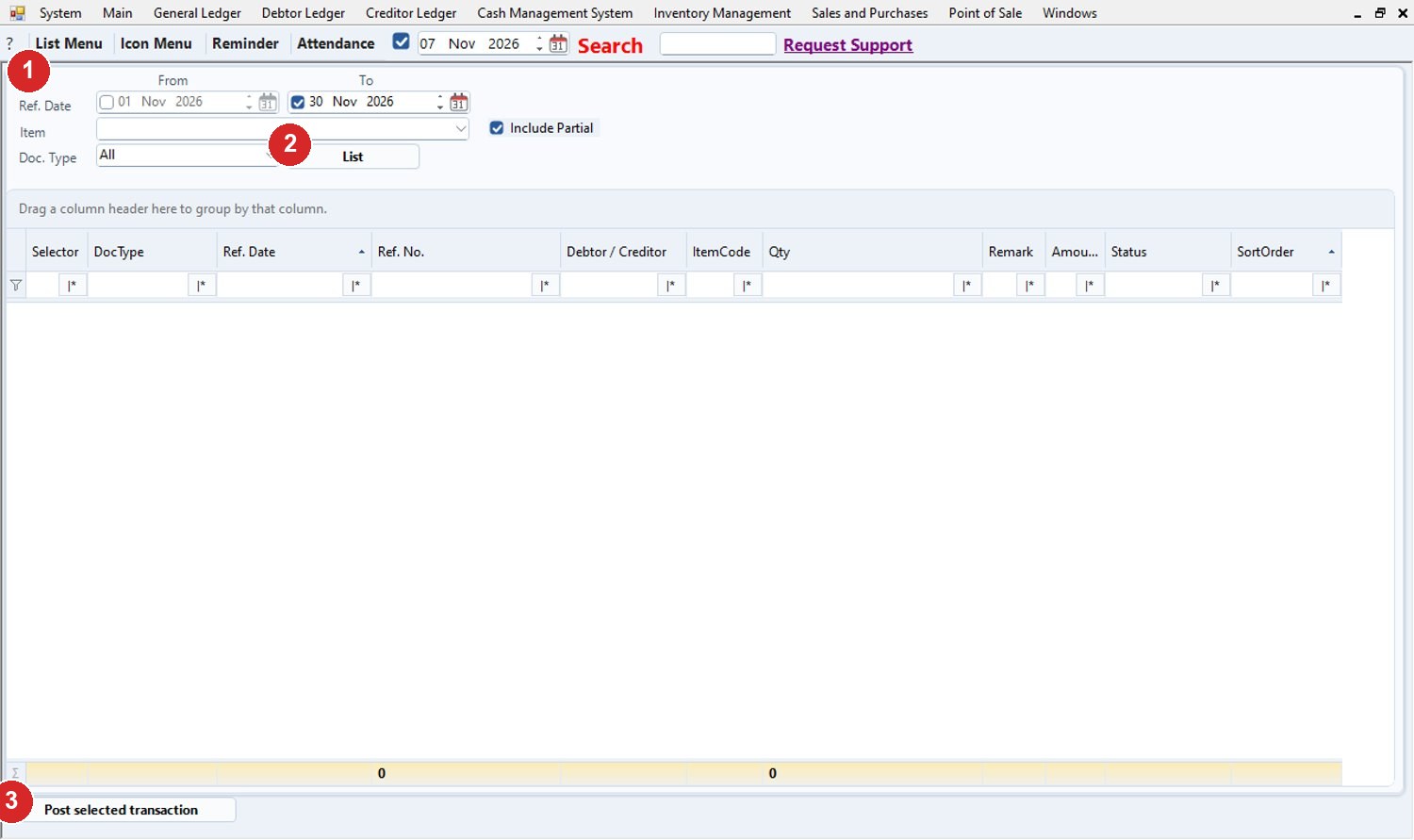
6. Run Inventory Cost Posting if the cost is old or zero
Go to Inventory Management > Transactions > Stocks > Inventory Cost Posting and post for the period. Then open Sales Cost Analysis again. The cost follows the costing method.
| Step | What to do |
|---|---|
| 1 | Set the Ref. Date range for the period. |
| 2 | Click List. |
| 3 | Tick the transactions, then click Post selected transaction and answer Yes. |
7. Read the colour of the cost
A red cost is taken from the item unit cost, with no cost posting. A black cost comes from a stock adjustment with Inventory Cost Posting. Without cost posting, the cost follows the Standard Cost in the Item Masterfile.
8. Correct the cost of one item
Reverse the costing for the item, issue the item down to zero, receive it again with the correct cost, then run Inventory Cost Posting. Make sure the item is not over-issued. Updating the Standard Cost is another option.
9. UOM missing when you key an invoice
Open the Item UOM tab of the item and check that the UOM is not set to inactive.
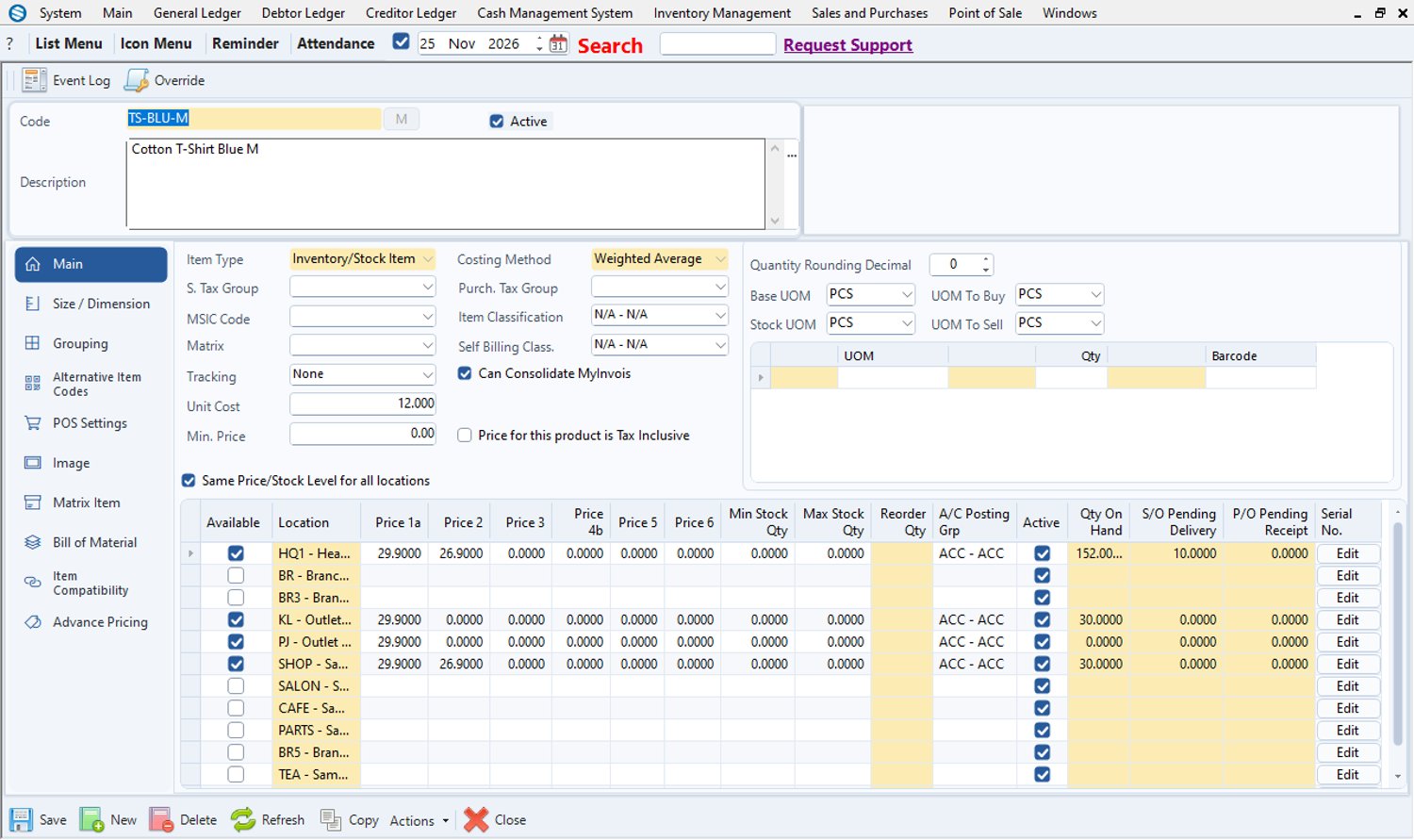
10. UOM changed by itself
Check the event log to see when it changed, and whether an Excel import overwrote it.
Tips
- Red cost means the cost came from the item unit cost. Black cost means it came from a stock adjustment with Inventory Cost Posting.
- Changing the unit cost in the Item Masterfile can change the cost of earlier periods and show a loss.
- Back-dated or future-dated stock entries, where stock out is more than stock in, cause cost posting errors.
Common problems
The stock take posted and all items went to 0.
Unpost and redo the stock take. Restoring a backup was used once for zeroed stock.
The cost is still wrong after the correction steps.
Contact Synergy support. Have the item code, the period and the expected cost ready.
The cost posting error is still there.
Contact Synergy support. Have the item code, the location and a screenshot of Stock Movement Query ready.