
A stock take lets you count your stock and record the result. When you post it, the program adjusts the system quantity to match your count. This guide takes you through a stock take from start to finish.
Before you start
- Have your counted quantity for each item ready.
- Decide whether you are counting only certain groups or specific items.
- Know which location you are counting (the Default Location).
Steps
1. Open Stock Take
Go to Inventory Management > Transactions > Stocks > Stock Take and click Add New Record.
2. Fill in the count
Here count ST-26-11/002 at HQ1 found 150 T-shirts, 77 mugs, 40 caps and no water bottles.
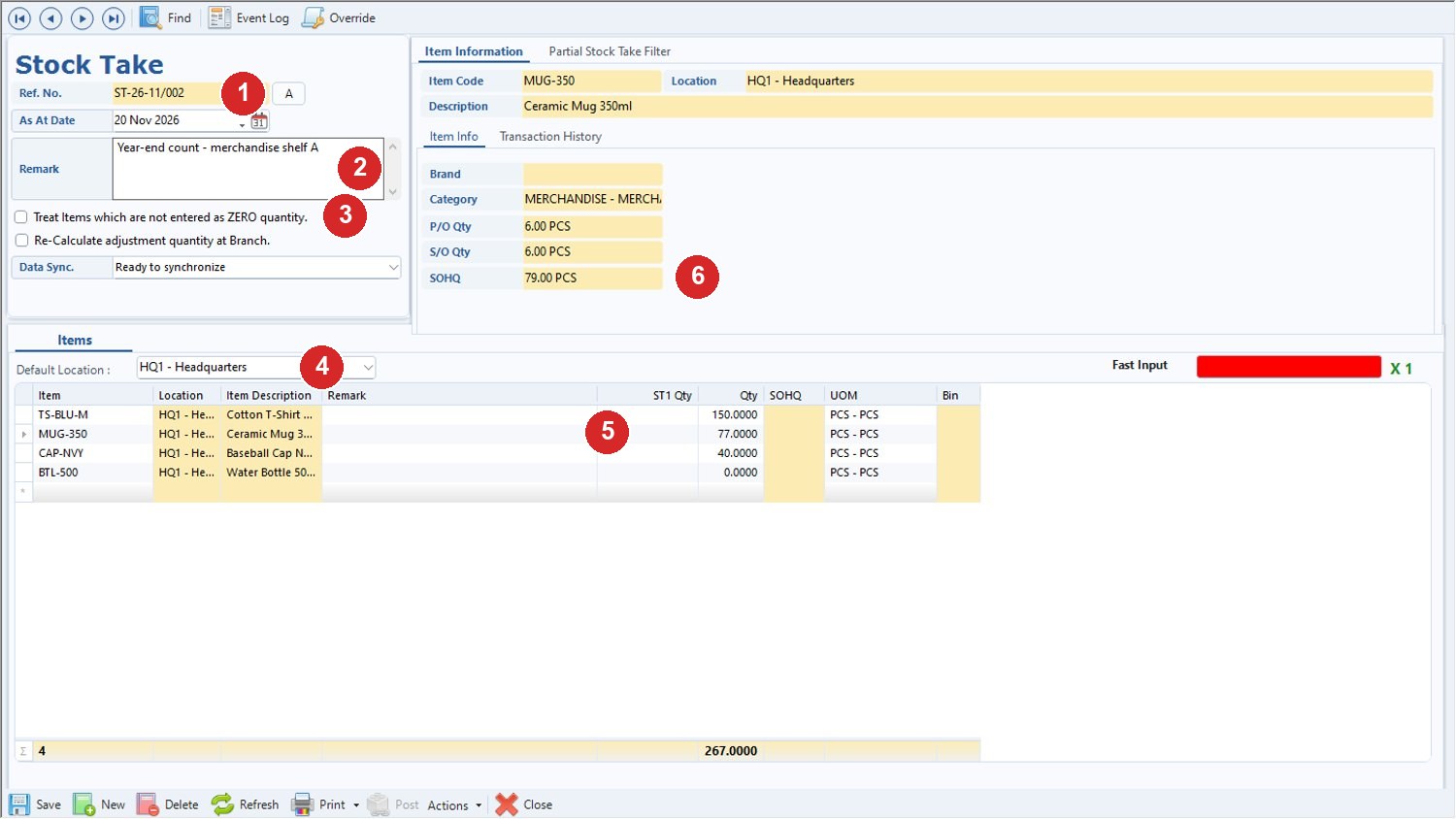
| Step | What to do |
|---|---|
| 1 | Ref. No. and As At Date (the date of the count). |
| 2 | Remark: for example the reason or the shelf counted. |
| 3 | Treat Items which are not entered as ZERO quantity.: tick it only if every item you did not enter (within the groups you chose, if any) should become zero. Otherwise leave it unticked. |
| 4 | Default Location: the location you counted. |
| 5 | Each item and its counted Qty. Fast Input scans barcodes; you can also load an Excel file with the columns Code/Barcode and Qty. For an item that is no longer there, key in 0 (here BTL-500). |
| 6 | Click a row to compare with the system: SOHQ is the stock on hand before the count (here 79 mugs). |
3. Count only some groups (optional)
Leave the groups empty if you only want the items you enter.
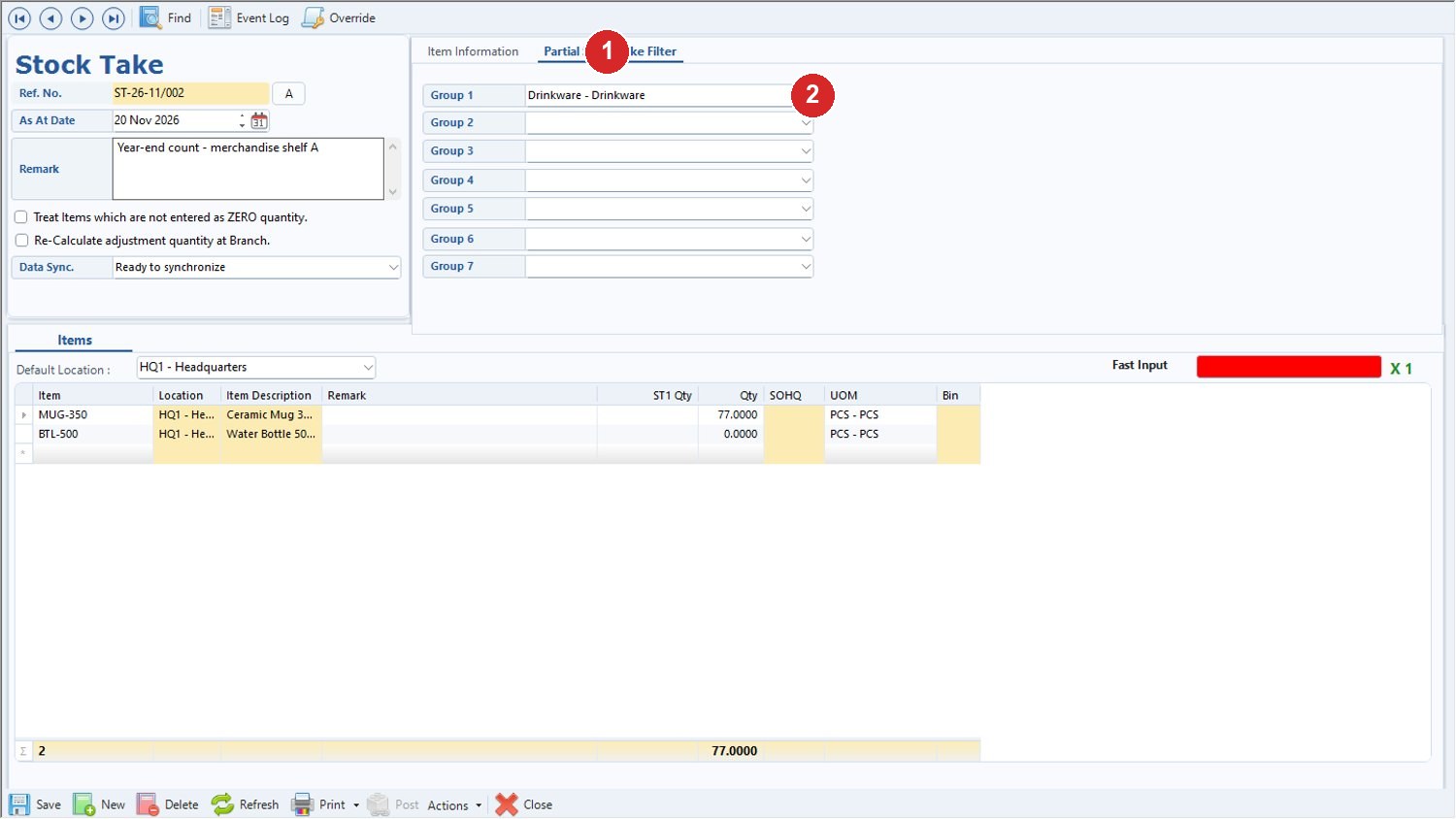
| Step | What to do |
|---|---|
| 1 | Open the Partial Stock Take Filter tab. |
| 2 | Choose values for Group 1 to Group 7 (here Group 1 Drinkware: only drinkware items are counted, and with the zero option only drinkware items not entered become zero). |
4. Save
Click Save.
5. Check the comparison report
Click the arrow next to Print and choose Comparison By Stock. Check it carefully before posting.
6. Post the stock take
Click Post. Tick the checkbox shown to confirm you have checked the report, then click OK. The Items tab is marked POSTED TO STOCK ADJUSTMENT.
7. Send it to branches (if you have branches)
At head office, open Point of Sale > Transaction > Data Synchronization (HQ), go to the Upload to branches tab and click Upload Data. At the branch, open Point of Sale > Transaction > Data Synchronization (POS), go to the Download From HQ tab and click Download.
8. Post the cost and see the stock value
Go to Inventory Management > Transactions > Stocks > Inventory Cost Posting. Then run the Stock Value Listing.
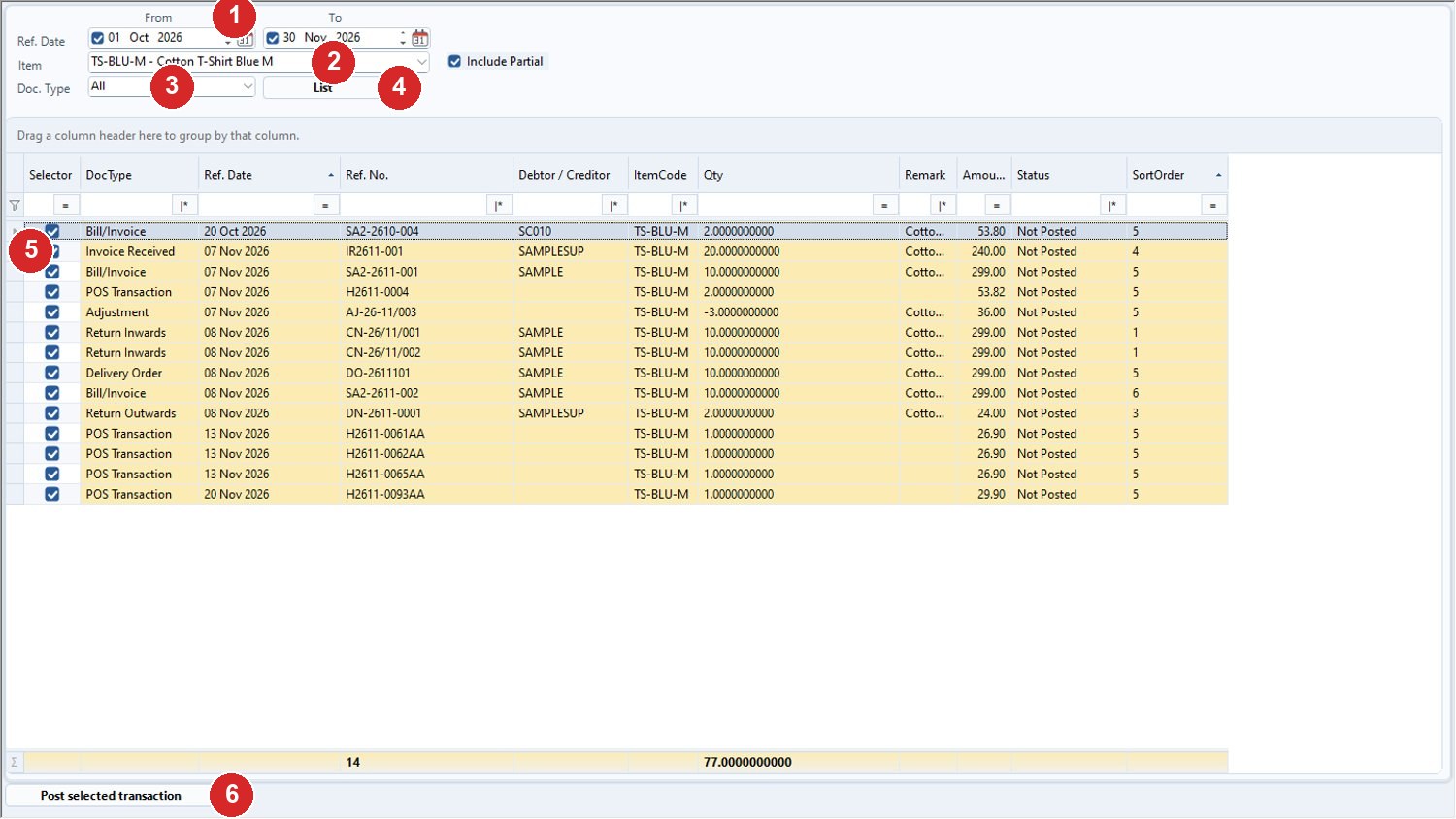
| Step | What to do |
|---|---|
| 1 | Ref. Date From/To (tick From to use it). |
| 2 | Item: leave empty for all items (here TS-BLU-M). |
| 3 | Doc. Type, for example Adjustment for the stock take. |
| 4 | Click List. |
| 5 | Every listed transaction comes ticked (here 14 for TS-BLU-M); untick any you do not want to post now. |
| 6 | Click Post selected transaction. |
Tips
- A posted stock take cannot be edited. Click Unpost to reverse it and make changes.
- Do not tick Treat Items which are not entered as ZERO quantity. unless you really want all other items set to 0. If posted by mistake, unpost and redo.
- A stock take only creates an adjustment for items where your count differs from the system quantity. Items with equal quantity leave no movement.
- Stock value does not include adjustments that are not yet cost-posted.
- Before counting, print the Stock Balance Listing for current quantity. For cost, print the Stock Value Listing (after Inventory Cost Posting) or the Stock Movement Summary (cost without posting).
- Export the stock take list to PDF to keep a copy. A later reprint can differ if the as-at date or criteria differ, or if items were edited after the stock take.
- If an item is negative, stock take it to 0 and post first, before using Stock Received.
Common problems
I cannot edit the stock take.
It is already posted. Click Unpost first.
I see a message about ticking Treat Items which are not entered as ZERO quantity.
This appears when a value is chosen in the Partial Stock Take Filter groups but the box is not ticked. Tick it for a full count of those groups, or clear the groups if you only count specific items.
Loading from Excel fails.
Check the column headings. The file needs Code/Barcode and Qty columns.
I cannot key in quantities.
Check that Data Sync. is set to Ready to synchronize and not Do not synchronize.
The stock take does not show in the stock movement.
A movement is created only when the counted quantity differs from the system. Check the balance in Inventory Management > Query > Stock Query > Stock Movement Query.
The quantity still does not match after posting.
Contact Synergy support. Have the item codes, the as-at date and screenshots ready.