
A posted or paid document cannot be edited directly. This guide shows how to undo whatever is blocking the change, in the right order, so you can correct the document and post it again.
Before you start
- Check whether a payment or receipt is applied to the document.
- Check whether the document has already been submitted for e-invoice.
- If a date-lock message appears, note exactly what it says.
- Check you have administrator permission, as the date lock can only be changed by an administrator or a user allowed to open System Settings.
- If the payment was bank-reconciled, or the period has already been reported or submitted (for example SST/tax or audited accounts), check with your boss or accountant before changing anything.
Steps
1. Open Reverse Apply
If a payment or receipt was applied to the invoice, go to Creditor Ledger > Transactions > Reverse Apply (or Debtor Ledger > Transactions > Reverse Apply).
2. List the applied payments and reverse only what you need
Choose the Debtor (or Creditor) and click List. The list shows each receipt or payment with the bill it was applied to (here three receipts for Sample Trading Sdn Bhd). If you only want to see which payment is linked, stop here.
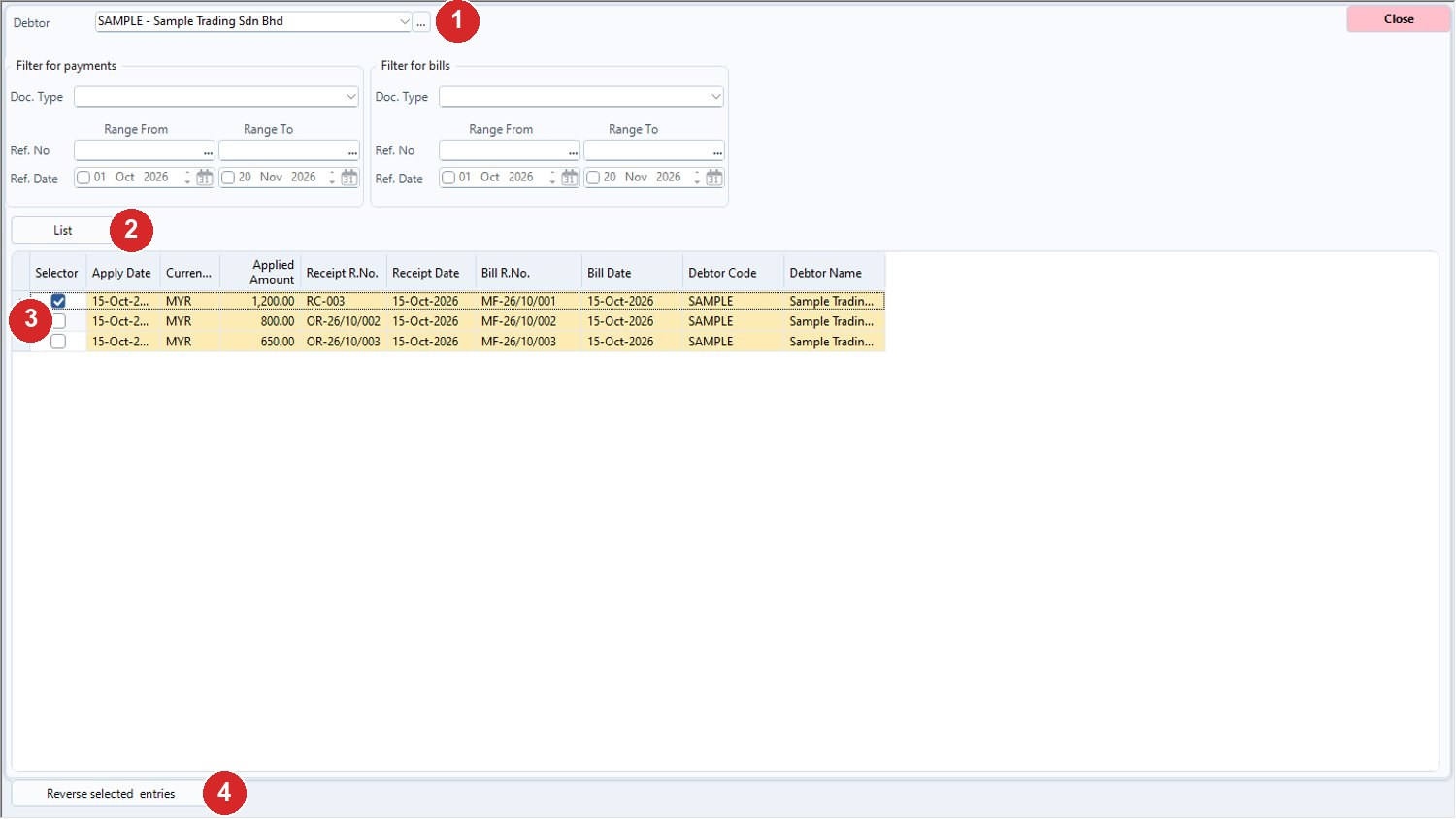
| Step | What to do |
|---|---|
| 1 | Debtor (or Creditor): the customer or supplier. |
| 2 | Click List. Use the payment and bill filters (Doc. Type, Ref. No, Ref. Date) to narrow it down. |
| 3 | Every listed line comes ticked. Untick each line you do NOT want to reverse (here only RC-003 against MF-26/10/001 stays ticked). |
| 4 | Click Reverse selected entries, then Yes to confirm. |
3. Put the posted payment On-Hold if it must change
Go to Cash Management System > Transactions > Bank > Posted Transactions > Posted Bank Payment (or Posted Bank Receipt), find the transaction and open it. A posted entry cannot be changed until it is On-Hold.
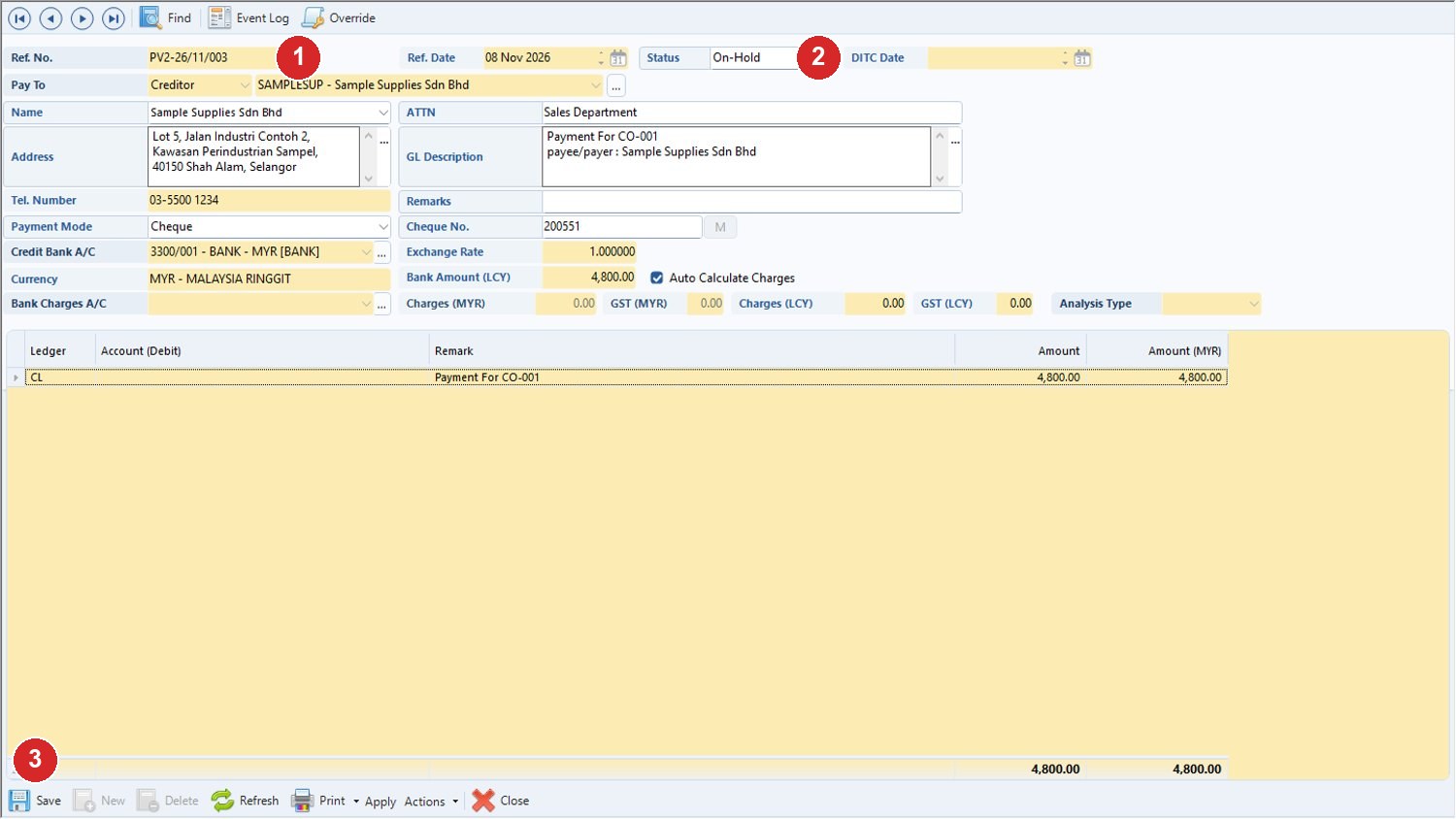
| Step | What to do |
|---|---|
| 1 | The payment to change (here PV2-26/11/003, cheque 200551 to Sample Supplies Sdn Bhd). |
| 2 | Status: change Post to On-Hold. |
| 3 | Click Save. Change the payment, then set the Status back to Post and save again. |
4. Reverse the posting of the document
To unpost an Invoice or Invoice Received, go to Sales and Purchases > Transactions > Transaction Posting > Reverse Posting. The list also shows POS sales and credit notes. After reversing, change the document and post it again.
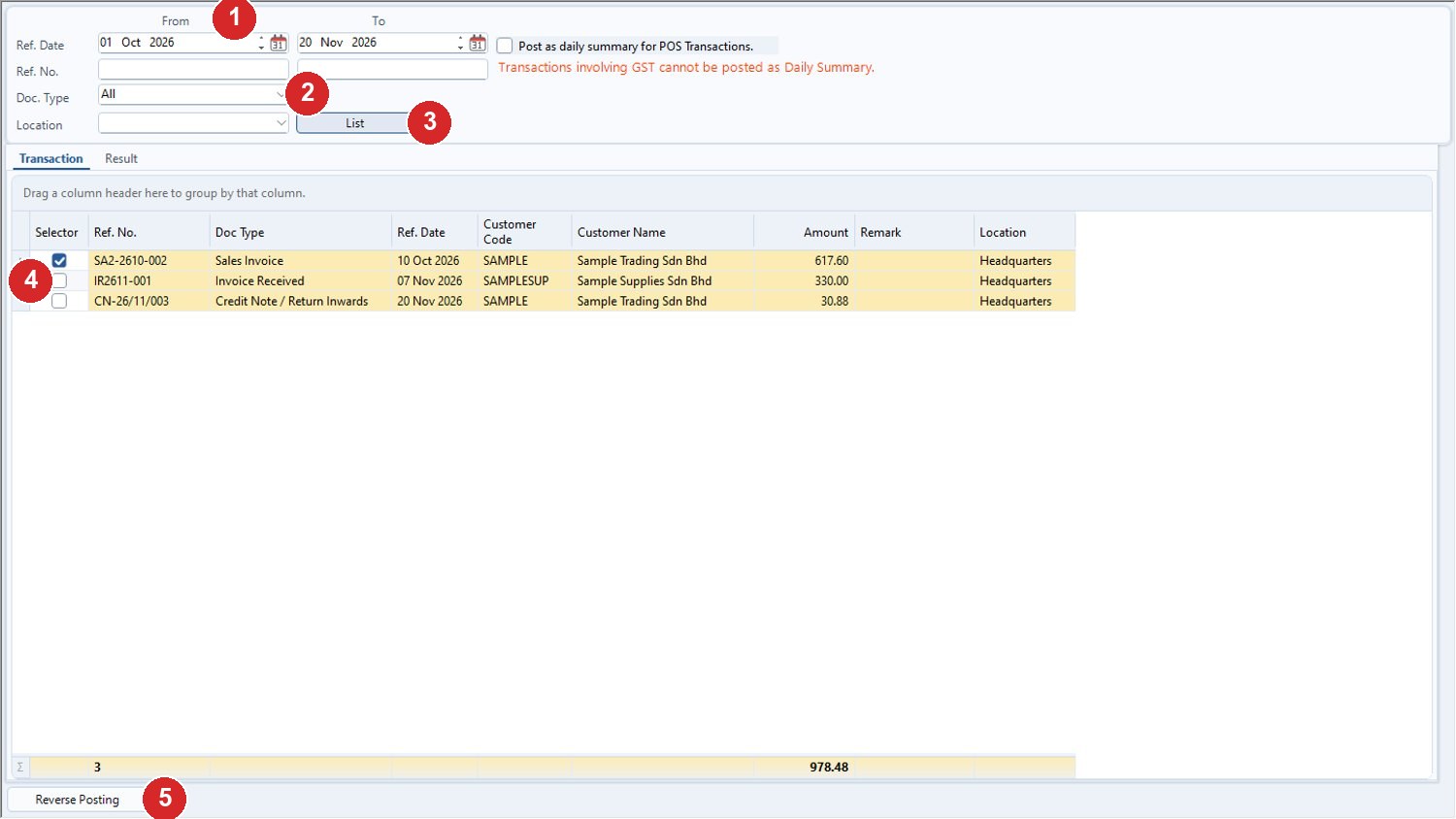
| Step | What to do |
|---|---|
| 1 | Ref. Date range (and Ref. No. range if you know the number). |
| 2 | Doc. Type and Location narrow the list. |
| 3 | Click List. |
| 4 | Every listed document comes ticked. Untick the ones you do NOT want to unpost (here only SA2-2610-002 stays ticked). |
| 5 | Click Reverse Posting and confirm. |
5. Apply the payment again
Apply the payment again, or use Apply Open Credit in the ledger.
6. If a wrong item was picked with F2
If you pressed F2 in the item column (it opens the Item masterfile list) and picked the wrong item row, select the row, press the Delete key, then press Esc to cancel.
7. If you see GL Period Locked
Go to General Ledger > Settings > System Settings and open the Integration tab. Nothing on or before the lock date can be added, changed or posted.
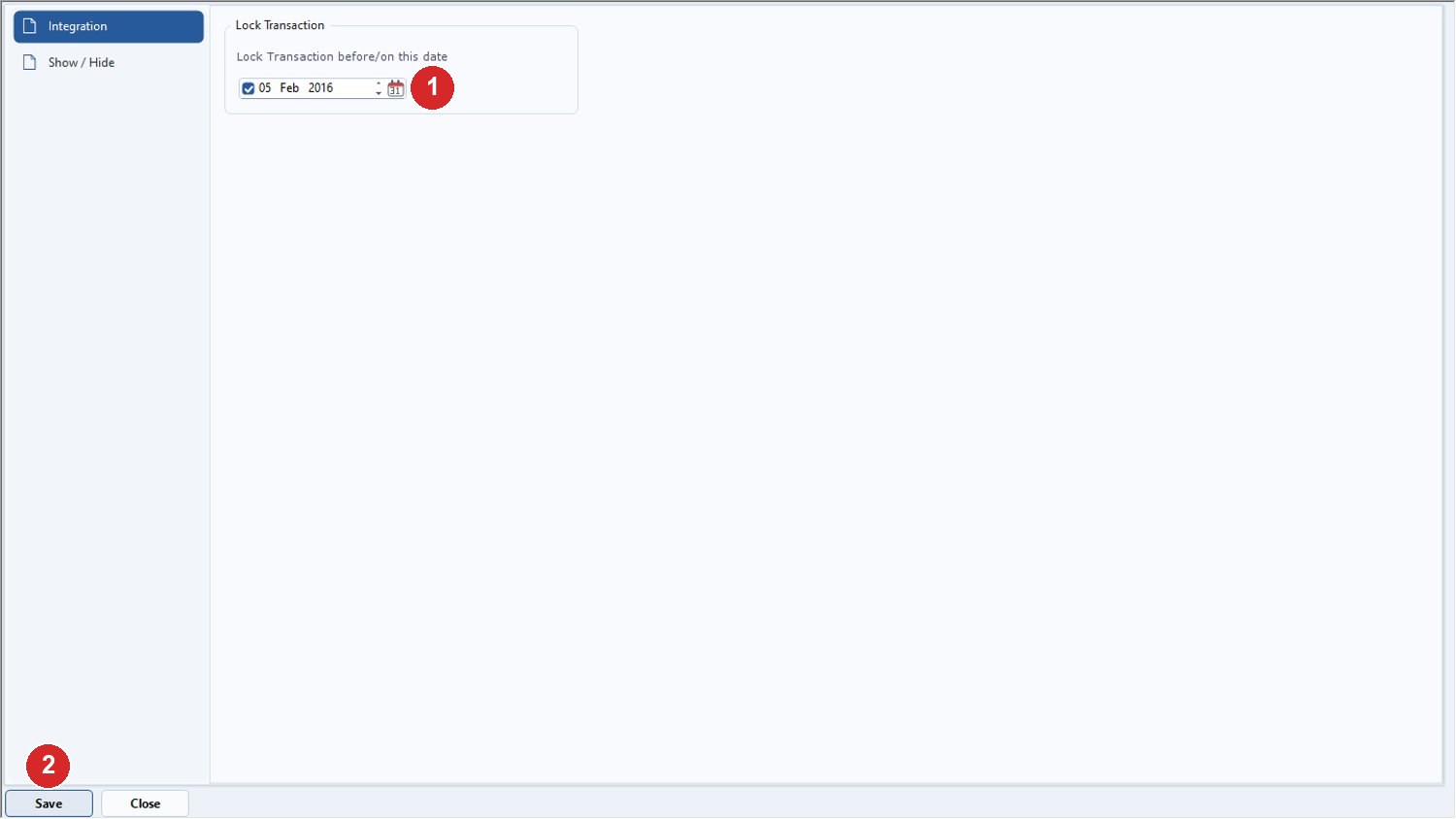
| Step | What to do |
|---|---|
| 1 | Lock Transaction before/on this date: untick it, or choose a later or earlier date as your accountant agrees. |
| 2 | Click Save. Lock it again when the correction is done. |
8. If the bill was already e-invoiced
A bill already submitted for e-invoice cannot be edited. Issue a Credit Note (or refund note) and issue the bill again correctly. If it was not yet submitted, void it and key it again using the original date.
Tips
- Do not leave a bank payment On-Hold. While it is On-Hold, its accounting entries and the knock-off of the invoice are removed and the invoice shows as unpaid again. Finish the edit and post it again with the same apply on the same day.
- The lock date is one setting for everybody. If you untick it to edit a locked period, tick it again with the original date as soon as you finish, and ask your boss or accountant first.
- Reversing a POS transaction that was posted in a daily batch reverses the whole batch.
- If a POS sale that was already e-invoiced has the wrong payment mode, correct it with General Ledger > Journal on the same date and write a remark. Contra it later in bank reconciliation.
- On the Reverse Posting screen, a Failed entry on the Result tab can be opened to read the reason before you try again.
- If documents are missing from the Reverse Posting list, check the date range, Doc. Type and Location.
Common problems
You cannot find which payment knocked off the invoice.
Use Reverse Apply, choose the Creditor or Debtor and click List only, without reversing, to see the link.
The Bank Payment is not found in the list when you re-apply.
Click Refresh on the Bank Payment screen, or restart the software.
You need to change the receiver on a posted bank receipt.
Either delete it and key it again with the same reference, or set Ledger to DL, remove the credit account and choose the Debtor.
Still stuck after trying the steps.
Contact Synergy support with the document number, the party and the exact error text ready.