
This guide shows how to create a permission group (role) that decides which functions your people can use, how to set what cashiers may do at the point of sale, and how salespersons log in and change their password. Video on creating a permission group (steps 1-5, 1:08): https://youtu.be/f5De3axNSXQ
Before you start
- Decide which functions the group should be allowed to use.
- If you are setting up salesperson passwords, make sure each salesperson already exists and is active in the salesperson setup.
Steps
1. Open the Role screen
From the menu, go to Main > Application Security > Role.
2. Enter the group details
Type a Code and a Description for the group. Both are required.
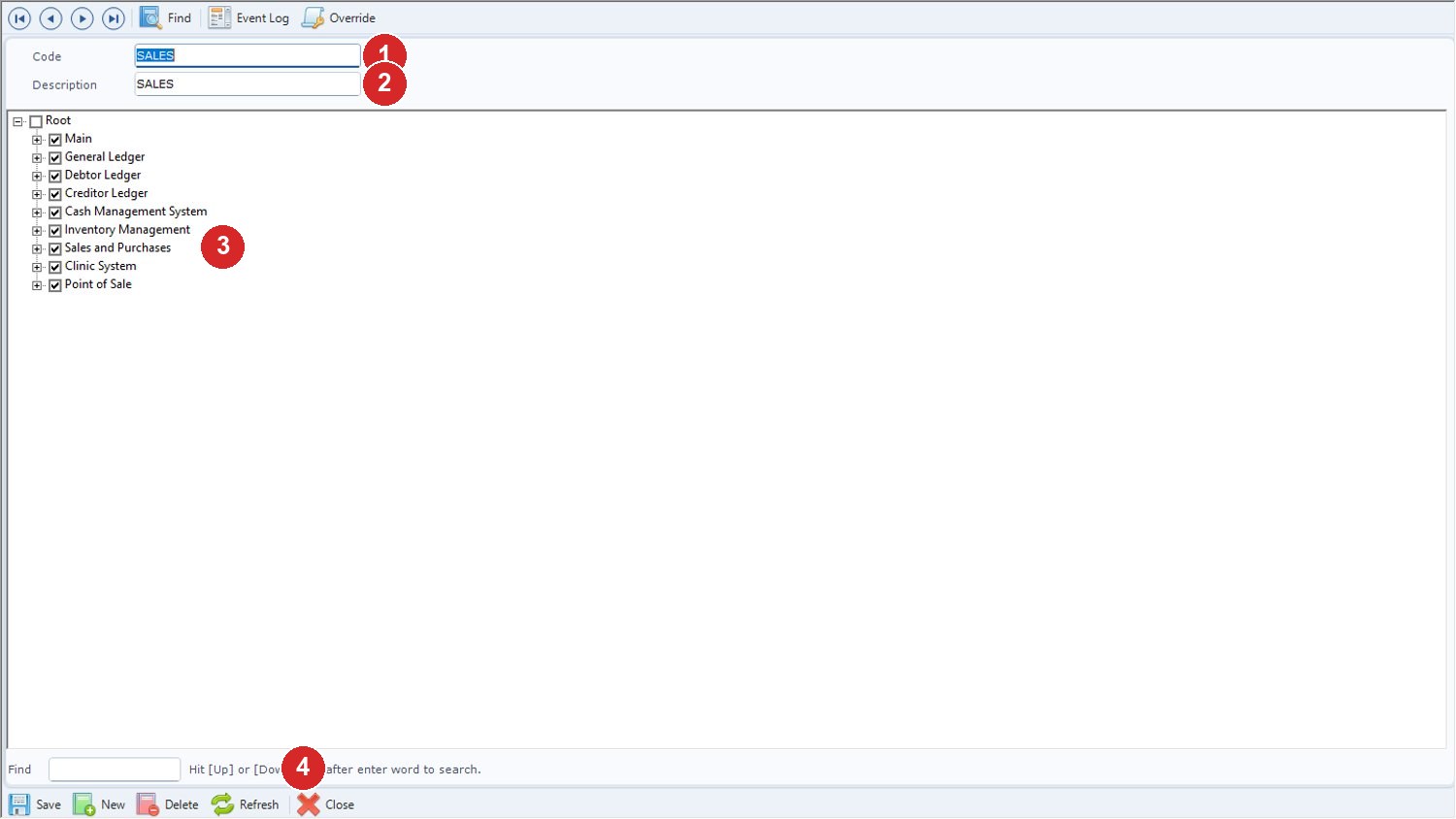
| Step | What to do |
|---|---|
| 1 | Code (required). |
| 2 | Description (required). |
| 3 | Tick the functions the group may use; ticking one also ticks its parents, unticking a parent unticks everything under it. |
| 4 | Find: type a word, then press Down or Up for the next or previous match (not Enter). |
3. Save the group
Click Save.
4. Open the POS Permission tab
To control what cashiers may do, go to Point of Sale > Point of Sale Setup > Point of Sale Settings, then open the Permission tab.
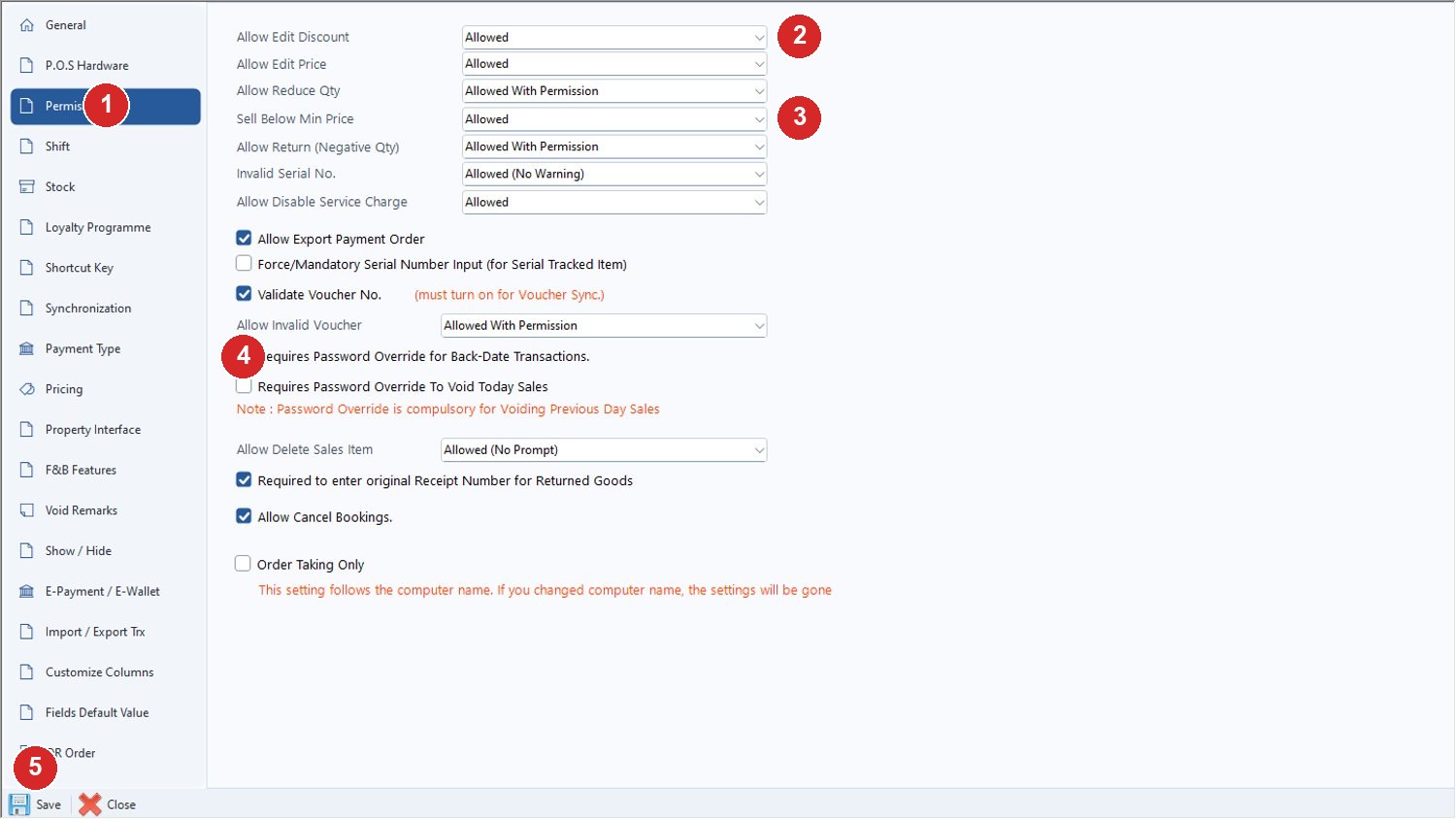
| Step | What to do |
|---|---|
| 1 | Permission tab. |
| 2 | Allow Edit Discount, Allow Edit Price, Allow Reduce Qty …: Allowed, Not Allowed or Allowed With Permission. |
| 3 | Sell Below Min Price. |
| 4 | The tick rules, for example Requires Password Override for Back-Date Transactions. |
| 5 | Click Save. |
5. Salesperson log-in at the POS
Type your Password in the pop-up, then press Enter or click OK. If the password is right, the screen closes and your name is used for the sale.
6. Change a salesperson password
Click Change Password. Type the old password in the first box (now labelled Old Password), then type the new password twice in New Password and New Password (Confirm). Click OK.
7. Check the new password
When Password changed successfully. appears, the screen closes. Log in again to make sure the new password works.
Tips
- Hold Ctrl and turn the mouse wheel to make the tree text larger or smaller.
- Some functions appear in the tree only if the matching optional feature is switched on.
- Allow Delete Sales Item has one extra choice: Allowed (No Prompt).
- Invalid Serial No. lets you choose Allowed (No Warning), Allowed (With Warning), Allowed With Permission Override or Not Allowed.
- Validate Voucher No. must be turned on for Voucher Sync.
- Password Override is compulsory for voiding previous day sales.
- Order Taking Only follows the computer name. If you change the computer name, the setting will be gone.
- If the old password is typed wrongly when changing a salesperson password, nothing is changed, even though the success message still appears.
- Click CANCEL to leave the salesperson password screen without changes.
- If you have lost the admin ID and password, ask the previous admin or owner first. If no user ID has been set up, just click OK to log in. Once in, go to Main > Application Security > User, select admin and change the ID and password. Each branch PC has its own user setup. If you are still locked out, contact Synergy support and have the owner’s confirmation and the PC ready.
Common problems
[Code] is required. or [Description] is required.
Fill in the Code and Description on the Role screen, then save again.
No matching nodes found.
The search word is not in the tree. Try a different word.
Search seems to stop.
Press the Down or Up key after typing the word, not Enter.
Ticking one item ticks others.
This is normal. Parent and child ticks follow each other.
[Password] is required.
The password box is empty. Type your password.
Invalid password.
No salesperson has this password. Check it and try again.
This salesperson is Inactive.
The password belongs to a salesperson who is switched off, such as a former staff member. The salesperson must be active in the salesperson setup.
New Password doesn’t match with Confirmation Password
Retype the two new password boxes so they are the same.