
Work down this list in order. Each step is a quick check, and names the full guide to read next if the check does not solve the problem.
Before you start
- Whether it is one counter, one branch or all branches.
- The exact error text, and the dates that are missing.
- The licence number.
Steps
1. Does it say timed out?
Just retry the upload or download. Restarting the software first can also help. Read the guide “Head Office and Branch: Sales Do Not Tally or Upload Fails”.
2. Does it work on a phone hotspot?
If it works on the hotspot, the shop router or the internet provider is the cause. Restart the router, then the PC, and wait 15 to 30 minutes. Set DNS on the network adapter to 8.8.8.8 and 8.8.4.4 and untick IPv6. Read the guide “Head Office and Branch: Sales Do Not Tally or Upload Fails”.
3. Do head office and the branches use the same web server?
In Point of Sale Settings, on the Synchronization tab, check that head office and every branch use the same web server. Press Save first, then Test. Read the guide “Head Office and Branch: Sales Do Not Tally or Upload Fails”.
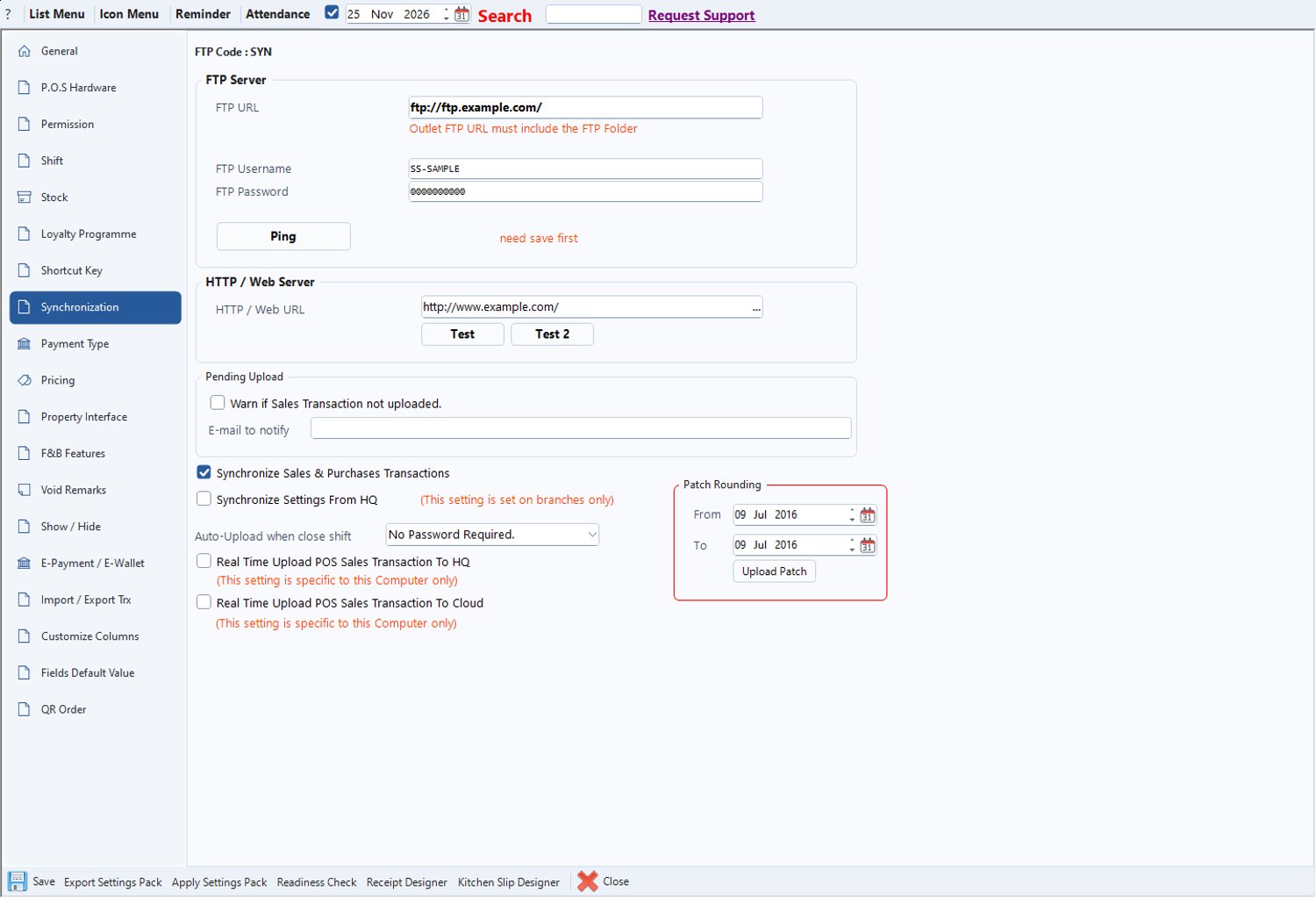
4. Does it say failed to upload file or server offline?
The branch licence or maintenance may have expired. Contact Synergy support to renew it. Read the guide “Synergy Acc2026 – Licence: Changes and Problems”.
5. Which days are missing?
Use POS > Reports > Management Reports > Data Sync Comparison to find them. Then upload the missing days from the branch day by day, and download them at head office. Read the guide “Synergy Acc2026 – Branch: Upload Daily Sales and Download from Head Office”.
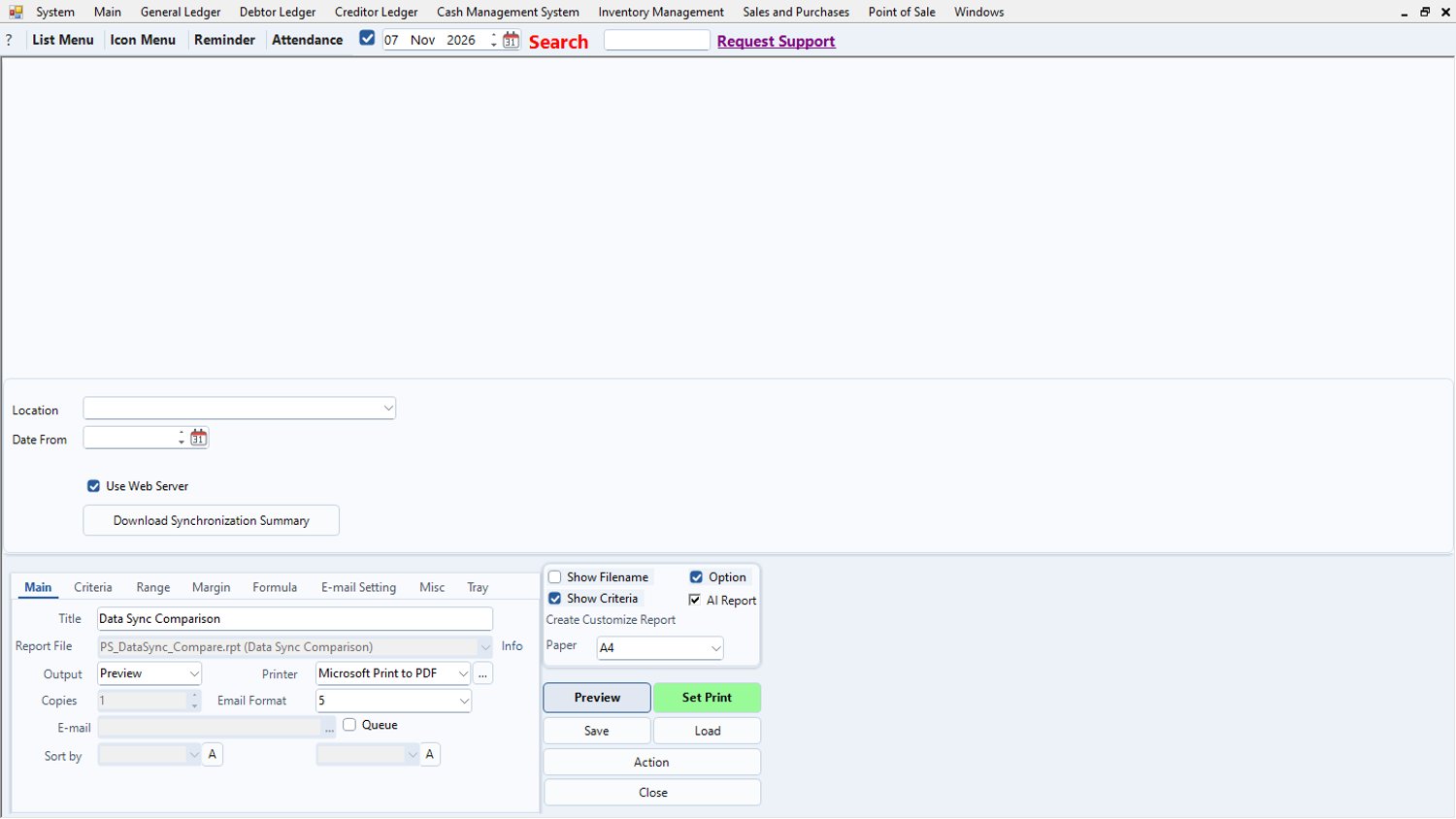
6. Is the sales data at head office but not yet in the accounts?
Head office must post the branch sales to debtor, creditor and GL. Read the guide “Synergy Acc2026 – Head Office: Post Branch Sales and Reverse a Posting”.
7. Should the branch send by itself?
To upload automatically over the internet, read the guide “Synergy Acc2026 – Branch: Auto Sync Upload by Internet”.
8. Do all branches fail at the same time?
Ask Synergy support whether the main web server has a known fault. Read the guide “Head Office and Branch: Sales Do Not Tally or Upload Fails”.
Tips
- Upload sales day by day, not as one batch, and do not sell or lose internet at the branch while uploading.
- Do the branch upload and download on the branch main PC.
Common problems
It is still different after all the checks.
Contact Synergy support. Have ready the remote access details for head office and the branch PCs, a recent backup of both databases, the licence number and a screenshot of the error.