
Use this when the Export icon is missing, a message says there is no permission to export, an export gives an error, or you cannot find the PDF or Excel file you saved. Work down the checks in order. Each step names the full guide to read next.
Before you start
- Whether you are exporting a report, a document, a list or a POS receipt.
- Whether you are on the main PC or on a remote session (for example a laptop connected to the main PC).
- The exact message on the screen (take a screenshot).
Steps
1. Can you see the Export icon?
Open the report or document and click Preview first. The Export icon appears after Preview. Then click Export, choose the location, type the file name and set Save as type to PDF or Excel. Full guide: Synergy Acc2026 – Exporting to Excel or PDF and Finding the File
2. Does it say No permission to export.?
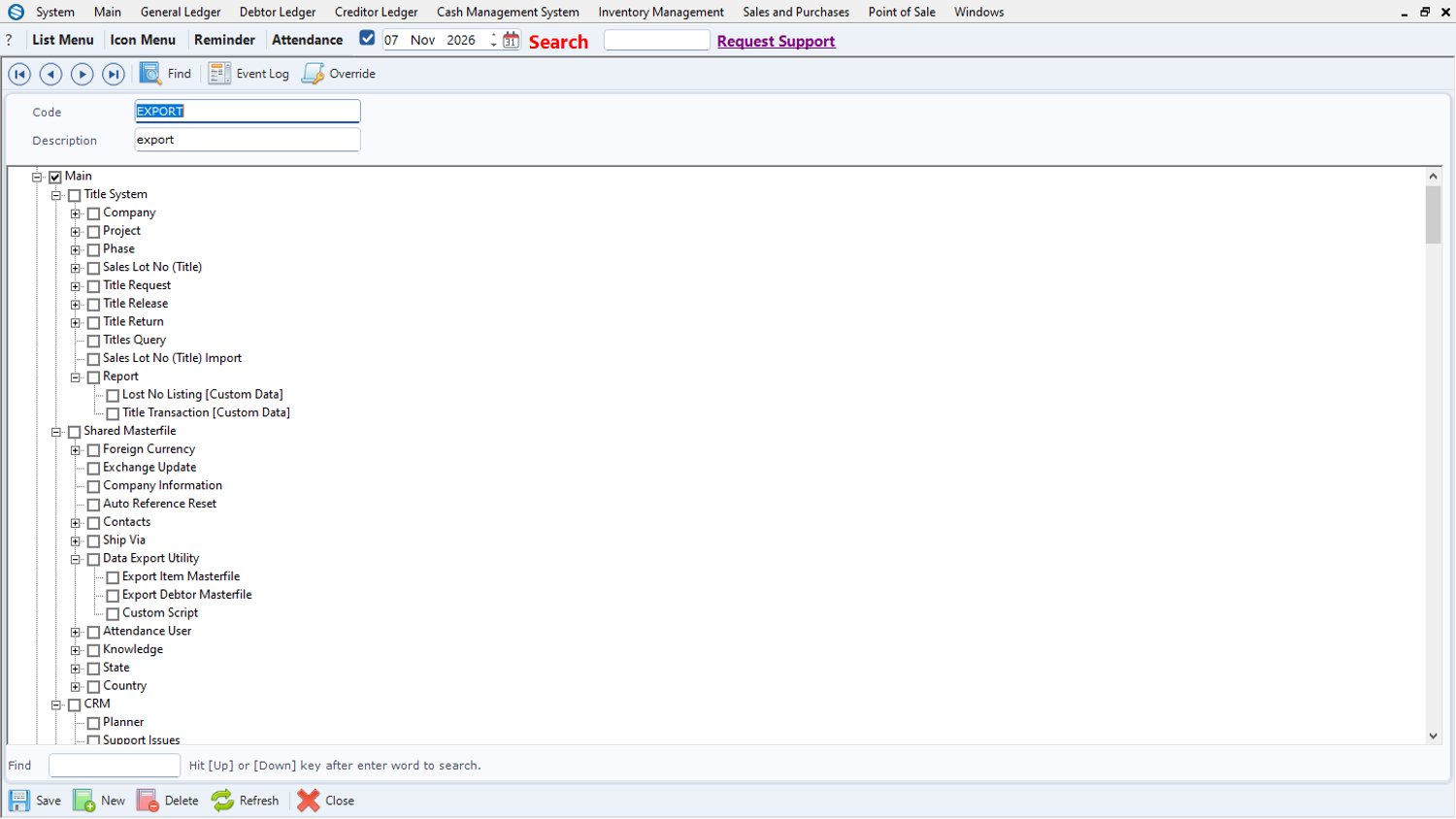
Your user does not have the Export right. Printing to a printer is not affected, but choosing File as the output is blocked, and on purchase documents the Export button in the preview is hidden. The administrator goes to Main > Application Security > Role, opens the role, ticks Export under the document (each screen has its own Export tick) and saves. Full guide: Synergy Acc2026 – Permission Groups and User Rights
3. Does the Data Export Utility say You don’t have permission to run this query.?
Each export query has its own right. Ask the administrator to open the role in Main > Application Security > Role and tick the query under Data Export Utility. Full guide: Synergy Acc2026 – Permission Groups and User Rights
4. Does Export to Excel give an error and no data?
Click Download, then download and install the component, and export again. If it stopped working after a PC or Office update (64-bit Excel), contact Synergy support with the error text. Full guide: Synergy Acc2026 – Exporting to Excel or PDF and Finding the File
5. Do you want a whole list, such as all debtors, in Excel?
Go to Accounts > Debtor Ledger > Debtors, click any column and choose Export to file. Select Excel (xlsx 64bit), choose a location and save. Right-clicking inside a list also gives Find Text, Print Grid and Grid Settings. Full guide: Synergy Acc2026 – Find, Print and Customise a List (Grid)
6. You saved the file but cannot find it on a remote session
Over remote desktop, files saved by the software are stored on the main PC, not on your laptop. In the remote window look in the C drive of the main PC, or save or export into the designated export folder and then open the C drive and the folder Synergy Files on your own PC. To save on your own laptop, choose C on DESKTOP (your own PC) as the save location when you export. Full guide: Synergy Acc2026 – Exporting to Excel or PDF and Finding the File
7. You cannot copy or save a file to your own PC while on remote
Save the file into a folder on the C drive of the remote PC, then move the file from that folder. Full guide: Synergy Acc2026 – Exporting to Excel or PDF and Finding the File
8. Do you need a PDF to send by e-mail, or a receipt saved as PDF?
Preview the report, click Export and set Save as type to PDF, then attach the PDF in your mail program. For a POS receipt, change the printer to Standard Printer and choose Save as PDF when printing. Full guide: Synergy Acc2026 – E-mail, WhatsApp and SMS for Documents
9. Does a POS report need to be saved as a picture or e-mailed?
On the Preview screen the Save As File tab saves the report as a picture. Choose the Folder with Browse, check the File Name and click Save, and the folder opens. If you cannot save, check that you chose a folder you can write to. On the Send E-Mail tab fill in E-Mail To and Subject, which are required, then click Send. Full guide: Synergy Acc2026 – POS Report Options, Export and Stock Balance Query
10. Are you using Synergy Web and Preview and Excel are greyed out?
That report only runs in the desktop program. Open it there. On the web Reports page, tick Show desktop-only reports to see which ones they are. Full guide: Synergy Web – Running Reports and Saving Them as PDF or Excel
Tips
- Over remote desktop, the software saves to the main PC unless you choose your own PC as the save location.
- If the printout looks wrong, for A4 portrait set the paper size to A4 outside the preview before opening it. For a 58mm receipt printer, change the report file to the 58mm version before printing.
- If the Excel export saves a PDF instead, or does not work over remote desktop, contact Synergy support and have your remote access ready.
Common problems
The Export icon is not there after Preview.
Check that you clicked Preview, and that your user has the Export right for that document.
Export to Excel stopped working after an Office update.
Contact Synergy support. Have the error text ready.
An error appears when saving a POS report as a picture.
Check the Folder you chose and that you can write to it.
The POS Send E-Mail tab says the e-mail address is required.
The customer may not be a member, or the member has no e-mail recorded. Type the address in E-Mail To.
It still does not work.
Contact Synergy support. Have the error text, the Excel file and a screenshot of the export screen ready.