
Use this when a receipt, payment or credit note is posted but the invoice still shows as outstanding. Work down the checks in order. Each step names the full guide to read next.
Before you start
- Know whether it is a debtor (customer) or a creditor (supplier) transaction.
- Have the document numbers of the invoice and of the receipt, payment or credit note.
- Take a backup before you apply or reverse any open credit.
Steps
1. Was the receipt or payment really applied to the invoice?
Posting a Bank Receipt or Bank Payment does not clear the invoice unless it was applied. Open the receipt or payment. If you missed Apply, you can still do it later from the ledger (see the next steps). Full guide: Synergy Acc2026 – Receiving a Customer’s Payment
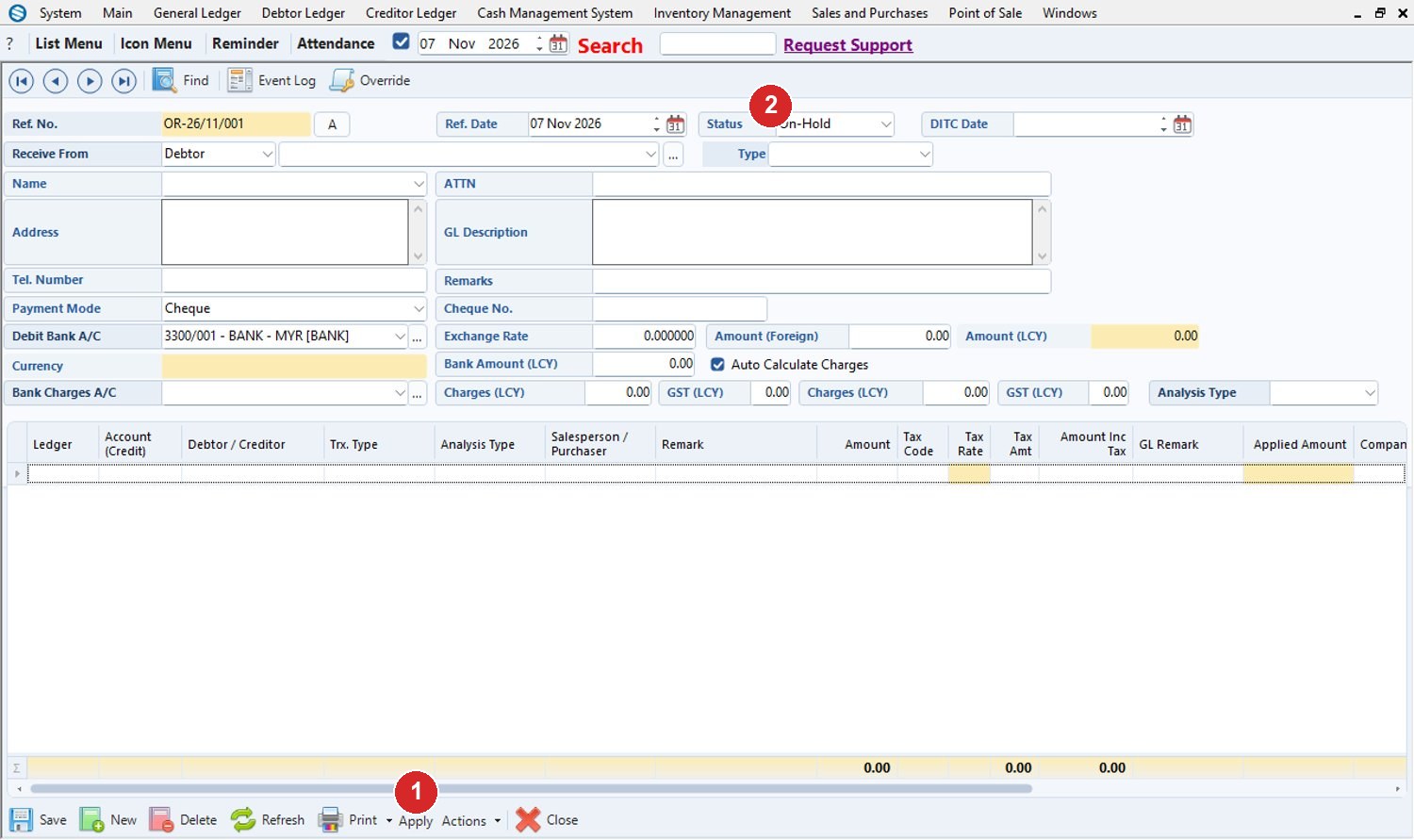
| Step | What to do |
|---|---|
| 1 | Click Apply on the debtor or creditor line, tick the invoice and check the Apply Amount. |
| 2 | The Status must be Post. |
2. I issued the credit note but the invoice still shows outstanding
Posting a Credit Note or Debit Note does not clear the invoice by itself. It needs a second step. Go to Debtor Ledger > Transactions > Apply Open Credit (or Creditor Ledger > Transactions > Apply Open Credit), choose the Debtor, and click List. Tick the credit note on the payments side and the invoice on the bills side, click Apply Credit and confirm. Full guide: Synergy Acc2026 – Credit Notes and Debit Notes
3. The payment is listed but the invoice is still unpaid
Open Apply Open Credit. After you click List, the payment shows under Payment from Debtors (or Payment to Creditor) and the invoice under Bills for Debtors (or Bill from Creditor). You cannot apply more than a row’s balance. Full guide: Synergy Web – Apply Open Credit and Reverse Apply
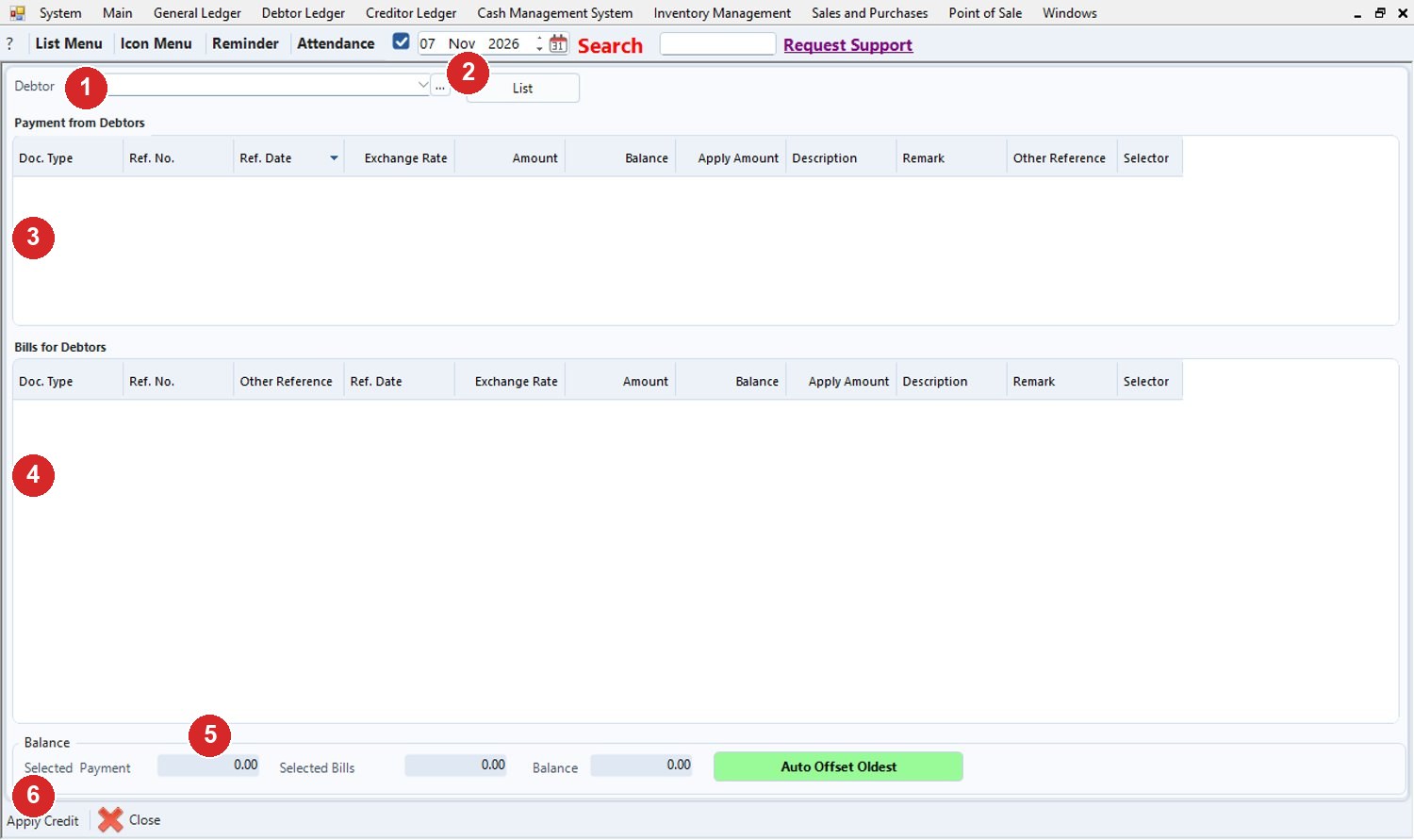
| Step | What to do |
|---|---|
| 1 | Choose the account. |
| 2 | Click List. |
| 3 | Tick one payment. |
| 4 | Tick one invoice. |
| 5 | Check the Selected Payment, Selected Bills and Balance boxes. |
| 6 | Click Apply Credit and answer Yes. |
4. Did you edit the payment after applying it?
If a posted payment was put On-Hold and edited, the apply is undone and the invoice shows unpaid again. Set the status back to Post and apply again, or use Apply Open Credit in the ledger. Full guide: Synergy Acc2026 – Unposting and Correcting Posted Documents
5. The invoice was paid part cash and part bank, or with an earlier overpayment
For part cash and part bank, key two separate Bank Payments (the Bank Payment takes only one account), for example the cash part with Cash in Hand and the bank part with the bank account. Apply each to the same invoice for its own amount and do not apply more than the invoice balance. For an earlier overpayment, use Apply Open Credit in the Creditor Ledger and tick only the invoice and the open credit you want to offset. Full guide: Synergy Acc2026 – Paying Suppliers and Printing a Payment Order
6. What is the yellow Open Credit?
Open Credit is an amount not yet knocked off, such as an advance bank receipt, a credit note, a credit journal or an overpaid bank payment. Run the aging report over a longer date range to see which year it started. Before you apply it, open the open-credit line and check where it came from, and only knock it off against invoices the customer or supplier really meant to pay. Full guide: Synergy Acc2026 – Debtor Aging and Credit Control
7. I knocked off the wrong invoice
Go to Debtor Ledger > Transactions > Reverse Apply (or Creditor Ledger > Transactions > Reverse Apply). Full guide: Synergy Web – Apply Open Credit and Reverse Apply
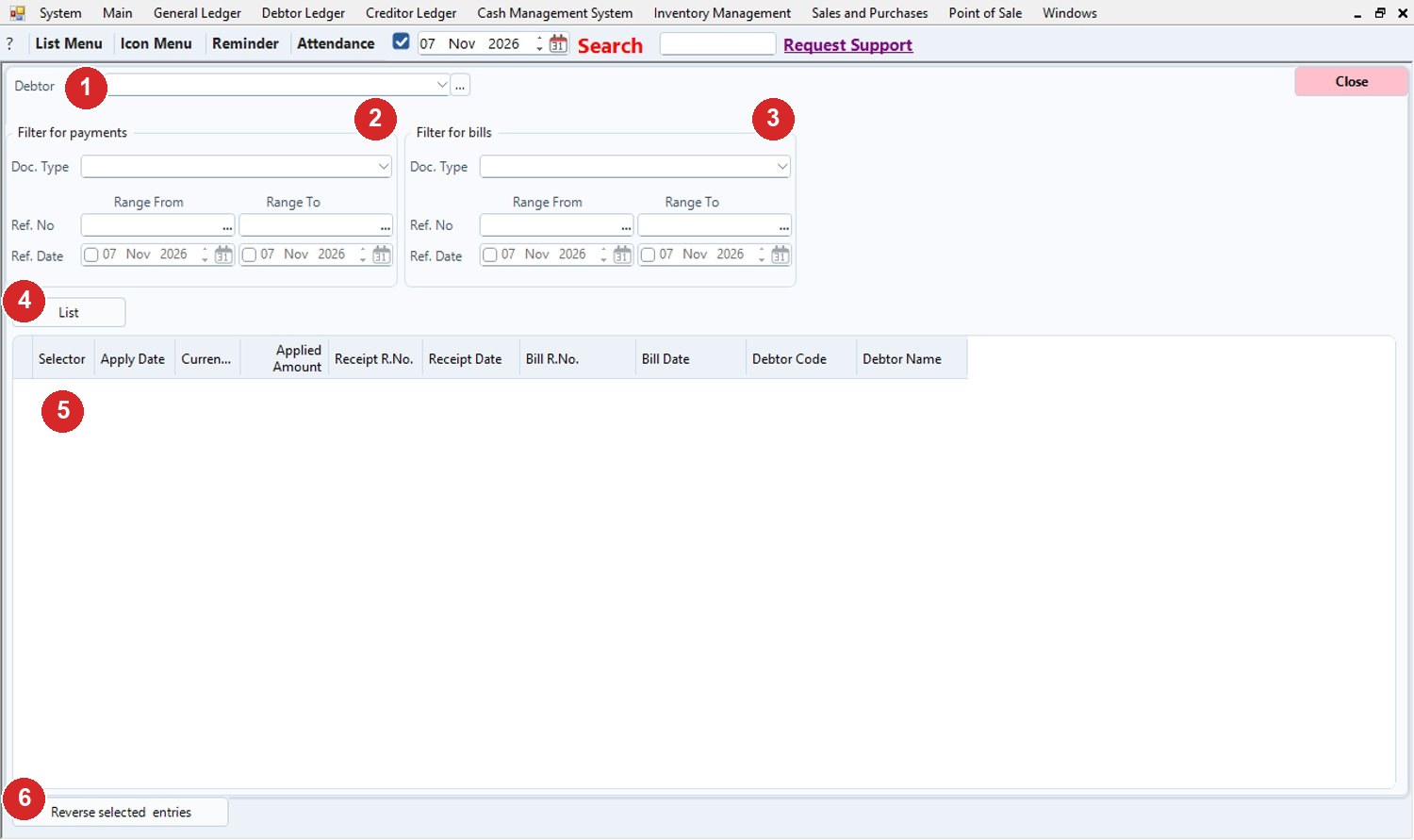
| Step | What to do |
|---|---|
| 1 | Choose the Debtor. |
| 2 | Set the Filter for payments if you need it. |
| 3 | Set the Filter for bills if you need it. |
| 4 | Click List. |
| 5 | Tick only the line to undo. |
| 6 | Click Reverse selected entries and confirm Do you want to reverse the selected entries? |
8. The invoice is knocked off by a posted Bank Payment and you must change or unpost it
Put the posted Bank Payment back On Hold first. While it is On Hold the knock-off is removed and the invoice shows as unpaid, so the invoice can be unposted or edited. Then set the payment back to Post and apply it again the same day. Only do this if the payment has not been bank-reconciled and the period has not been reported or submitted. Full guide: Synergy Acc2026 – Unposting and Correcting Posted Documents
9. The statement still shows a bracket or an unapplied amount
A receipt that was not applied still shows on the Statement of Account in brackets. Check the apply, close the statement and open it again, and check the date range. Full guide: Synergy Acc2026 – Statement of Account: Printing and Wrong Balances
Tips
- All money in goes through Bank Receipt and all money out through Bank Payment. Journal is only for account adjustments.
- Do not press Auto Offset Oldest unless you want every open credit of that account offset against its open invoices. A wrong offset can be undone with Reverse Apply.
- To find which receipt or document knocked off an invoice, check the Statement of Account (offset).
Common problems
The lists are empty after you click List.
Check that a Debtor or Creditor is chosen, that no other user has the account open, and that it really has open payments and open invoices. If the invoice list is empty, close the screen, open it again and click List again.
Apply Credit does nothing.
Click List first. Apply Credit does nothing when no lists are loaded.
The amount you typed changes by itself.
The amount is cut back to the row balance and a negative figure becomes positive. This is normal.
A returned cheque was already bank-reconciled.
Key a Bank Payment to the debtor with the same details and post it, then use Apply Open Credit. To undo a wrong apply, use Reverse Apply and tick only the line to reverse.
The message You must set status to [POST] to apply credit appears.
Set the receipt or payment Status to Post, then click Apply again.