
Use this when an item sells at the wrong price, a discount or promotion does not apply, or member points are not earned or redeemed as you expect. Work down the checks in order. Each step names the full guide to read next.
Before you start
- The item code, the member ID and the document or receipt number.
- Whether it is the Point of Sale counter or a sales invoice.
- The price, discount or points you expected, and what you got.
Steps
1. Is the price correct on the item itself?
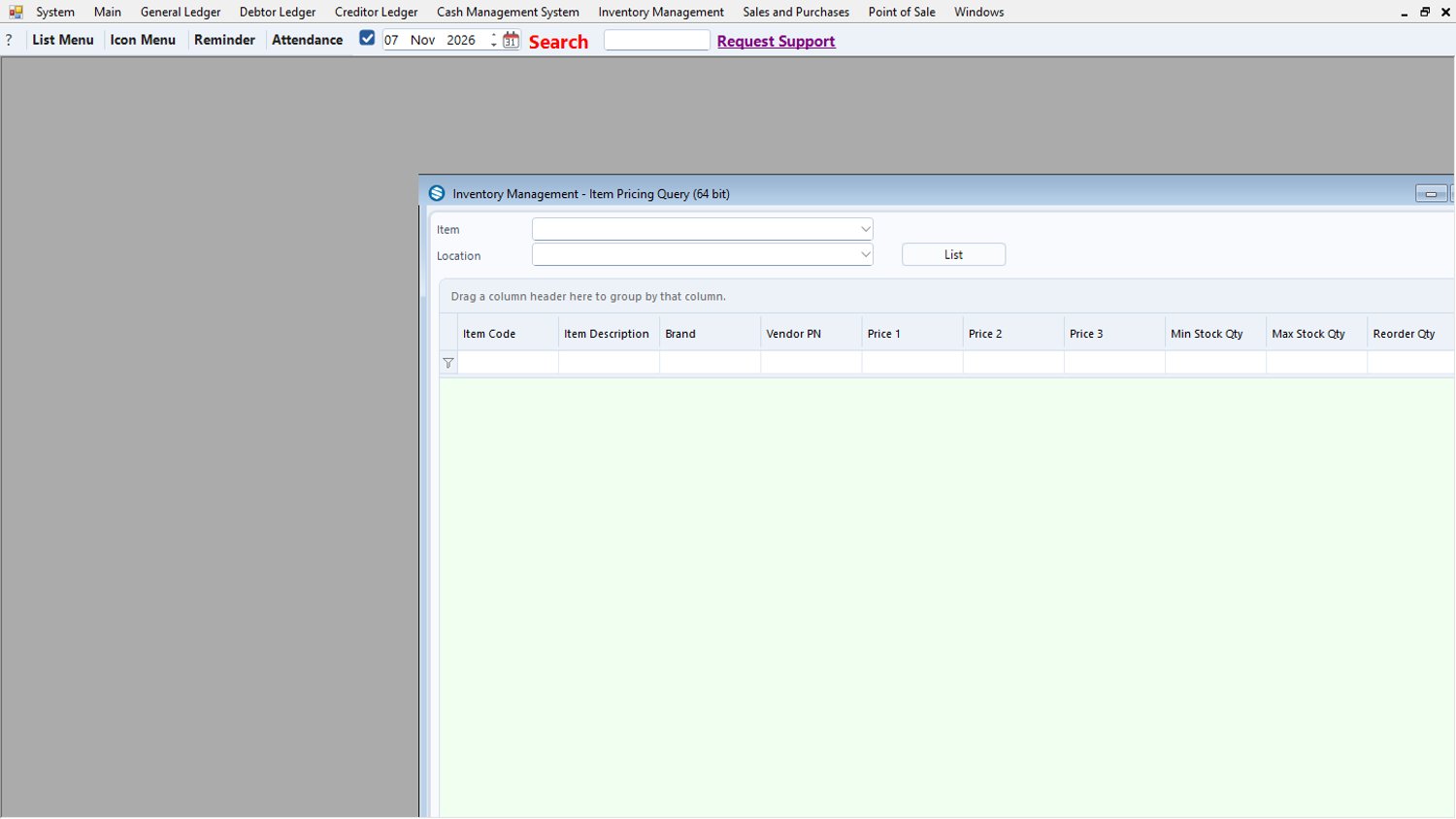
Go to Inventory Management > Query > Item Pricing Query, choose the Item (and a Location) and click List. The result shows the price columns and the cost. In the Item Masterfile the prices are Price 1 to 6, and Min. Price is the lowest price allowed. Full guide: Synergy Acc2026 – Inventory: Item Price Query and Item Sales and Purchases Query
2. A member does not get the special price
Check that the item has its price levels filled in and that the member’s (or group’s) basic price group is set. The Member ID can be the phone number. For a promotion for one type of member only, the Member and Promotion Pricing must use the same Advance Price Type. Full guide: Synergy Acc2026 – Discounts, FOC and Special Prices
3. Prices from an Excel file are wrong or rows show an error
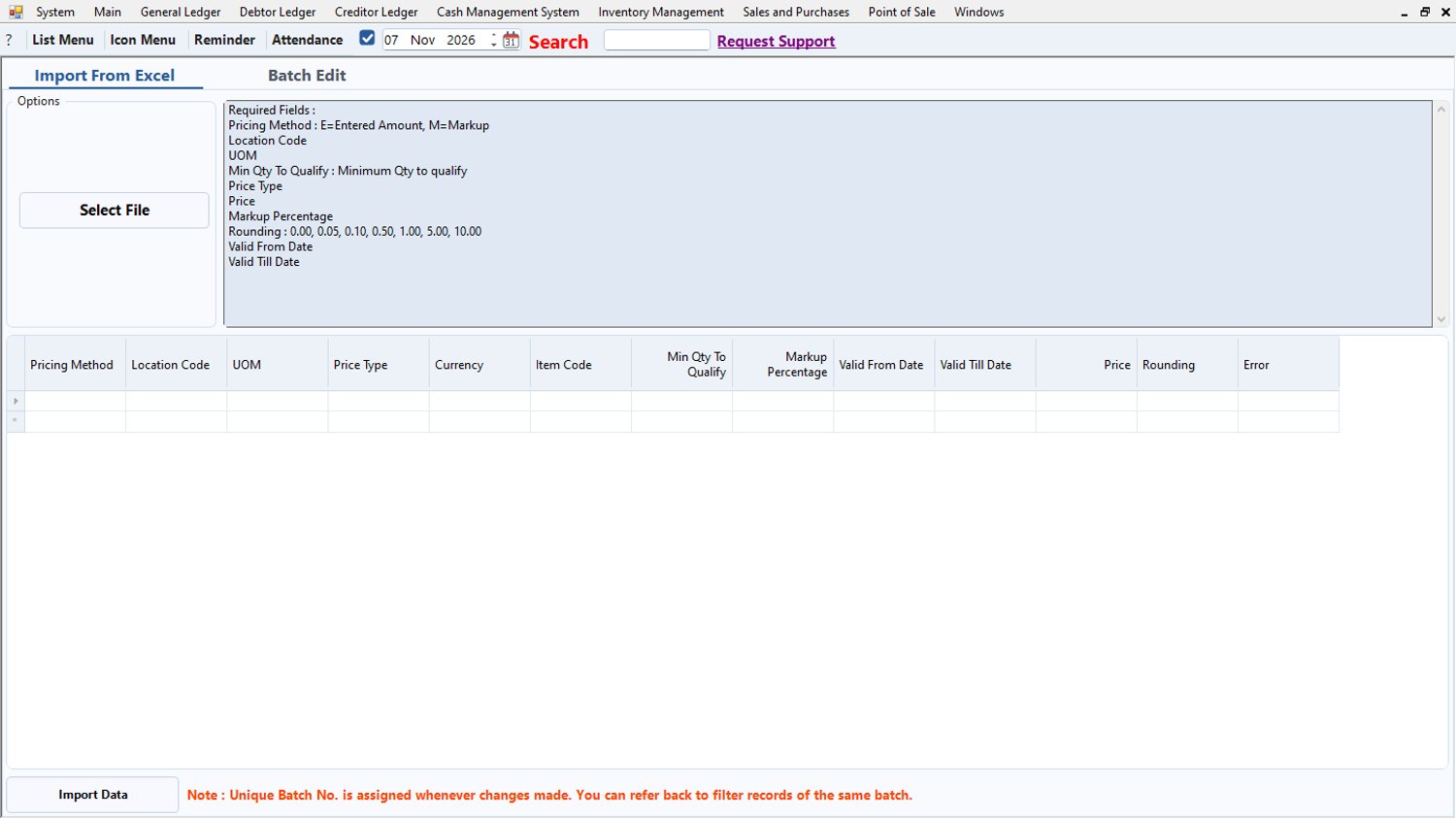
Open Inventory Management > Utilities > Advance Price Batch Edit/Import. Read the message in the Error column, correct that row in your file and select the file again. Press Import Data only when no red rows are left. The message Data import completed appears even if some rows failed. Full guide: Synergy Acc2026 – Importing Advance Prices from Excel
4. The discount is not automatic, or the cashier cannot change the price
Discounts are not automatic. Enter the amount in the discount field of the document, not per row, or add an item named DISCOUNT with a negative amount. At the POS, a line is changed with Change Discount or Change Price. If Discount and Edit Price are not possible, Price Re-calculation on the Pricing tab of Point of Sale Settings is set to recalculate the price of all sales items. Full guide: Synergy Acc2026 – Change Quantity, Price or Discount on a POS Sale Line
5. Staff sold below the price you allow
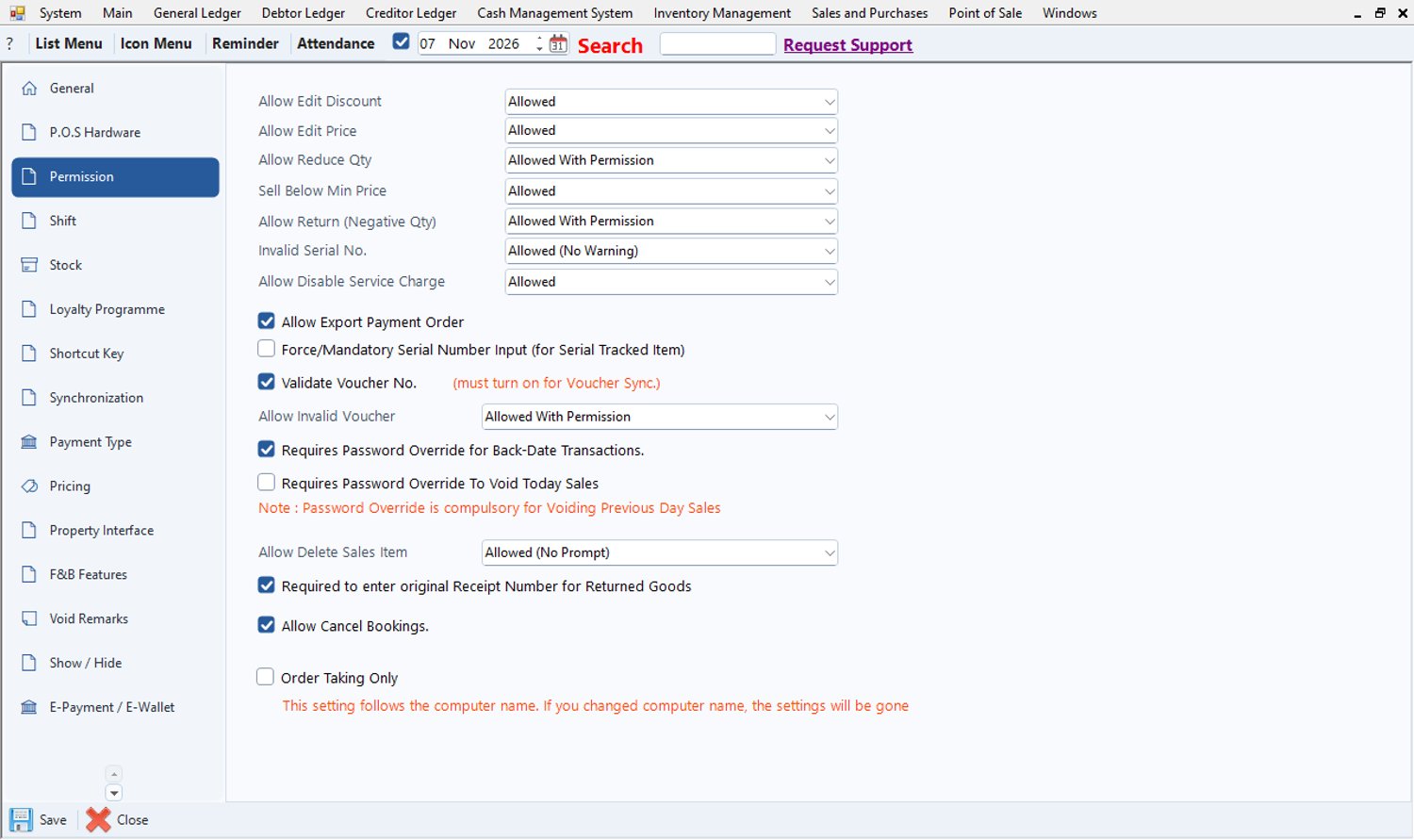
Go to Point of Sale > Point of Sale Setup > Point of Sale Settings, open the Permission tab and set Sell Below Min Price to Allowed, Not Allowed or Allowed With Permission. To find a discount that staff gave, go to Point of Sale > Query > Daily Sales (Detail), enter the date and look for the time of the sale. Full guide: Synergy Acc2026 – Discounts, FOC and Special Prices
6. The promotion or bundle price is not applied
Check that the scanned item is in the promotion, that the promotion and the bundle are Active and attached to items in Promotion Pricing, and that the dates and the outlet are right. If the member’s Advance Price Type differs from the promotion’s, the price is not applied. One item code cannot have two different promotions at the same time. Full guide: Synergy Acc2026 – POS Promotions
7. A buy N get N offer shows an error, or the total shows odd sen
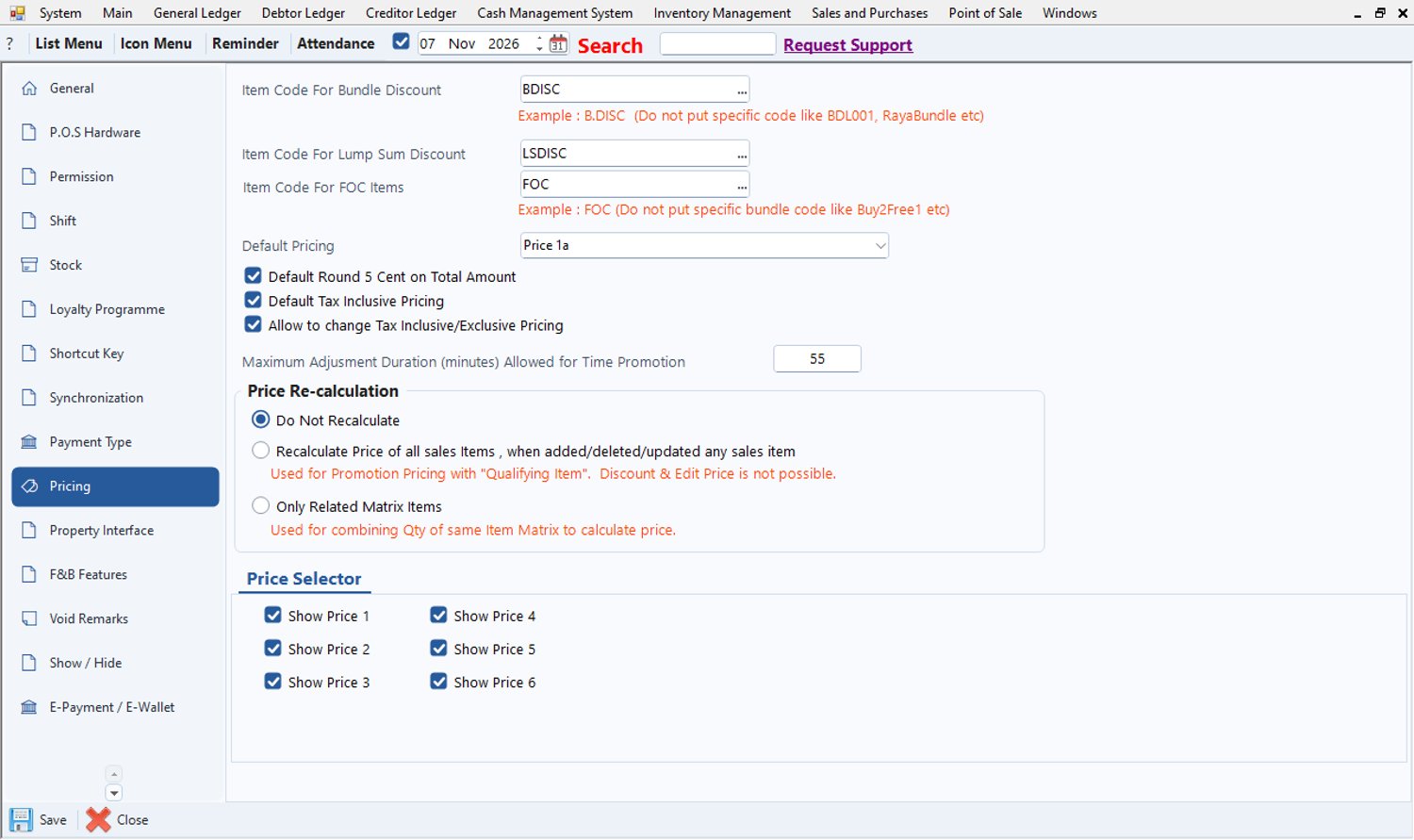
If the FOC item is the same as the promo item and an error appears, do not use the item’s own code. Create one Non-stock item with the code and description FOC and use it as the FOC item. If the total shows RM100.02 instead of RM100, go to Point of Sale Settings > Pricing and tick Default Round 5 Cent on Total Amount. Full guide: Synergy Acc2026 – POS Settings: Pricing Options and Price Selector
8. A member did not earn points
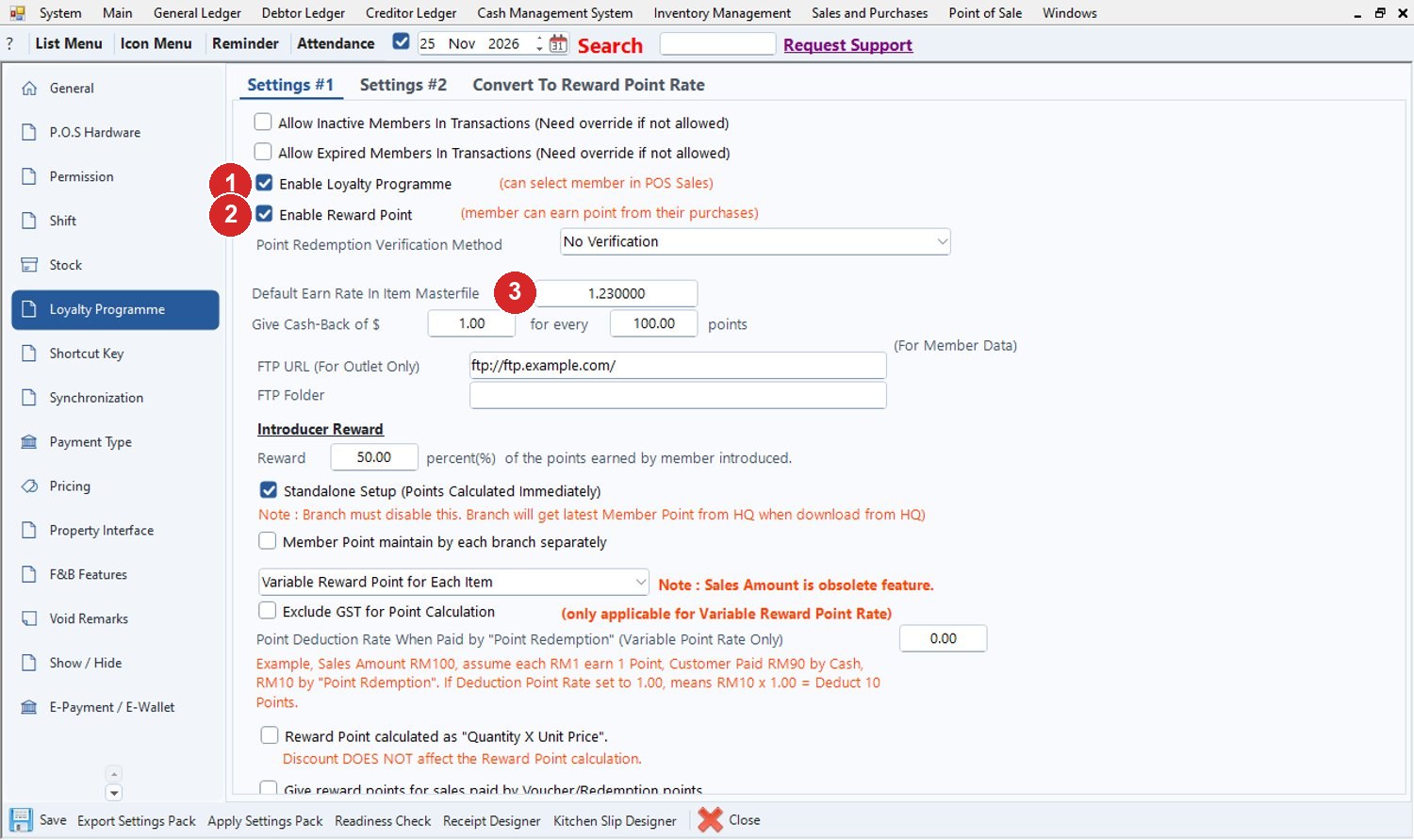
Go to Point of Sale > Point of Sale Setup > Point of Sale Settings > Loyalty Programme and check the following. If points are per item, check the item’s Reward Point Rate on its POS Settings tab. A member who is inactive or expired is blocked unless the settings allow it. Full guide: Synergy Acc2026 – POS Settings: Loyalty Programme and Reward Points
| Step | What to do |
|---|---|
| 1 | Check that Enable Loyalty Programme is ticked. |
| 2 | Check that Enable Reward Point is ticked. |
| 3 | Check that the earn and redeem rules are filled in. |
9. Points cannot be redeemed, or the balance is negative or different between branches
Redeem Item by Point works only while the sale is still pending. The message Total redemption points exceeded [Available Points] means the redeemed points are more than the balance. If a member’s balance is negative, check the balance at head office, and check that upload and download between the branches are done every night. Full guide: Synergy Acc2026 – POS Members, Points, Vouchers and SMS Blasting
10. The price is wrong on a bill already sent to e-invoice
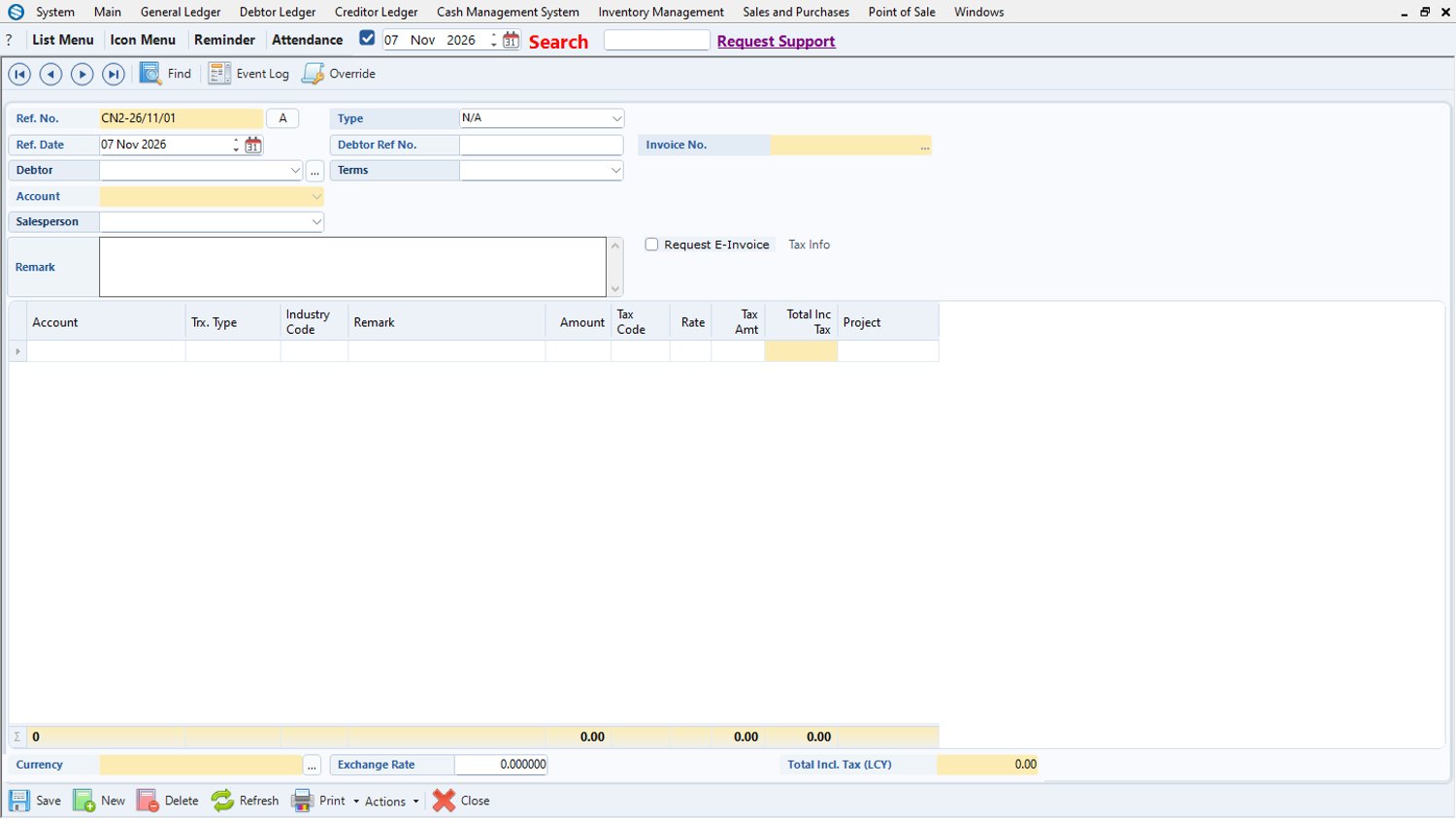
A bill already submitted to e-invoice cannot be edited. Issue a Credit Note, load the original invoice number into it and make sure the Credit Note date is not earlier than the invoice date. Then issue a new invoice with the correct price, otherwise the customer is credited but never billed again. Do not unpost or delete the submitted bill. Full guide: Synergy Acc2026 – Changing or Cancelling an E-Invoice
Tips
- There is no undo for imported advance prices. They can only be changed or deleted afterwards in the batch list, so take a backup before a large import.
- The discount does not affect the reward point calculation.
- A promotion needs its date range and outlet set. A missing date or outlet is a common reason it does not work as expected.
Common problems
The member price is not given even though the promotion exists.
Make sure the Member and Promotion Pricing use the same Advance Price Type, and that the item’s price levels and the member’s price group are set.
Selling below minimum price is not allowed is shown.
The price is under the item’s Min. Price. Enter a higher price, or get a supervisor’s approval if your shop allows it.
Cannot discount more than item price is shown.
Lower the discount so it is not more than the item price.
The POS asks for a member for one item.
Open that item and check its Item Type. Treatment Package items require a member.
The price or points are still wrong after these checks.
Contact Synergy support. Have ready the item code, the member ID, the document number and a screenshot of the price or points shown.