
Work down this list in order. Each step is a quick check, and names the full guide to read next if the check does not solve the problem.
Before you start
- The printer model and the paper size (58mm, 80mm or A4).
- Which PC is affected: the main PC or another counter.
- Whether a blackout or lightning happened before it stopped.
Steps
1. Does the printer have power and a good cable?
Check the printer has power. Unplug and replug the USB cable and try another USB port on the PC. Restart the PC and print again. If it still fails, read the guide “Synergy Acc2026 POS – Receipts and Printers”.
2. Does Windows print a test page?
Do a Windows test print. Then open the Windows printer queue and make sure Pause Printing is not ticked. If you see a Print Spooler error or printing is slow, open Services and restart Print Spooler, and try another printer driver. The guide “Synergy Acc2026 POS – Receipts and Printers” has the details.
3. Does the printer print its own self-test page?
Do the printer self-test. If the page prints, the printer works and the fault is in the cable, the network or the settings. Check the link lights on the LAN port, and plug the printer straight into the router or the PC. If it prints that way but not through the extension switch, the switch or router is faulty. Read the guide “Synergy Acc2026 – Printer, Switch or Other Hardware Stopped Working”.
4. Is a WiFi printer on the current WiFi?
A WiFi printer must be connected to the current WiFi. The USB WiFi adapter that comes with it supports 2.4GHz only. The guide “Synergy Acc2026 – Printer, Switch or Other Hardware Stopped Working” explains what to do for 5GHz.
5. Is the right printer chosen in the POS?
Go to Point of Sale > Point of Sale Setup > Point of Sale Settings > P.O.S Hardware > Setting 1. The choice is kept for each computer, so check it on every POS PC. If the printer is not in the list, install it in Windows first. Read the guide “Synergy Acc2026 POS – Receipt Printer and Shop Name”.
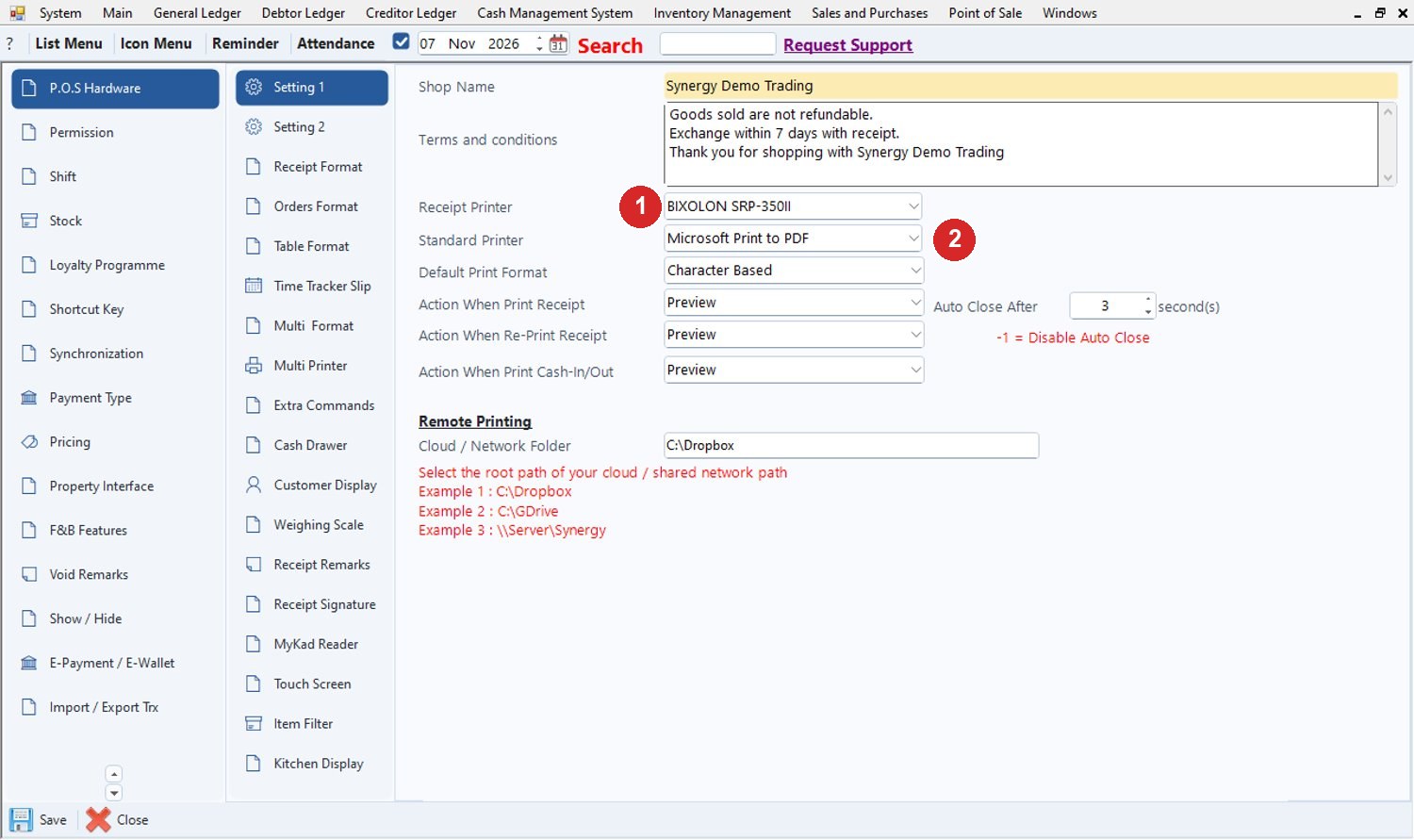
| Step | What to do |
|---|---|
| 1 | Check the Receipt Printer. |
| 2 | Check the Standard Printer. |
6. Did you just move to a new PC?
In the print format screen, click unlock setting and choose the Standard Printer. See the guide “Synergy Acc2026 POS – Receipts and Printers”.
7. Does the cash drawer not open?
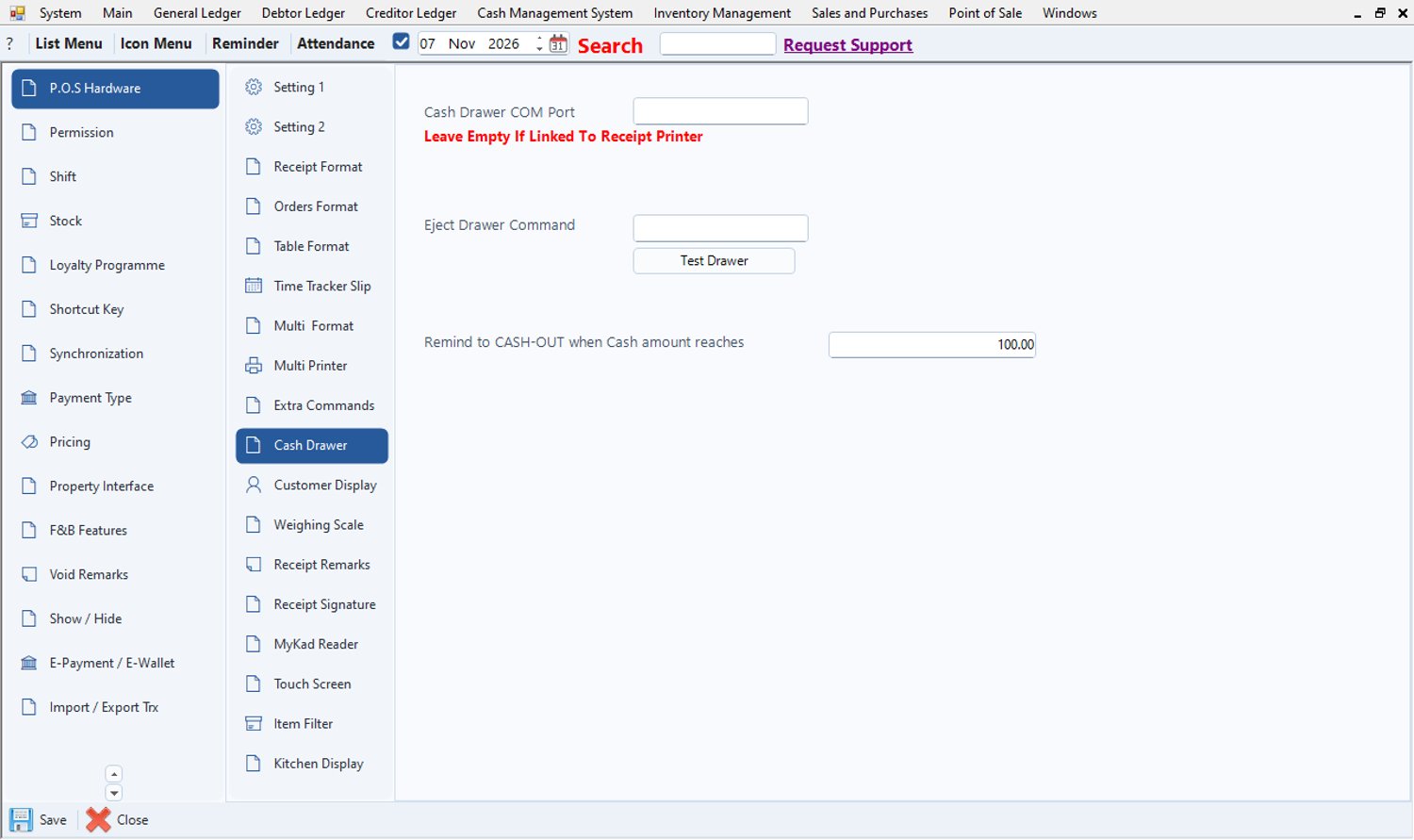
The drawer opens through the receipt printer. Plug the drawer cable into the cash drawer port behind the printer. If it does not open, try the printer’s second port and test eject. Read the guide “Synergy Acc2026 POS – Receipts and Printers”.
8. Does it print, but the layout is wrong?
If A4 prints on the receipt printer, the receipt is cut, text shows as ### or the print is too small, read the guide “Synergy Acc2026 – Fixing a Printed Layout”.
Tips
- If the receipt prints very light, tick use customized report and choose A4 paper, as the guide “Synergy Acc2026 POS – Receipts and Printers” explains.
- For hardware bought elsewhere or out of warranty, Synergy admin can send a quotation for a new one.
Common problems
Still not printing after all the checks.
Contact Synergy support. Have ready the printer model, a photo of the printout, what the self-test and the LAN lights showed, a screenshot of the setting screen and the paper size.
The cash drawer does not open on payment but the receipt prints.
Check whether your outlet licence maintenance has expired, then contact Synergy support. Have the affected counter and the payment types ready.