
Use this when SST does not show on an item or invoice, the tax amount or code looks wrong, or the monthly SST submission will not post or does not match what you filed. Work down the checks in order. Each step names the full guide to read next.
Before you start
- Whether your business is SST registered, with your SST No., the SST start date and the approval letter.
- The item and the document: sales invoice, Purchase Order or Invoice Received.
- The month of the SST submission and the two figures you are comparing.
Steps
1. SST does not appear on an item or an invoice
SST must be set up and enabled in the company database first. Synergy support does this by remote session and asks when SST charging starts. Then, on each item that should carry SST, set S. Tax Group to SR, and remove the tax group from items without SST. Full guide: Synergy Acc2026 – SST: Setting Up and Showing Tax on Documents
2. You are not SST registered but SST shows
Set the SST start date to 2099 in the main setting so SST stays inactive. Full guide: Synergy Acc2026 – SST: Setting Up and Showing Tax on Documents
3. You need SST on a service or labour item
Set S. Tax Group = SR on the service item. For labour cost on an invoice, create a separate item in Inventory for the labour and pick it on the invoice. New tax groups, for example 6% rental or 8% repair, must be requested from Synergy support. Full guide: Synergy Acc2026 – SST: Setting Up and Showing Tax on Documents
4. What do the two stars beside the amount mean?
Two stars (**) beside an amount on a printed invoice mean the item is subject to SST. If the invoice still looks wrong, send a picture of the full invoice to Synergy support. Full guide: Synergy Acc2026 – SST: Setting Up and Showing Tax on Documents
5. You cannot key tax on a Purchase Order, or need to record SST charged by a supplier
The Purchase Order has no tax field, so key the amount and enter the tax when you key the Invoice Received. For SST charged by a supplier, create an item named SST and add it to the purchase document. If extra zeros show, adjust the Unit Cost decimals. Full guide: Synergy Acc2026 – Purchase Invoices (Invoice Received)
6. A tax code will not save
Open Main > SST/GST > Masterfile > Tax Code and fill in the fields. If you see Tax Code updated. Please Log Out and Re-Login, sign out and sign in again. If your branch syncs with head office, do not use the Update New Tax Codes button. Full guide: Synergy Acc2026 – SST: Setting Up and Showing Tax on Documents
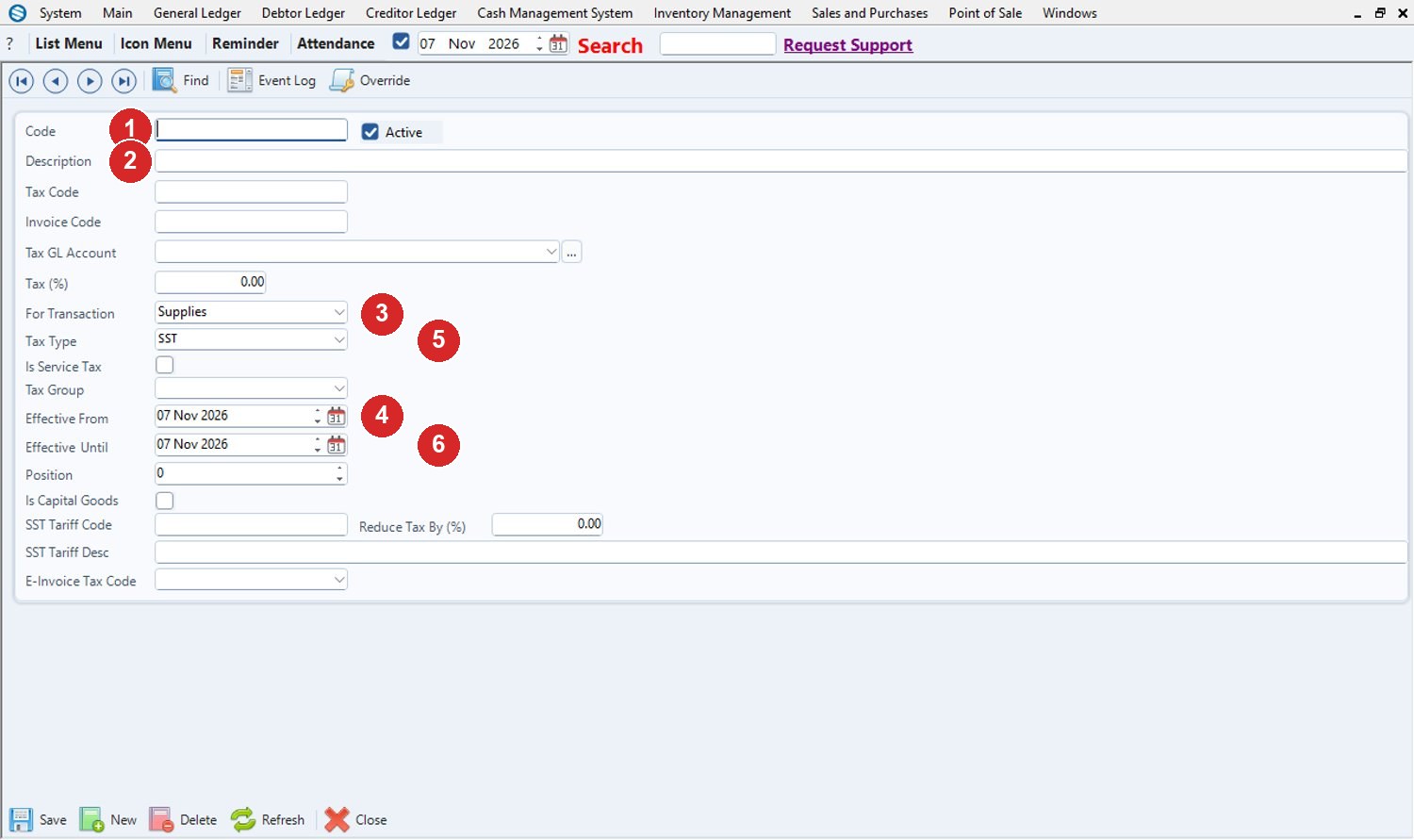
| Step | What to do |
|---|---|
| 1 | Fill in Code. |
| 2 | Fill in Description. |
| 3 | Fill in For Transaction. |
| 4 | Fill in Effective From. |
| 5 | Fill in Tax Type. |
| 6 | Fill in Effective Until: at least 60 days after Effective From. |
7. The monthly SST submission list is empty or wrong
Go to Main > SST/GST > SST Tax Return > SST Tax Return. The list always covers whole months, from the first day of the From month to the last day of the To month. Use the Print List report to enter the figures on the online SST portal. Full guide: Synergy Acc2026 – SST: Monthly Submission and Transition Debit Note
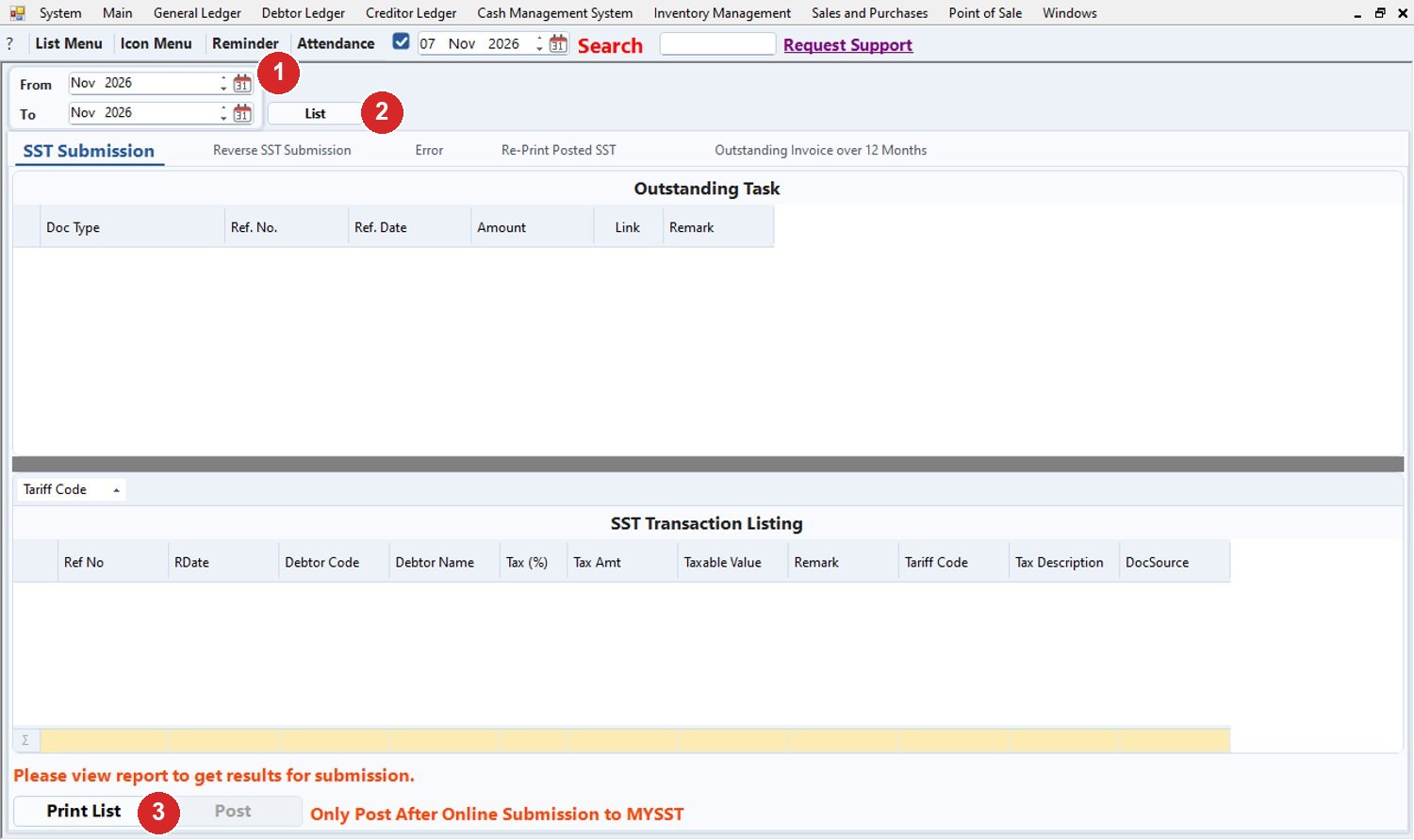
| Step | What to do |
|---|---|
| 1 | Set From and To. |
| 2 | Click List. |
| 3 | Click Print List. |
8. Post or Print List is disabled, or an error message appears
Post stays disabled until you have clicked List. If the message There are Duplicate Account Code assigned to SST Tax Code appears, two tax codes share an account, so do not go on until it is fixed. If There are un-matched Tax Amount between Debtor Ledger/Creditor Ledger/General Ledger appears, the list of errors opens and you must fix those first. Submit online first and click Post only after that. Full guide: Synergy Acc2026 – SST: Monthly Submission and Transition Debit Note
9. The SST in the program differs from what you submitted
Check for a reference date earlier than the real entry date, because SST follows the received amount, so the period can differ. Hold off posting until you have checked. Compare sample documents one by one with the report. A small leftover SST balance, for example a few sen, is cleared with a journal entry. Full guide: Synergy Acc2026 – What To Do When a Report Shows No Data or Wrong Figures
10. You need to correct SST on invoices from before March 2024, or invoices outstanding over 12 months
For a transition debit note, click Issue DN for Transition SST 8% while you create a new debit note, set the invoice date range and click List. Only one invoice can be loaded into one debit note, and you key the amount yourself. For unpaid invoices with SST over 12 months, use the Outstanding Invoice over 12 Months tab to post or reverse them. Full guide: Synergy Acc2026 – SST: Monthly Submission and Transition Debit Note
Tips
- Reversing or re-printing a posted submission uses the Reverse SST Submission and Re-Print Posted SST tabs, and you confirm by typing the 4-digit code shown.
- After you click List, the remark SST already submitted previously. can appear for a period that was posted before.
- Do not post here until you have submitted to the online SST portal.
Common problems
SST does not appear although the item has SR.
Check that SST has been set up and enabled in the company database. If not, ask Synergy support to set it up.
The message No transactions to post. or No transactions to reverse. appears.
There is nothing to process for the period you listed. Check the From and To months.
The message Invoice already loaded appears in the transition debit note.
Only one invoice can be loaded into one debit note.
A row in the transition debit note list cannot be edited.
A row that already has a debit note is locked, and the invoice dates must be before 1 March 2024.
SST still does not work or does not match.
Contact Synergy support. Have ready your SST approval letter or number, the SST start date, a screenshot of the item and the SST setting, and remote access to your main PC.