
Work down this list in order. Each step is a quick check, and names the full guide to read next if the check does not solve the problem.
Before you start
- The item code, the location and the date you are checking.
- The quantity you expected and the quantity the program shows.
Steps
1. Are you looking at the right report and the right options?
Use the normal Stock Balance Listing for quantity, not the serial number report. In the Stock Balance Query check the following in this order. Read the guide “Synergy Acc2026 – Check Stock Balance, Item Info and Prices”.
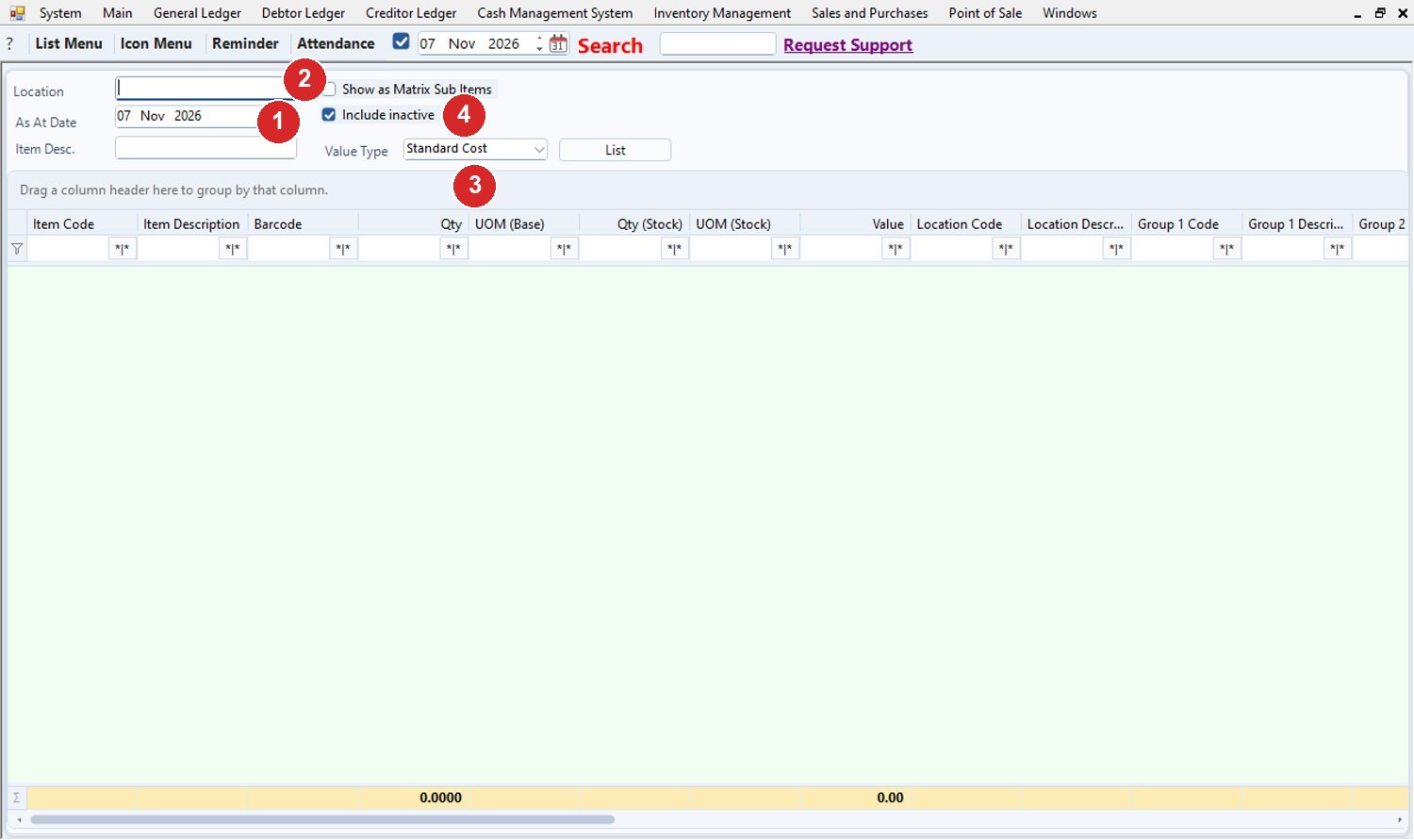
| Step | What to do |
|---|---|
| 1 | Check the As At Date first. |
| 2 | Then check the Location. |
| 3 | Then check the Value Type. |
| 4 | Tick Include inactive if an item is missing. |
2. What does the movement of the item say?
Open the Stock Movement Query for that item and tick Balance Brought Forward. Double-click a row to open the document that caused it. Read the guide “Synergy Acc2026 – Stock Balance, Stock Value, Movement and Cost”. For batch, bin or matrix items read “Synergy Acc2026 – Track Stock Movement by Item, Batch, Bin or Matrix”.
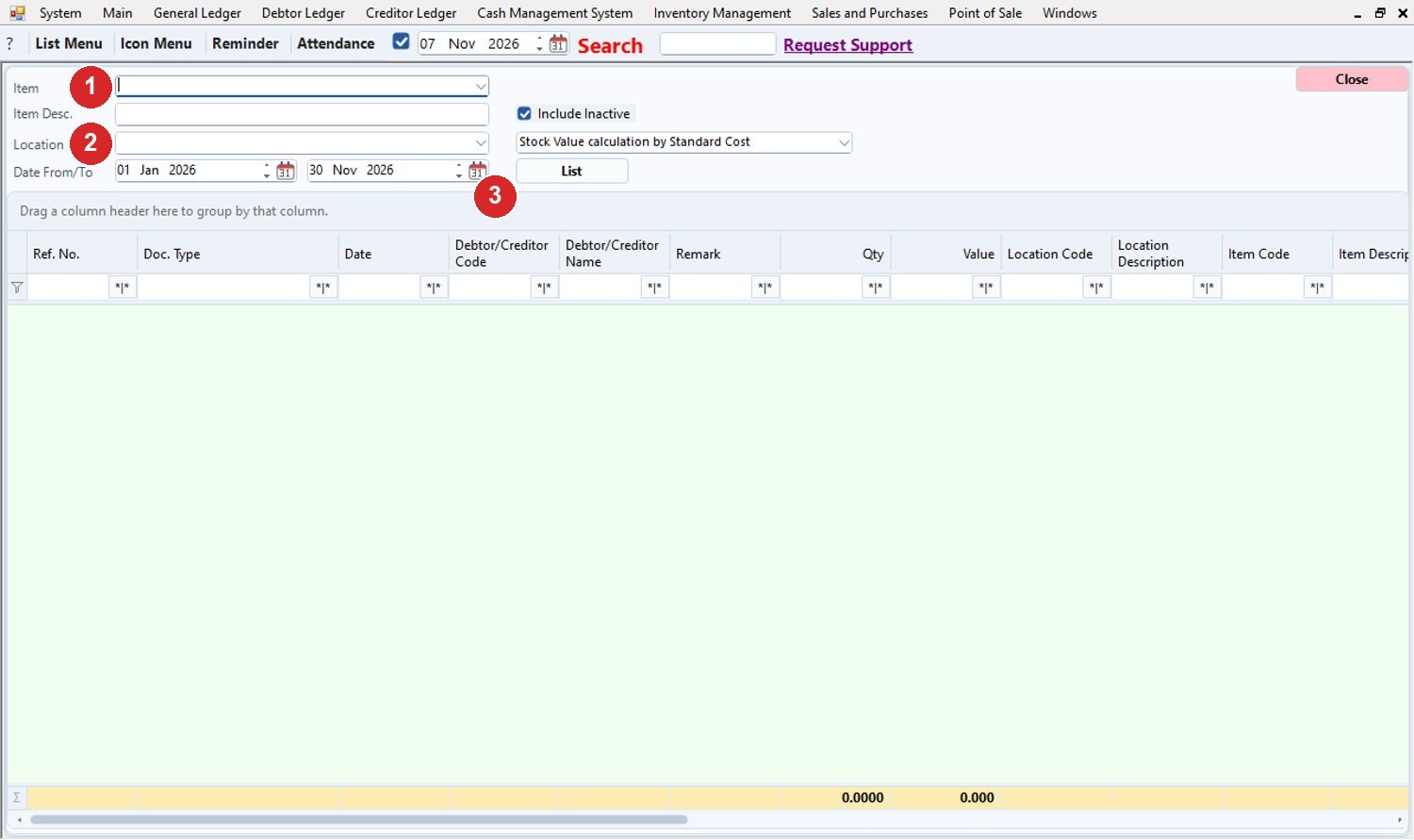
| Step | What to do |
|---|---|
| 1 | Choose the item. |
| 2 | Choose the location (or ALL). |
| 3 | Choose the dates. |
3. Is the document posted and correct?
A wrong or posted document can be undone in the right order and corrected. Read the guide “Synergy Acc2026 – Unposting and Correcting Posted Documents”.
4. Is only the value wrong, or are costs shown in red?
Costs that are not yet posted show in red and use the standard cost. Run Inventory Cost Posting and open the report again. Read the guide “Synergy Acc2026 – Stock Balance, Stock Value, Movement and Cost”.
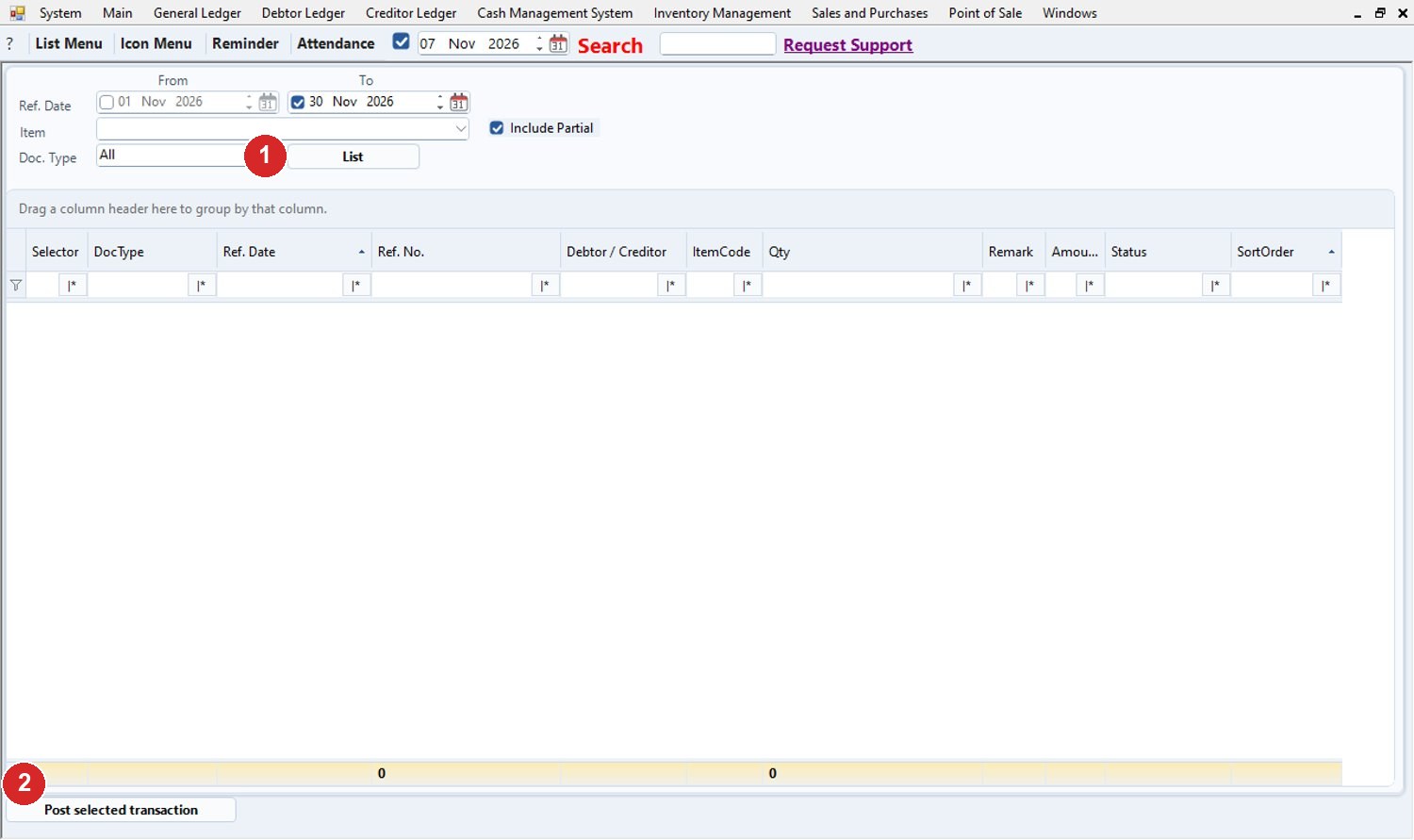
| Step | What to do |
|---|---|
| 1 | Click List. |
| 2 | Click Post selected transaction. |
5. Is the balance negative?
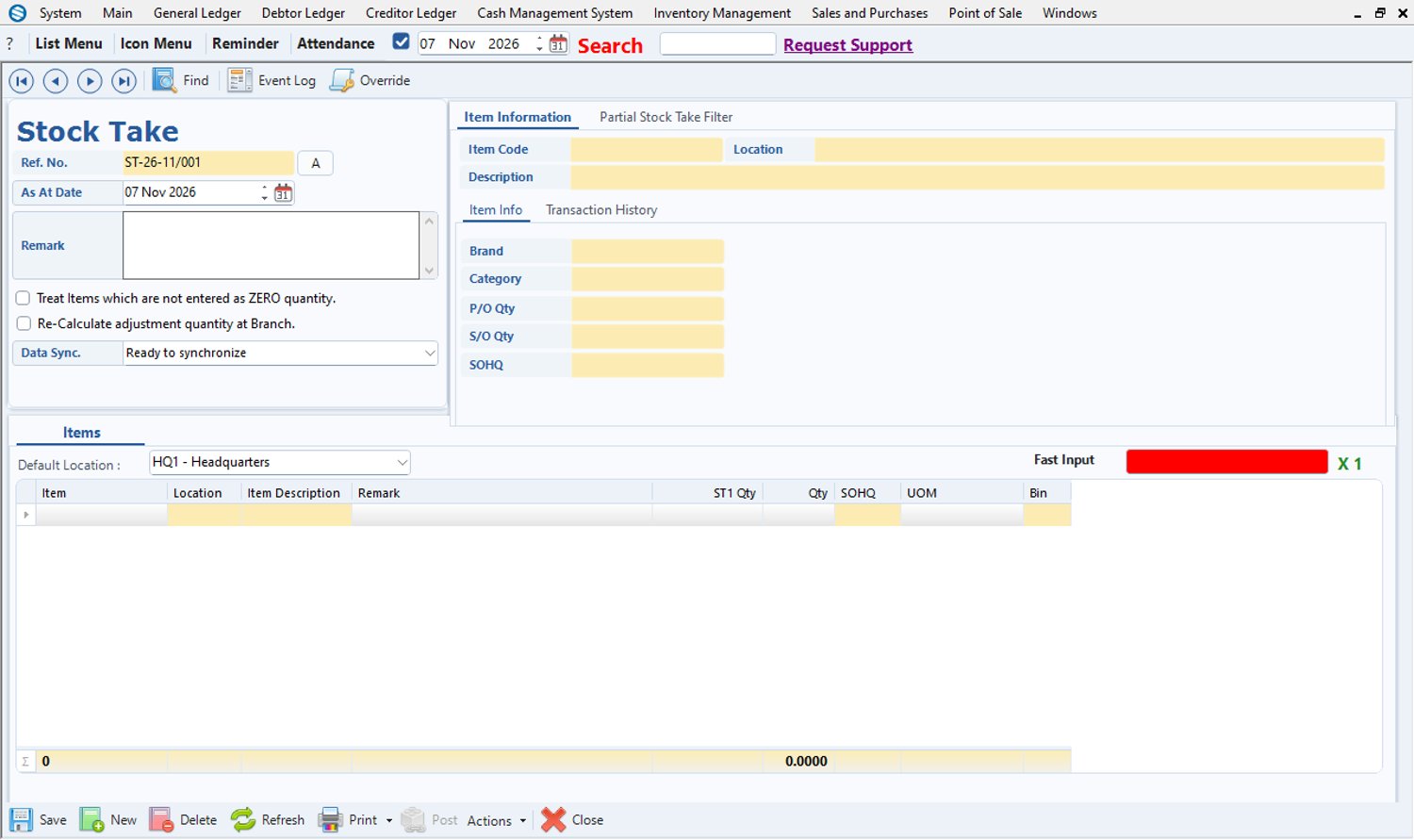
A negative balance means more stock was sold or issued than was recorded as received. Find the missing stock-in document, or count the item with a stock take and post it to 0 first. Read the guide “Synergy Acc2026 – Stock Take Step by Step”.
6. Is the real stock different from the system?
Count the stock and post a stock take. A stock take only creates an adjustment for items whose count differs. Read the guide “Synergy Acc2026 – Stock Take Step by Step”. To enter a single correction read “Synergy Acc2026 – Inventory: Enter a Stock Adjustment”.
7. Is the point of sale showing or allowing the wrong stock?
Check these on the Stock tab of the Point of Sale Settings. Read the guide “Synergy Acc2026 – POS Settings: Stock Behaviour and Shortcut Keys”.
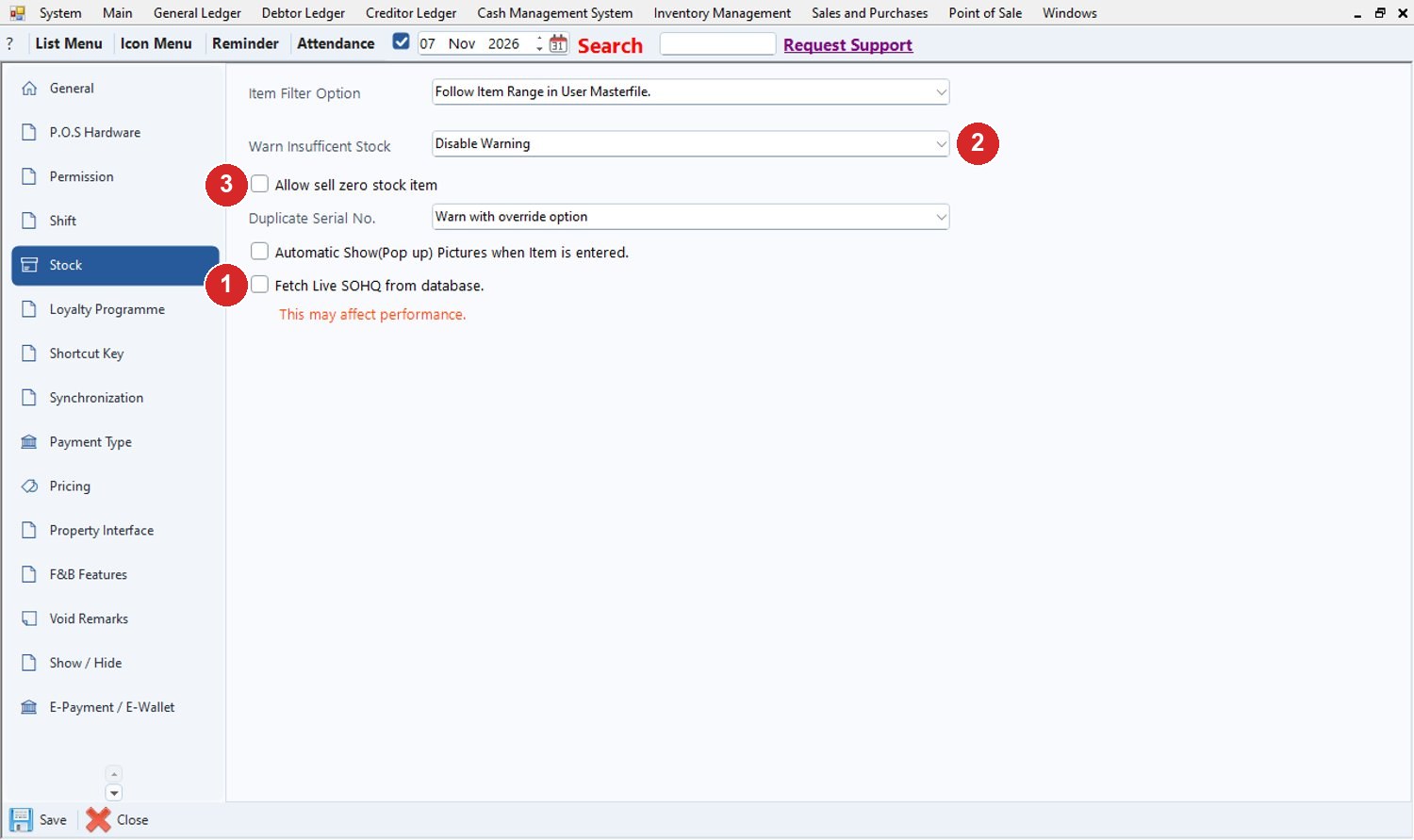
| Step | What to do |
|---|---|
| 1 | Check Fetch Live SOHQ from database. |
| 2 | Check Warn Insufficent Stock. |
| 3 | Check Allow sell zero stock item. |
8. Is the difference between head office and a branch?
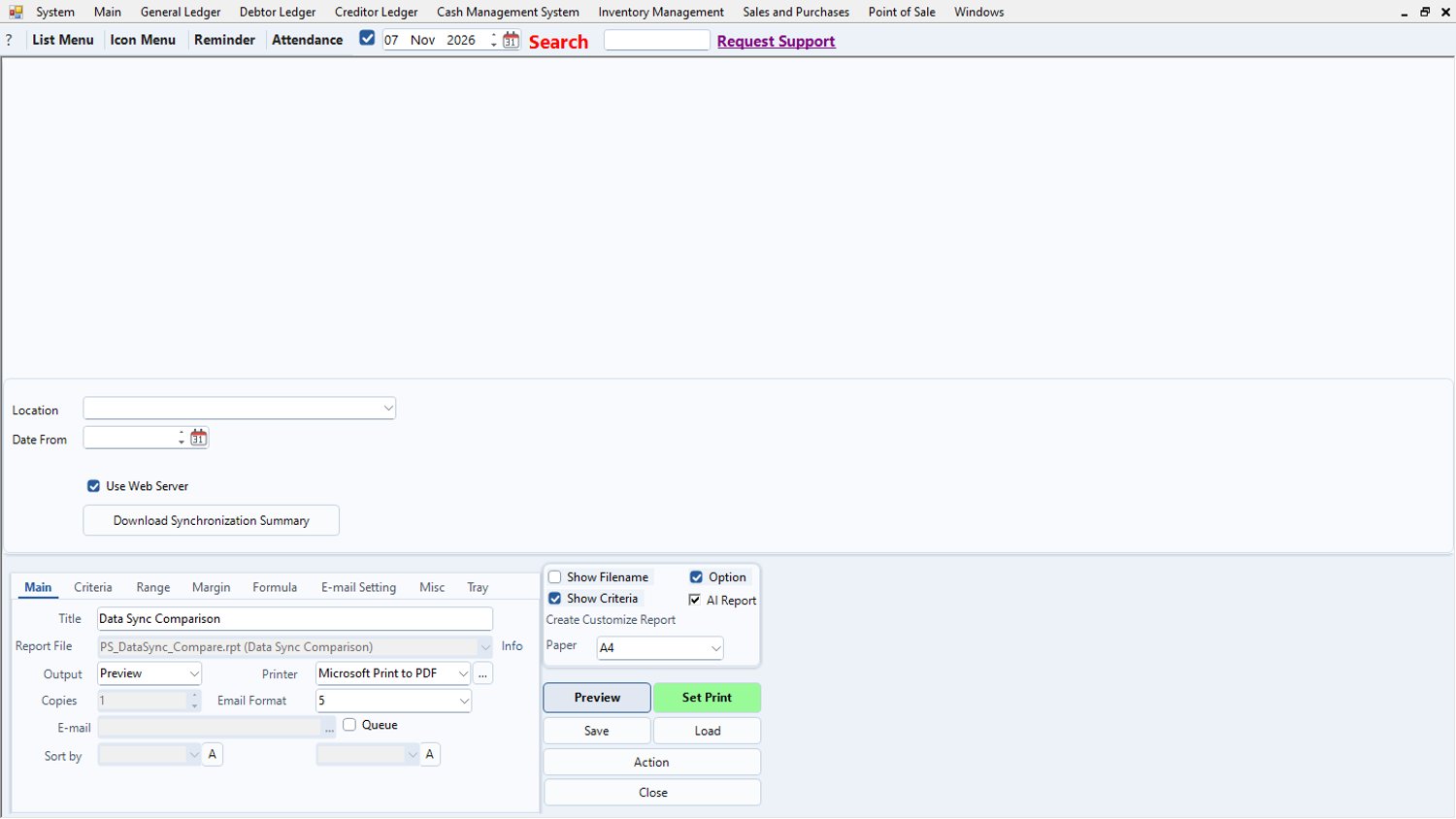
Find the missing days with the Data Sync Comparison report, upload them day by day, then do a stock take with Re-calculate ticked if stock still differs. Read the guide “Head Office and Branch: Sales Do Not Tally or Upload Fails”.
Tips
- Costing is FIFO, so the quantities must be correct. Fix wrong quantities with a stock take.
- The Stock Balance Query remembers your last Include inactive and Value Type choices.
Common problems
The quantity is still wrong after all the checks.
Contact Synergy support. Have the item code, the location, the date, a screenshot of the report and of the Stock Movement Query ready.