
Many reports have similar names, so it is easy to open the wrong one. This guide shows which report to open for common lists and totals, and how to run it.
Before you start
- Know what you want in the list or total, and for which date range.
- Know whether you need HQ or one outlet.
- Know whether you need full details or only totals.
- Know whether you use the full accounts module or POS only.
Steps
1. Members who bought in a month
Open Point of Sale > Reports > Sales By Outlet [Grouping]. Set the date range and set Group by to Member ID (or Member Name). Tick Show Details. On the Criteria tab add Member ID, Not Equal To (<>), and leave the value empty. This leaves out non-member sales.
2. Sales totals with SST, service charge and discount
Open Point of Sale > Reports > Sales By Outlet [Grouping] and untick Show Details.
3. Items ranked by sales quantity
Open Item Sales Analysis [Detail]: Point of Sale > Reports > Management Reports for POS sales, or Sales and Purchases > Reports > Sales > Analysis for invoices. Some reports have a fixed sort by item.
4. Sales and returns together
Open Sales and Purchases > Reports > Transaction Report > Transaction Summary Listing to see sales and returns in one report.
5. Stock in and out for a past year
Open Inventory Management > Reports > Stocks > Stock Movement Summary and set the date range, for example the whole year.
6. Stock receiving
Go to Inventory Management > Reports > Stocks. Open Stock Adjustment Listing, Stock Movement Group or Stock Movement Summary.
7. Yearly POS sales
Go to Point of Sale > Reports > Daily Sales. Select the date range. Set Counter No. and Shift No. to 0 for all. Tick Show Details if needed, then preview. You can also use Point of Sale > Reports > Sales By Outlet [Grouping] for one year.
8. Quotations for one item
Open Sales and Purchases > Query > Item Sales & Purchases Query. Pick the item, tick only Quotation, set the date range and click List.
9. Profit, net profit and income tax
If you use the accounts module, open General Ledger > Reports > Financial > P&L Accounts. Net profit comes from this report.
10. Sales Invoice Detail Listing
Open Sales and Purchases > Reports > Sales > Sales Invoice > Sales Invoice Detail Listing. Set Group By to Debtor Code. Untick Show Detail for a shorter report without a title for each day.
11. Cash difference
Check each day’s Point of Sale > Reports > Sales Summary [Receipt Printer] (the shift closing summary).
12. Item list with price, barcode, UOM and cost
Go to Inventory Management > Reports > Masterfile Listing > Item Listing (Custom Data). Pick the fields manually, for example Base UOM Code and Cost.
13. Run the report
On the report options screen, set up the report. Here Sales By Outlet [Grouping] for members who bought from 1 to 20 November.
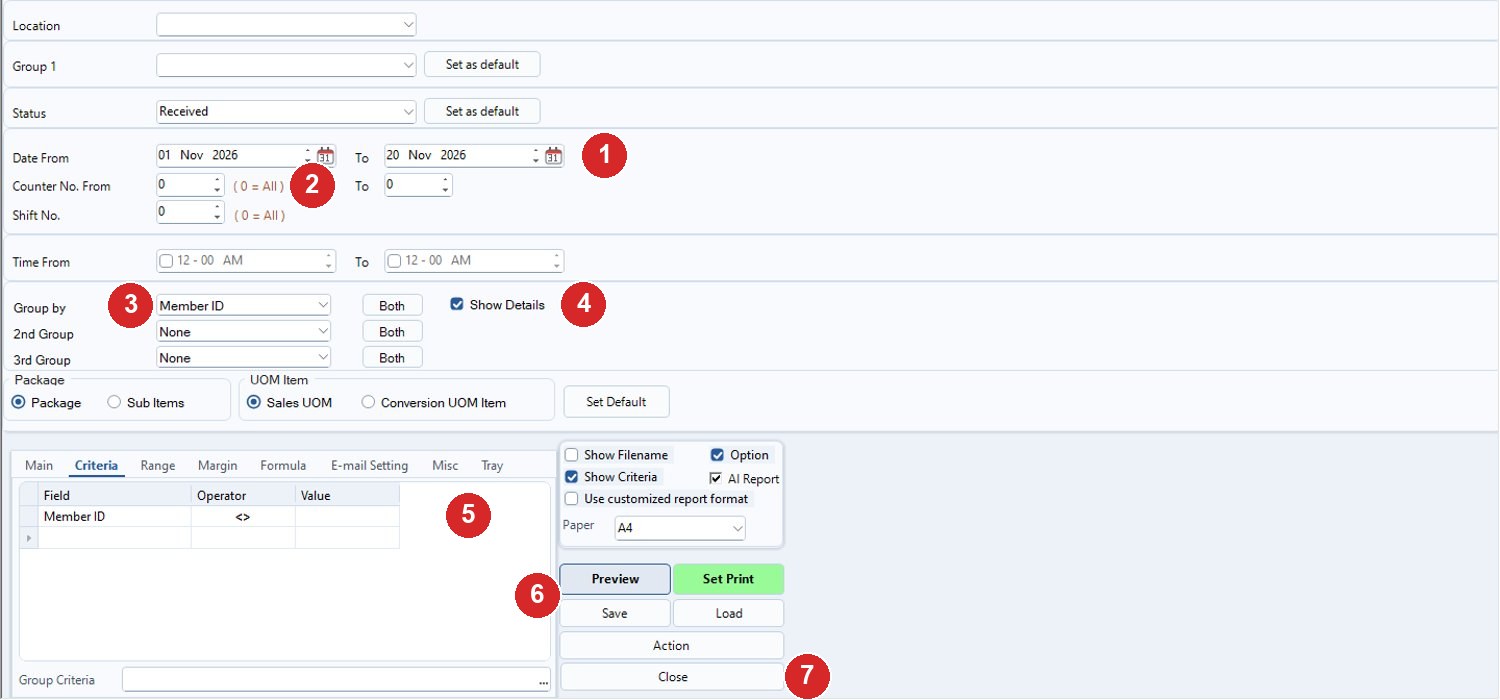
| Step | What to do |
|---|---|
| 1 | Date From and To. |
| 2 | Counter No. and Shift No. (0 = All). |
| 3 | Group by (here Member ID). |
| 4 | Show Details. |
| 5 | Criteria tab: Field, Operator and Value (here Member ID <> empty). The Range tab sets ranges. |
| 6 | Preview (Save and Load keep your settings). |
| 7 | Close. |
Tips
- To separate items in a report, filter by Description (the exact description or code), or set Group 1 to Group 5 on the items.
- Some reports have a fixed sort order.
- If a sales total looks low, check for days with no sales and for voided or pending transactions. These are not counted.
- Cash in/out and drawer float are only internal drawer records, not sales. They do not appear in Sales Cost Analysis or the sales cost report.
- Bank reconciliation is a separate function. It matches your company’s bank records against the bank statement.
- To print, set Output to Printer (or click Set Print), then click Print.
- Only update a report file from the cloud when Synergy support tells you to.
Common problems
The sales total looks too low.
Check for days with no sales and for voided or pending transactions, which are not counted.
I need remaining stock per supplier, and items have several suppliers.
No report exists for this.
I need a special list that no report gives.
Try the custom data report. Otherwise contact Synergy support and have the date range, outlet and fields wanted ready.
I cannot find member purchase history, or the purchase report.
Contact Synergy support to be shown where they are. Have the item, date range and report name ready.
Sales margin analysis looks wrong when cost changes during the month.
Check whether inventory cost posting was done. If it still looks wrong, contact Synergy support with the item, date range and report name.
Message: No permission to print or No permission to export.
Your login lacks the right. Ask your administrator.
Message: E-mail address is required.
Enter the e-mail address, separating several with commas.
Message: Custom Paper Size does not work in Preview mode.
Change Output to Printer to use custom paper.