
This guide shows how to create a new financial year with its periods, how retained earnings carry forward, and how the lock date stops changes to old entries.
Before you start
- Know the starting date of the new financial year (confirm with your company secretary if unsure)
- Know how many periods the year has, because the number cannot be changed after saving
- Log in as a user who can open General Ledger setup
Steps
1. Open Financial Year Setup
From the menu go to General Ledger > Masterfile > Financial/Fiscal Year Setup.
2. Set the Fiscal Year and Starting Date
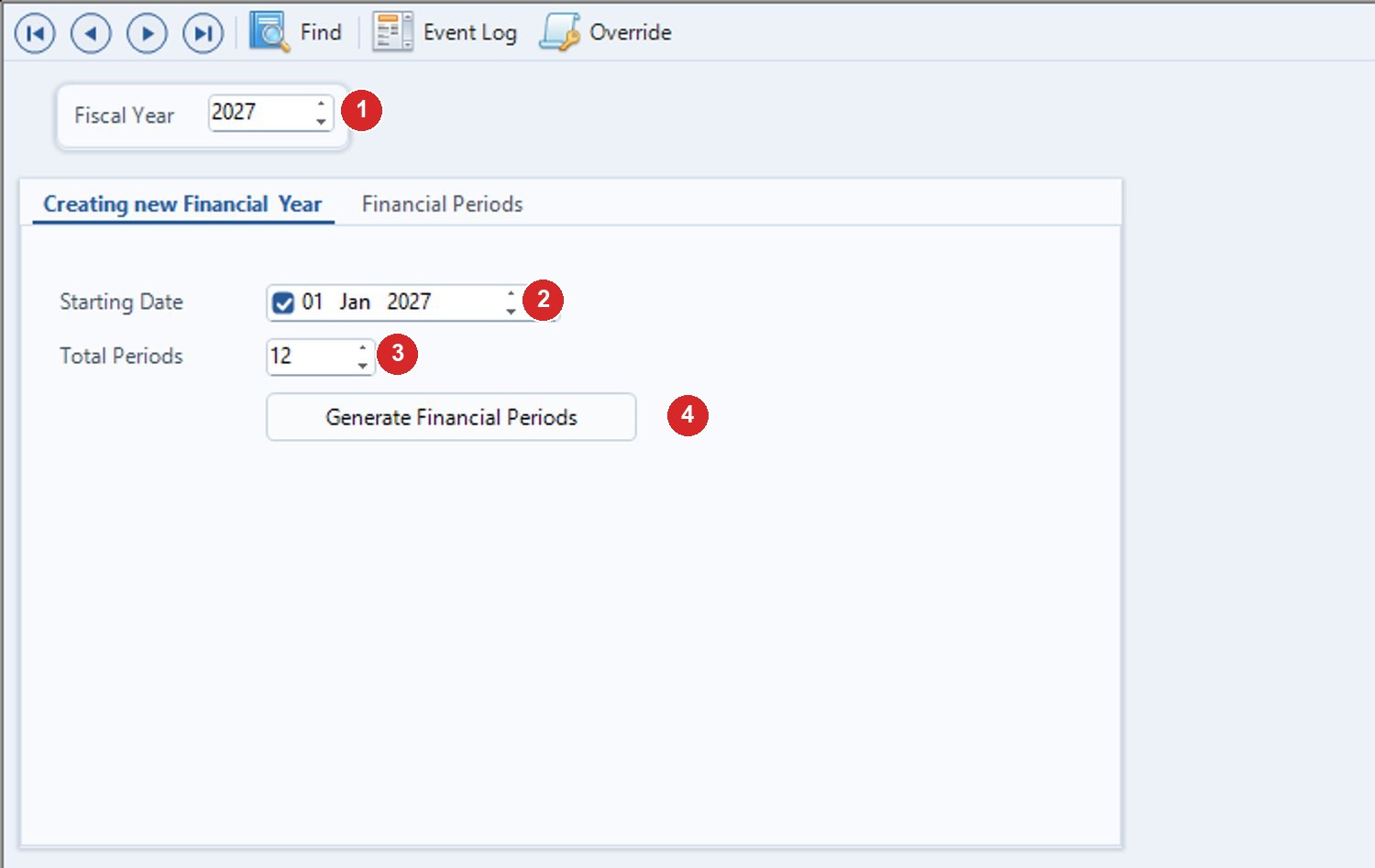
On the Creating new Financial Year tab, set the Fiscal Year. When you change the year, the Starting Date jumps to 1 January of that year. If your year starts on another day, change the Starting Date after choosing the year.
| Step | What to do |
|---|---|
| 1 | Fiscal Year (here 2027). The Starting Date jumps to 1 January of that year. |
| 2 | Starting Date (change it if your year does not start in January). |
| 3 | Total Periods: check it carefully, it cannot be changed after saving. |
| 4 | Generate Financial Periods: one period per month from the starting date; periods already listed are replaced. |
3. Check the Financial Periods tab
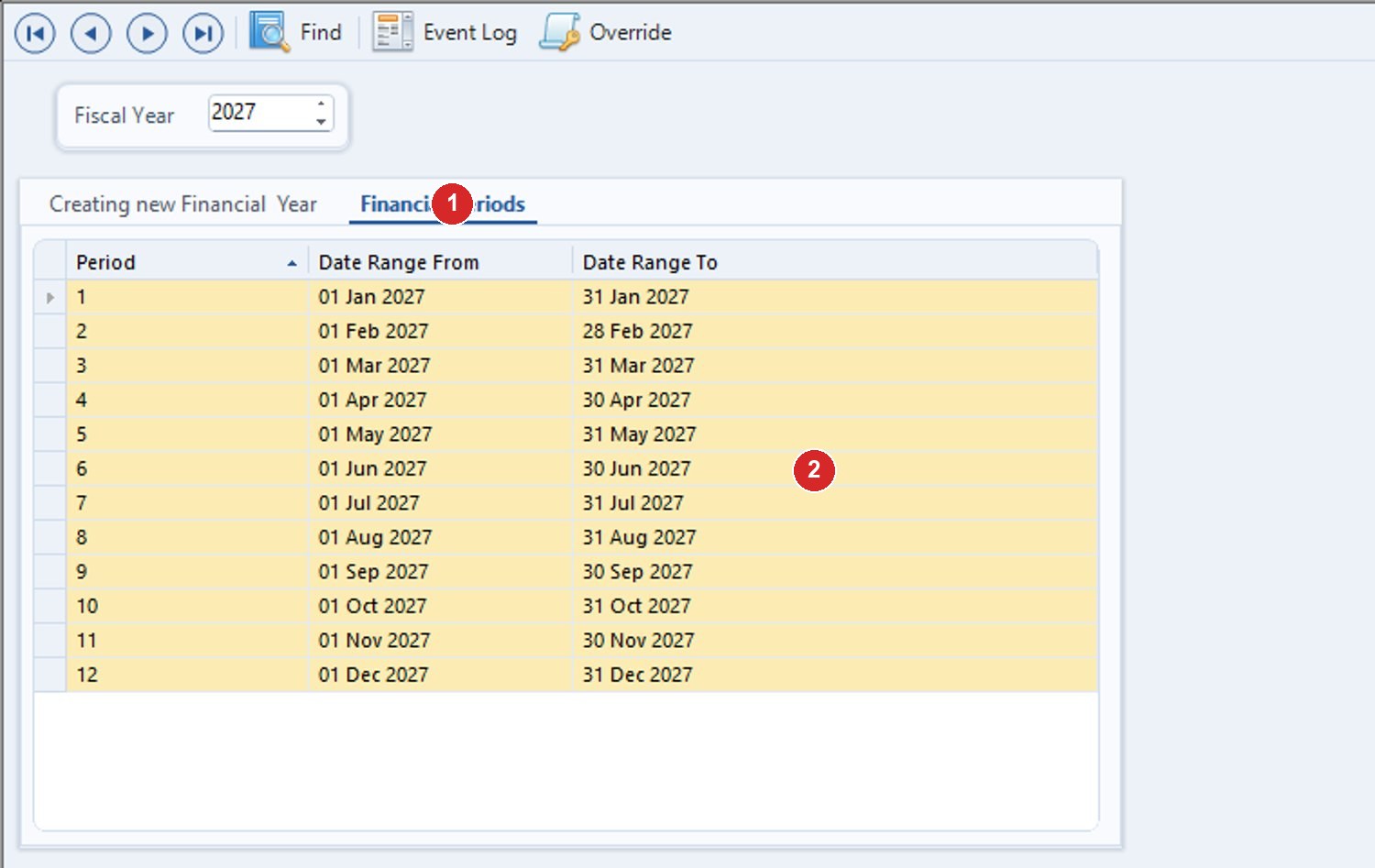
You are taken to the Financial Periods tab. Check the dates of every period. You can edit or delete rows here.
| Step | What to do |
|---|---|
| 1 | Financial Periods tab. |
| 2 | Check the dates of every period; you can edit or delete rows here. Then Save and answer Yes only if all is correct. |
4. Let retained earnings carry forward
Retained earnings carries forward automatically at year end. You do not post to it, and its category cannot be changed.
5. See last year’s retained earnings balance
Open the Trial Balance and choose Type 2. Set the 1st period to last year’s closing and the 2nd period to the period you need.
6. Check the lock date
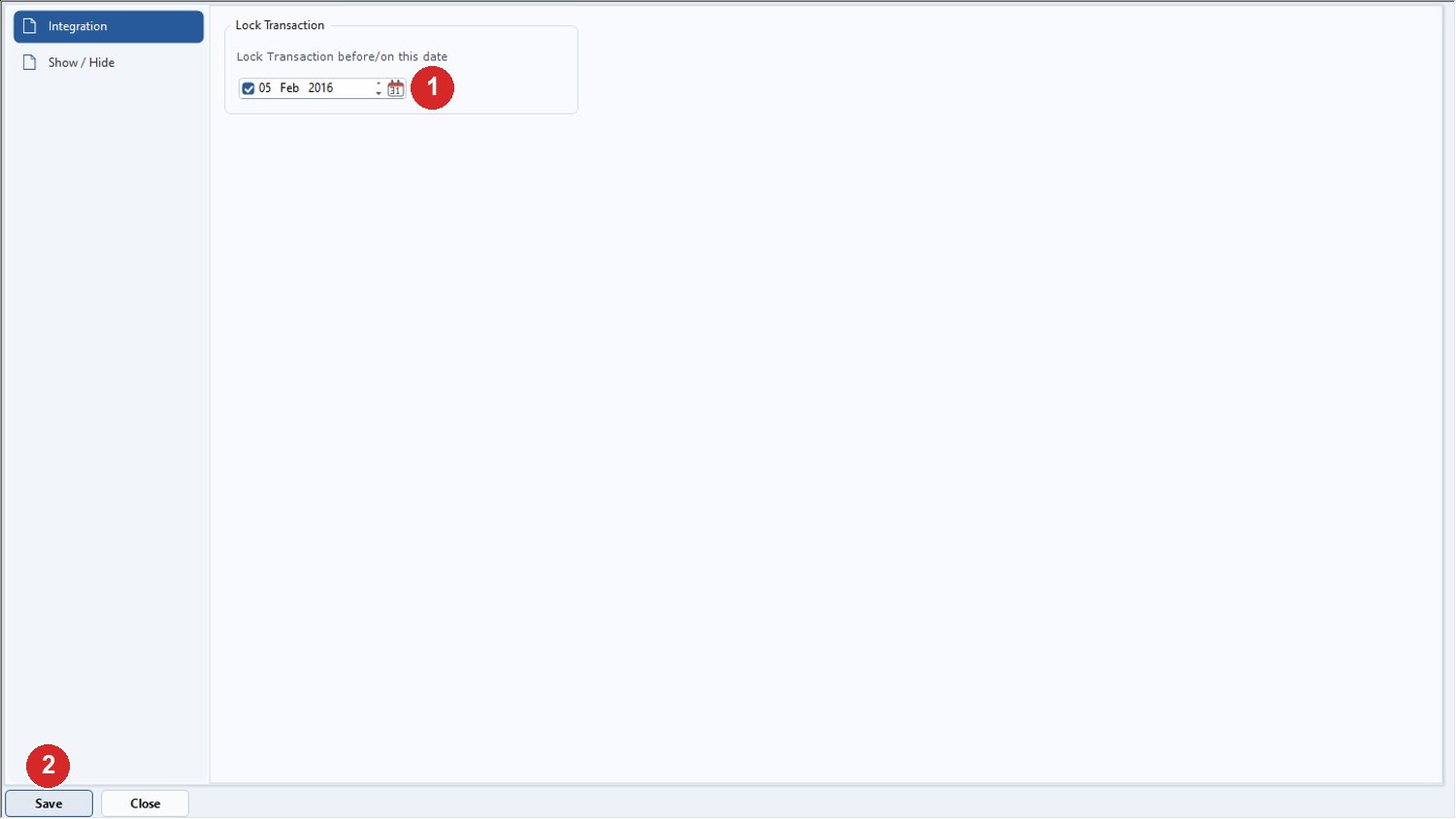
Go to General Ledger > Settings > System Settings and open the Integration tab. In the Lock Transaction group, the lock date blocks entries dated on or before it. Tick the box and pick a date to lock, or untick it to clear the lock, then click Save.
| Step | What to do |
|---|---|
| 1 | Lock Transaction before/on this date. |
| 2 | Save. |
Tips
- Wrong dates in the periods usually mean the Starting Date was left at 1 January. Change it and press Generate Financial Periods again.
- The lock date is only stored when you click Save. Closing the screen without saving keeps the old value.
- Administrators and users with access to GL System Settings can confirm and carry on when an entry is stopped by the lock date. Other users are refused.
- For opening balances in a new system, see the guide on opening balances and retained earnings.
Common problems
Cannot save the new year
You probably did not generate the periods. Press Generate Financial Periods first (message: No Period defined).
Message says no financial year exists
Create the financial year using the company’s actual financial year dates, as in the steps above.
Message GL Period Locked. Transaction earlier than the date is not allowed
Check the lock date on the Integration tab of System Settings. Untick it or set an earlier date, then Save.
The lock date was set but nothing happened
Make sure the tick next to the date was on when you clicked Save. With the tick off, the date is not stored.
Retained earnings figure looks wrong
Retained earnings is worked out by the program. Check the trial balance periods you chose (Type 2).