
Advance prices are special prices by quantity, location, price type, currency or UOM. This page imports them from an Excel or CSV file, and lets you edit or delete a batch of them. This guide shows both tabs.
Before you start
- Sign in to Synergy Web Access as a user who may use Advance Price Batch Edit / Import (under the Inventory tab).
- For an import, a spreadsheet with one advance price on each row. Click Download template to get the column names.
Steps
1. Open the page
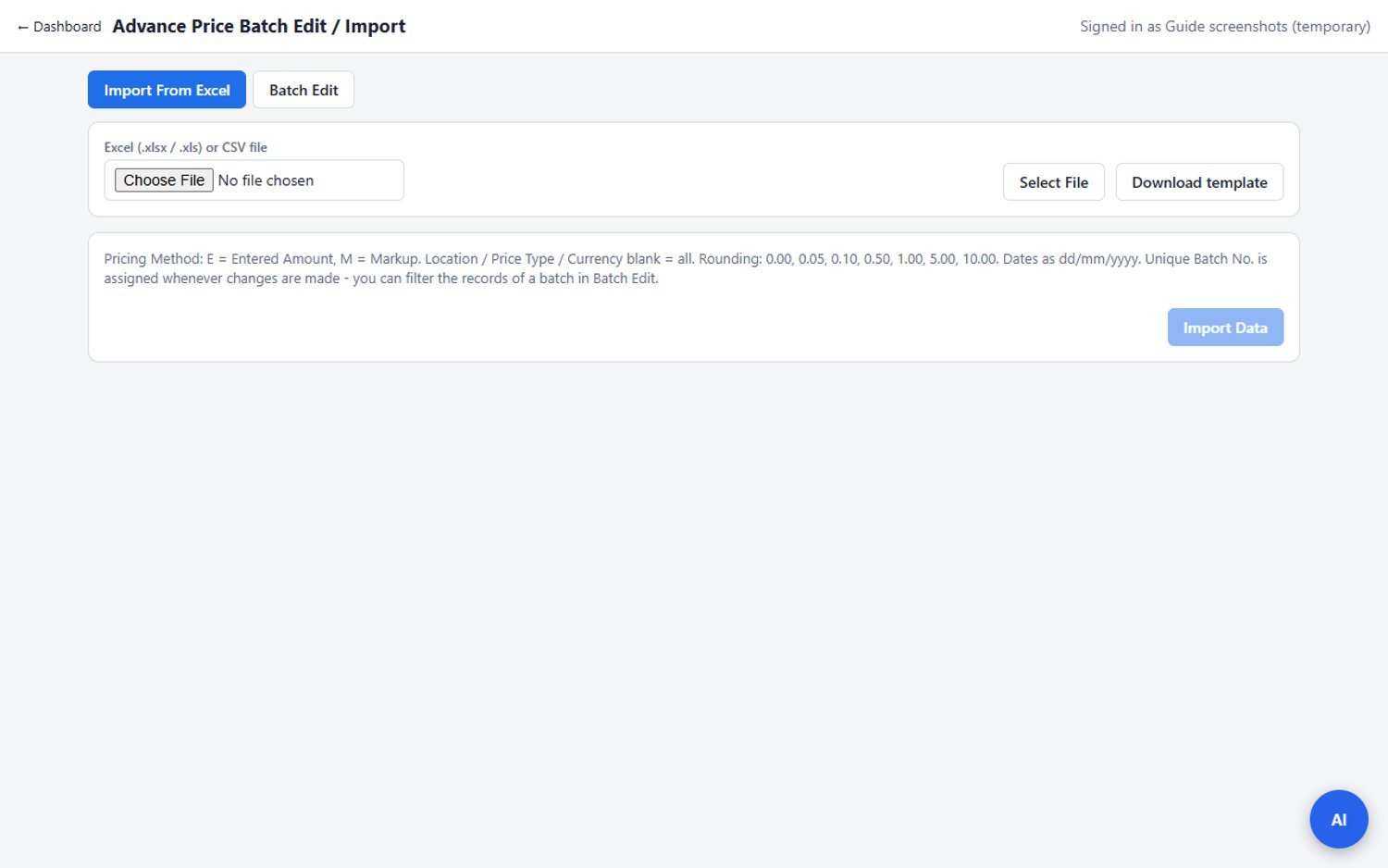
On the dashboard, open the Inventory tab and click Advance Price Batch Edit / Import. The Import From Excel tab is shown first.
2. Get the template
Click Download template. It is a CSV file with the columns Item Code, Pricing Method, Location Code, UOM, Min Qty To Qualify, Price Type, Currency, Price, Markup Percentage, Rounding, Valid From Date and Valid Till Date.
3. Fill in the file
Pricing Method is E for an Entered Amount or M for a Markup. A blank Location, Price Type or Currency means all. Rounding is one of the values shown on the page, for example 0.05. Write dates as dd/mm/yyyy.
4. Read the file
Click Choose File, pick your .xlsx, .xls or .csv file, and click Select File. The page lists every row with its Item Code, Description, Method, Price and so on. A row with a problem is marked and its Error says what is wrong.
5. Import
When no row has an error, click Import Data. The page warns that this replaces ALL advance prices of those items. Confirm with OK. The page says Data import completed and gives the batch no.
6. Open Batch Edit
To change prices that already exist, use the Batch Edit tab.
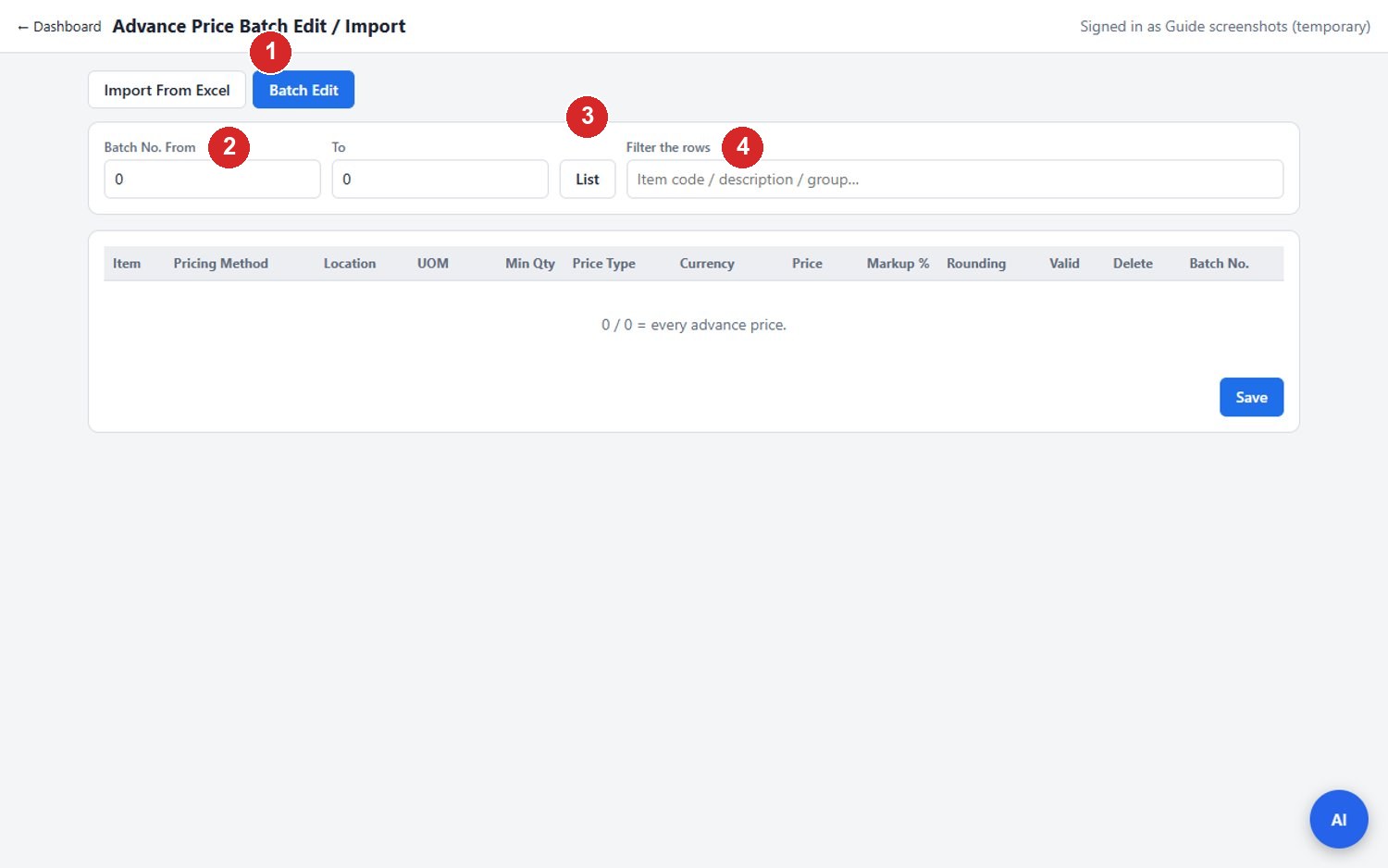
| Step | What to do |
|---|---|
| 1 | Click the Batch Edit tab. |
| 2 | Type the Batch No. From and To, or leave 0 and 0 to list every advance price. |
| 3 | Click List. |
| 4 | Use Filter the rows to find an item code, description or group. |
7. Change or delete
Change the Pricing Method, Location, UOM, Min Qty, Price Type, Currency, Price or Rounding of a row. Tick Delete on rows to remove. Changed rows are marked and counted under the list.
8. Save
Click Save. The page says Data Saved with the new batch no. Use that number later to list just this batch.
Tips
- Every change gets a unique Batch No., so you can list exactly what one import or save changed.
- Markup % and Valid (the dates) are shown in Batch Edit but cannot be changed there. Change them by importing again.
- Import at most as many rows as the page allows in one go. It says so when the file is too big.
Common problems
The file must have an ‘Item Code’ column (download the template).
Add an Item Code column, or start from the template.
N row(s) have errors: correct the file and load it again.
Fix the rows marked in the Error column, then choose the file and click Select File again.
Nothing changed.
You have not edited any row in Batch Edit. Change a row first, then click Save.
A price no longer exists. List the batch again.
Another user changed or deleted it. Click List again and redo your change.
Choose a file.
Click Choose File and pick a file before you click Select File.
You do not have access to this screen.
Your Synergy user has no permission for it. Ask your administrator.