
Ask your AI app who is overdue and what to reorder. Synergy has the payment reminder ready for each customer and makes a draft purchase order for a supplier. You send the reminder and you save the purchase order yourself.
Before you start
- Your company has AI apps switched on and you have connected your AI app to Synergy.
- Your user may use the Payment Reminders page and the Purchase Order page.
Steps
1. Ask who is overdue
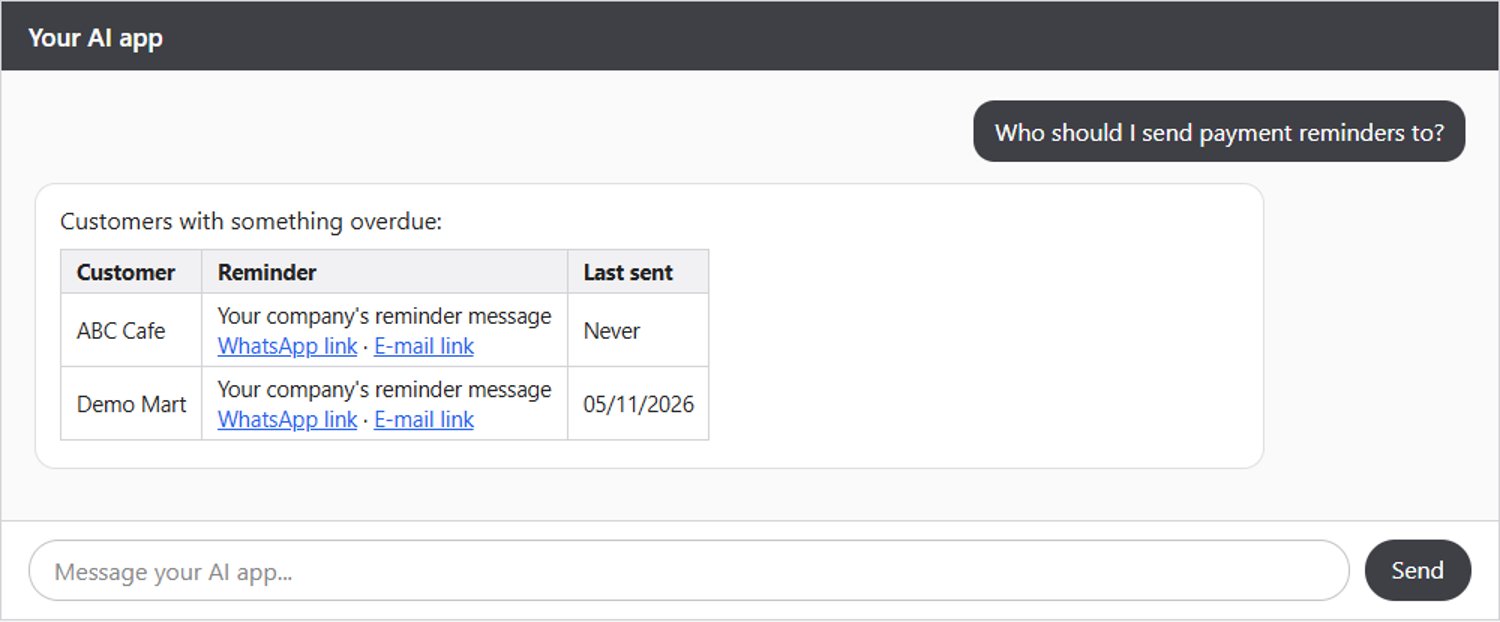
Say: Who should I send payment reminders to? You get the customers with something overdue, as the Payment Reminders page shows them, and when each reminder was last sent.
2. Send the reminder yourself
Each customer comes with your company’s own reminder message, a WhatsApp link and an e-mail link. The links open the message ready to send. You send it yourself. The AI app never sends or rewrites a reminder for you without asking.
3. Send the statement of account with it
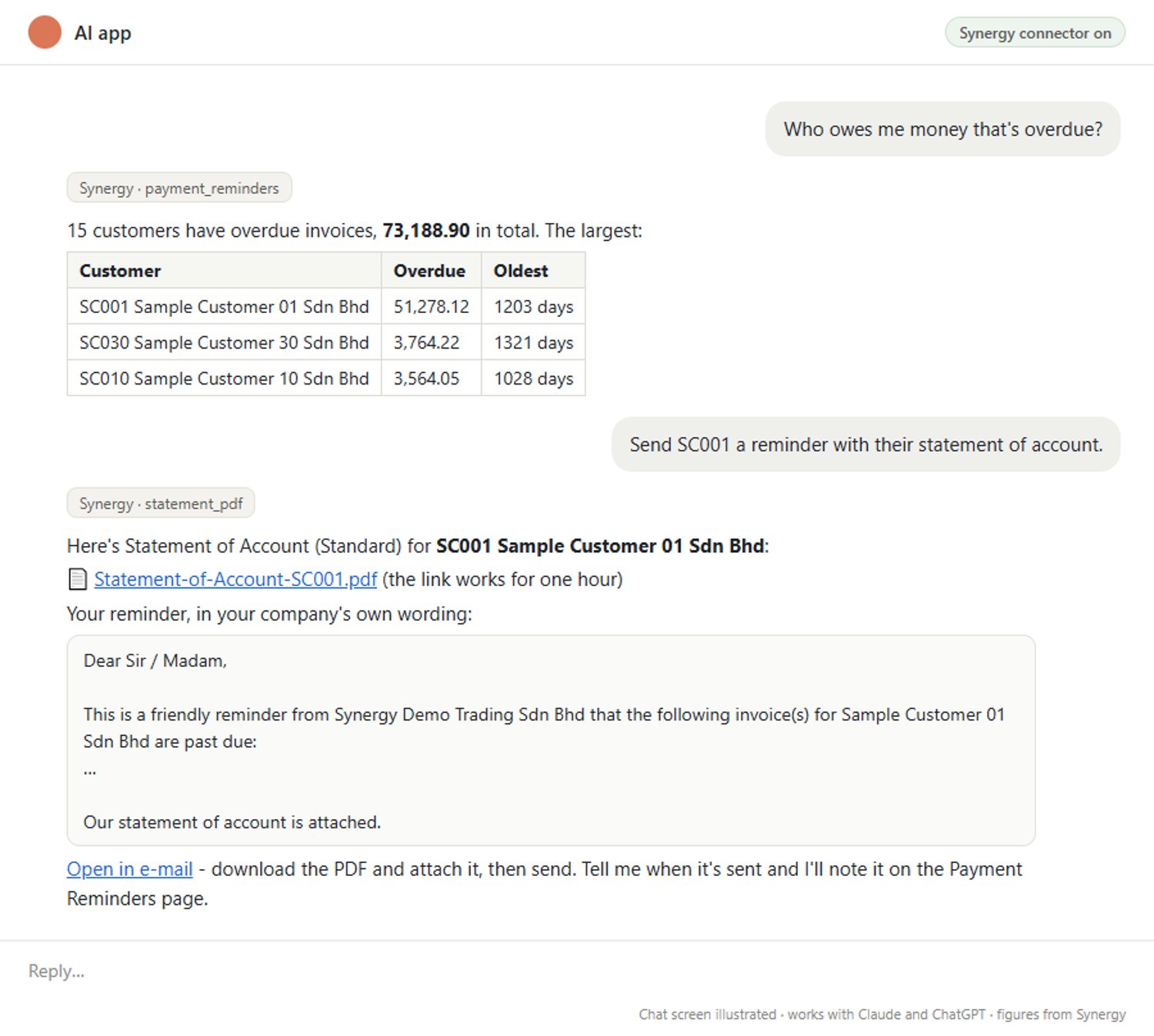
Say: Send SC001 a reminder with their statement of account. You get the statement PDF (your company’s own report, the link works for one hour) with the reminder message and the e-mail / WhatsApp links. Download the PDF, attach it and send it yourself. See the guide Payment Reminders, Statements and Bank Reconciliation from the AI App.
4. Tell Synergy it was sent
After you have sent or copied a reminder, tell your AI app. Only then does it note on the Payment Reminders page that the reminder was sent.
5. Ask what to reorder
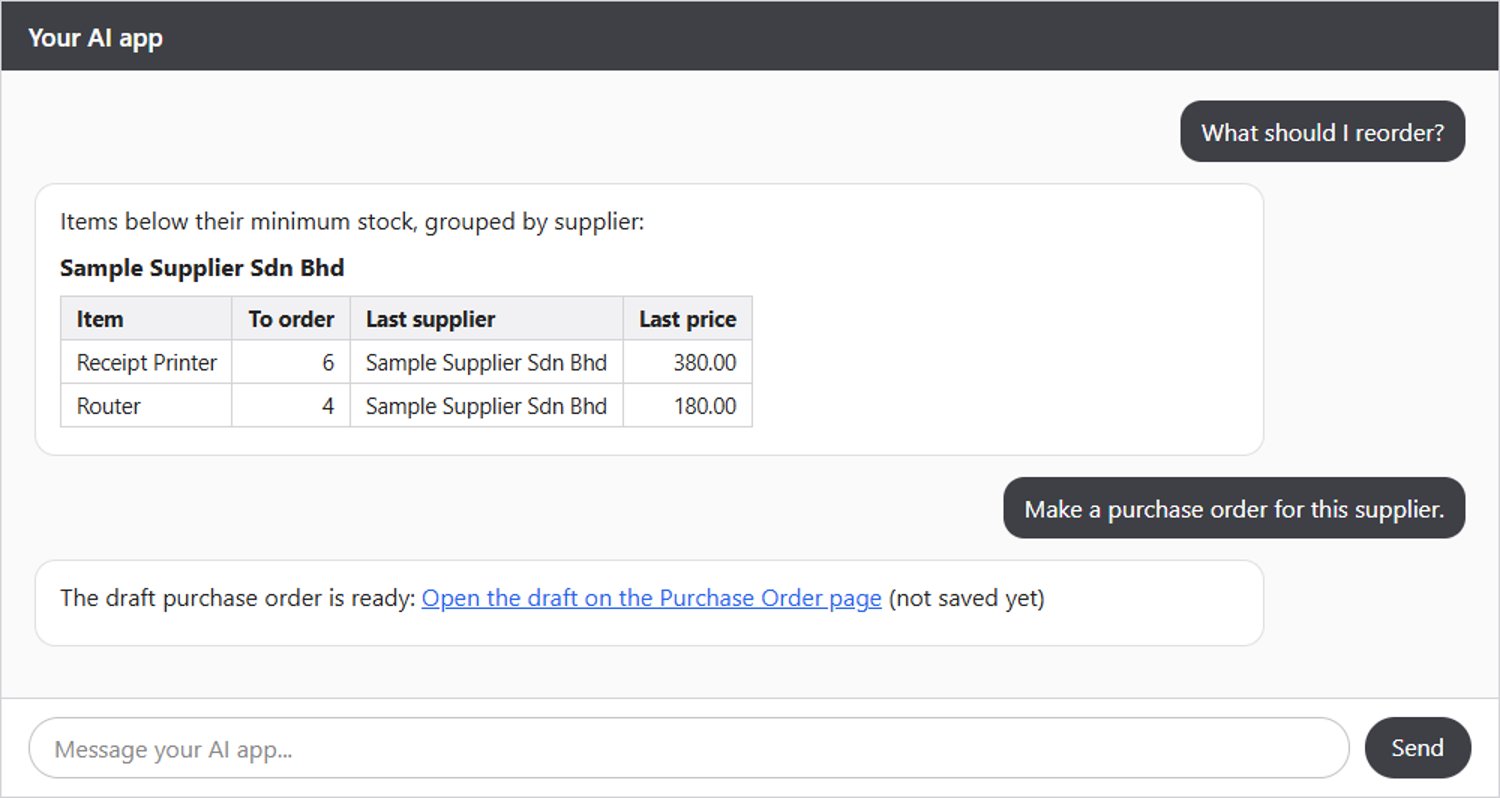
Say: What should I reorder? You get the items below their minimum stock, how many to order, and each item’s last supplier and last price, grouped by supplier. Stock counts what is on hand, less what is promised on sales orders, plus what is already on purchase orders.
6. Make a draft purchase order
Say: Make a purchase order for this supplier. Synergy fills it the way the Purchase Order page does, with the item’s purchase price and tax. A price is only changed when you named one.
7. Open the link and check
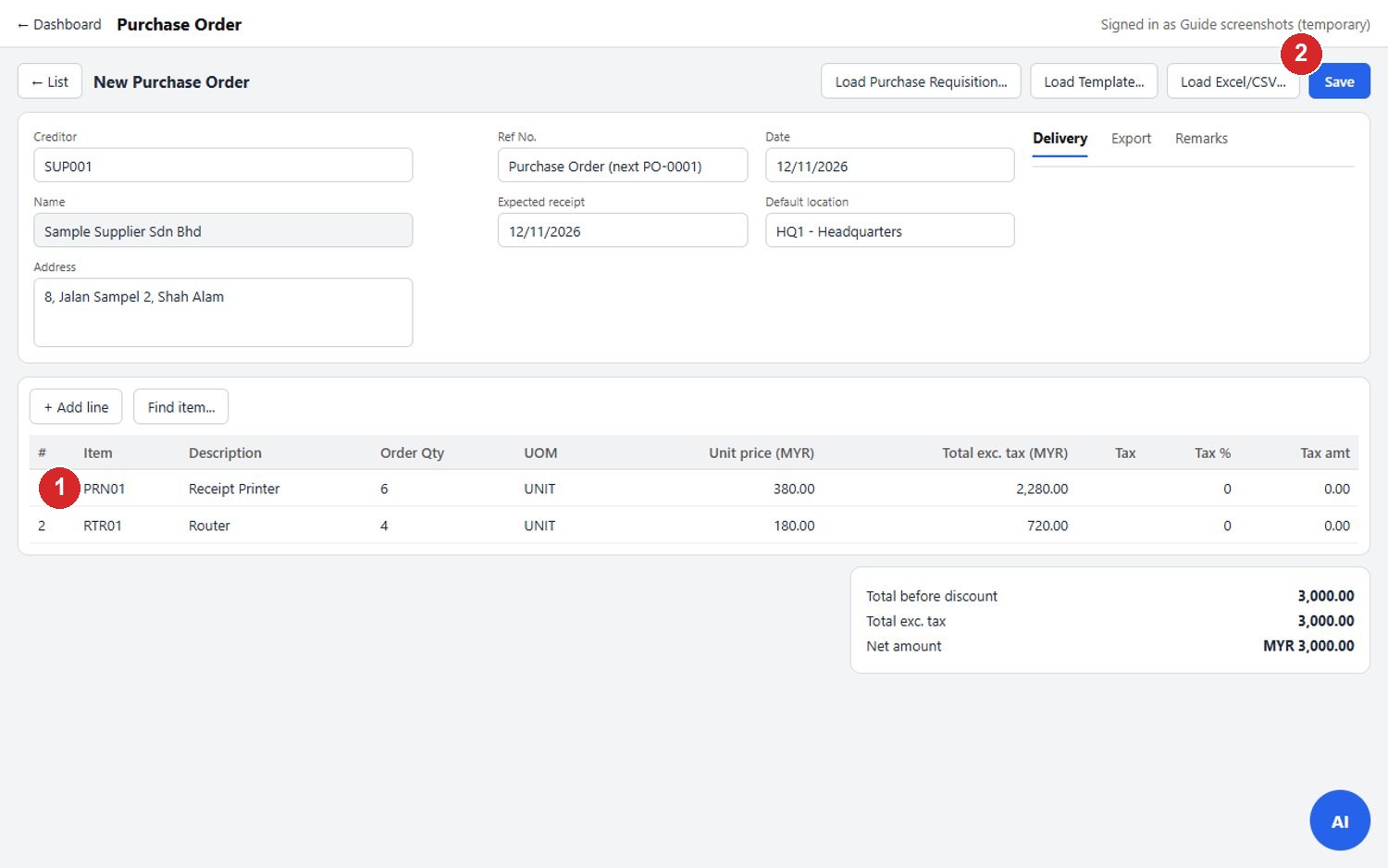
Open the link. The purchase order opens on the Purchase Order page without being saved.
| Step | What to do |
|---|---|
| 1 | Check the lines and the notes. |
| 2 | Save it there. |
Tips
- How many to order follows the reorder rule set on each item in the Item Masterfile.
- Nothing is sent to a customer or supplier, and nothing is saved, by the AI app.
Common problems
An item I expected is not in the reorder list
Reorder suggestions only list items that are below their minimum stock. Check the minimum and the reorder rule on that item in the Item Masterfile.