
Give your AI app a supplier invoice, receipt, delivery order, credit note, customer purchase order, payment slip or bank statement. Synergy works out which form it belongs to and makes a DRAFT. You check it and save it in Synergy yourself. Nothing is posted by the AI app.
Before you start
- Your company has AI apps switched on and you have connected your AI app to Synergy (see the guide on setting up AI apps for the Synergy Sync Server).
- Your company has the document inbox in Synergy.
- Your Synergy user may use the form the document goes to (for example Invoice Received).
Steps
1. Give the document to your AI app
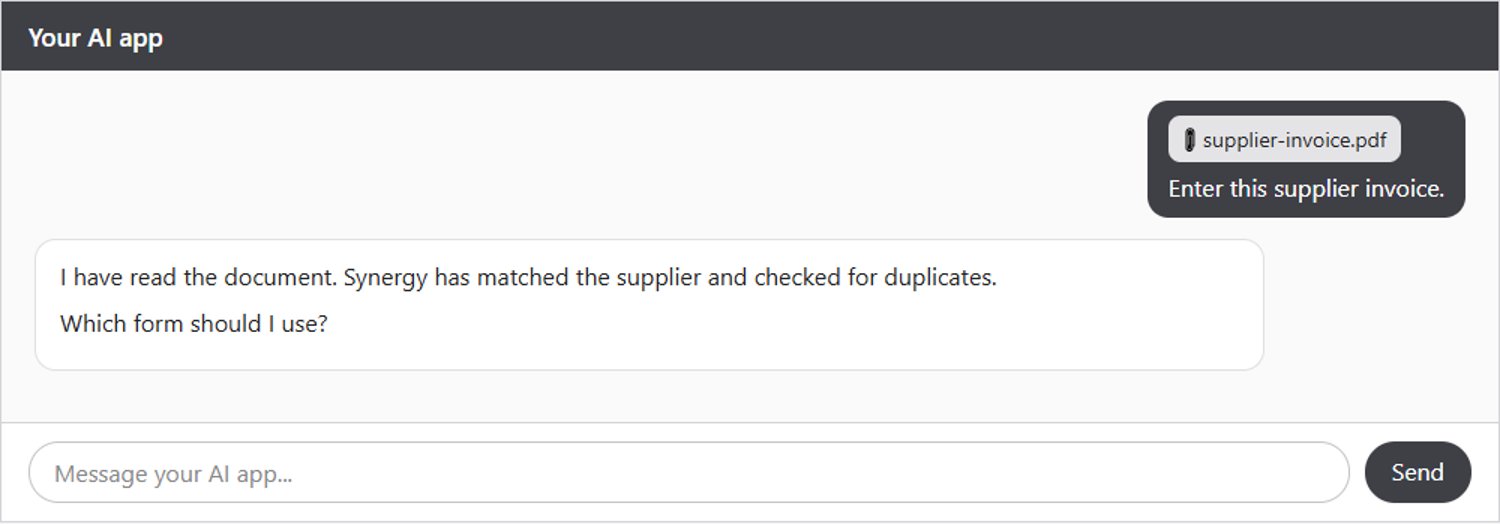
Attach the PDF or photo in your AI app chat and say what to do, for example: Enter this supplier invoice. The AI app reads the document itself, on your own AI plan.
2. Look at the choices
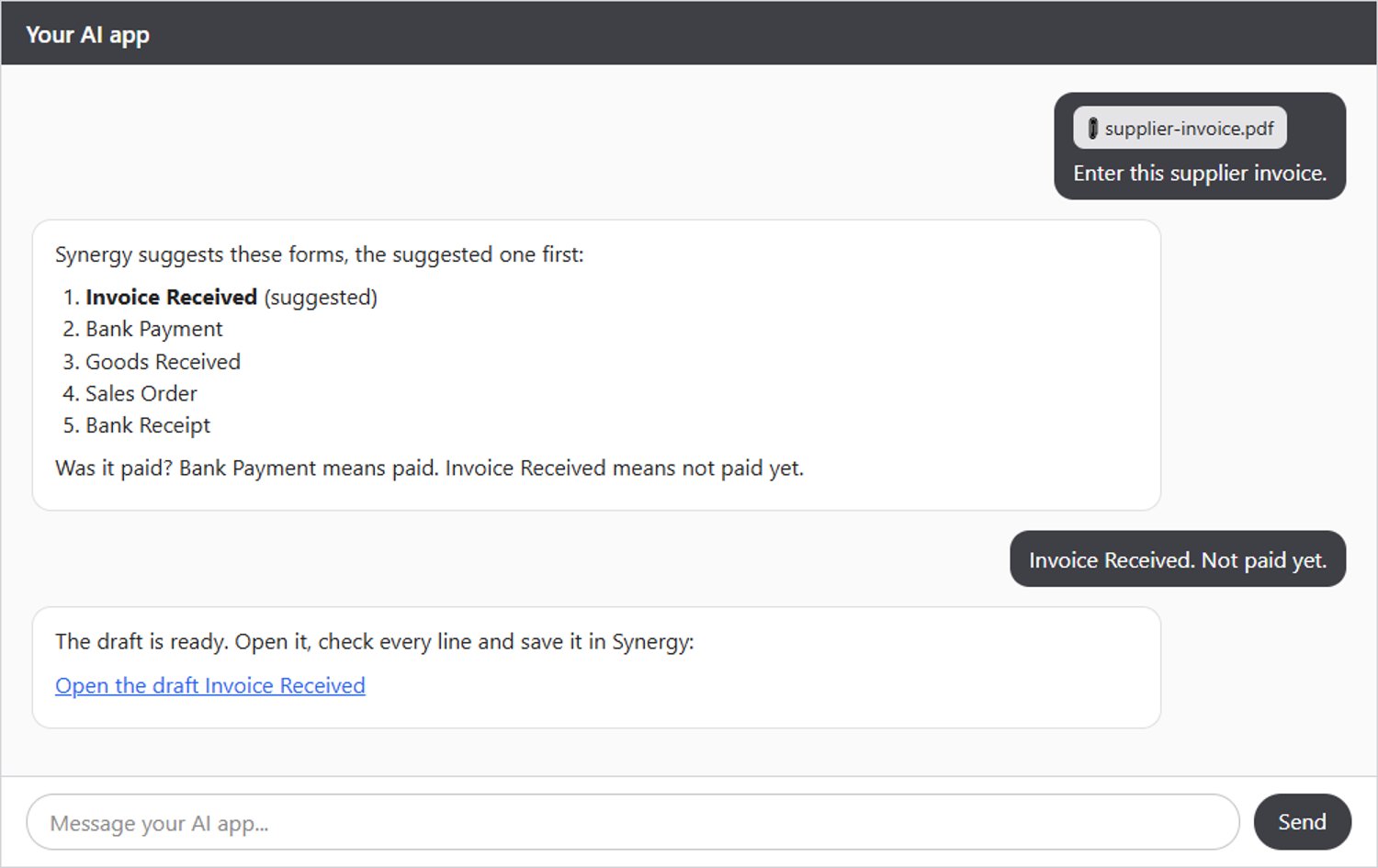
Synergy suggests the form (Bank Payment, Invoice Received, Goods Received, Sales Order, Bank Receipt and so on). It matches the supplier or customer, the items and the accounts the way your company does, and checks for duplicates. Your AI app shows the choices with the suggested one first.
3. Say what to do with it
Tell your AI app which form to use. This also answers: was it paid? Bank Payment means paid. Invoice Received means not paid yet. Answer the questions it asks: the account, the supplier or customer, and correct the date, amount or payee if it read them wrongly.
4. Check a possible duplicate
If Synergy thinks the document was entered before, it says so. Only say enter it anyway when it really is a new document. Giving the same document twice returns the first draft.
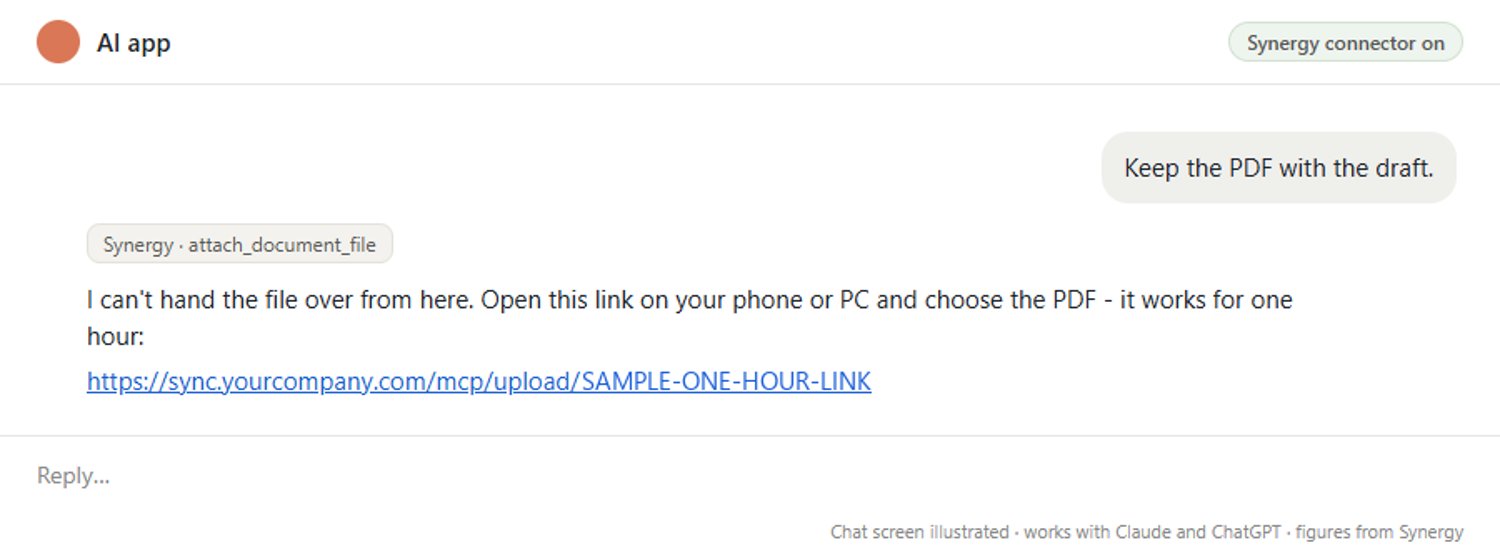
5. Keep the PDF with the draft
Ask your AI app to keep the PDF with it. If it cannot pass the file to Synergy itself, it gives you an upload link that works for one hour: open it and choose the PDF or photo. The file then opens beside the form when you enter the document.
6. Open the draft and save it
Synergy replies with what is still needed and a link to the draft. Open the link.
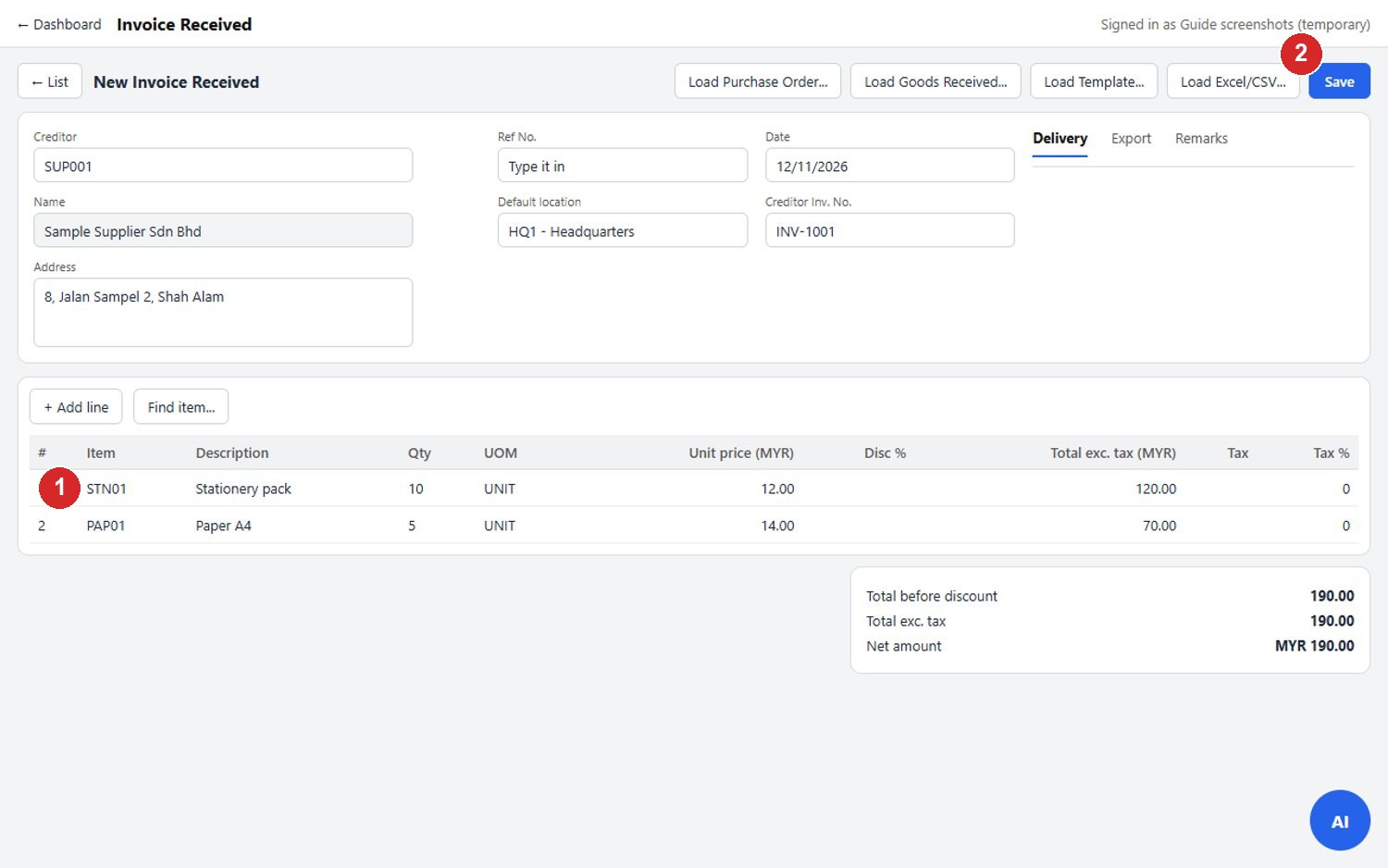
| Step | What to do |
|---|---|
| 1 | Check every line. |
| 2 | Save it in Synergy. |
Tips
- Only a draft is made. The AI app cannot save or post the document.
- Your company’s own rules decide which account a supplier’s documents go to. Teach them once: see the guide on teaching Synergy’s AI from your AI app.
- To see supplier bills that arrived in your company’s mailbox, ask: What bills are due? You get the overdue ones, the ones due soon and the ones needing a look, with warnings such as a changed bank account or an unusual amount. Nothing is paid or entered by this.
- A supplier or customer who is not in Synergy yet can be added from the chat first: see the guide Enter Supplier Invoices and Add Customers / Suppliers from the AI App.
Common problems
The AI app says it cannot enter documents
Check that AI apps are switched on for your company and that your company has the document inbox.
I gave the same document again and got the old draft
This is on purpose. The same document always gives the first draft, so nothing is entered twice.