
Give your AI app photos of a product, the front and the back. It reads the name, barcode and other details, checks that the item is not already in Synergy and, only when you say yes, saves it in the Item Masterfile.
Before you start
- Your company has AI apps switched on and you have connected your AI app to Synergy.
- Your Synergy user may add items to the Item Masterfile.
Steps
1. Give the photos
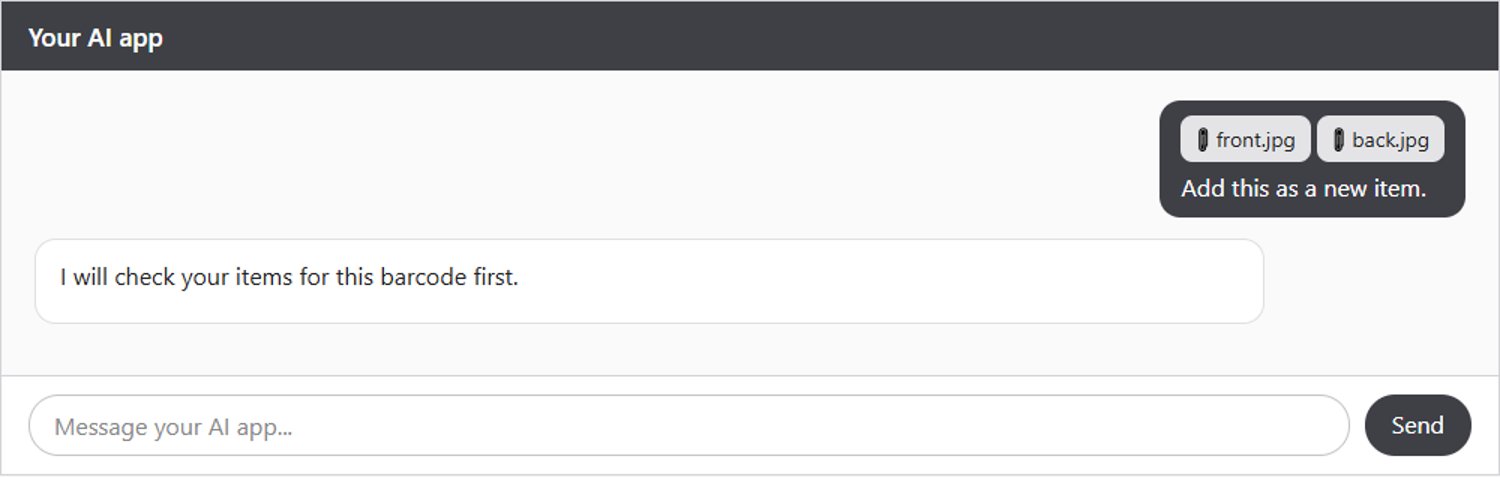
Attach the photos of the front and back of the product and say: Add this as a new item.
2. Let it check for an existing item
Before adding anything, the AI app looks for the barcode in your items: the item’s barcode, its code, a unit’s barcode or an alternate code, inactive items too. It also looks for items with a similar name. If the barcode is found, no new item is added.
3. Look at the proposal
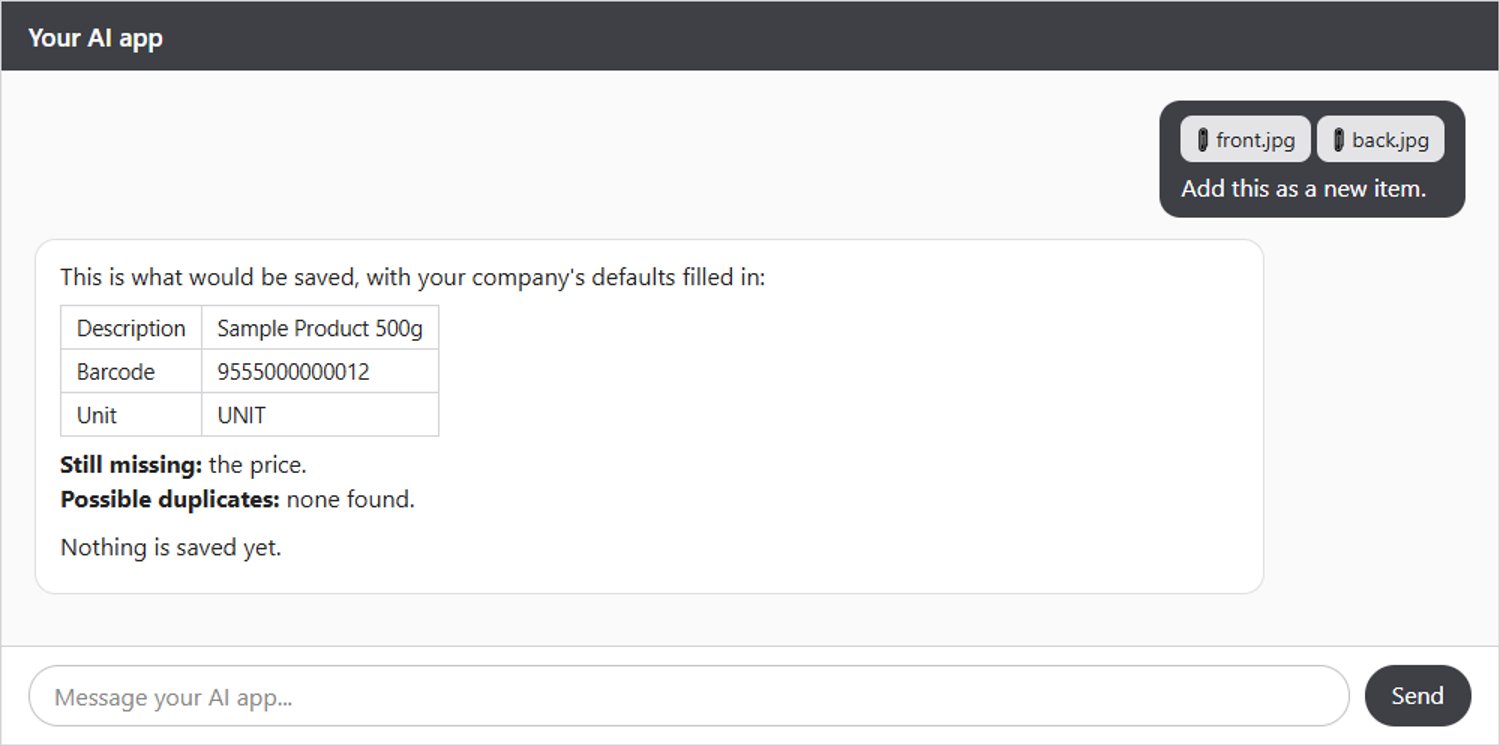
Synergy shows exactly what would be saved, with your company’s defaults filled in (how item codes are numbered, item type, unit, account group, tax and locations). It also lists what is still missing or wrong, and any item it may duplicate. Only values read from the photos or given by you are used. Nothing is saved yet.
4. Answer what is missing
Give the AI app any missing value, for example the price or the unit. To leave a field empty, say none. Look at the proposal again.
5. Say yes to save
When the proposal is right, say yes. The item is saved in the Item Masterfile. If Synergy asks a question first, for example the price is below cost or the item code is not the same as the barcode, answer it. It saves only if you agree.
Tips
- Nothing is invented. A value that is not on the photos and that you did not give is left to your company’s default or left empty.
- Always check the barcode and the name in the proposal against the product.
Common problems
The AI app says the item already exists
The barcode, code or alternate code is already on an item, even an inactive one. Use that item, or make it active again in the Item Masterfile.