
The AI assistant is a chat window on the pages of Synergy Web Access. You tell it in your own words what you want, for example a quotation, a report or a page, and it sets it up for you to check. It never saves anything by itself.
Before you start
- Sign in to Synergy Web Access.
- The assistant only works with the pages and reports your user is allowed to use.
Steps
1. Open the assistant
Click the round AI button on any page. The Assistant window opens.
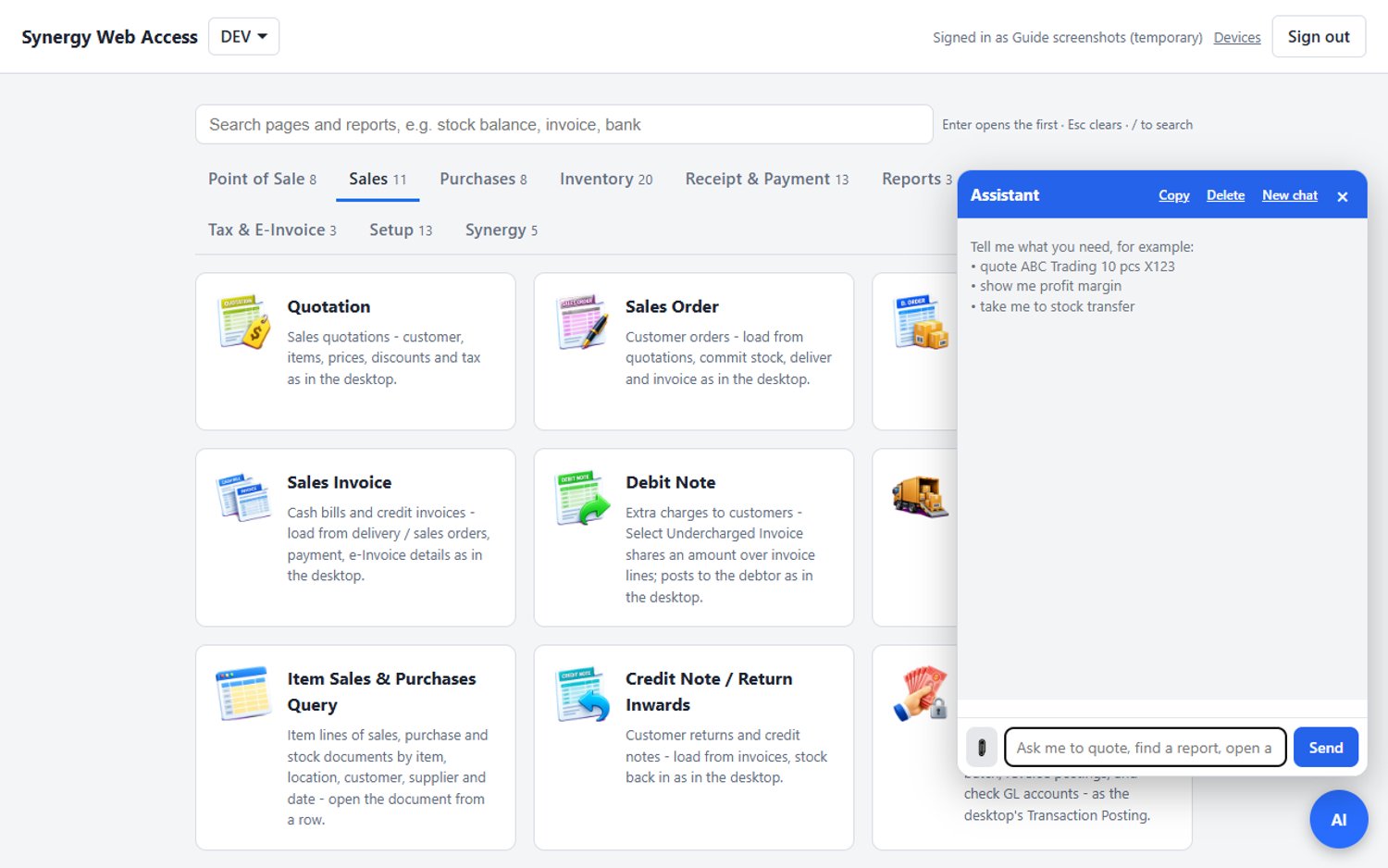
2. Say what you want
For example, ask for a quote, find a report or open a page. The box suggests: Ask me to quote, find a report, open a page…
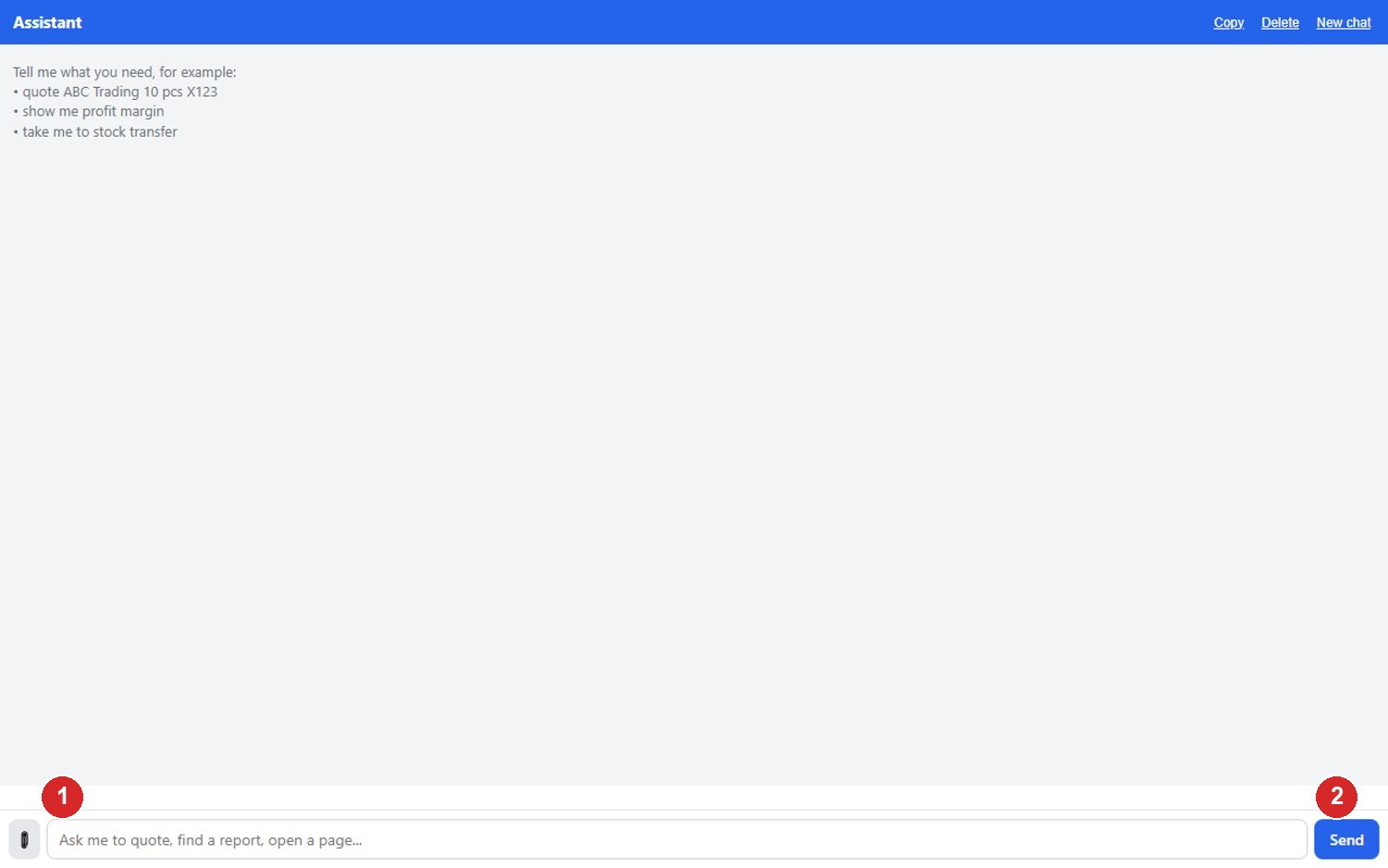
| Step | What to do |
|---|---|
| 1 | Type your request in the box. |
| 2 | Click Send (or press Enter). |
3. Wait for the answer
The window shows The assistant is working on it… with the seconds that have passed. If it takes more than 12 minutes it stops and asks you to try again.
4. Use the buttons in the answer
An answer can carry a button, such as Open the quotation draft, or it can open a page or fill in the options of a report for you.
5. Check the quotation draft
A quotation draft opens on the Quotation page without being saved. Check the customer, items, prices and the notes the assistant lists under Please check, then click Save yourself. If a draft is already on the screen you are asked whether to replace it with the new one.
6. Check a report it filled in
When the assistant fills in a report, the Reports page shows what it filled in. Check the options, then click Preview.
7. Attach a picture or PDF
Click the paperclip to attach a picture or a PDF, such as a supplier invoice or a receipt, then say what to do with it or just click Send. You can attach up to 3 files of up to 6 MB each.
8. Manage the chat
Copy copies the whole chat, Delete removes it for good after you confirm, and New chat starts a fresh one. Click the cross to close the window.
Tips
- The assistant prepares drafts only. Nothing is saved or posted until you click Save yourself.
- If the assistant says you do not have a report or page, your user does not have the permission in Synergy.
- The chat is kept for you, so you can close the window and come back to it.
Common problems
Please sign in again.
Your sign-in has ended. Sign in again, then send the message again.
The assistant could not be reached.
Try again after a moment. If it keeps happening, tell your Synergy administrator.
That chat has ended – send it again to start a new one.
Send your request again; a new chat starts.