
Apply Open Credit knocks a debtor’s receipts and credit notes off its invoices, or a creditor’s payments off its bills. Reverse Apply undoes knock-offs you made. This guide shows both pages.
Before you start
- Sign in to Synergy Web Access as a user who may use Apply Open Credit and Reverse Apply (under the Receipt & Payment tab).
- The receipt, payment or credit note and the invoice or bill must already be entered, for example on the Debtor & Creditor Ledger page.
Steps
1. Open Apply Open Credit
On the dashboard, open the Receipt & Payment tab and click Apply Open Credit.
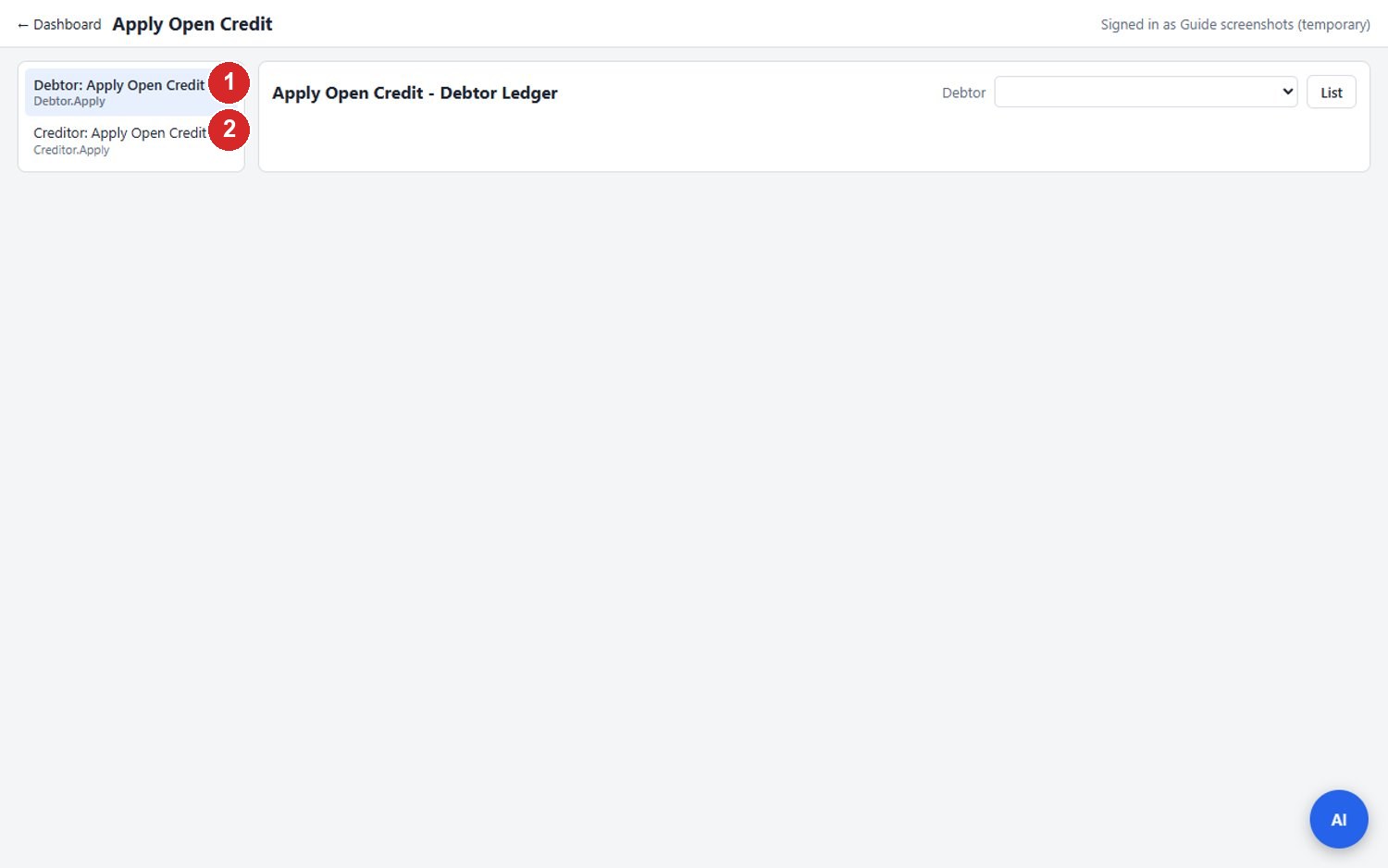
| Step | What to do |
|---|---|
| 1 | Click Debtor: Apply Open Credit on the left, |
| 2 | or click Creditor: Apply Open Credit. |
2. Choose the account and list
Choose the Debtor (or Creditor) and click List. The page shows the open credits (Payment from Debtors, or Payment to Creditor) above the open bills (Bills for Debtors, or Bill from Creditor).
3. Pick what to knock off
Tick the credits and the bills to use, or click Tick all / Untick all. Each line shows Doc. Type, Ref. No., Ref. Date, Amount and Balance. In Apply Amount you can type less than the balance, but not more.
4. Check the totals
Selected Payment, Selected Bills and Balance are shown under the lists. Click Preview to see which credit will be knocked off which bill, and for how much. Nothing is saved yet.
5. Apply
Click Apply Credit and confirm Do you want to proceed? The page says how many knock-offs were made and lists them under Knock-offs made.
6. Or let the page do it
Click Auto Offset Oldest and confirm Auto Offset ALL transaction? The page offsets the oldest credit against the oldest bill until one side runs out.
7. Open Reverse Apply
To undo knock-offs, click Reverse Apply on the Receipt & Payment tab.
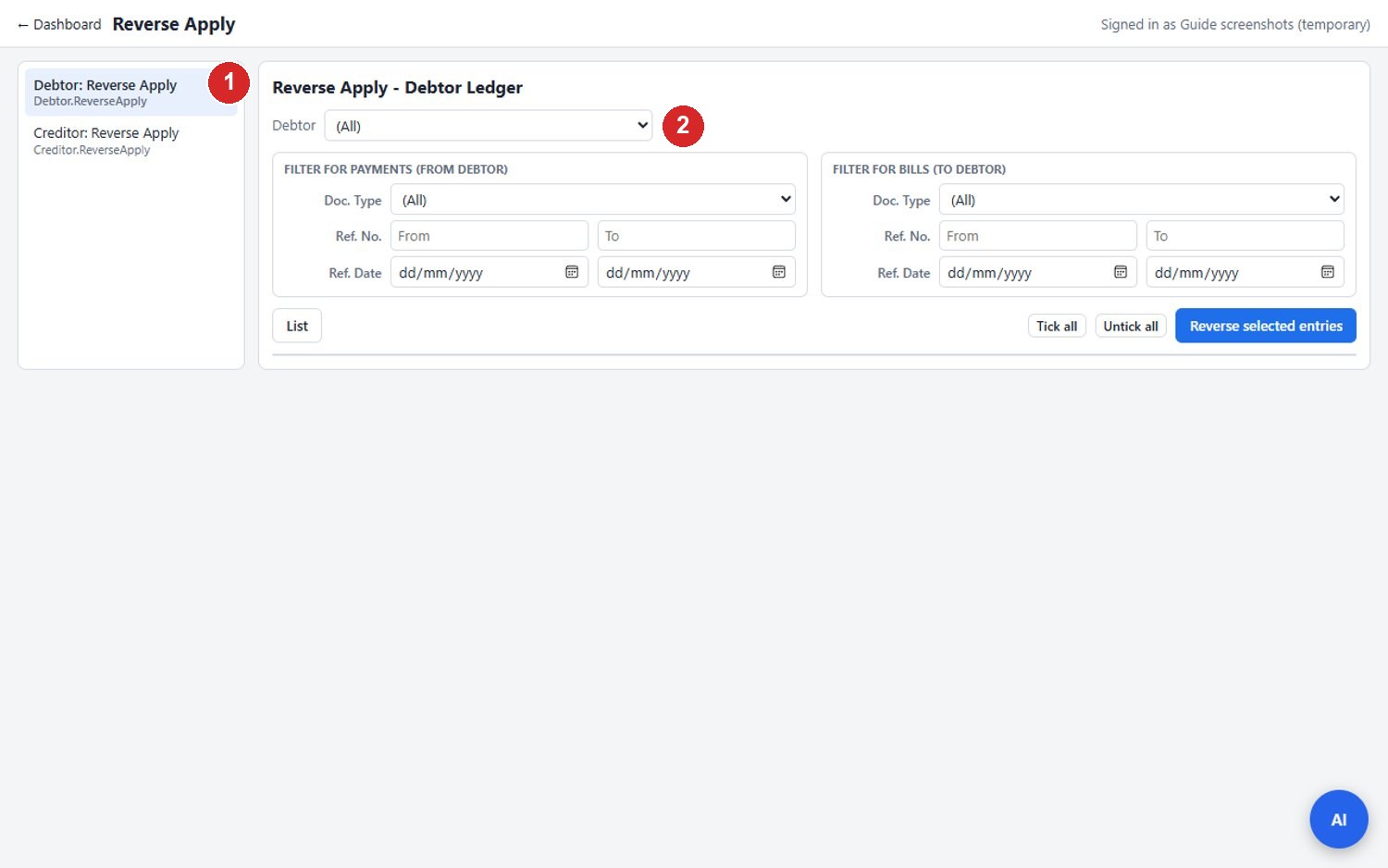
| Step | What to do |
|---|---|
| 1 | Choose Debtor: Reverse Apply or Creditor: Reverse Apply. |
| 2 | Choose the Debtor, or leave (All). |
8. Find the knock-offs
Use Filter for payments and Filter for bills: Doc. Type, Ref. No. From and To, and Ref. Date. Click List. The list shows the Apply Date, the receipt or payment, the invoice or bill, the Amount and the Debtor. The rows start unticked.
9. Reverse them
Tick the knock-offs to undo, or click Tick all. Click Reverse selected entries and confirm Do you want to reverse the selected entries? The page says how many were reversed.
Tips
- A knock-off that came from a Cash Book receipt or payment is marked From Cash Book. The confirmation tells you how many of the ticked ones are like that.
- The lists are for one debtor or creditor at a time. List again after anyone else changes the documents.
- Use Preview before Apply Credit when you are not sure how the amounts will be shared.
Common problems
[Debtor] is required.
Choose the Debtor (or Creditor) before you click List or Auto Offset Oldest.
Tick at least one credit and one bill with an amount to apply.
Tick a credit and a bill, and check that Apply Amount is more than zero.
Someone else changed these documents after you listed them. List them again.
Another user knocked off or changed one of the documents. Click List again and redo your selection.
Nothing to offset: no open credit or no open bill.
The account has no open credit, or no open bill, to knock off.
Tick the knock-offs to reverse.
Tick at least one row in the list before you click Reverse selected entries.
You do not have access to this menu.
Your Synergy user has no permission for it. Ask your administrator.