
Barcode Printing Entry keeps lists of items and how many labels to print for each. Barcode Printing then prints the labels on A4 sticker sheets or on a roll printer. This guide shows both.
Before you start
- Sign in to Synergy Web Access as a user who may use Barcode Printing Entry and Barcode Printing (under the Inventory tab).
- A browser that can print to your label printer or to a normal printer for sticker sheets.
Steps
1. Make a label list
On the dashboard, open the Inventory tab and click Barcode Printing Entry. Click New Label List.
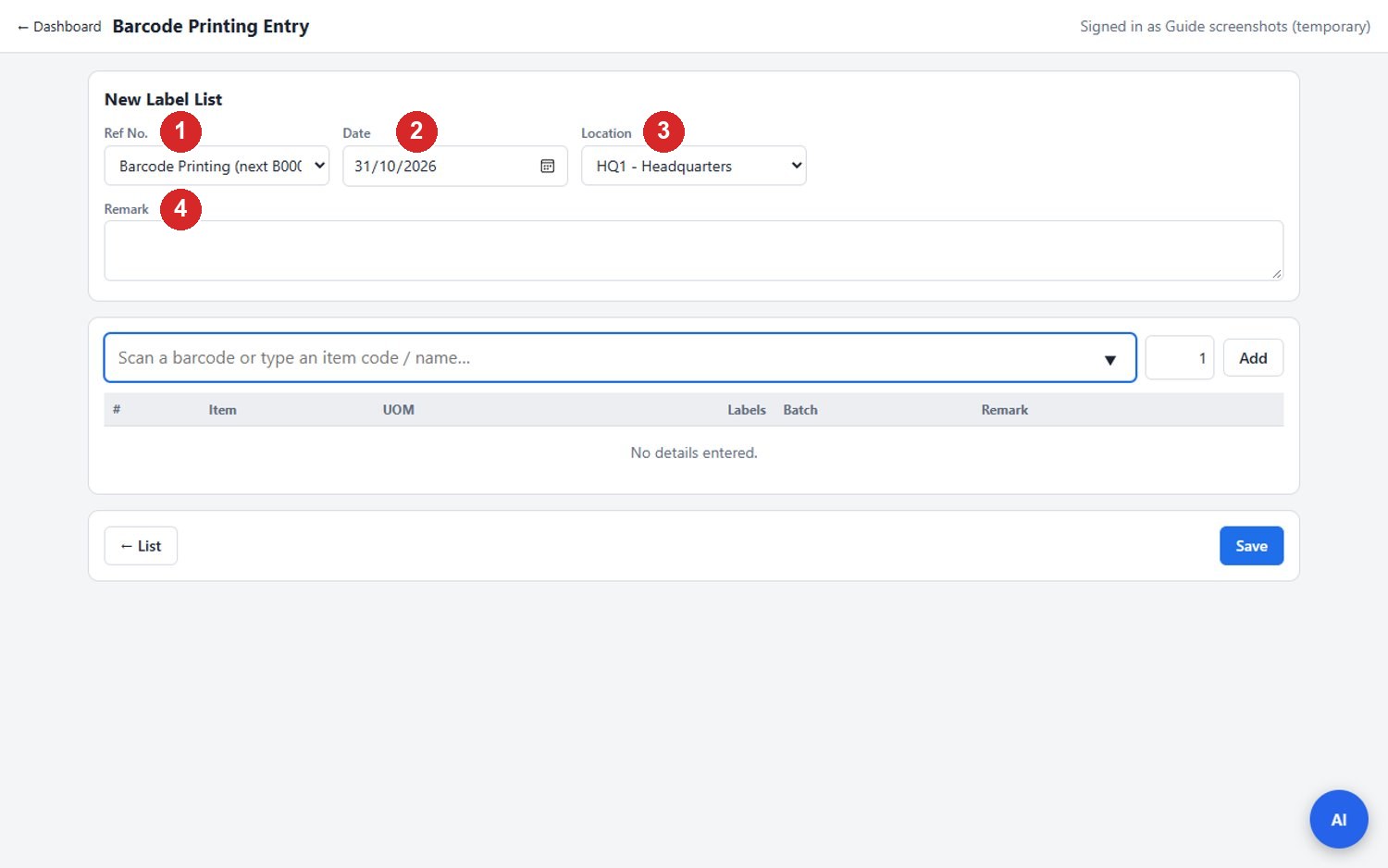
| Step | What to do |
|---|---|
| 1 | Check the Ref No. |
| 2 | Check the Date. |
| 3 | Choose the Location. |
| 4 | Add a Remark if you want. |
2. Add the items
Scan a barcode or type an item code or name, and click Add. In the list, type the number of Labels for each item. Batch and Remark can also be filled in. An item with sizes or colours needs the size or colour to be scanned.
3. Save the list
Click Save. The page says Saved with the Ref No. You can open the list again from the list page. Delete removes it after you confirm.
4. Go to printing
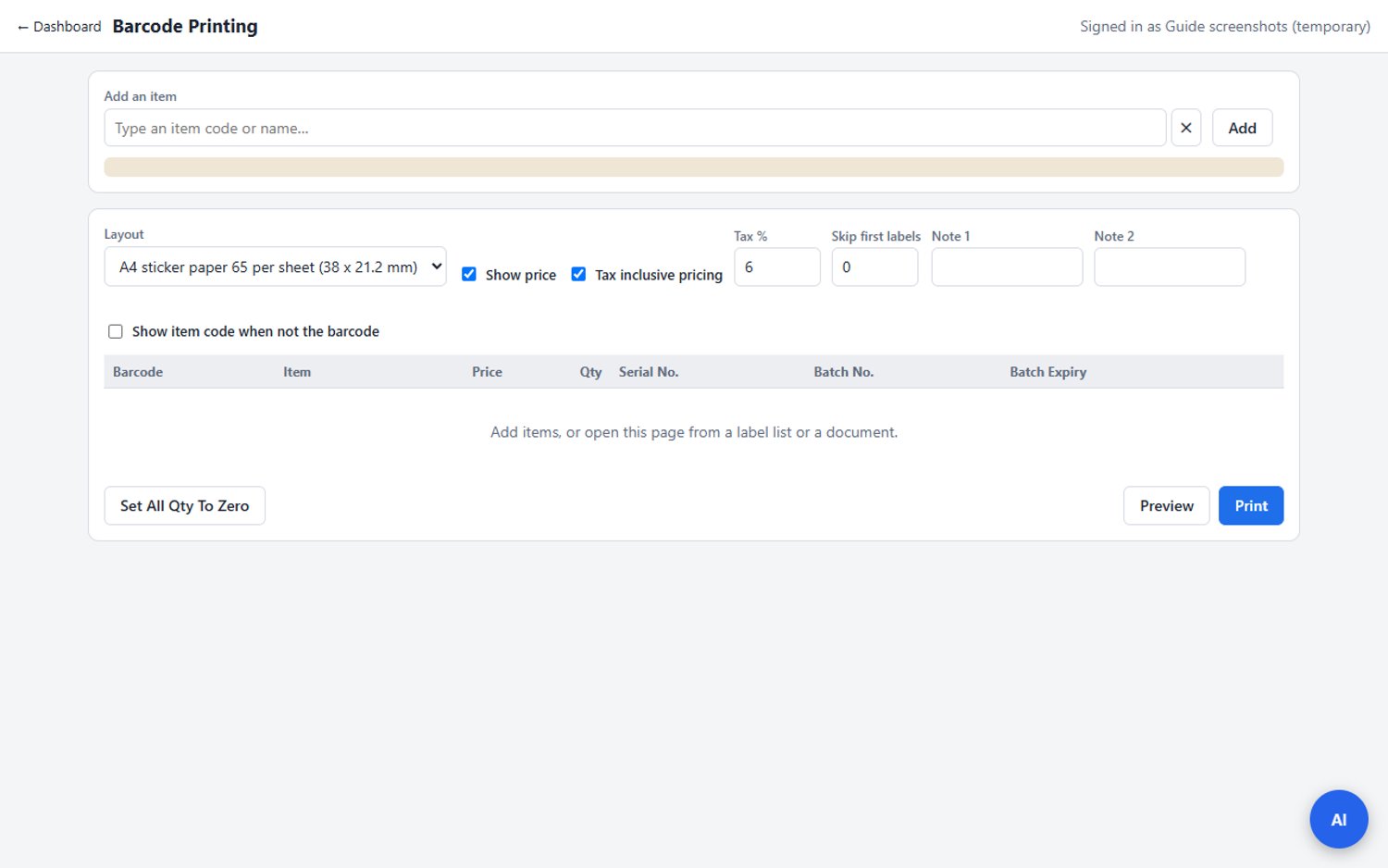
Click Print labels. The Barcode Printing page opens with the list’s items and quantities. You can also open it from the Print Barcode button of a stock document, or start from the Barcode Printing tile and add items one by one under Add an item.
5. Choose the layout
Choose the Layout: A4 sticker paper 65 per sheet (38 x 21.2 mm), 50 per sheet (38 x 28 mm), A4 labels 80 x 35 mm (16 per sheet), 80 x 56.7 mm (10 per sheet), or Roll printer for one label per page. Tick Show price and Tax inclusive pricing as needed, and check the Tax %. Type Note 1 and Note 2 if you want them printed.
6. Use a part-used sheet
On A4 layouts type Skip first labels with the number of labels already used on the sheet.
7. Preview and print
Check the Qty of each item. Set All Qty To Zero starts again. Click Preview to see the first labels. Click Print, confirm Do you want to print the selected barcodes? and print from the browser.
Tips
- Tick Show item code when not the barcode if the label should also show the item code.
- The layout you choose is remembered in this browser.
- The Barcode Printing Entry page saves the list only. The labels themselves are printed from Barcode Printing.
Common problems
[Location] is required.
Choose the Location of the label list.
Item [code] not found.
Check the code or barcode and try again.
No details entered.
Add at least one item before you click Save.
Save your changes first.
Click Save before Print labels.
Nothing to print: set the quantities.
Type the quantity of labels for at least one item.