
Bills from E-mail reads the mailbox your suppliers’ bills come to and shows what has to be paid. This guide connects a Hotmail or Outlook.com mailbox, and explains what is different for Microsoft 365 and Gmail. You do not need an Azure account and you do not register anything at Microsoft: the program already comes with what it needs.
Before you start
- You must be an administrator or a Train the AI user to connect a mailbox.
- Have the password of the mailbox ready. You type it only on Microsoft’s own page: your Synergy server never sees it.
- Connecting is read only. It never sends, moves, deletes or marks anything as read, and it never pays or enters a bill.
Steps
1. Open Bills from E-mail
On your Synergy web site, open Bills from E-mail. This opens the Mailbox tab.
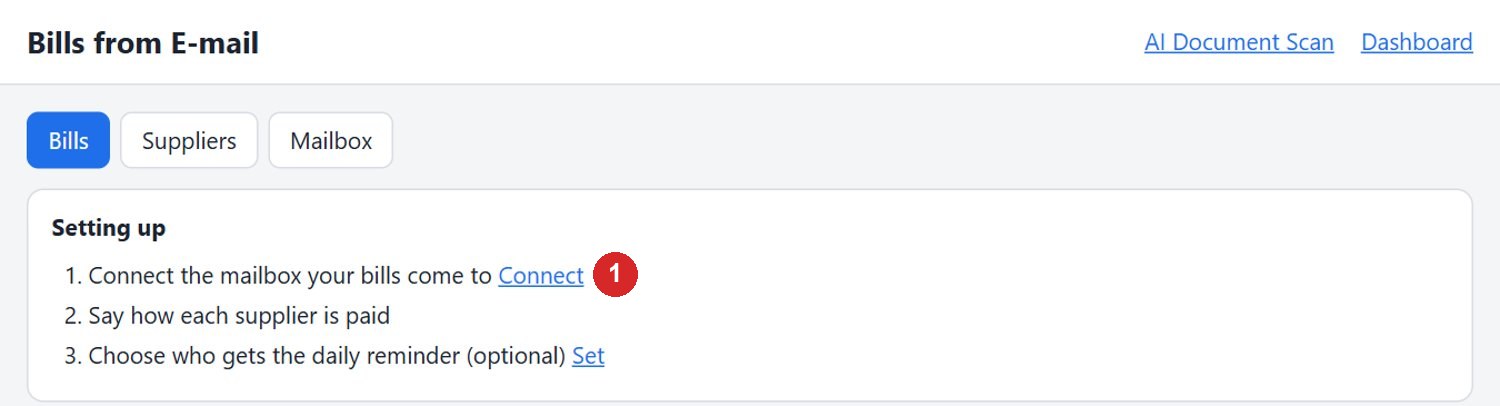
| Step | What to do |
|---|---|
| 1 | Under Setting up, click Connect. |
2. Choose your kind of mailbox
For company mail on Microsoft 365, use the second button instead: the next steps are the same.
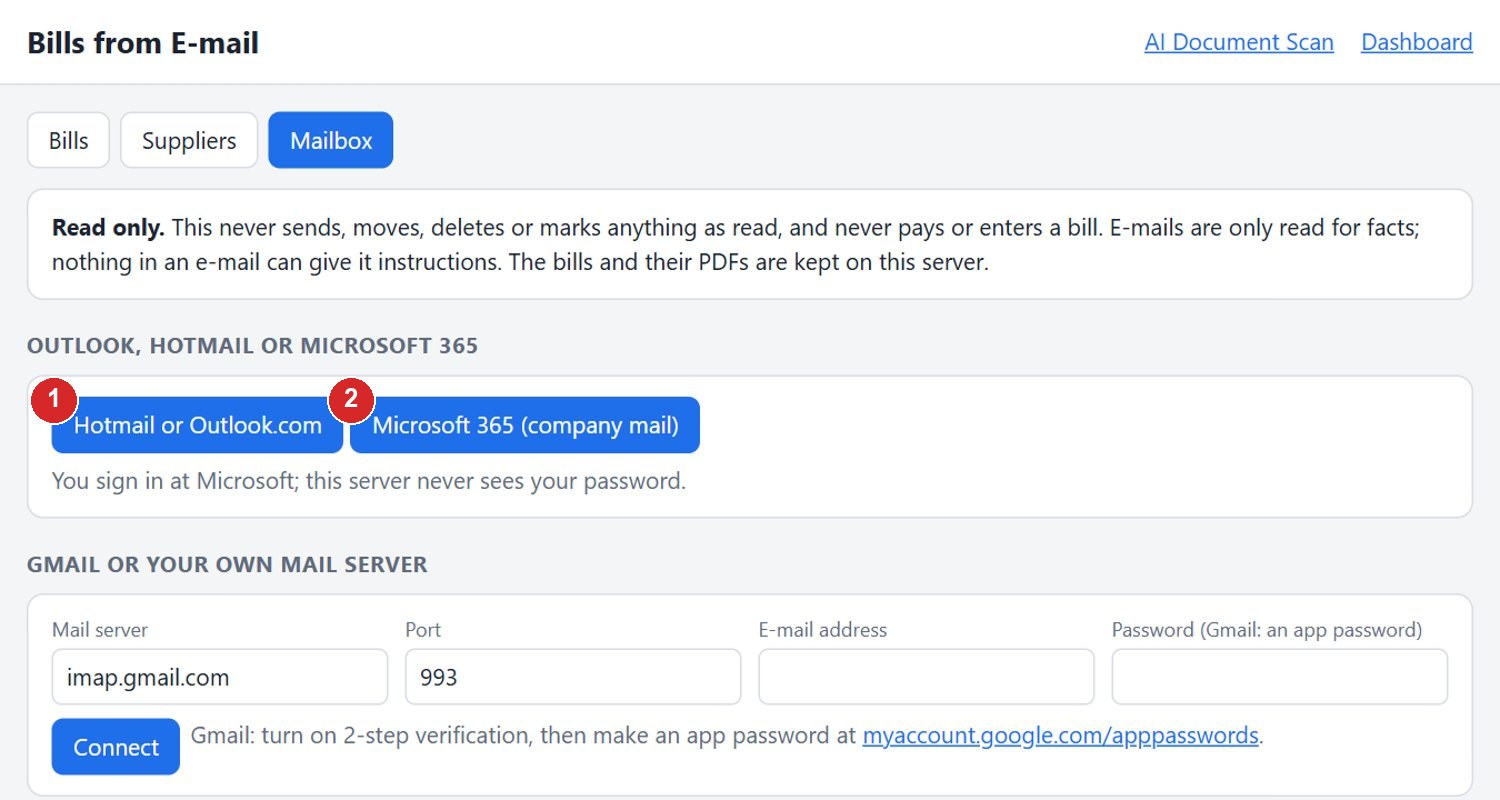
| Step | What to do |
|---|---|
| 1 | Click Hotmail or Outlook.com. |
| 2 | For company mail on Microsoft 365, click Microsoft 365 (company mail). |
3. Open Microsoft’s page
The page now shows a code and a link.
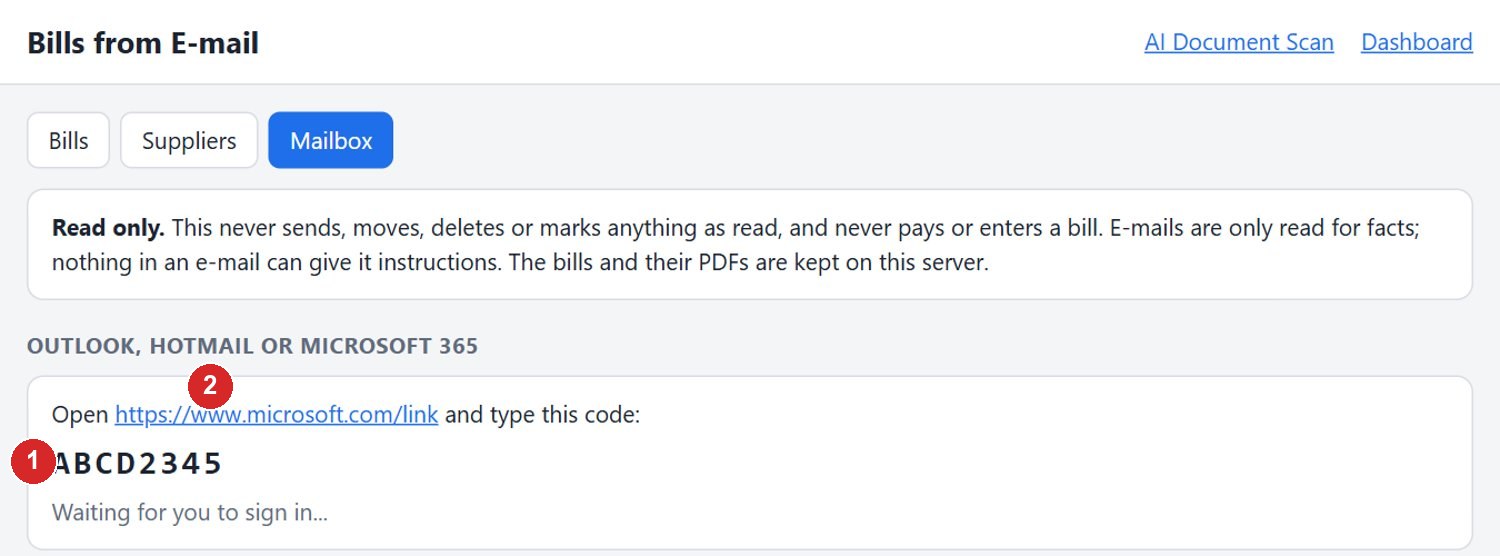
| Step | What to do |
|---|---|
| 1 | Your code will be different from the one in the picture. |
| 2 | Click the link, and leave the Bills from E-mail page open. |
4. Type the code
This is Microsoft’s page. The Microsoft 365 button opens a different Microsoft page that also asks for the code.
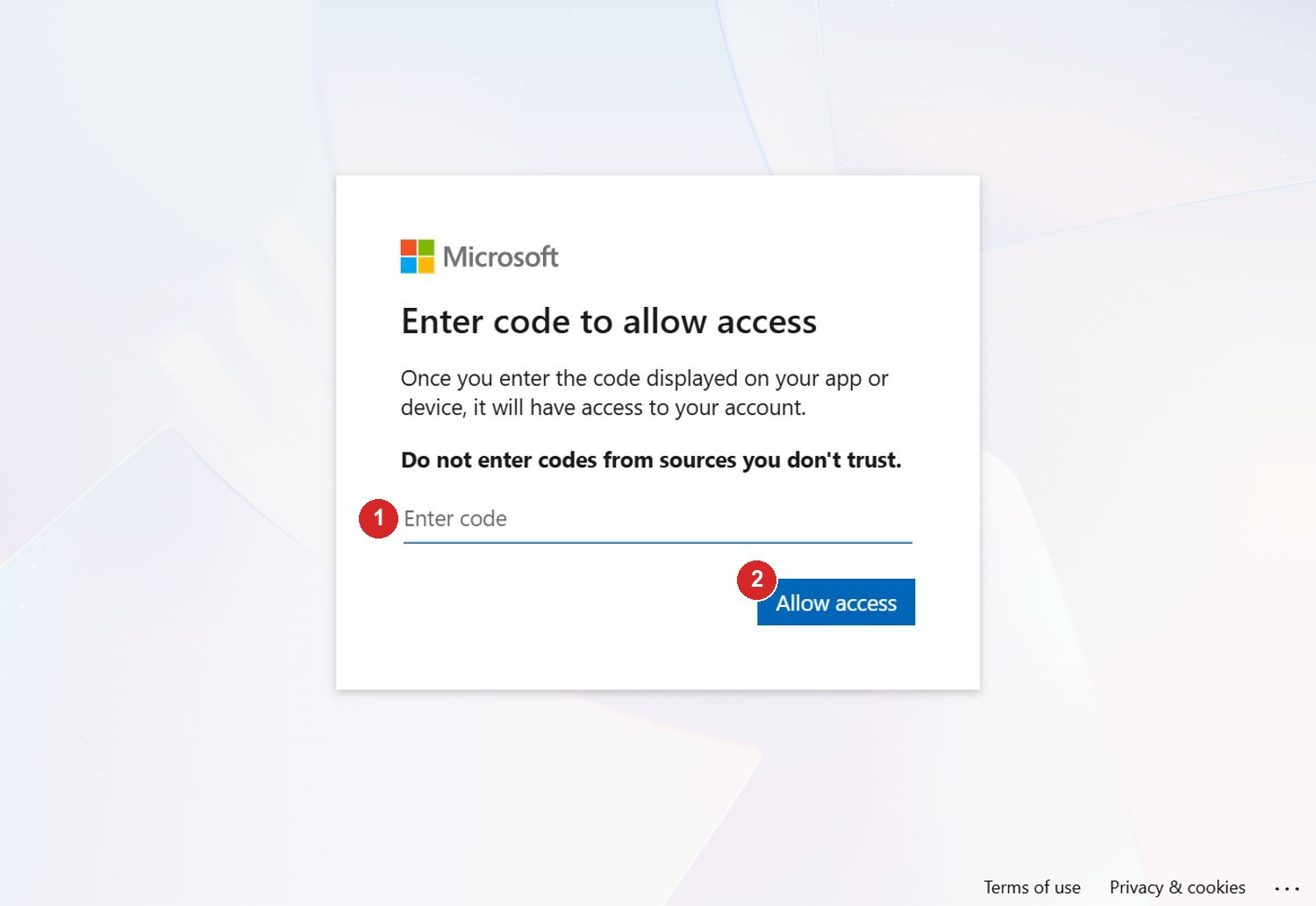
| Step | What to do |
|---|---|
| 1 | Type the code. |
| 2 | Click Allow access. |
5. Sign in and allow it
Sign in with the mailbox your bills come to, not your personal one if they are different. Microsoft then asks you to allow “Synergy Bills from E-mail” to read your mail. Check that this is the name shown, then accept. Microsoft may say that the publisher is unverified.
6. Go back to Bills from E-mail
The page notices by itself. It shows Connected with your address and starts reading the last 90 days. On the Mailbox tab you see Watching and how far it has read. You can leave the page while it reads.
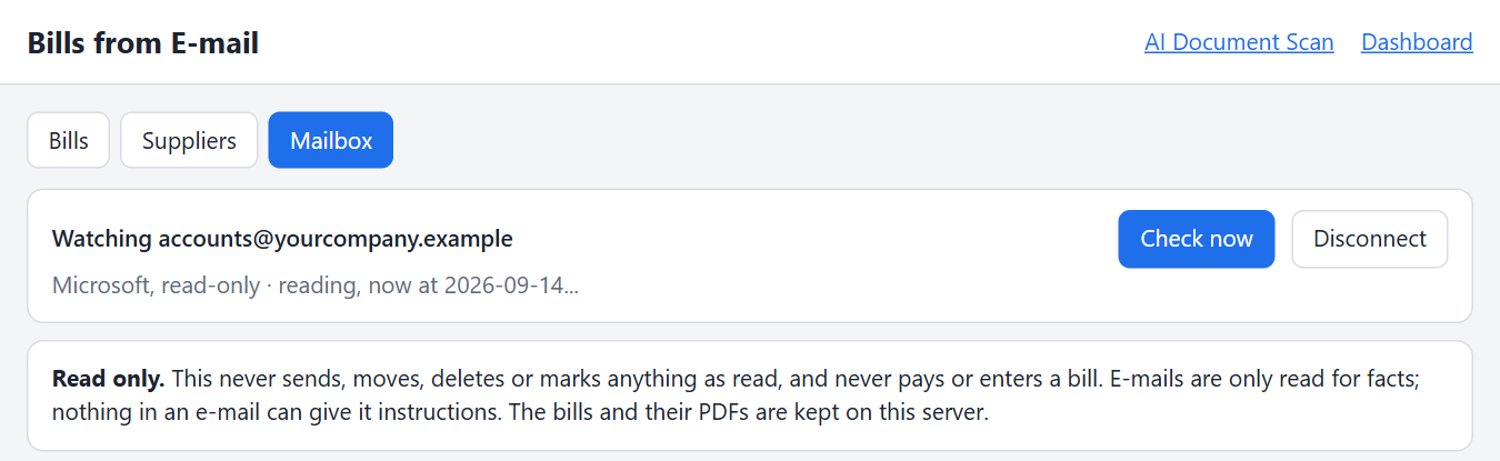
7. Check your bills
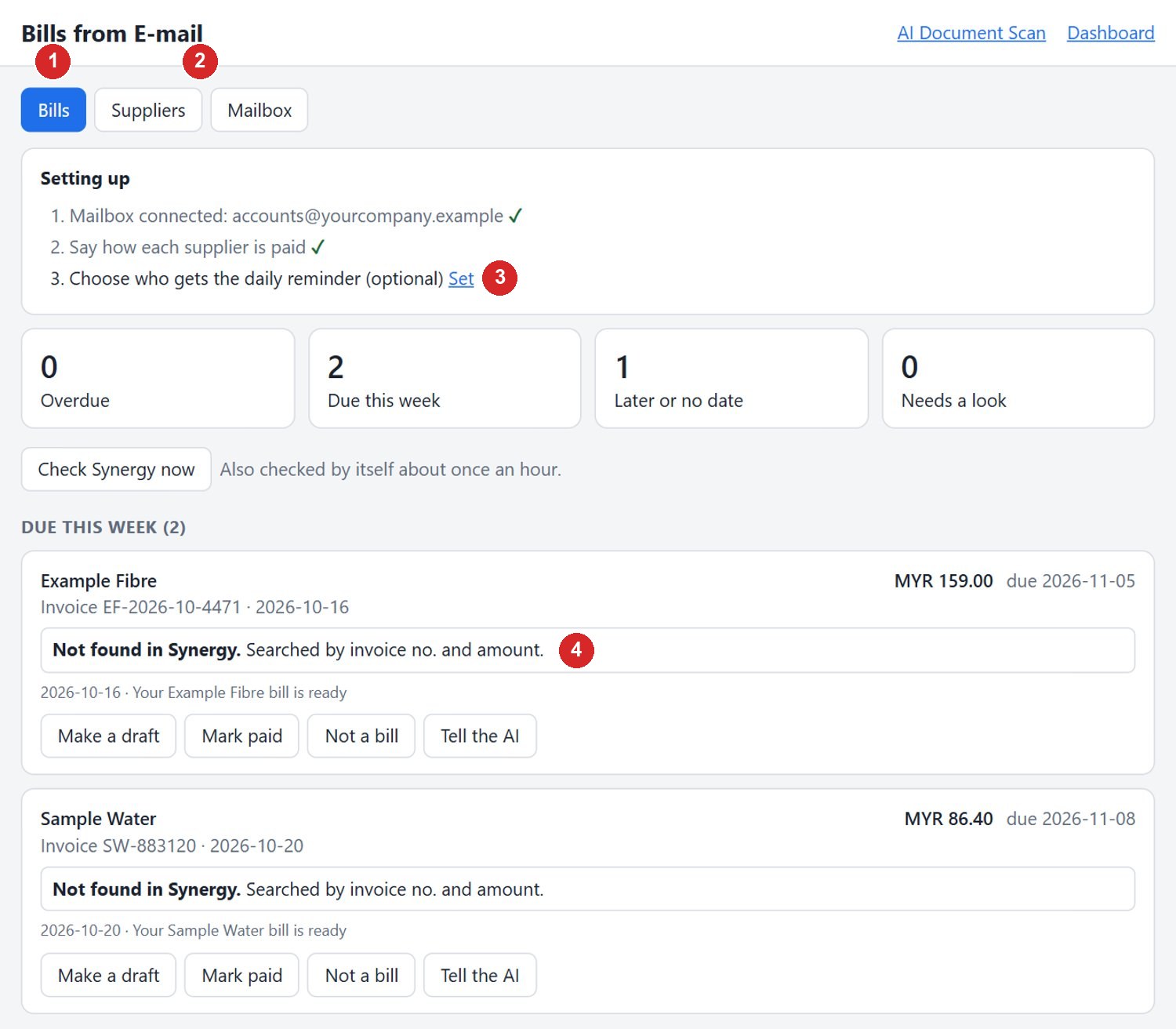
Open the Suppliers tab once because that decides what stays on your list.
| Step | What to do |
|---|---|
| 1 | Bills appear on the Bills tab as they are found. |
| 2 | Open the Suppliers tab once and say how each supplier is paid. |
| 3 | You can also choose who gets the daily reminder. |
| 4 | Each bill also shows whether it is already in Synergy. |
Tips
- After the first 90 days are read, new mail is checked about every 5 minutes.
- Gmail or your own mail server: on the Mailbox tab fill in Mail server, Port, E-mail address and Password, then click Connect. For Gmail, turn on 2-step verification and make an app password at myaccount.google.com/apppasswords, and use that instead of your normal password.
- Connecting a mailbox needs no AI key. The Tell the AI button and AI reading of scanned PDFs do need one, and your company pays for that use.
- The bills and their PDFs are kept on your own Synergy server.
- To stop reading the mailbox, click Disconnect on the Mailbox tab.
Common problems
“The code expired – press Connect again.”
The code only lasts a short time. Click the Hotmail or Outlook.com button again and use the new code.
“Sign-in was declined.”
Permission was refused on Microsoft’s page. Click the button again and accept this time.
Microsoft 365 says an administrator must approve the app
Your company’s Microsoft 365 administrator has to approve “Synergy Bills from E-mail” first. Then try again.
“Microsoft needs you to sign in again” on the Mailbox tab
Click the Hotmail or Outlook.com button (or the Microsoft 365 button) and repeat the steps. This can happen after the mailbox password is changed.
“The mail server refused the address or password.”
For Gmail, use an app password and not your normal password.
“Only an administrator or a Train the AI user can change this.”
Ask your administrator to connect the mailbox.