
Synergy Cloud Report is a website that shows your shop’s sales from anywhere. After you sign in you land on a dashboard, and a menu opens reports for sales, items and members. Every report can be sent to Excel.
Before you start
- Your Cloud Report User ID and Password.
- A Cloud Report subscription that is active. If it has expired, the sign-in page tells you to contact Synergy.
Steps
1. Sign in
Open the Cloud Report website.
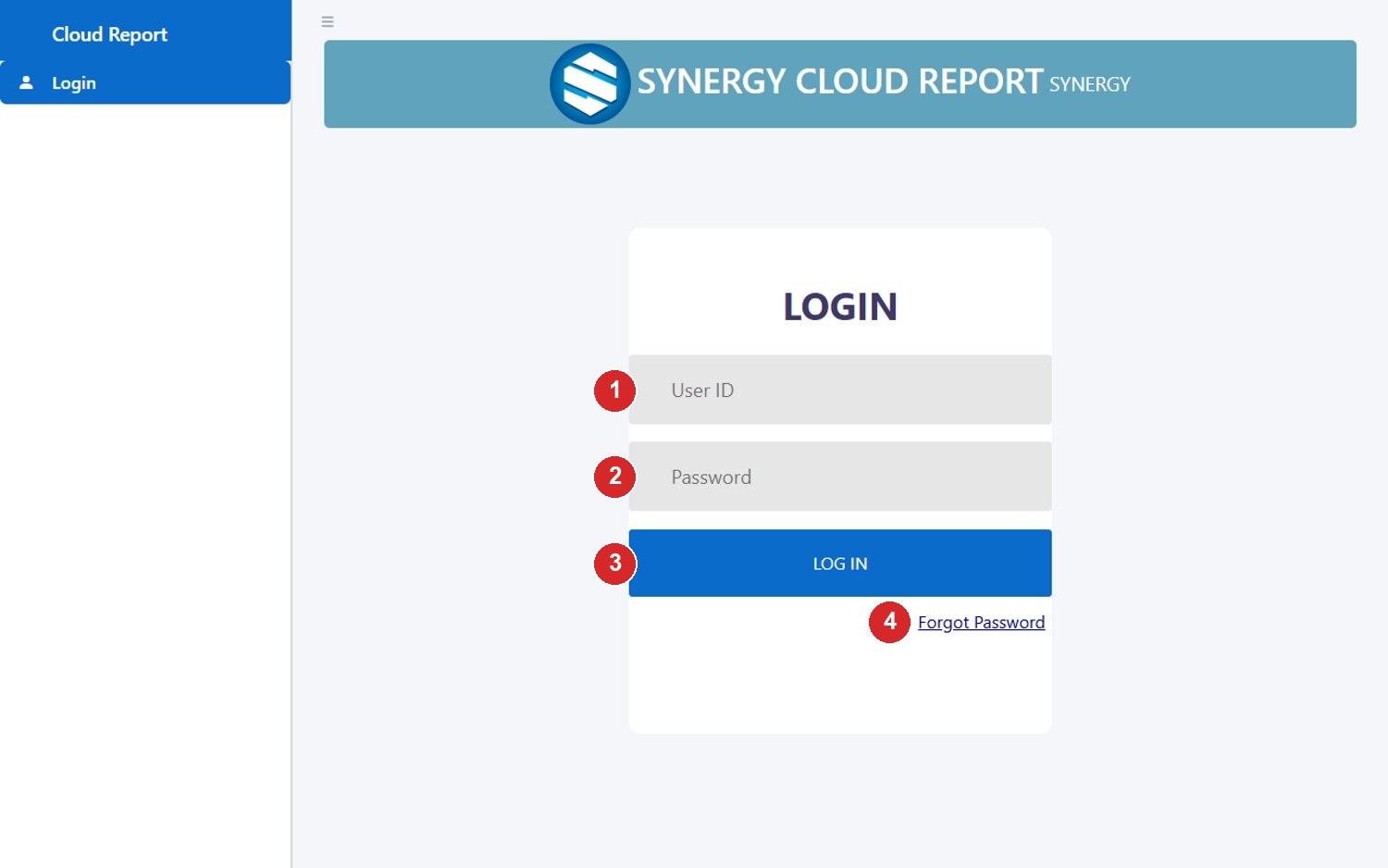
| Step | What to do |
|---|---|
| 1 | Type your User ID. |
| 2 | Type your Password. |
| 3 | Click Log In. |
| 4 | If you forgot the password, click Forgot Password, type your Login ID and click Send Password; it is sent to your registered e-mail. |
2. Read the dashboard
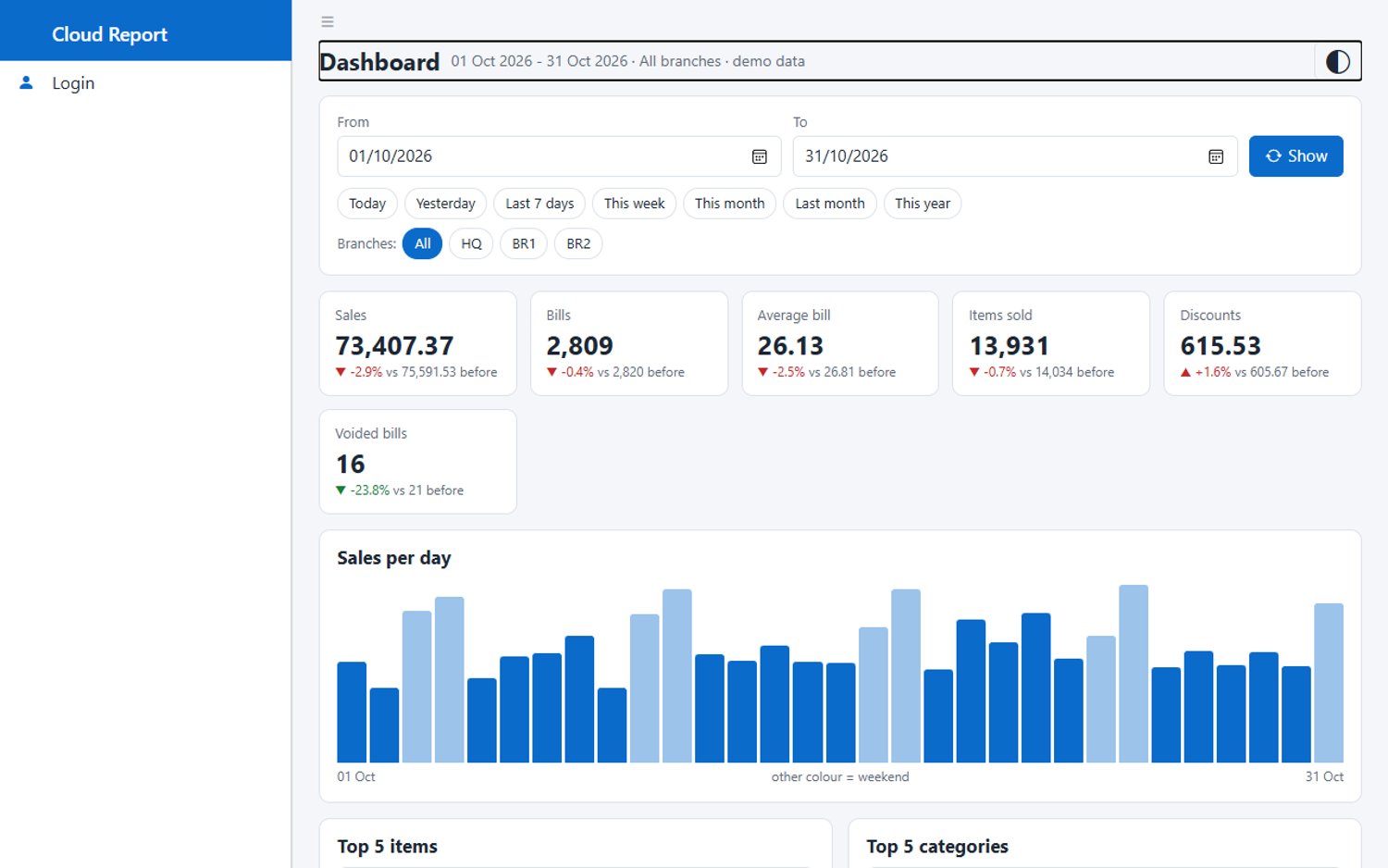
The Dashboard opens after sign-in. Tiles show Sales, Bills, Average bill, Items sold, Discounts and Voided bills for the period, with the change against the period before. Below are Sales per day (weekends have another colour), Top 5 items, Top 5 categories and Branches.
3. Choose the period
Use the quick buttons Yesterday, Last 7 days, This week, This month, Last month and This year, or set From and To dates, then run it.
4. Choose branches
Under Branches: tick the branches you want, or choose all of them.
5. Open a report
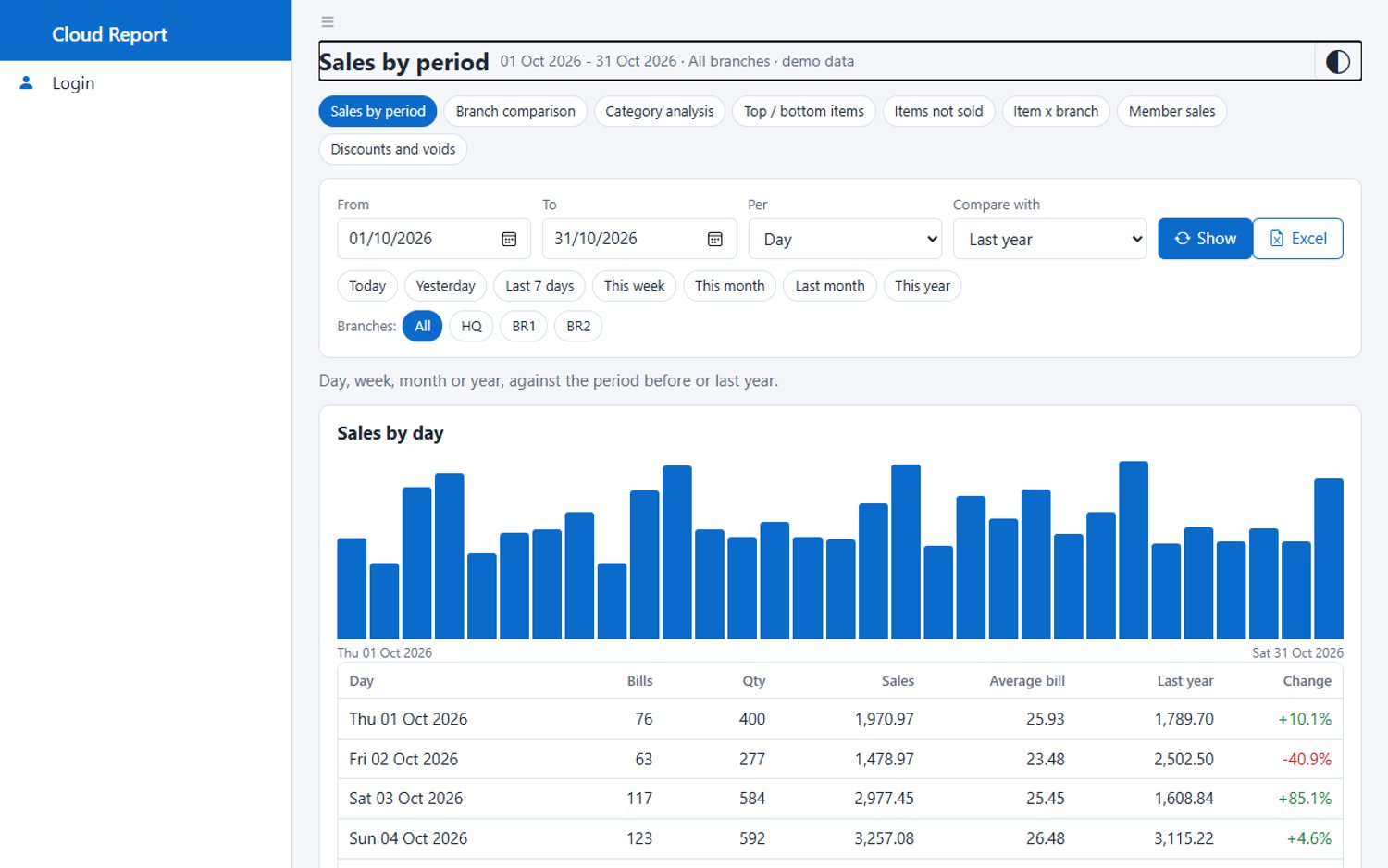
Use the menu. Under Sales: Sales by period, Branch comparison, Discounts and voids, Sales Summary and Sales Detail. Under Items: Category analysis, Top / bottom items, Items not sold, Item x branch and Item Sales. Member sales shows your top members.
6. Set the report options
Depending on the report you can choose the period type (day, week, month or year), Compare with (Nothing, The period before or Last year), the category level, Amount or Quantity, Best sellers or Slowest sellers, and Rows. In Category analysis, a category’s row opens its items.
7. Export
Click Excel on a report to save it as an Excel file.
8. Change theme or password
Use the Light / dark button at the top of a report to change the look. Use Change Password in the menu to set a new password; type your e-mail, current password, new password and confirm it. Click Logout when done.
Tips
- Reports use the sales uploaded from your POS, so a bill appears after it has been uploaded.
- Voided bills are counted separately from sales, and discounts are shown on their own.
- A line that says No sales in this period means nothing sold in the dates and branches chosen.
Common problems
Login Fail! Please try again.
Check the User ID and password. Use Forgot Password if needed.
Account Inactive, Please contact Support team to activate your account!
Contact Synergy to activate the account.
Cloud Report Subscription has expired!
Contact Synergy to renew the subscription.
The report is empty.
Widen the dates, choose more branches, or check that your POS has uploaded its sales.