
Inventory Cost Posting works out the cost of your stock movements (FIFO, LIFO or average) for the sales-cost and stock-value reports. Inventory Cost Posting (Reverse) undoes it. Both show a preview first. This guide shows how to use them.
Before you start
- Sign in to Synergy Web Access as a user who may use Inventory Cost Posting and Inventory Cost Posting (Reverse) (under the Inventory tab). Each has its own permission.
- Finish entering the stock documents for the period first, so that the receipts and issues are all there.
Steps
1. Open the page
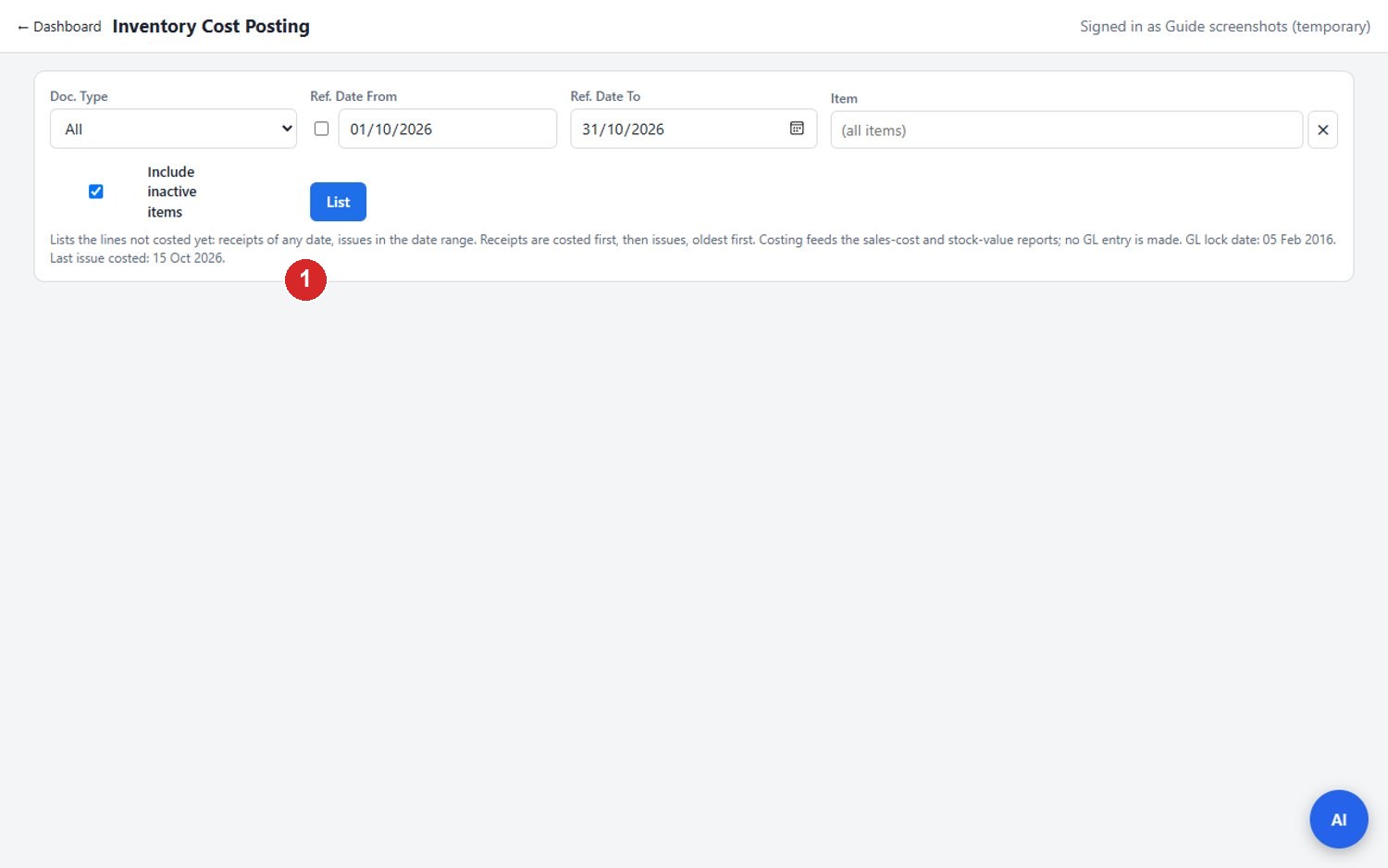
On the dashboard, open the Inventory tab and click Inventory Cost Posting.
| Step | What to do |
|---|---|
| 1 | The note under the criteria tells you what will be listed, the GL lock date and when the last issue was costed. |
2. Choose what to list
Choose the Doc. Type: All, Delivery Order, Sales Invoice, Debit Note to Debtor, Credit Note / Return Inwards, Goods Received, Invoice Received, Credit Note / Creditor’s Debit Note, Debit Note / Return Outwards, Stock Adjustment, Manufacturing or POS Transaction. Set Ref. Date To. Tick the box next to Ref. Date From to use a start date. Pick one Item, or leave (all items). Untick Include inactive items if you do not need them.
3. List the lines
Click List. The page lists the lines not costed yet: receipts of any date, and issues in the date range. Every line starts ticked. Use Check All, Uncheck All or the box in the heading to change the selection. The count shows how many are selected.
4. Preview
Click Preview. Each line is worked out as it will be, then everything is rolled back, so nothing is saved. The Result table shows each line’s Qty, Cost, Unit Cost and Costed From, and the lines that failed come first.
5. Post
If the preview is fine, click Post selected transaction and confirm Do you want to post selected transaction? Receipts are costed first, then issues, oldest first. The Result table and a message tell you how many were done and which failed.
6. Stop at the first error
Tick Stop at first error if the run should stop at the first line that fails. Otherwise it carries on with the other lines.
7. Reverse a costing
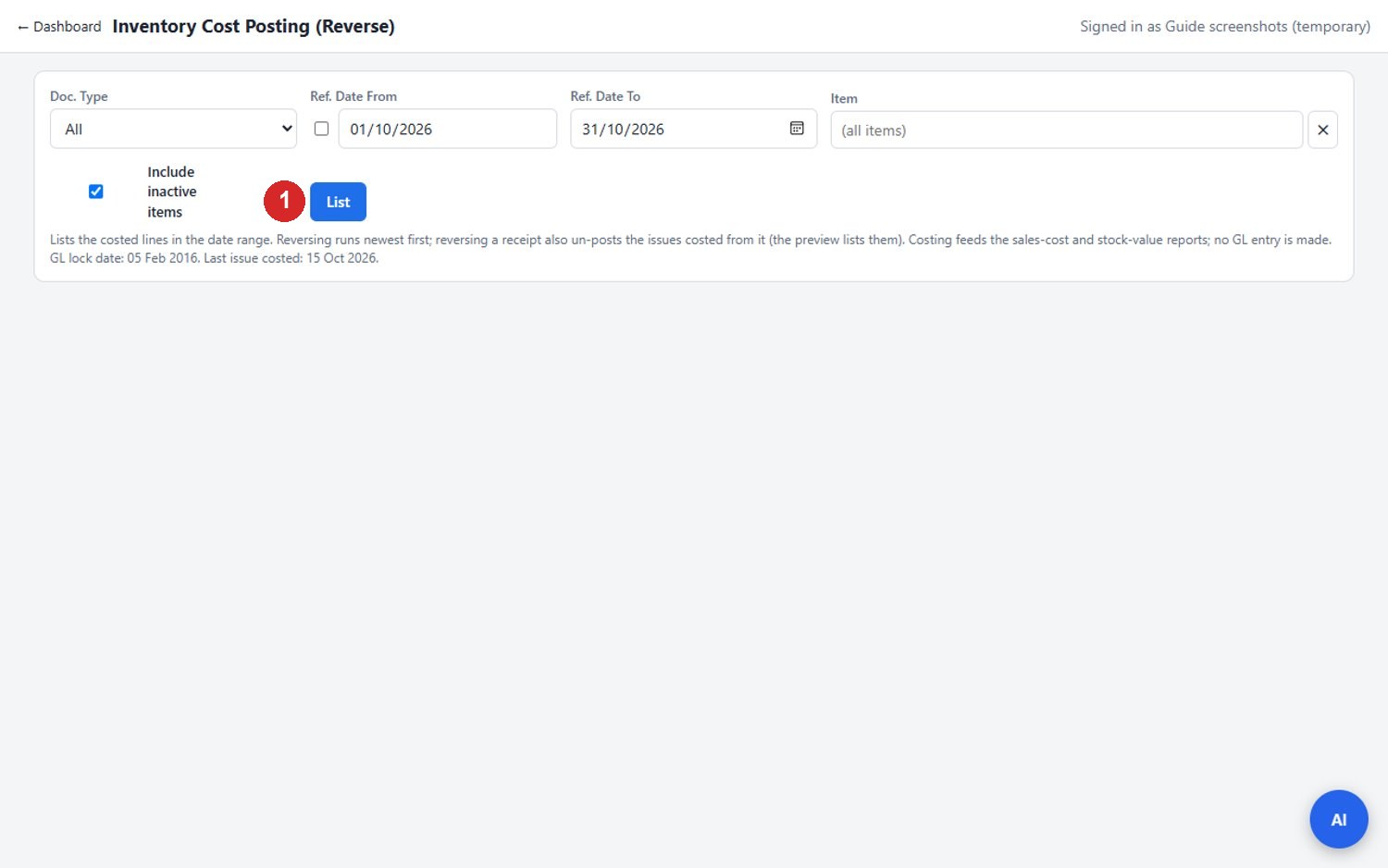
To undo it, click Inventory Cost Posting (Reverse) on the Inventory tab. The page works the same way, but lists the lines that are already costed. Then tick the lines, click Preview, then Reverse selected transaction.
| Step | What to do |
|---|---|
| 1 | Click List. |
Tips
- Costing feeds the sales-cost and stock-value reports. It does not make any general ledger entry.
- Reversing runs newest first. Reversing a receipt also un-posts the issues that were costed from it. The preview lists them under Also un-posts.
- If you change the selection after the preview, preview it again before you post.
- A date in a locked period asks you to confirm. Continue only if you are allowed to change that period.
Common problems
Enter [Ref. Date To].
Fill in Ref. Date To before you click List.
No transaction selected.
Tick at least one line before you click Preview or Post.
The selection changed: preview it again.
Click Preview again, then Post selected transaction.
Nothing to post for these criteria.
Every line in the range is already costed. Widen the dates or choose another Doc. Type.
Only the first lines are listed: narrow the criteria.
Use a shorter date range or one Item, and run it in parts.
You do not have access to this menu.
Your Synergy user has no permission for it. Ask your administrator.