
A Debit Note charges a customer something extra on top of an invoice already issued, for example an undercharge. It posts to the debtor like the Synergy desktop. This guide shows how to make one and how to share the extra charge over the lines of an invoice.
Before you start
- Sign in to Synergy Web Access as a user who may use Debit Note (under the Sales tab).
- Add permission for Debit Note. Posting needs its own permission.
Steps
1. Open the page
On the dashboard, open the Sales tab and click Debit Note. The list works as on the Sales Invoice page: search, or use the options and click Refresh, then click New.
2. Choose the customer
The name, address, registration details, Terms, Ship via and Currency are filled in.
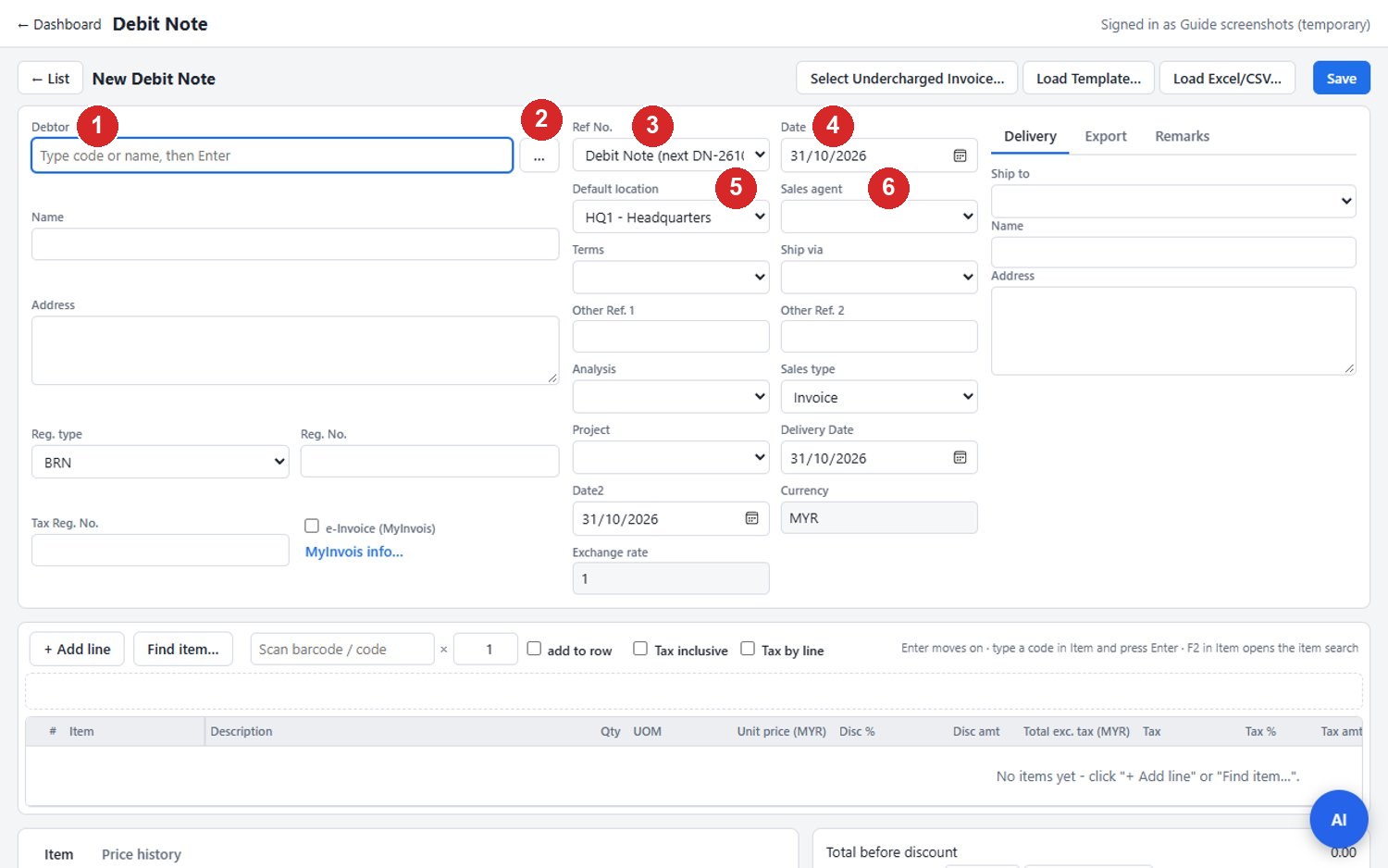
| Step | What to do |
|---|---|
| 1 | Under Debtor type the customer’s code or name and press Enter. |
| 2 | Or click … to look one up. |
| 3 | Check the Ref No. |
| 4 | Check the Date. |
| 5 | Check the Default location. |
| 6 | Check the Sales agent. |
3. Add the charge from an invoice
Click Select Undercharged Invoice. Tick the customer’s invoices in the list and click Show lines. Tick the invoice lines the charge belongs to. Invoice total shows the value of the ticked lines.
4. Type the extra amount
Type the Undercharged amount, or the percentage in the box next to it. The two follow each other. The amount is shared over the ticked lines by their value. Click Load to add the lines to the debit note.
5. Or add lines yourself
You can also add lines with + Add line or Find item, or copy them with Load Template or Load Excel/CSV. Check Qty, Unit price, Tax and the Net amount.
6. Delivery and e-invoice
The Delivery tab holds the Ship to address. Tick e-Invoice (MyInvois) and click MyInvois info when the customer needs an e-invoice.
7. Save, post and print
Click Save. Click Post and confirm Do you want to Post this transaction? (the button then says Unpost). Click Print for the PDF.
Tips
- Only the chosen customer’s invoices are listed. Choose the Debtor first.
- Delete removes a saved debit note after you confirm.
- A saved debit note can also have a Packing List button, as on the Sales Invoice page.
Common problems
[Debtor Code] is required.
Choose the Debtor before you click Select Undercharged Invoice.
Enter the undercharged amount.
Type an amount more than zero before you click Load.
Tick the invoice lines first.
Tick at least one invoice line in the list before you click Load.
Please save this transaction first.
Click Save, then Post or Print again.
A supervisor permission box appears.
The action needs a supervisor. Type the supervisor’s user name and password, or ask your supervisor.