
The Debtors & Creditors page is the web version of the debtor and creditor masterfile: addresses, credit control, shipping addresses, self billing and SST exemptions. This guide shows how to add a debtor and what each tab holds.
Before you start
- Sign in to Synergy Web Access as a user who may use Debtors & Creditors (under the Sales tab).
- Permission to add or edit debtors or creditors in Synergy.
Steps
1. Open the page
On the dashboard, open the Sales tab and click Debtors & Creditors. Choose Debtors or Creditor on the left. The list shows the debtors or creditors; type in the search box and click Search to find one.
2. Start a new debtor
Click New.
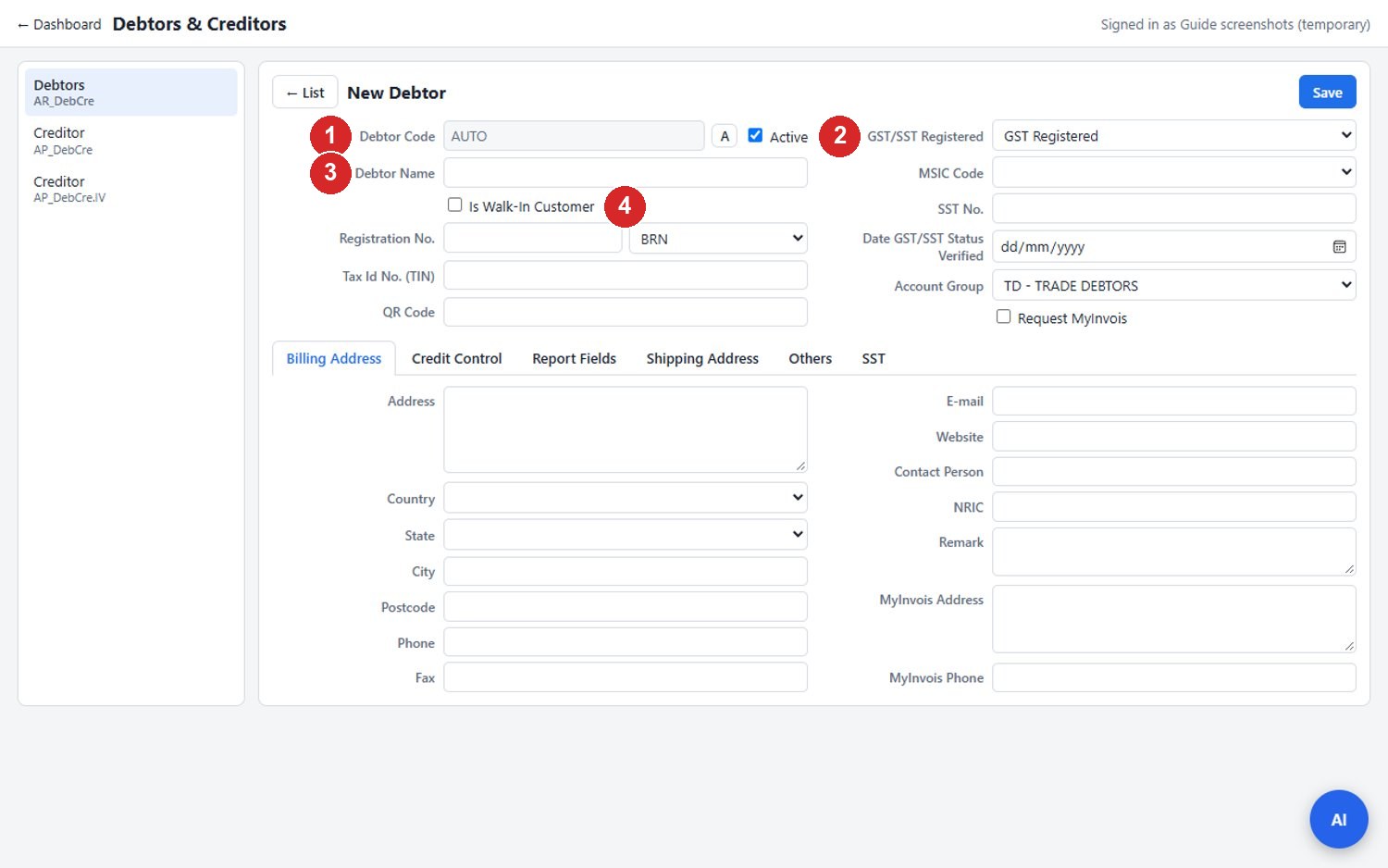
| Step | What to do |
|---|---|
| 1 | The Debtor Code shows AUTO, so a code is given when you save. |
| 2 | Keep Active ticked. |
| 3 | Type the Debtor Name. |
| 4 | Tick Is Walk-In Customer for walk-in customers. |
3. Fill in the registration details
Type the Registration No. and choose its type, then the Tax Id No. (TIN) and the QR Code. Choose the GST/SST Registered status, the MSIC Code, the SST No. and the Account Group. Tick Request MyInvois when the customer needs e-invoices. For a creditor the box is Self Bill, with Consolidate Self Bill next to it.
4. Billing address
On the Billing Address tab (Mailing Address for a creditor) type the Address and choose the Country and State. Fill in City, Postcode, Phone, Fax, E-mail, Website, Contact Person and Remark.
5. Credit control
On Credit Control choose the Currency (it cannot be changed once there are transactions), the Credit Limit, Credit Term and Ship Via. Basic Price Group, Advance Price Type and Rate Group set the prices the customer gets. A creditor also has Bank Account.
6. Report fields and others
Report Fields holds the Debtor Type, Debtor Category, Area, Salesperson (Purchaser for a creditor), Corporate and how the statement is sent: Mail, E-mail or Fax. Others holds the Debtor Flag.
7. Shipping addresses
On Shipping Address the table lists Default, Code, Name, Address, State and Active. Use the Add button to add an address. Without one the page says No shipping address found.
8. Self billing and SST
A creditor has a Self Billing tab: Approval No., Valid From, Valid Till and the Invoice No. series. On the SST tab type the Exemption Cert. No. and add the Exemptions (Tariff Code and Exemption Tax Code).
9. Save
Click Save. The page says Saved with the code. If something on a tab is wrong, the page opens that tab and tells you.
Tips
- Contract shows the debtor’s contracts. They are added and changed on the Debtor Contract page.
- Delete removes a record after you confirm.
- Debtor types, categories, areas, terms and the other lists are kept on the Ledger Setup page.
Common problems
A supervisor permission box appears.
The action needs a supervisor. Type the supervisor’s user name and password, or ask your supervisor.
The Currency cannot be changed.
The debtor or creditor already has transactions, so its currency is fixed.
You do not have access to this menu.
Your Synergy user has no permission for it. Ask your administrator.