
The Fixed Asset page keeps your fixed assets with their depreciation schedules, records disposals and posts the yearly or monthly depreciation to the general ledger. This guide shows how to add an asset, post depreciation and dispose of an asset.
Before you start
- Sign in to Synergy Web Access as a user who may use Fixed Asset (under the Receipt & Payment tab).
- The general ledger accounts for the asset: Fixed Asset Account, Accumulated Depreciation, Depreciation Expenses, and the Gain and Loss Accounts.
Steps
1. Open the page
On the dashboard, open the Receipt & Payment tab and click Fixed Asset. The tabs at the top are the ones you may use: Masterfile, Disposal and Depreciation Posting.
2. Add an asset
On Masterfile click New.
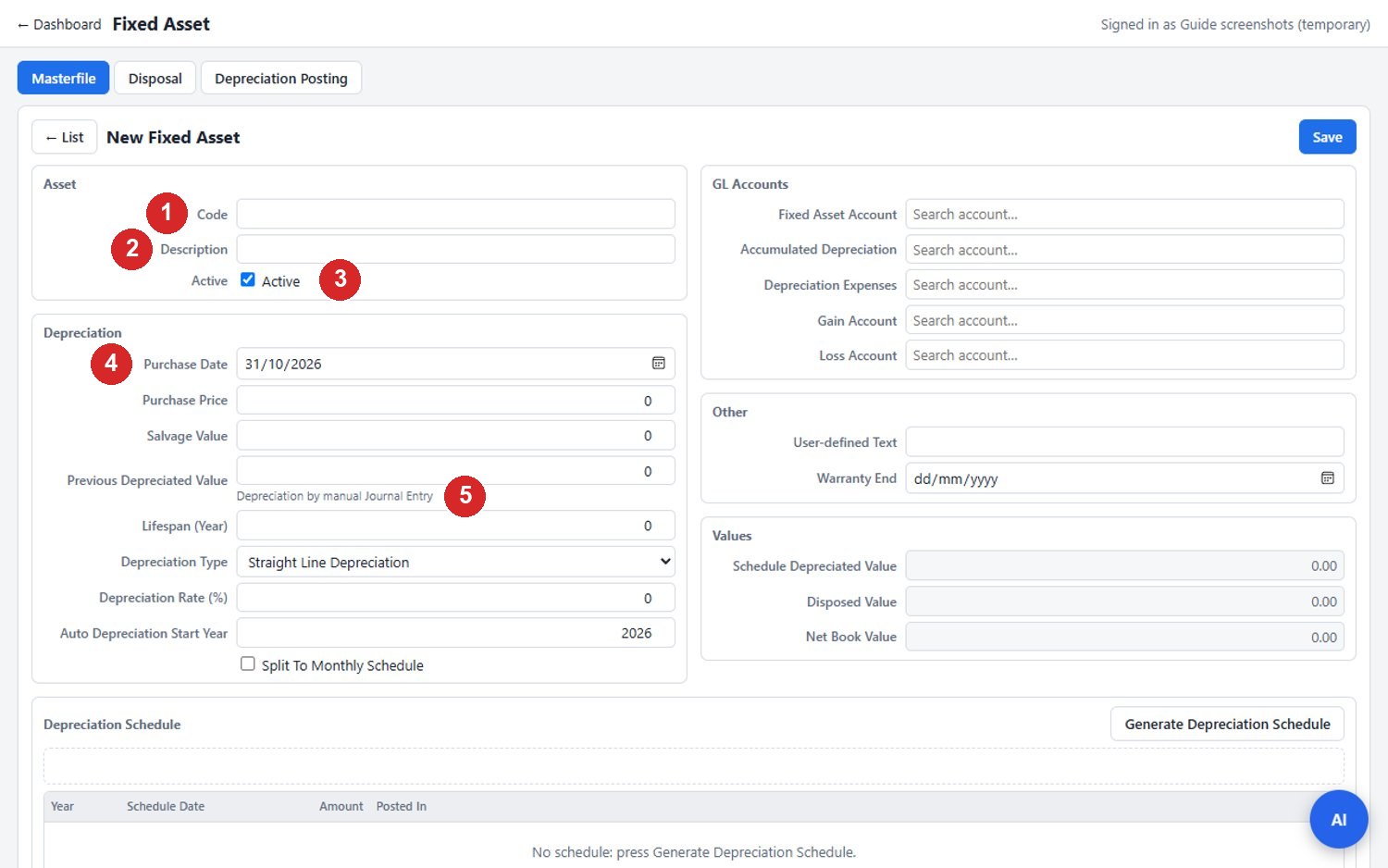
| Step | What to do |
|---|---|
| 1 | Type the Code. |
| 2 | Type the Description. |
| 3 | Keep Active ticked. |
| 4 | Fill in the Purchase Date, Purchase Price, Salvage Value and Previous Depreciated Value. |
| 5 | Tick Depreciation by manual Journal Entry if the depreciation is done by manual journal entry. |
3. Set the depreciation
Type the Lifespan (Year), choose the Depreciation Type and type the Depreciation Rate (%). Straight line depreciates to the salvage value each year, and reducing balance works out the rate again on what is left each year. The year of purchase counts from the purchase month. Set the Auto Depreciation Start Year, and tick Split To Monthly Schedule for a monthly schedule.
4. Choose the accounts
Under GL Accounts search and choose the Fixed Asset Account, Accumulated Depreciation, Depreciation Expenses, Gain Account and Loss Account.
5. Make the schedule and save
Click Generate Depreciation Schedule and check the rows. Then click Save. If you change the depreciation values after making the schedule, click Generate Depreciation Schedule again before you save. Once depreciation has been posted, the schedule can no longer be changed.
6. Post the depreciation
On Depreciation Posting, Post tab. One GL journal is made for the ticked assets: Dr Depreciation Expenses, Cr Accumulated Depreciation. Grey rows cannot be posted, and the reason is shown.
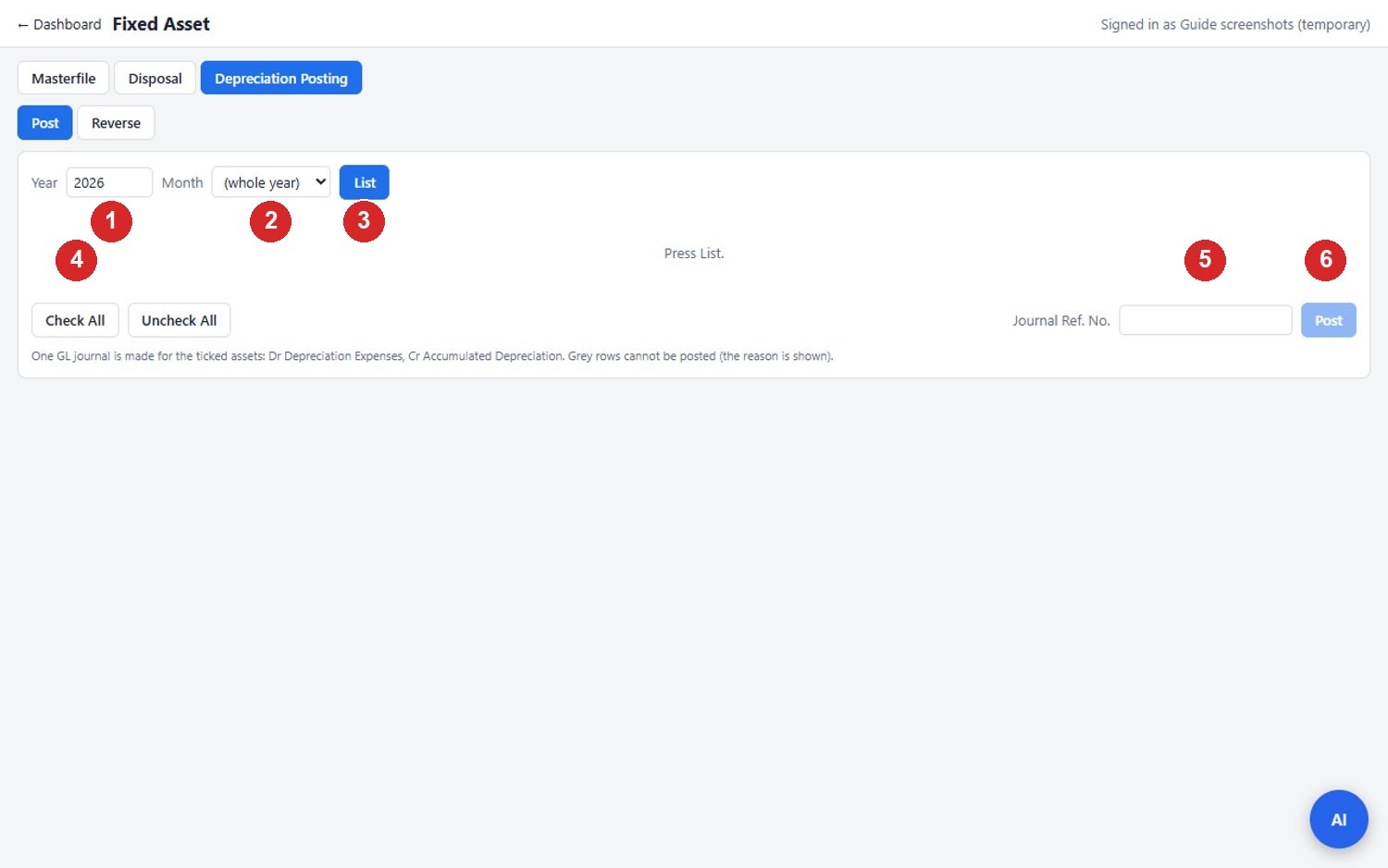
| Step | What to do |
|---|---|
| 1 | Choose the Year. |
| 2 | Choose the Month (or the whole year). |
| 3 | Click List. |
| 4 | Click Check All or tick the assets. |
| 5 | Type the Journal Ref. No. |
| 6 | Click Post. |
7. Undo a posting
On the Reverse tab choose the Year, click List, tick the journals and click Reverse Selected. Reversing deletes all the double-entries of the journal and frees its schedule rows to be posted again.
8. Dispose of an asset
On the Disposal tab click New. Type the Ref. No. and Ref. Date, choose the Asset Code and the Dispose Type, and fill in the sale details (Invoice/Bill Ref. No., Sold To, Price Sold, Tax Amount) when it was sold. Click Save and confirm. Saving posts the disposal to the GL.
Tips
- The page shows the Schedule Depreciated Value, Disposed Value and Net Book Value of the asset.
- Deleting a disposal also removes its GL journal, after you confirm.
- Delete on an asset asks you to confirm Delete fixed asset …?
Common problems
Scheduled depreciation already generated. Not allowed to change schedule now.
Depreciation has been posted for the asset, so its schedule is fixed.
The depreciation values changed after the schedule was made: press Generate Depreciation Schedule again before saving.
Click Generate Depreciation Schedule, then Save.
[Journal Ref. No.] is required.
Type the Journal Ref. No. before you click Post.
You do not have access to any Fixed Asset menu.
Your Synergy user has no permission for it. Ask your administrator.