
The Item Import page adds or updates many items from an Excel or CSV file. You choose the location, costing method and default unit, read the file, check the rows and import. This is the web version of the Item Masterfile Import Utility.
Before you start
- Sign in to Synergy Web Access as a user who may use Item Import (under the Inventory tab).
- An Excel (.xlsx, .xls) or CSV file whose first row holds the column names.
Steps
1. Open the page
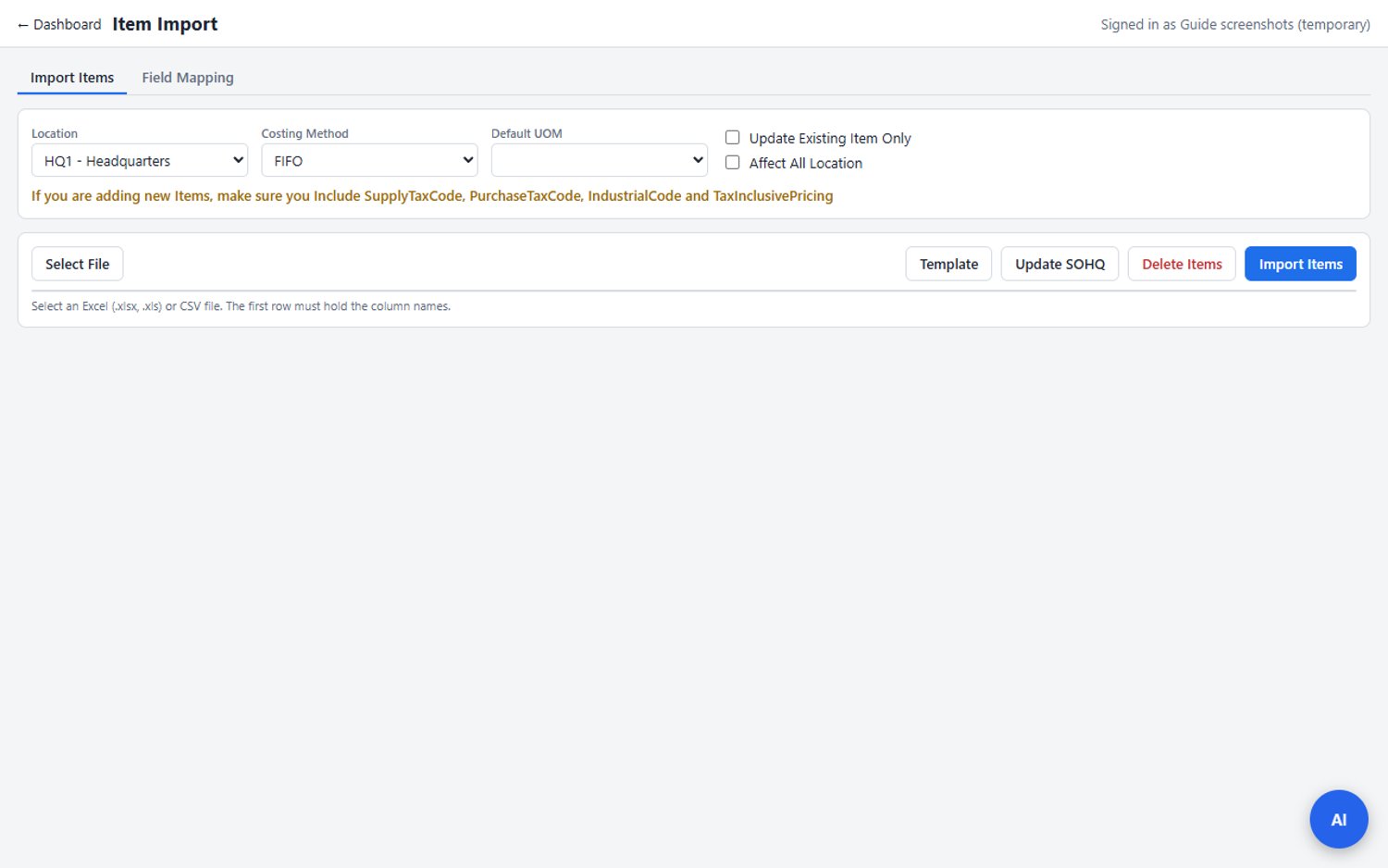
On the dashboard, open the Inventory tab and click Item Import. It has two tabs: Import Items and Field Mapping.
2. Get the template
Click Template to download a CSV that has every column name the import knows. Fill it in, or compare it with your own file. If you are adding new items, include SupplyTaxCode, PurchaseTaxCode, IndustrialCode and TaxInclusivePricing.
3. Choose the settings
Choose the Location and the Costing Method (FIFO is chosen to start with). Choose the Default UOM. It is needed when the file has no UOM column, or when some rows have no UOM. Tick Update Existing Item Only to change items that already exist and add none. Tick Affect All Location to apply the change to every location.
4. Read the file
Click Select File and choose the file. The rows are shown in the grid. Columns that are not item fields are listed as Not imported. Click the cross at the start of a row to leave that row out.
5. Check the field names
If your file uses other column names, open the Field Mapping tab. For each field, type the Excel column names that mean it, separated by commas, and click Save. The saved mapping is used for the next file. Load brings back a saved Mapping File.
6. Import
Click Import Items and confirm Do you want to import the data? The page shows the result when it finishes.
7. Other buttons
Update SOHQ recalculates the stock on hand of every item and can take a while. Delete Items deletes the items whose codes are in the file. Items already used in transactions are skipped.
Tips
- Try a small file first, with Update Existing Item Only ticked, to see the result.
- Delete Items asks Do you want to purge the items? and tells you how many codes will be deleted before it goes ahead.
- To add or edit a single item, use the Item page.
Common problems
Select a file to import first.
Click Select File and choose the file.
[Location] is required.
Choose the Location.
[Costing Method] is required.
Choose the Costing Method.
[Default UOM] is required.
Choose a Default UOM, because the file has no UOM column or some rows have no UOM.
The file could not be read.
Check that it is an .xlsx, .xls or .csv file with the column names in the first row.