
Items in Synergy exist per location. This page copies the item list of one location to other locations in one go, or removes the items a location never used. This guide shows both tabs.
Before you start
- Sign in to Synergy Web Access as a user who may use Add / Remove Items From Locations (under the Inventory tab).
- Know which location the items should be copied from. Removing items can only be done by an administrator.
Steps
1. Open the page
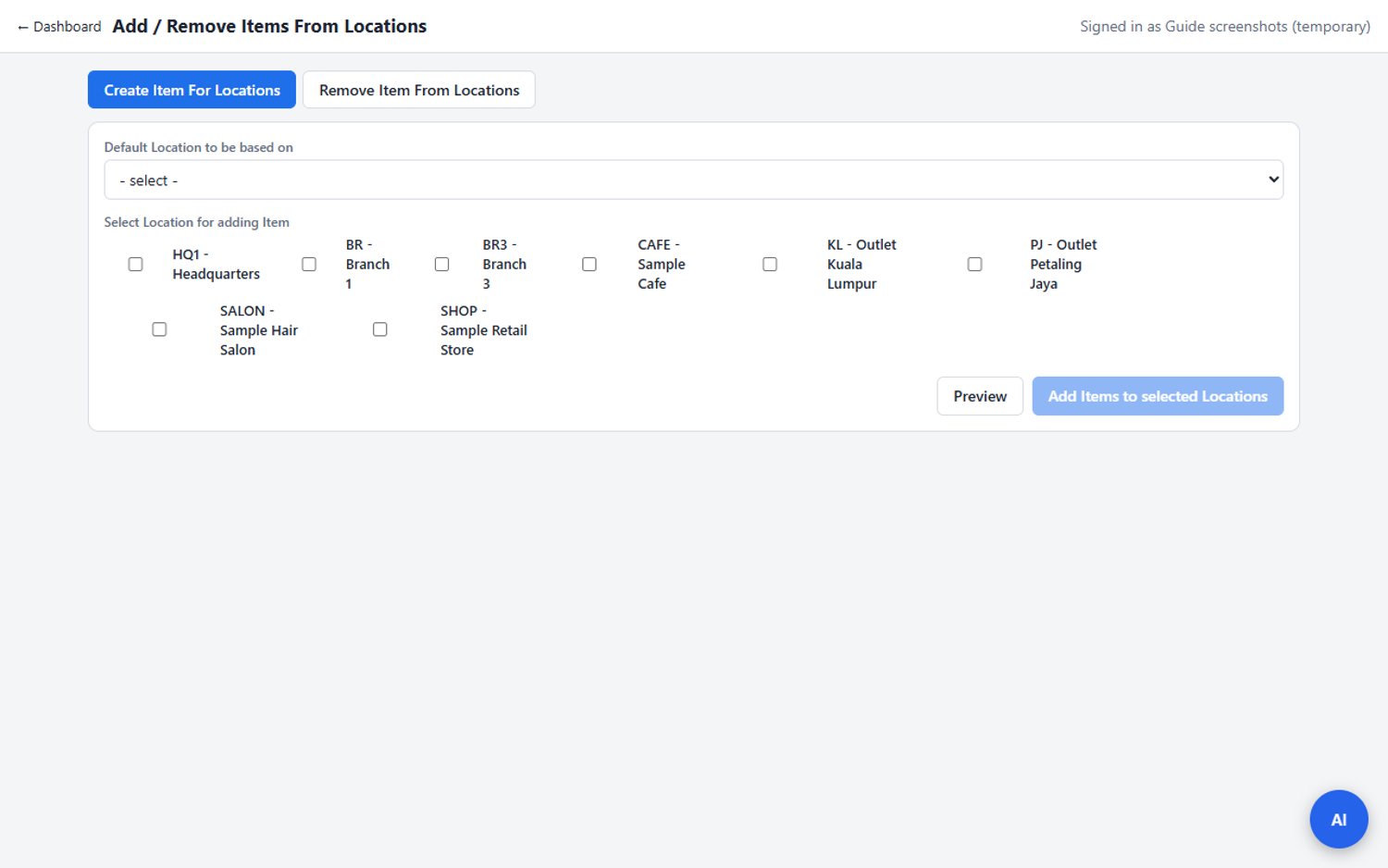
On the dashboard, open the Inventory tab and click Add / Remove Items From Locations. The Create Item For Locations tab is shown first.
2. Choose the source and targets
In Default Location to be based on choose the location whose items you want to copy. Under Select Location for adding Item tick the locations that should get those items. The default location itself is not in the list of targets.
3. Preview
Click Preview. For each location the page says how many items will be added, with a short sample list. Nothing is changed yet.
4. Add the items
Click Add Items to selected Locations and confirm Do you want to Add Items to selected Locations? The page says Done and names the locations.
5. Open the Remove tab
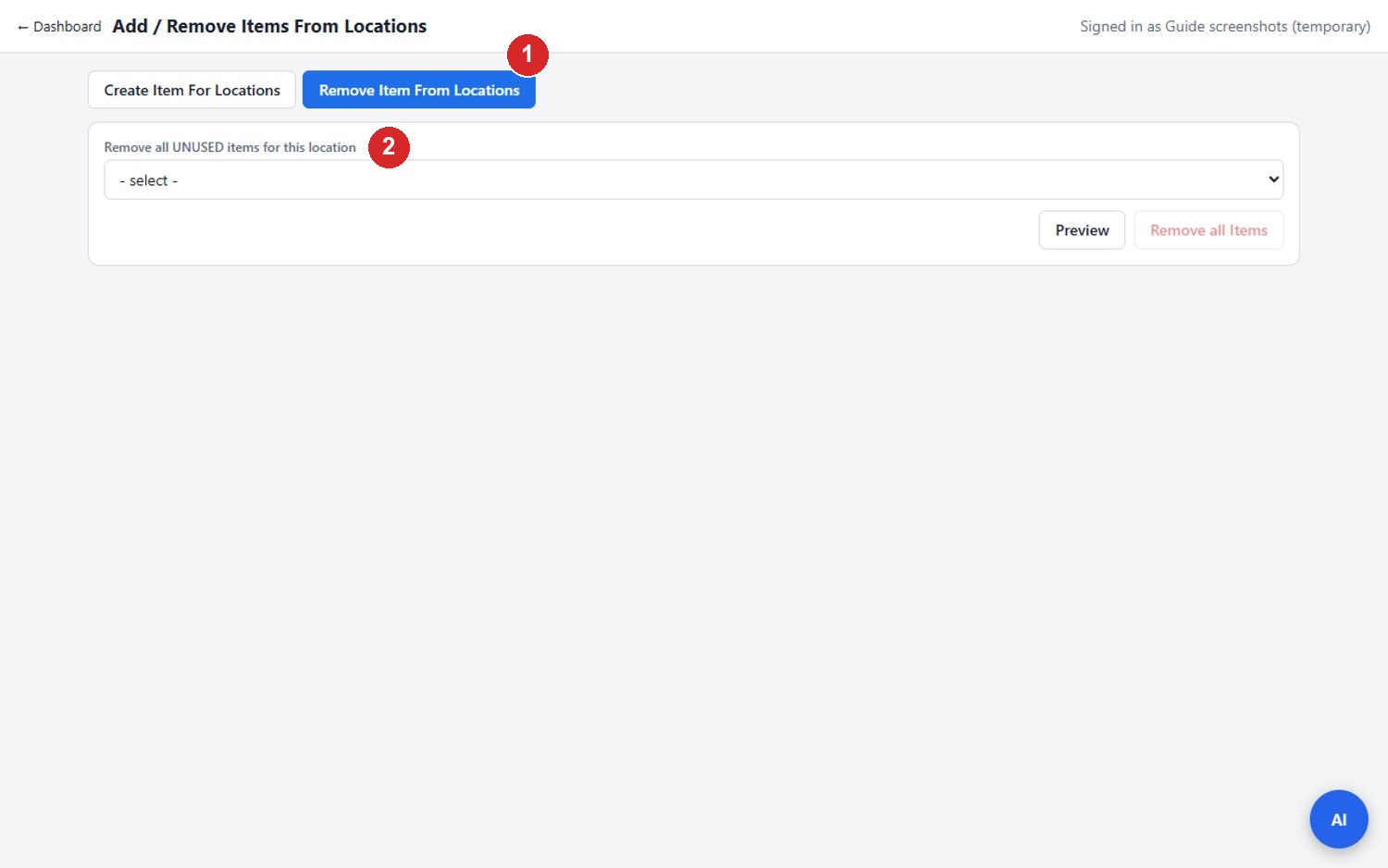
To clear out unused items, use the Remove tab.
| Step | What to do |
|---|---|
| 1 | Click Remove Item From Locations. |
| 2 | In Remove all UNUSED items for this location choose the location. |
6. Preview the removal
Click Preview. The page says how many unused item records would be removed and shows a sample. It also lists any item that has no other location, because removing that record would delete the item itself.
7. Remove
Click Remove all Items and read the warning. Click OK to go on. The page says how many unused records were removed from the location.
Tips
- The Preview shows how many items each location would get before anything is added.
- Only unused items are removed. The Preview shows how many before anything is removed.
- If you already send items to your branches, removing items can cause problems with the branch transactions later. Ask Synergy before you remove.
Common problems
The default location cannot also be a location to add to.
Untick the default location in the list of targets.
Select the locations to add the items to.
Tick at least one location under Select Location for adding Item.
Nothing to remove: every item at this location is used.
The location has no unused items, so there is nothing to remove.
Only an administrator can remove items from a location.
Ask an administrator to do the removal.
Items are sent to branches from this company: removing items from a location needs the desktop app.
Removal is switched off on the web for companies that send items to branches. Contact Synergy and have your company name and the location code ready.
You do not have access to this utility.
Your Synergy user has no permission for it. Ask your administrator.