
The Late Payment Interest page works out the interest on overdue debtor invoices and posts one interest invoice for each debtor. A second tab reverses interest invoices made by mistake. This guide shows both.
Before you start
- Sign in to Synergy Web Access as a user who may use Late Payment Interest (under the Receipt & Payment tab).
- Decide the interest rate, the grace period and which debtors to charge.
Steps
1. Open the page
On the dashboard, open the Receipt & Payment tab and click Late Payment Interest. The Generate Interest tab is shown first.
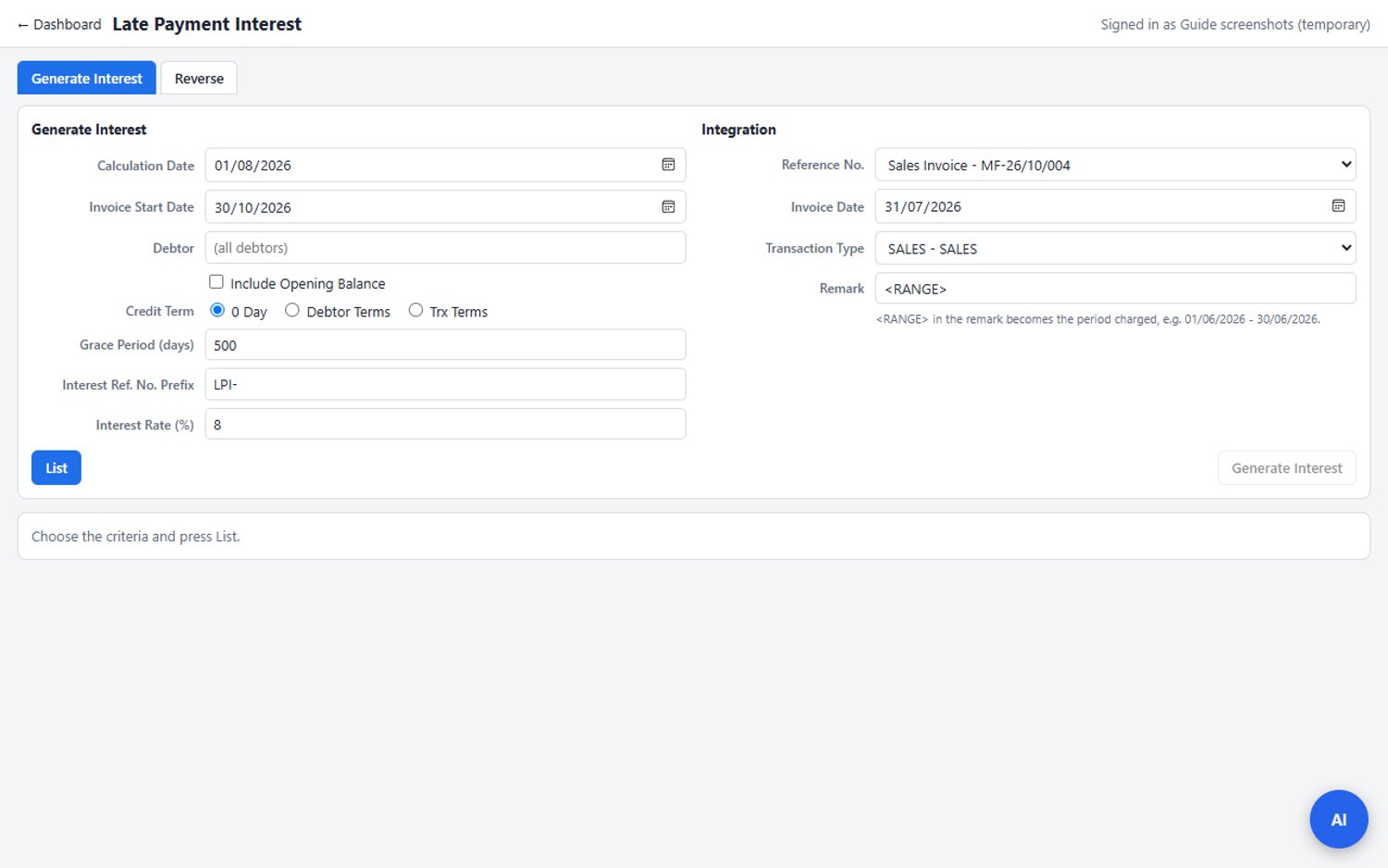
2. Set the dates and debtor
Under Generate Interest set the Calculation Date and the Invoice Start Date. Some companies see Charge Period From and To, and Invoice Date From and Until instead. Leave Debtor as (all debtors) or pick one. Tick Include Opening Balance if opening balances should be charged too.
3. Set the terms
Choose the Credit Term: 0 Day, Debtor Terms or Trx Terms. Type the Grace Period (days), the Interest Ref. No. Prefix and the Interest Rate (%).
4. Set the interest invoice
Under Integration choose the Reference No. numbering, the Invoice Date and the Transaction Type. Type the Remark.
5. List the interest
Click List. The page shows each overdue invoice with its Due Amount, Credit Term, Due Days and Interest, and the number of rows, the debtors and the total interest above them. Debtors that were left out or already charged this month are listed below the buttons.
6. Generate the invoices
Click Generate Interest and confirm Do you want to generate the selected Interest Charges? The page says how many interest charges were posted, and lists any it did not post and why.
7. Reverse interest invoices
To undo a run, use the Reverse tab. After List, tick the interest invoices to reverse. After Reverse, confirm Do you want to Reverse the selected transactions? The page says how many records were reversed.
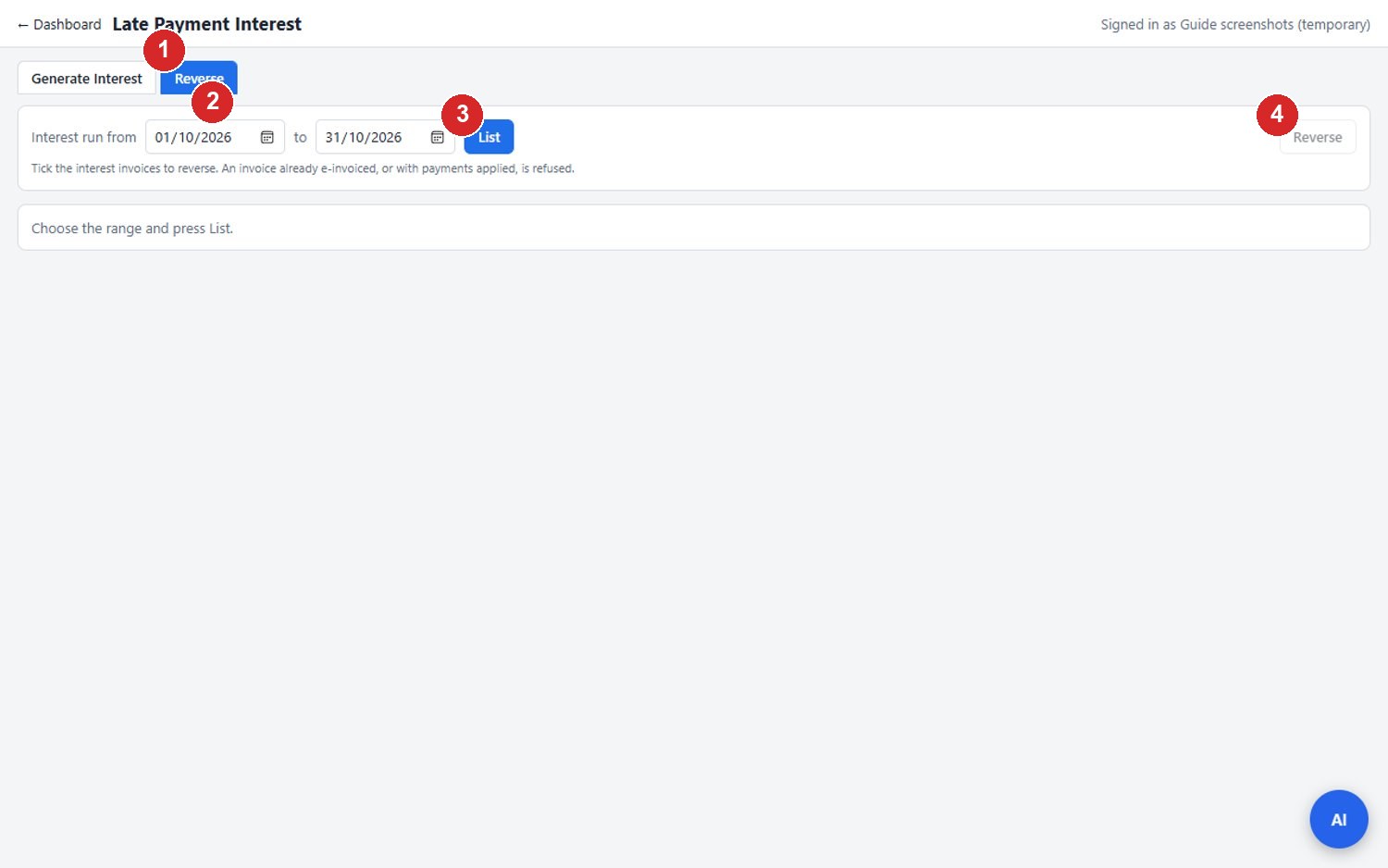
| Step | What to do |
|---|---|
| 1 | Click the Reverse tab. |
| 2 | Set Interest run from and to. |
| 3 | Click List. |
| 4 | Click Reverse. |
Tips
- Debtors in a foreign currency are left out of the run, and the page tells you which.
- An interest invoice that was already sent as an e-invoice, or has payments applied, cannot be reversed.
- A debtor already charged for the month is refused. The page lists them before you generate.
Common problems
Please select an Auto-Reference number.
Choose a Reference No. numbering under Integration.
Transaction Type is required.
Choose a Transaction Type under Integration.
Remark is required.
Type a Remark under Integration.
Late Payment Invoice Date is older date than the Outstanding Invoice date. Continue if this is intended.
Check the Invoice Date. Click Yes only if the date is what you want.
No Invoice selected.
Nothing is overdue for these criteria. Change the dates, grace period or debtor and click List again.
Please tick the interest invoices to reverse.
Tick at least one invoice on the Reverse tab before you click Reverse.