
The Ledger Queries page answers the usual debtor and creditor questions: how old a debtor’s balance is, which invoices are overdue, what was sold, and the full transaction history. This guide shows each tab.
Before you start
- Sign in to Synergy Web Access as a user who may use Ledger Queries (under the Receipt & Payment tab).
- Each tab needs its own permission in Synergy. You only see the tabs you may use.
Steps
1. Open the page
On the dashboard, open the Receipt & Payment tab and click Ledger Queries. The tabs are at the top: Debtor Ageing, Due Invoice Query, Sales Query, Transaction History (Debtors) and Transaction History (Creditors).
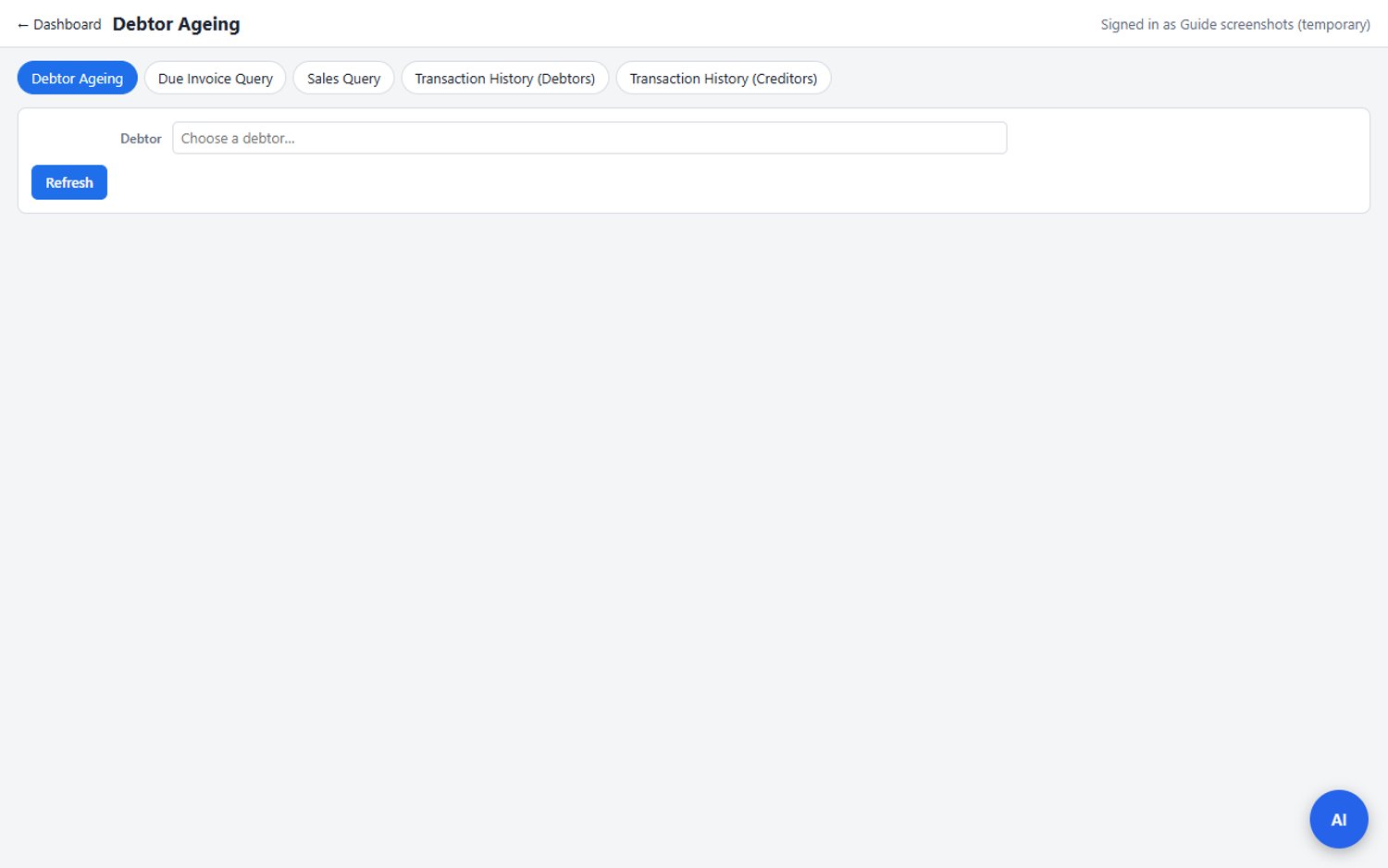
2. Debtor Ageing
On Debtor Ageing choose the debtor in the Debtor box and click Refresh. The page shows the balance split into Current, 30 Days, 60 Days, 90 Days and 120 Days (or months, depending on the debtor), and the Total. Below are Open Credit, Credit Limit, Credit Period, Credit Term, A/C Group, Tel, Remark and Total Amount On Credit.
3. See what is still pending
Next to Sales Pending Posting, D/O Pending Billing and S/O Pending Delivery click the … button to list those documents under the ageing.
4. Due Invoice Query
Type the Due Days. Tick Add Credit Period or Add Grace Period if the days should be counted after them, then click List. It lists unpaid sales invoices, debit notes and journal debits older than that, with Days Old, Due Day and Due Amt.
5. Sales Query
Each row shows Sales Amt, Paid Amt, Unpaid Amt and Return Amt.
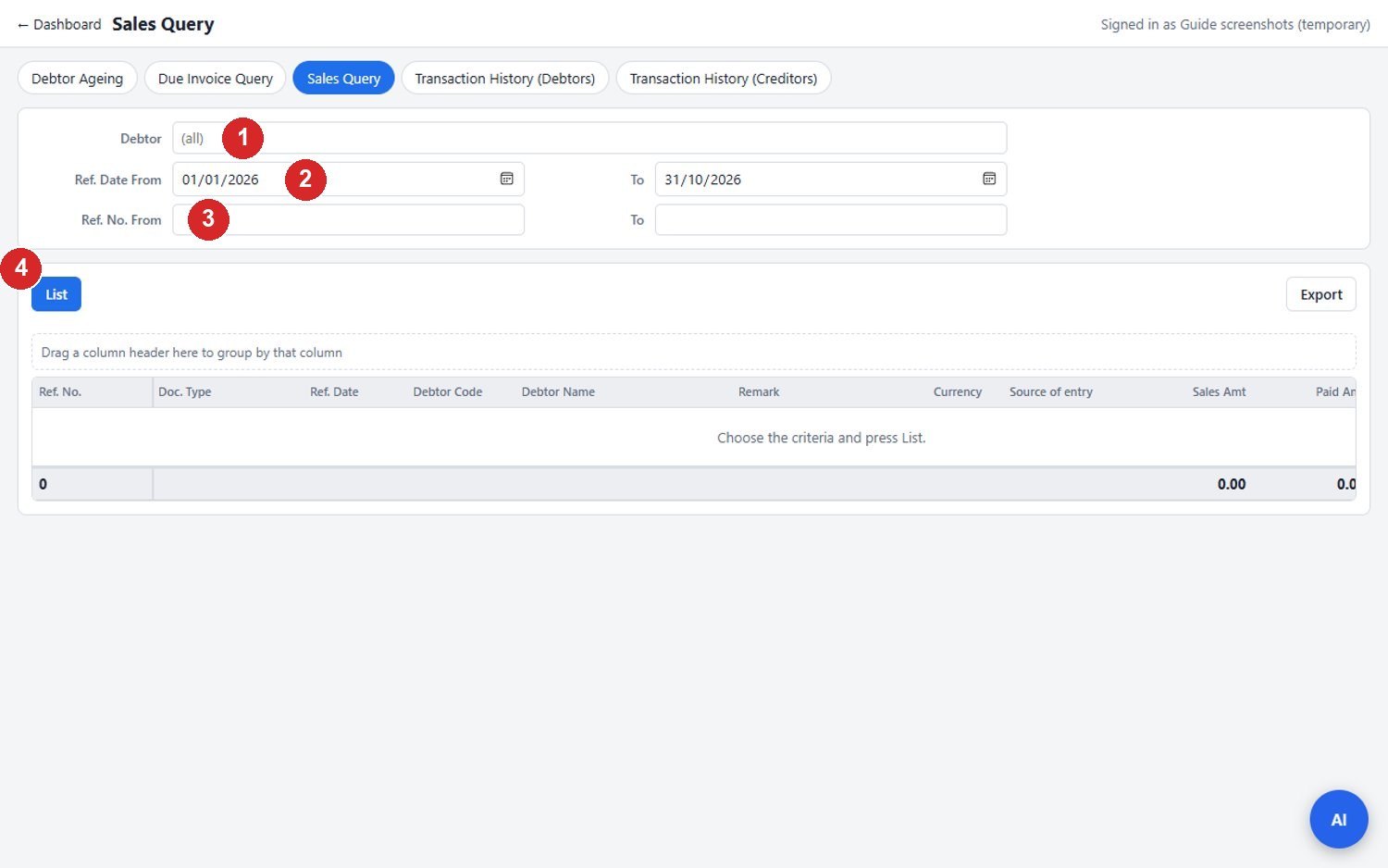
| Step | What to do |
|---|---|
| 1 | Choose a Debtor, or leave (all). |
| 2 | Set Ref. Date From and To. |
| 3 | Set the Ref. No. range if you need it. |
| 4 | Click List. |
6. Transaction History
On Transaction History (Debtors) or Transaction History (Creditors) fill in the options.
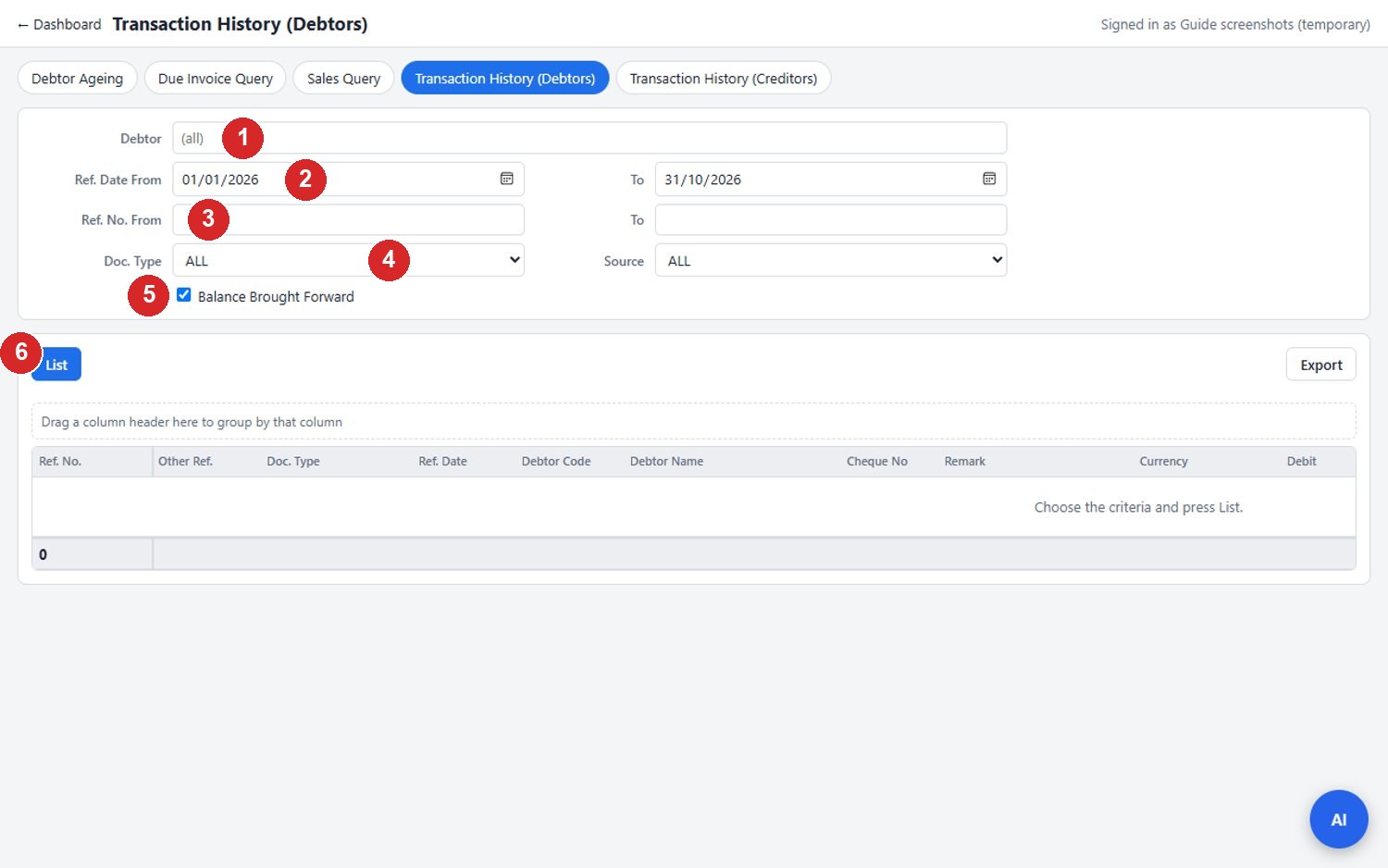
| Step | What to do |
|---|---|
| 1 | Choose the Debtor or Creditor. |
| 2 | Set the dates. |
| 3 | Set the Ref. No. range. |
| 4 | Choose a Doc. Type and a Source, or ALL. |
| 5 | Tick Balance Brought Forward to start from the balance before the first date. |
| 6 | Click List. |
7. Read the totals
Brought Forward, List Total and Grand Total are shown above the list, in your local currency, and in the account’s currency when you chose one debtor or creditor. Post-dated cheques are in grey and are not added to the totals.
8. Work with the list
Click a heading to sort. Drag a heading into the bar above the list to group by it. Click a row to open its document in a new tab. Click Export to save the rows as a CSV file for Excel.
Tips
- Click a row’s document and the page says Drill-down not supported for this Document Type. when that kind of document cannot be opened from here.
- When a list is very long the page says only the first rows are shown. Narrow the dates or choose one debtor.
- Debtor Ageing uses the debtor’s currency. Sales Query and the Due Invoice Query show local currency amounts.
Common problems
Choose a debtor.
On Debtor Ageing pick a debtor from the list before you click Refresh.
The ageing could not be read.
Choose the debtor again and click Refresh. If it stays, tell your Synergy administrator.
The query failed.
Check the dates and the Ref. No. range, then click List again.
You do not have access to any ledger query.
Your Synergy user has no permission for these tabs. Ask your administrator.