
With a network licence, Synergy counts how many people use each module at the same time, and the web counts in the same total as the desktop program. Every browser that signs in to Synergy Web takes its own seat in each module it opens. This guide shows how the seats are counted and how to give a seat back.
Before you start
- This applies to network licences only. A standalone licence is not counted.
- Each module (for example Sales and Purchases, Debtor Ledger) has its own number of seats, shared by the desktop program and the web.
- The dashboard and pages outside a module take no seat.
Steps
1. Know what takes a seat
Opening a page of a module takes one seat of that module. Each browser is counted on its own: the same user signed in on two browsers, or on a PC and a phone, takes two seats. The web next to the same person’s desktop program also takes a seat of its own. Ten people sharing one user from home take ten seats.
2. Sign out to give the seat back
When you finish, sign out. The seats of that browser are given back at once.

| Step | What to do |
|---|---|
| 1 | Click Sign out at the top right of the dashboard. |
3. A browser that is just closed
If you close the browser or leave it without signing out, its seats are given back 15 minutes after it was last used, the same as the desktop program. Until then they still count.
4. When all the seats are in use
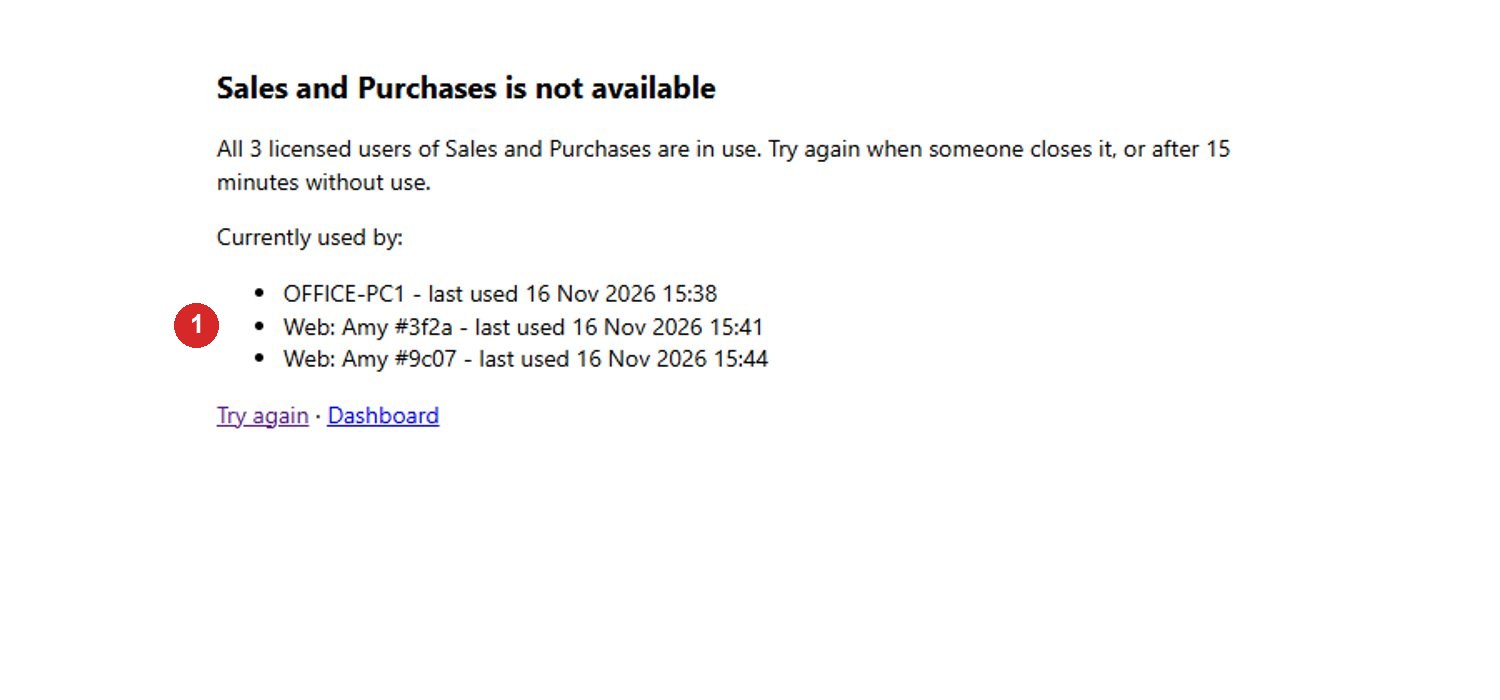
A page then shows that the module is not available, with the computers and browsers that use it and when each was last used. A browser shows as Web: user #code, so two browsers of one user are told apart.
| Step | What to do |
|---|---|
| 1 | Ask the person on the list to sign out, or wait 15 minutes after their last use, then click Try again. |
5. See who is using the seats
In the desktop program, Active Users lists everyone holding a seat, desktop and web. Web users show as Web: user #code with their IP address.
Tips
- Sign out on shared or public computers, and when you are done for the day.
- Use one browser at a time: every extra browser is another seat.
- Give each person their own user. A shared user does not save seats.
Common problems
“All N licensed users of … are in use”.
Every seat of that module is taken. Ask someone on the list to sign out or close the module, or wait 15 minutes after their last use, then click Try again.
I am counted twice.
You are signed in on two browsers (or on the desktop program and the web). Sign out of the one you do not need.
“The Synergy licence service is not running on the server”.
The Synergy service on the server PC must be running for any module to open. Start it, or ask your administrator.